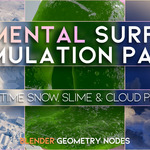
Elemental Surface Simulation Pack
 Blender Procedural


Documentation
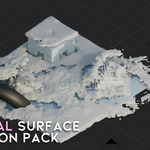
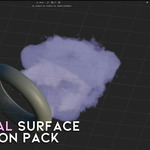
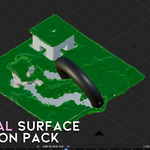
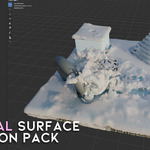
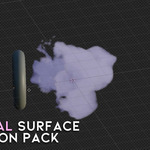
Elemental Surface Simulation Pack uses a simple Geometry Nodes modifier workflow. Each effect can be controlled directly from the modifier panel without opening the node editor.
Basic Setup
- Open the included Blender file or append the effect into your own scene.
- Select the object that contains the Geometry Nodes effect.
- Go to the Modifier Properties panel.
- Choose the effect node group: Ground_Effects_Snow, Ground_Effects_Slime, or Ground_Effects_Cloud.
- Assign your collision collection and effector collision object.
- Press Play on the timeline to preview the simulation.
Modifier Options
```- Collision Collection
Select the collection that contains the objects used for collision. Objects inside this collection will interact with the surface simulation. - Effector Collision Object
Choose the main object that pushes, cuts, moves, or interacts with the effect. This is useful for trails, holes, motion paths, and displacement-style interaction. - Voxel Size
Controls the resolution of the simulation surface. Lower values create more detail but can be slower. Higher values are faster but less detailed. - Band Width
Controls the thickness or range of the generated simulation area around the surface. Increase it for a wider effect area. - Offset Distance
Moves the effect slightly above or below the surface. Use this if the snow, slime, or cloud effect clips into the object. - Offset Noise
Adds procedural variation to the surface offset. This helps create a more natural, uneven, organic result. - Factor
Controls the overall strength or intensity of the effect. Use this to create subtle or stronger surface coverage. - Vector
Controls directional behavior of the simulation. This can influence movement, flow, or surface direction depending on the selected preset. - Scale
Adjusts the overall size of the procedural details. Lower values create smaller details, higher values create larger and smoother shapes. - Material
Assigns the material used by the generated effect. You can use the included procedural material or replace it with your own snow, slime, or cloud material.
Snow Effect Tips
- Use a smaller Voxel Size for detailed snow edges and soft surface breakup.
- Increase Offset Noise to make the snow look more natural and uneven.
- Use Offset Distance if the snow appears inside the ground or object.
- For faster preview, increase the Voxel Size while working, then lower it before final render.
Slime Effect Tips
- Use a higher Factor value for thicker slime coverage.
- Adjust Scale to create larger gooey shapes or smaller organic details.
- Use the Effector Collision Object to create slime trails and pushed areas.
- Replace the material with a glossy or translucent material for a wet slime look.
Cloud Effect Tips
- Increase Scale for larger soft cloud forms.
- Use Offset Noise to make the cloud shape less uniform.
- Use a soft transparent or volumetric-style material for a better cloud result.
- Keep the geometry lighter for better real-time playback.
Collision Workflow
- Create or select the objects you want to use as collision objects.
- Place them inside a collision collection.
- Assign that collection to the Collision Collection field.
- Select the main moving object in the Effector Collision Object field.
- Animate the collision object or move it through the effect area.
- Play the timeline to see the surface simulation react.
Performance Tips
- Use higher Voxel Size values for faster viewport performance.
- Keep collision objects simple when possible.
- Hide unnecessary objects while previewing the simulation.
- Use lower quality settings while animating, then increase detail for final render.
- Apply object scale if the effect size looks incorrect.
Recommended Workflow
- Start with the default preset values.
- Set your collision collection.
- Choose your effector collision object.
- Adjust Voxel Size for performance/detail balance.
- Use Offset Distance to fix surface clipping.
- Use Offset Noise, Factor, and Scale to art-direct the final look.
FAQ
``` Does this require an addon installation?
No. This pack uses Geometry Nodes. You can use the included Blender file or append the node groups into your own project.
Why is the effect slow in the viewport?
Lower voxel sizes create more detail and can be heavier. Increase the Voxel Size value for faster preview.
Why is the effect clipping into my object?
Adjust the Offset Distance value until the effect sits correctly on the surface.
Can I use my own material?
Yes. Use the Material slot in the modifier to assign your own snow, slime, or cloud material.
Can I animate the collision object?
Yes. You can animate the effector object and preview the interaction by playing the timeline.
Have questions about this product?
Login to message
| Dev Fund Contributor | |
| Published | 3 months ago |
| Blender Version | 4.5 - 5.2 |
| Render Engine Used | Cycles, Eevee |
| License | Royalty Free |
Discover more products like this
blender blender snow effect blender slime effect blender simulation blender cloud effect geometry nodes simulation geometry nodes Blender geometry nodes