Elements – Rain, Snow, Frost and Rust for Blender
 Nuriddin Khamidov
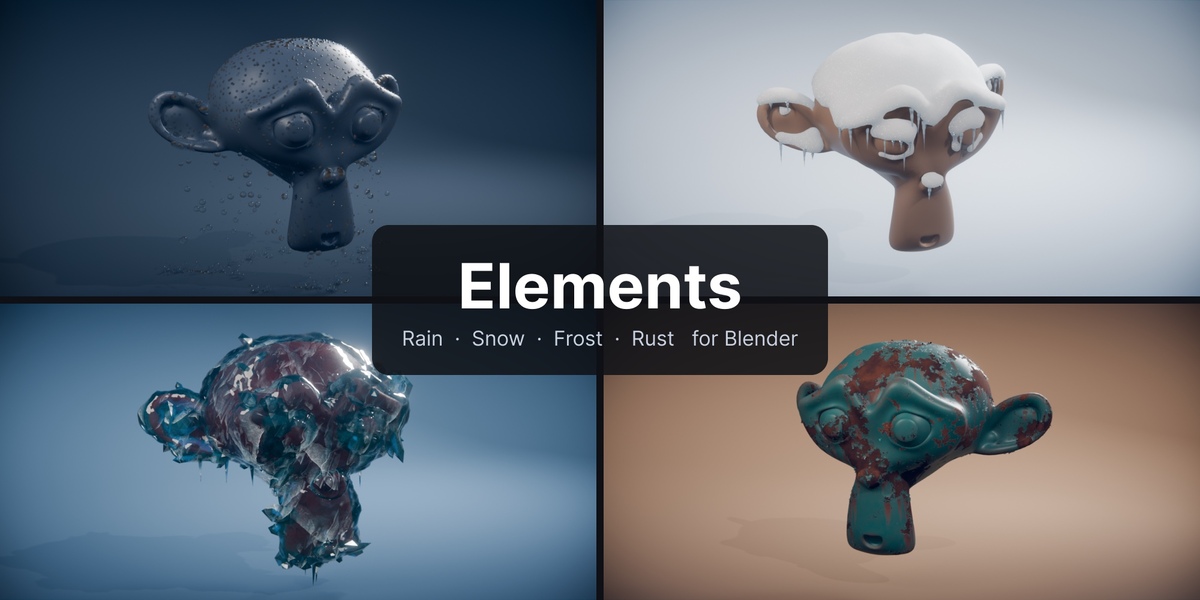


Install
Download Elements_1.4.0.zip. In Blender go to Edit > Preferences > Get Extensions, open the menu in the top right and choose Install from Disk, then pick the zip. You can also drag the zip into the Blender window. The tools are in the 3D Viewport sidebar (N key), tab Elements.
Rain Flow
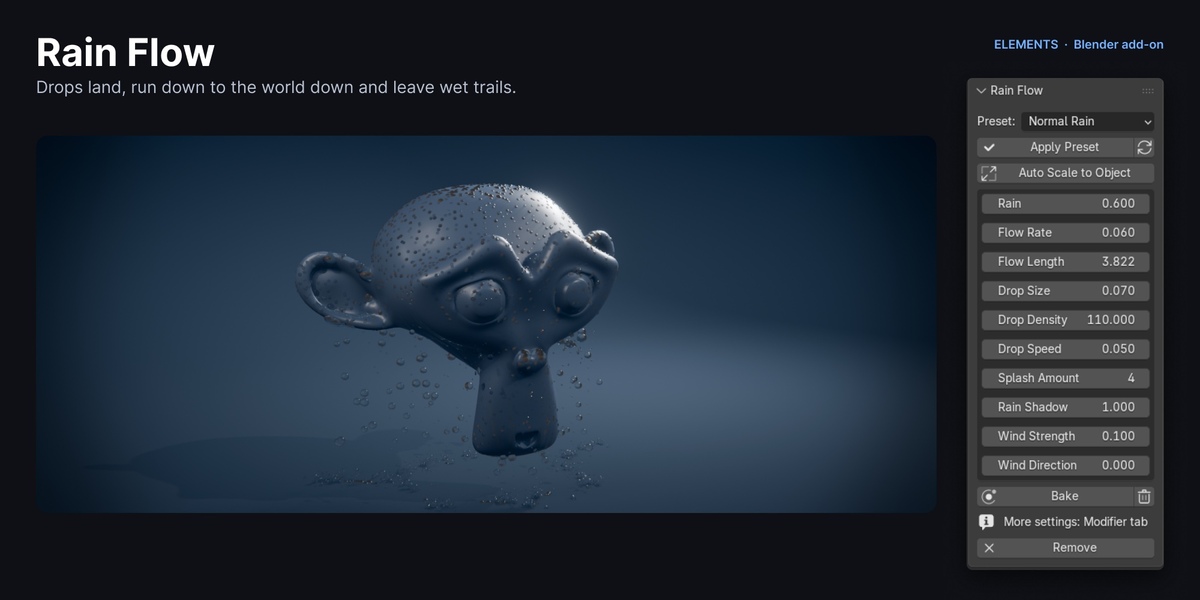
- Select a mesh and press Add Rain Flow.
- Pick a Preset and press Apply Preset. Auto Scale to Object fits drop size and speed to the object size.
- Press Play. It is a simulation, so it runs from the first frame. Restart Simulation starts it again after you change settings.
- Put the floor or other objects the drops should land on in the Catch Collection. Don't put the rain object itself there.
- Bake before a final render. More settings are in the Modifier tab.
Rain Glass
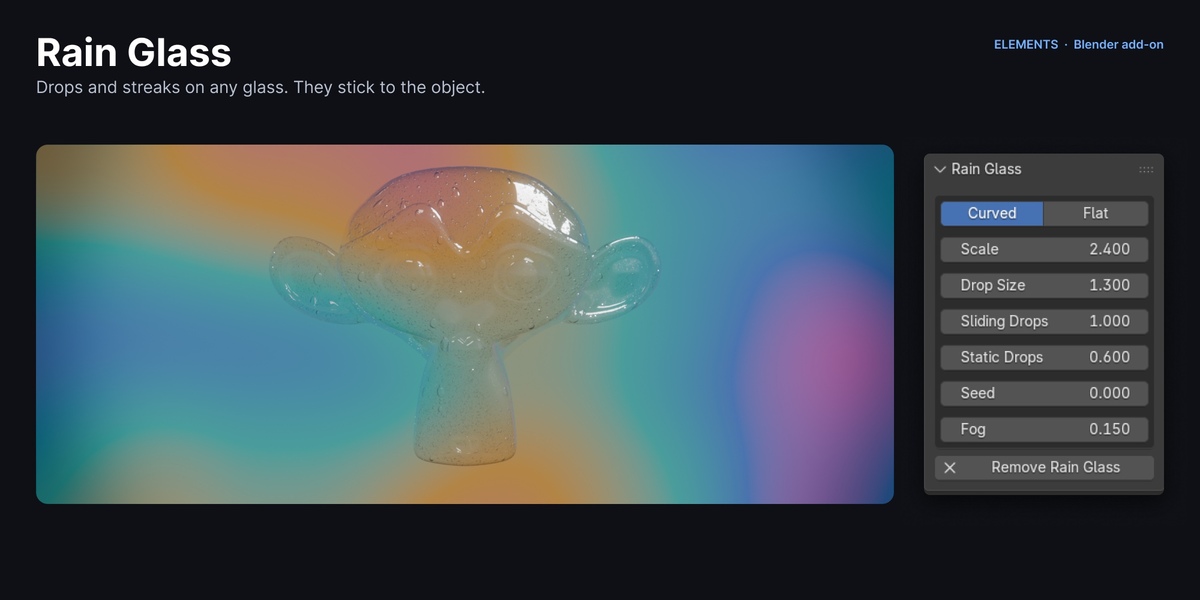
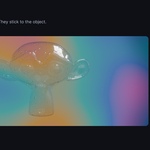
Select a glass object of any shape and press Add Rain Glass. You get drops, trails and fog. The drops move with the object.
Snow
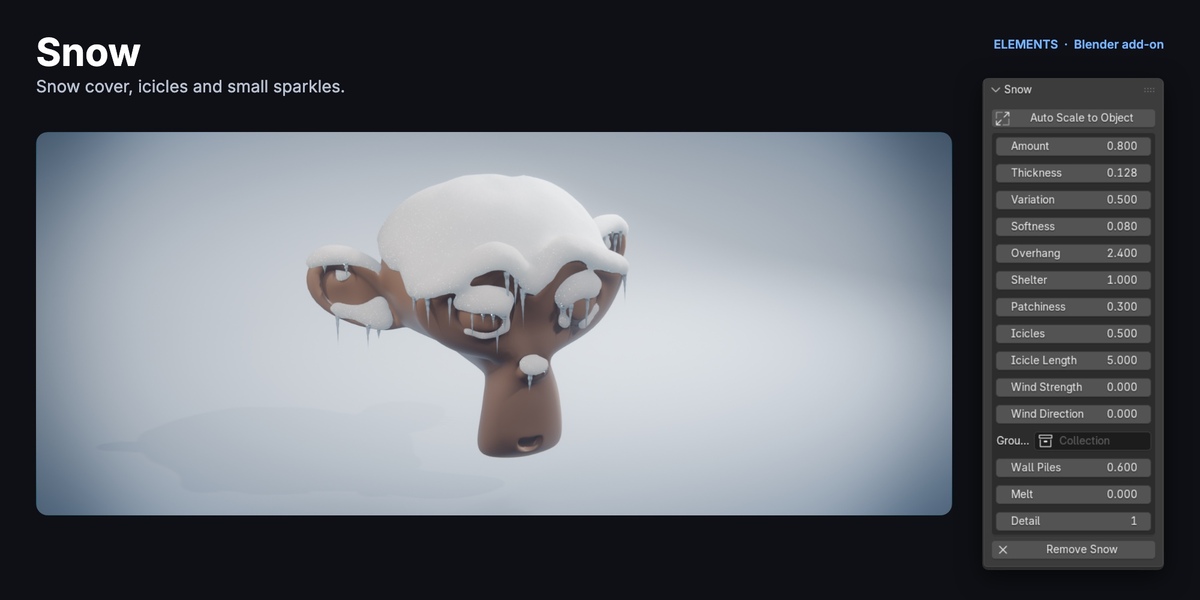
Select a mesh and press Add Snow, then Auto Scale to Object. Snow builds up on surfaces that face up and makes icicles on edges. An object can't be in its own Ground collection.
Frost
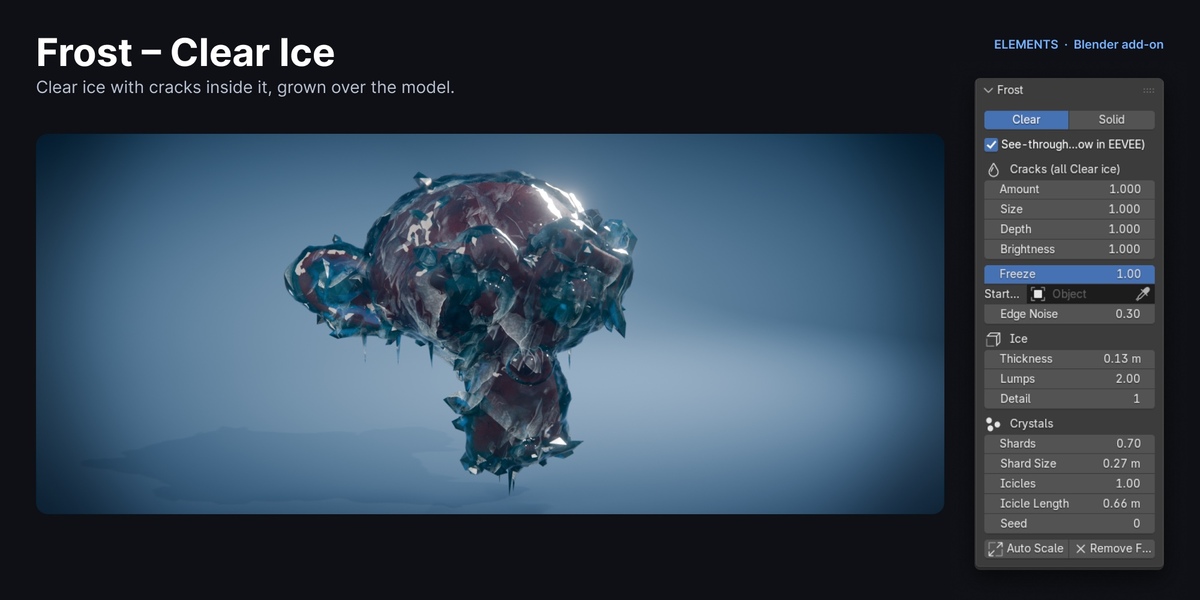
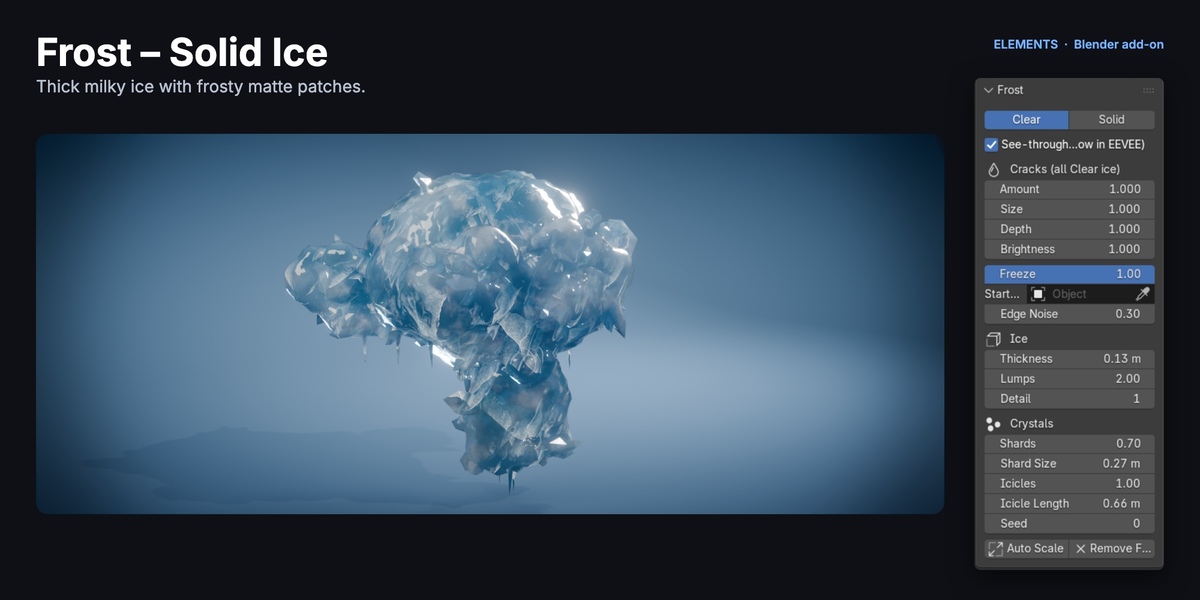
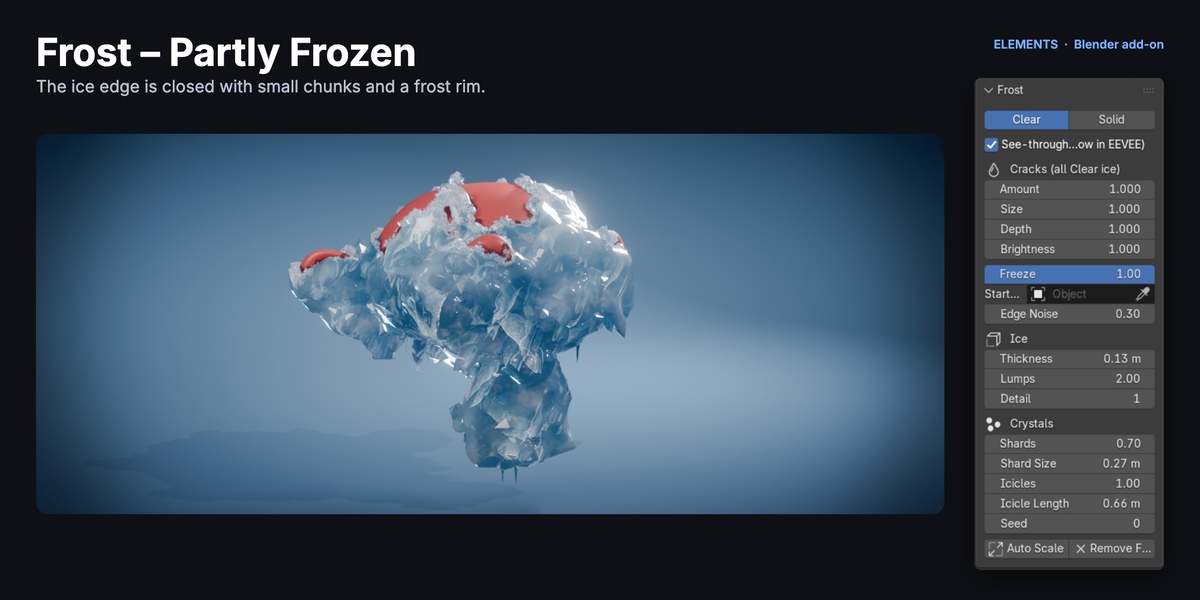
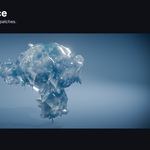
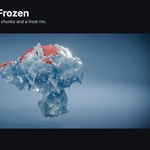
Select a mesh and press Add Frost. Choose Clear or Solid ice. The Cracks settings (Amount, Size, Depth, Brightness) change the ice on all objects with that look. Freeze below 1 gives a partly frozen object with an ice edge. If you open a file made with an older version, press Update Ice Materials.
Rust
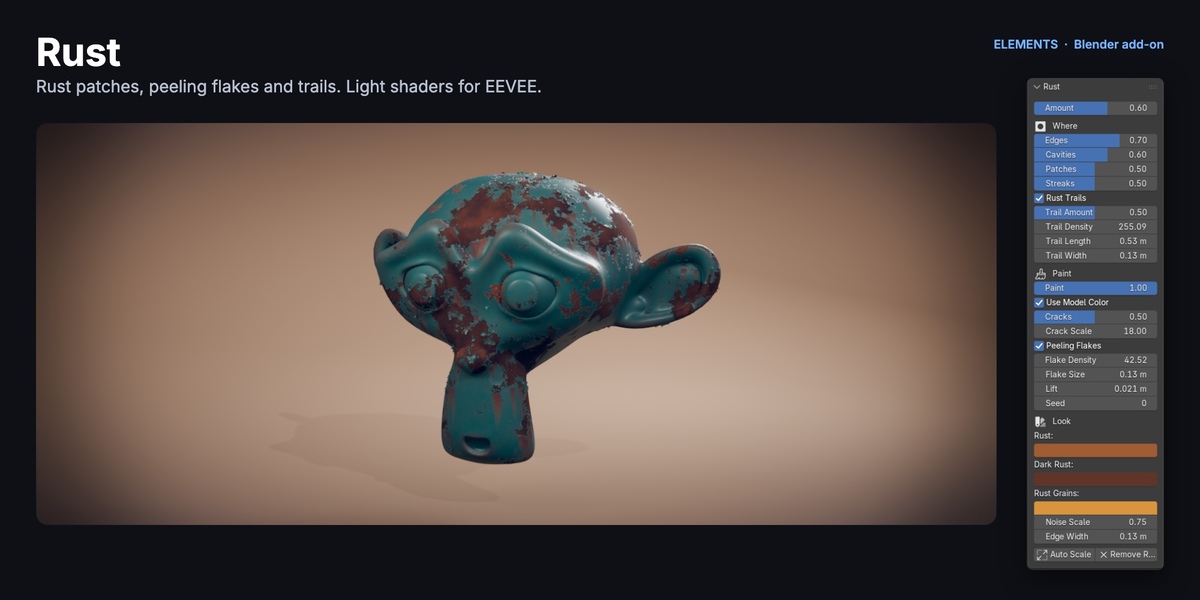
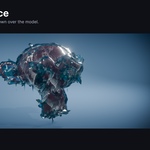
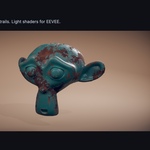
Select a mesh and press Add Rust. Where controls where rust shows up, Paint the paint layer and flakes, Look the colors and trails.
Tips
- Every effect has Auto Scale and Remove buttons. Remove takes the effect off and leaves your mesh as it was.
- Very big or very small objects: use Auto Scale first, then adjust.
- Everything works in EEVEE and Cycles.
Have questions about this product?
Login to message
| Blender Extension Compatible | Yes |
| Published | 1 day ago |
| Blender Version | 5.0 - 5.3 |
| Extension Type | Add-on |
| Render Engine Used | Cycles, Eevee |
| License | GPL |
Discover more products like this
procedural frost rain wet snow Rust ice geometry nodes weather water drops