Enhanced Asset Append
 DC LEGEND



Enhanced Asset Append
Documentation
Version 1.5.1
Table of Contents
- Introduction
- Installation
- Getting Started
- Features
- Interface Guide
- Advanced Usage
- Troubleshooting
- Version History
- Support
Introduction
Enhanced Asset Append is a comprehensive asset management solution for Blender that streamlines your workflow. The addon allows you to easily append materials, objects, and collections from multiple blend files with persistent settings. You can organize your assets with the intuitive reordering system and quickly access frequently used items from a customizable panel.
This addon is designed to save you time by eliminating the need to repeatedly navigate through complex file structures just to import common assets. With Enhanced Asset Append, your frequently used assets are just a click away!
Installation
System Requirements
- Blender 3.3 or higher
- Windows, MacOS, or Linux operating system
Installation Steps
- Download the addon zip file from the official source.
- Open Blender and navigate to Edit > Preferences > Add-ons.
- Click the "Install..." button at the top of the preferences window.
- Browse to the location of the downloaded zip file and select it.
- Click "Install Add-on from File."
- Find "Enhanced Asset Append" in the addon list and enable it by checking the box.
- The addon is now installed and ready to use.
Getting Started
After installation, you can access the Enhanced Asset Append panel in the 3D Viewport's sidebar. To open it:
- In the 3D Viewport, press
Nto open the sidebar. - Click on the "Asset Append" tab to access the addon panel.
Note: The addon only operates in Object Mode. If you're in another mode (Edit, Sculpt, etc.), you'll need to return to Object Mode to use the addon features.
Features
Source File Management
The addon allows you to maintain a list of source Blender files for quick access to your assets.
- Add Source Files: Add blend files containing assets you frequently use.
- Remove Source Files: Remove files you no longer need.
- Organize Sources: Arrange your source files in a logical order using the reordering feature.
Asset Types
Enhanced Asset Append supports a wide range of Blender asset types:
- Materials
- Node Groups
- Textures
- World Settings
- Collections
- Objects
- Armatures
- Brushes
- Cameras
- Freestyle Line Styles
- Images
- Meshes
- Palettes
- Scenes
- Texts
- Workspaces
Reordering System
New in version 1.5.1, the reordering system allows you to organize your asset sources in a logical order.
- Enable/Disable Reordering: Toggle the reordering feature on or off.
- Move Sources Up/Down: When reordering is enabled, use the up/down arrows to change the position of source files in the list.
Persistent Settings
Your asset sources and preferences are automatically saved between Blender sessions for a seamless workflow.
- Source Files: All added source files are remembered between sessions.
- Asset Types: Selected asset types for each source file are preserved.
- Expanded/Collapsed State: The state of each source file (expanded or collapsed) is remembered.
- Reordering Preference: Your preference for enabling or disabling reordering is saved.
Interface Guide
Main Panel Elements
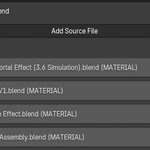
- Add Source File Button: Adds a new source blend file to the list.
- Enable Reordering Toggle: Enables or disables the reordering functionality.
- Source File Entries: List of all your added source files.
Source File Controls
Each source file in the list has the following controls:
- Expand/Collapse Toggle: Shows or hides detailed options for the source file.
- Source Name: Displays either the filename or the asset name (configurable in preferences).
- Reordering Controls: Up/down arrows to change position (when reordering is enabled).
- Append Button: Quickly append assets from the file.
- Remove Button: Remove the source file from the list.
Expanded Source Options
When a source file is expanded, you'll see additional options:
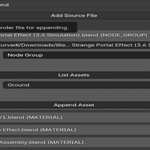
- File Path: Displays and allows editing of the file path.
- Asset Type: Select the type of asset to append.
- Append All Assets: Toggle to append all assets of the selected type instead of a single asset.
- List Assets Button: Browse available assets in the source file.
- Asset Name Field: Enter the name of the specific asset to append.
- Recursive Append: Toggle to include all dependencies when appending.
- Append Asset Button: Append the selected asset(s).
Advanced Usage
Recursive Appending
When enabled, recursive appending includes all dependencies of the selected asset. This is useful for complex assets that rely on multiple materials, textures, or other elements.
Asset Filtering
Use different asset types to filter what's available from your source files. This makes it easier to find specific assets when dealing with large blend files.
Workflow Integration
For optimal workflow:
- Add source files containing assets you use frequently.
- Organize them by priority using the reordering feature.
- Use the panel to quickly append assets as needed during your projects.
- Consider creating a "master" blend file with all your commonly used assets for easy access.
Troubleshooting
Common Issues
- Assets Not Appearing: Ensure you've selected the correct asset type for the file.
- Can't Use Addon: Remember that the addon only works in Object Mode.
- Blender Crashes: Check if your source file paths are valid and accessible.
Error Messages
- "Invalid source file path": The specified blend file doesn't exist or can't be accessed.
- "Asset name is required when not appending all": You need to specify an asset name or enable "Append All Assets."
- "Please exit [mode] and return to Object Mode to use this feature": Switch to Object Mode to use the addon.
Version History
v1.5.1
- Added reordering system for source files
- Updated description and UI elements
- Fixed minor bugs
v1.5.0
- Added persistent settings functionality
- Improved UI layout
- Added support for all asset types
- Fixed compatibility issues with Blender 3.3+
v1.0.0
- Initial release with basic asset append functionality
Support
For questions, bug reports, or feature suggestions, please contact us through:
- Email: [email protected]
- Website: www.example.com/enhanced-asset-append
- Blender Artists Forum: [Enhanced Asset Append Thread]
© 2025 DC LEGEND. All rights reserved.
Discover more products like this
Blender append #3DAssetsForGames #3DAssets 118 Assets append all materials 3d assets append