Essentials
 Jackson Zheng
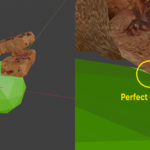
Quick Installation
Steps:
- Download the .zip file provided with your purchase. Do not extract the archive.
- Open Blender.
-
Go to
Edit > Preferences > Get Extensions > Install from Disk. - Find the .zip file and press install.
For Curious Blender Newbies:
If you can't find Install from Disk, first make sure you're in Get Extensions, and then look for a down-arrow at the top right corner of the window.
Click it.
You can also install the addon via: Edit > Preferences > Add-ons > Install from Disk.
There's no difference between installing it via Get Extensions vs Add-ons.
The Add-ons page is a legacy feature, it was used before Blender moved to using extensions and it still remains around for backwards compatability.
Updating The Add-on:
First uninstall the addon by going to: Preferences > Get Extensions, then click on the down arrow next to the extension's name and click Uninstall.
Then install the new version.
If you accidentally installed the new version of the addon without first uninstalling the old version, it should still work fine regardless.
Uninstalling the older version first is just a safer option.
Features
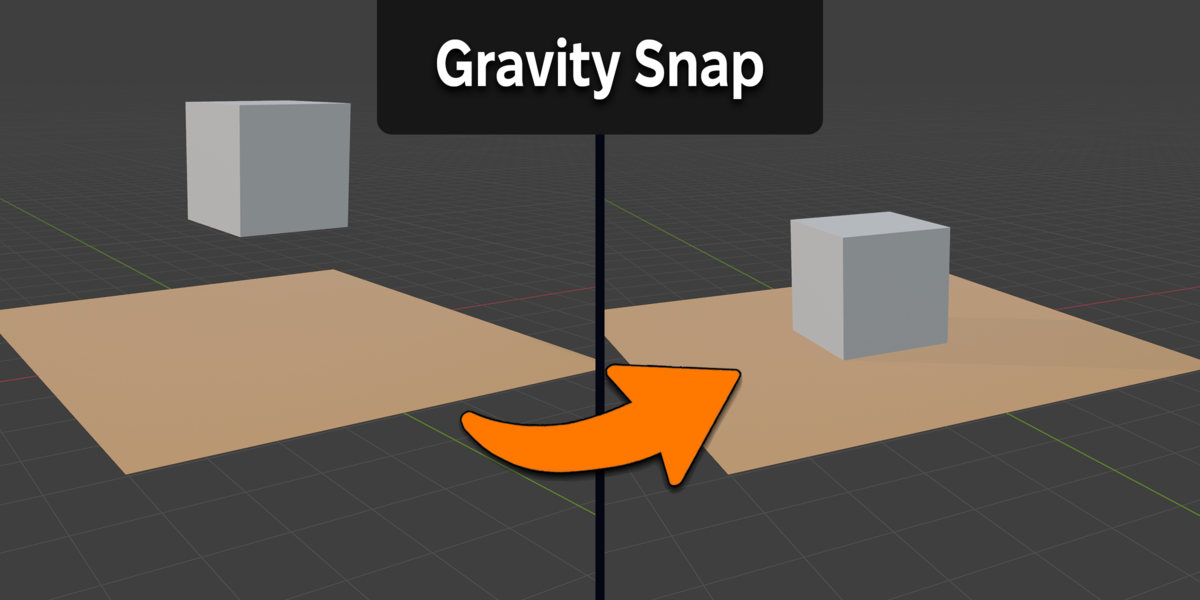
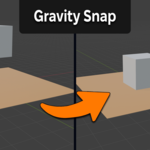
Gravity Snap
Usage:
- Make sure you're in object mode and both the target object and the target surface exist as separate objects in the outliner.
- Click to select the target object.
- Then shift+click to select a target surface.
- Press N on your keyboard to bring up N-Panel.
- In the N-Panel, go to Item > Gravity Snap > Snap To Surface.
Note: This will only work if the selected target surface is the active object (aka. it has the brighter orange outline), and it sits below the target object.
Settings:
Sample Resolution - This only affects angled edge-to-edge snapping (a rare edge case, no pun intended). A higher resolution means more accuracy at the cost of compute time, resulting in less intersection.
Here's an example of the rare case of angled edge-to-edge snapping (default plane against a default cube):
As you can see, even with a Sample Resolution of 1 (default value) it is visibly unnoticable on a unless zoomed in to the maximum degree that Blender will allow. On models that are smaller than the size of the default cube (2meter x 2meter x 2meter), it is virtually impossible to tell any intersection on angled edge to edge, even when zoomed in.
HOWEVER, for EVERY other use case such as:
- corner-to-face
- corner-to-edge
- corner-to-corner
- edge-to-face
- flat edge-to-edge
- face-to-face
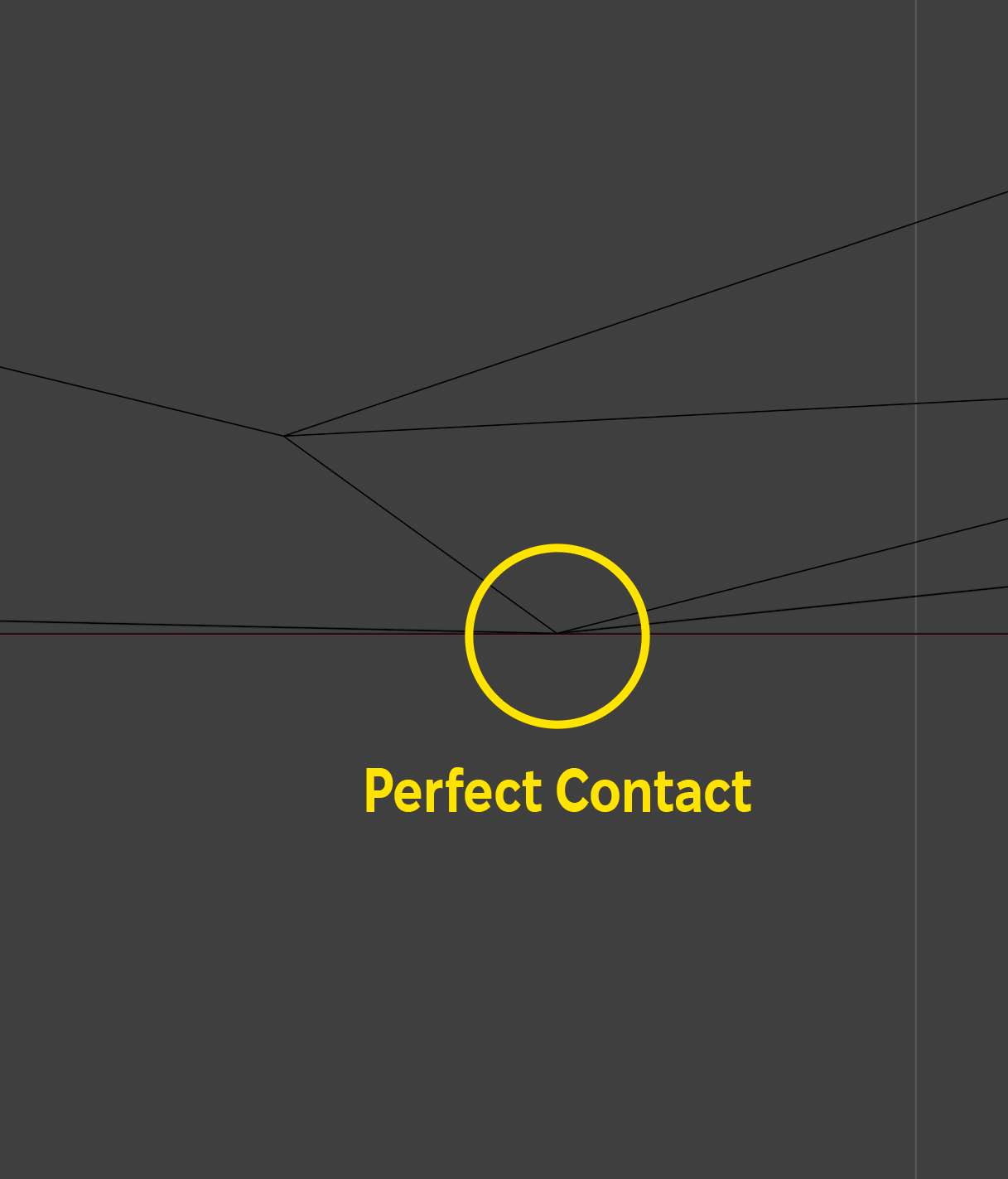
...the Sample Resolution value is completely irrelevant as accuracy will always be at 100%.
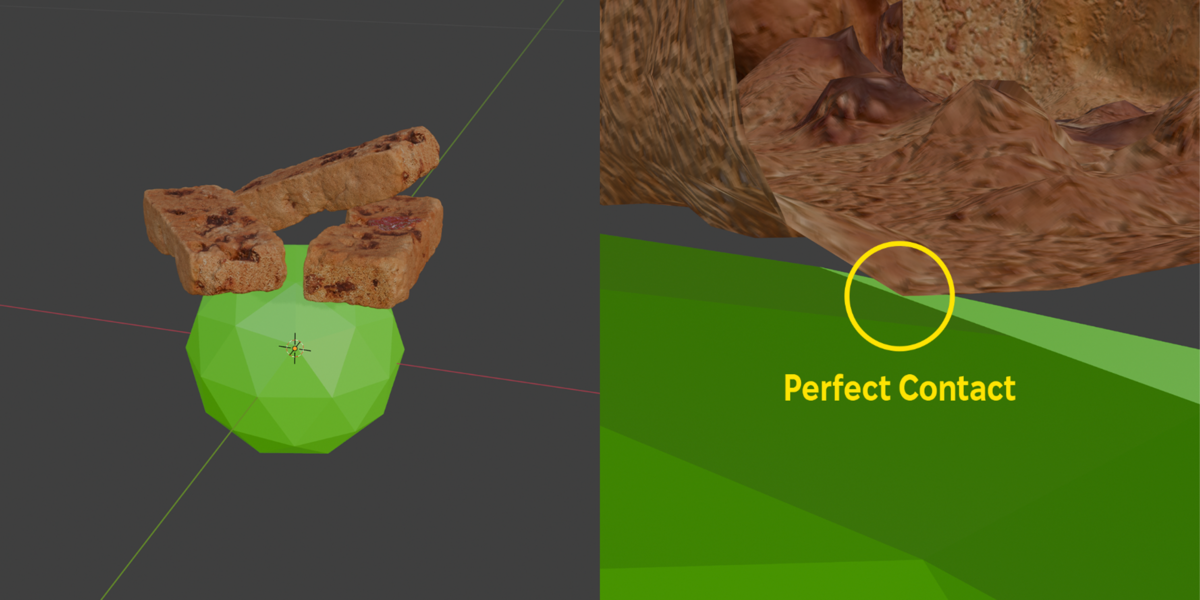
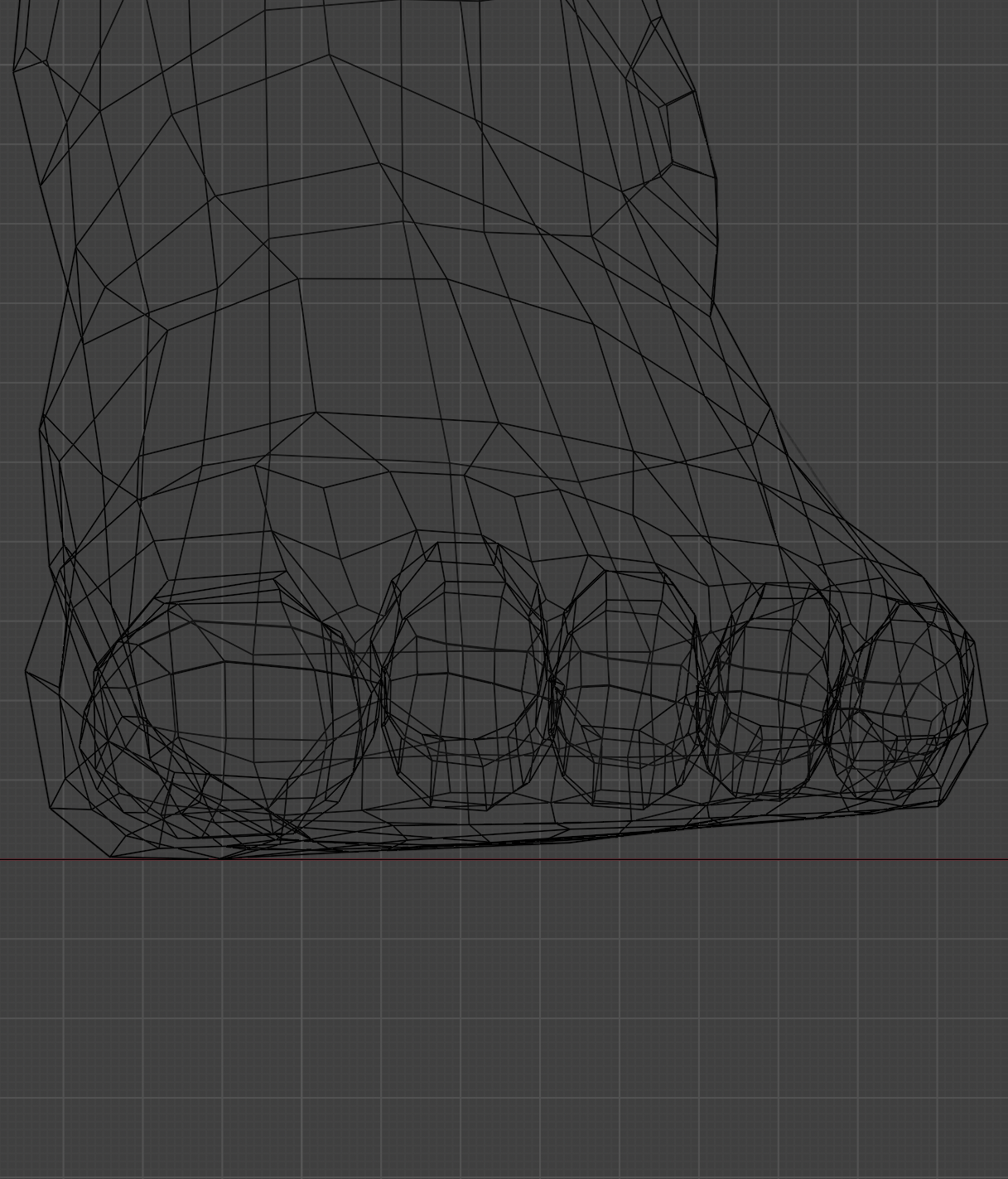
Examples of regular use cases (even with highly uneven objects):
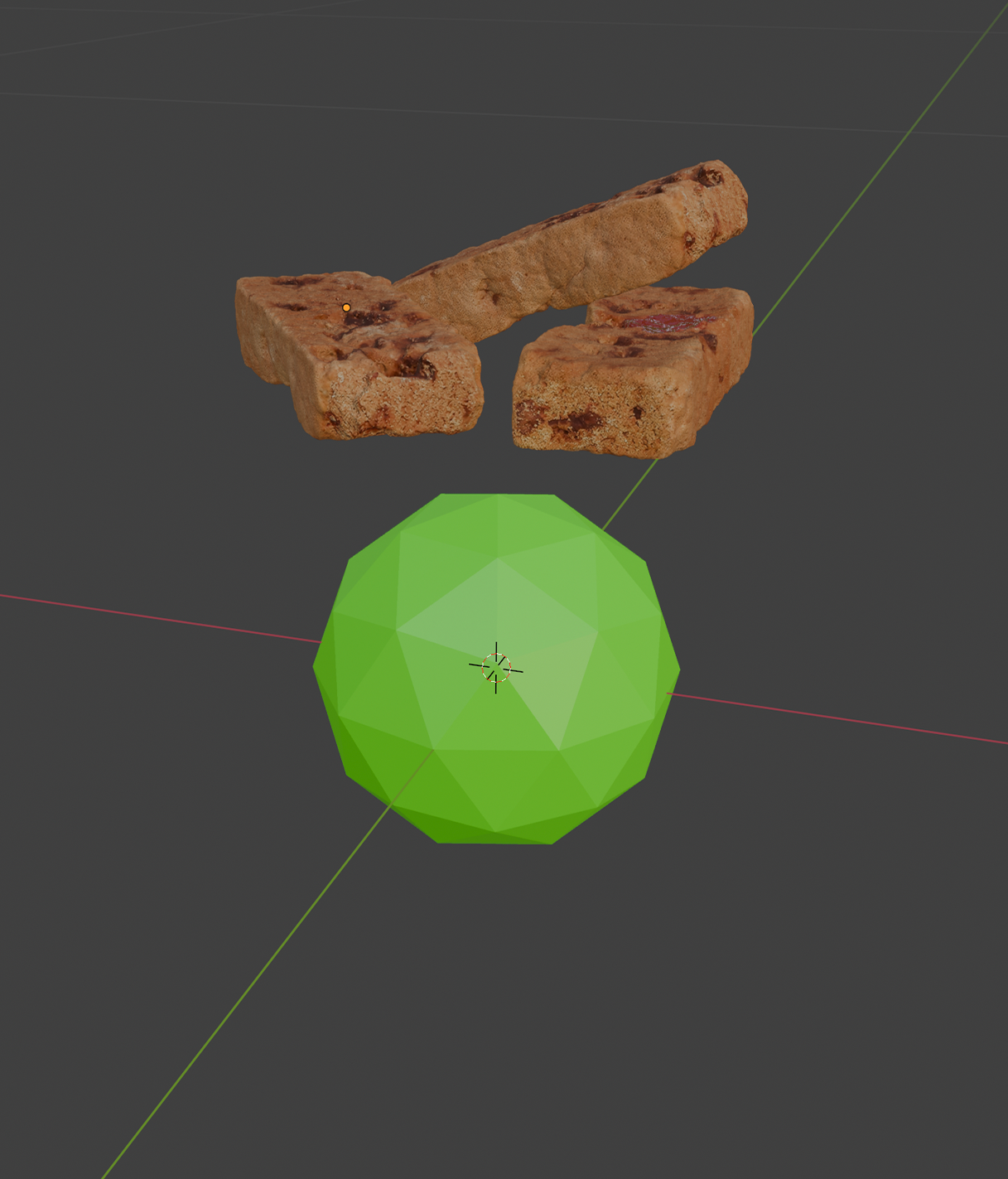
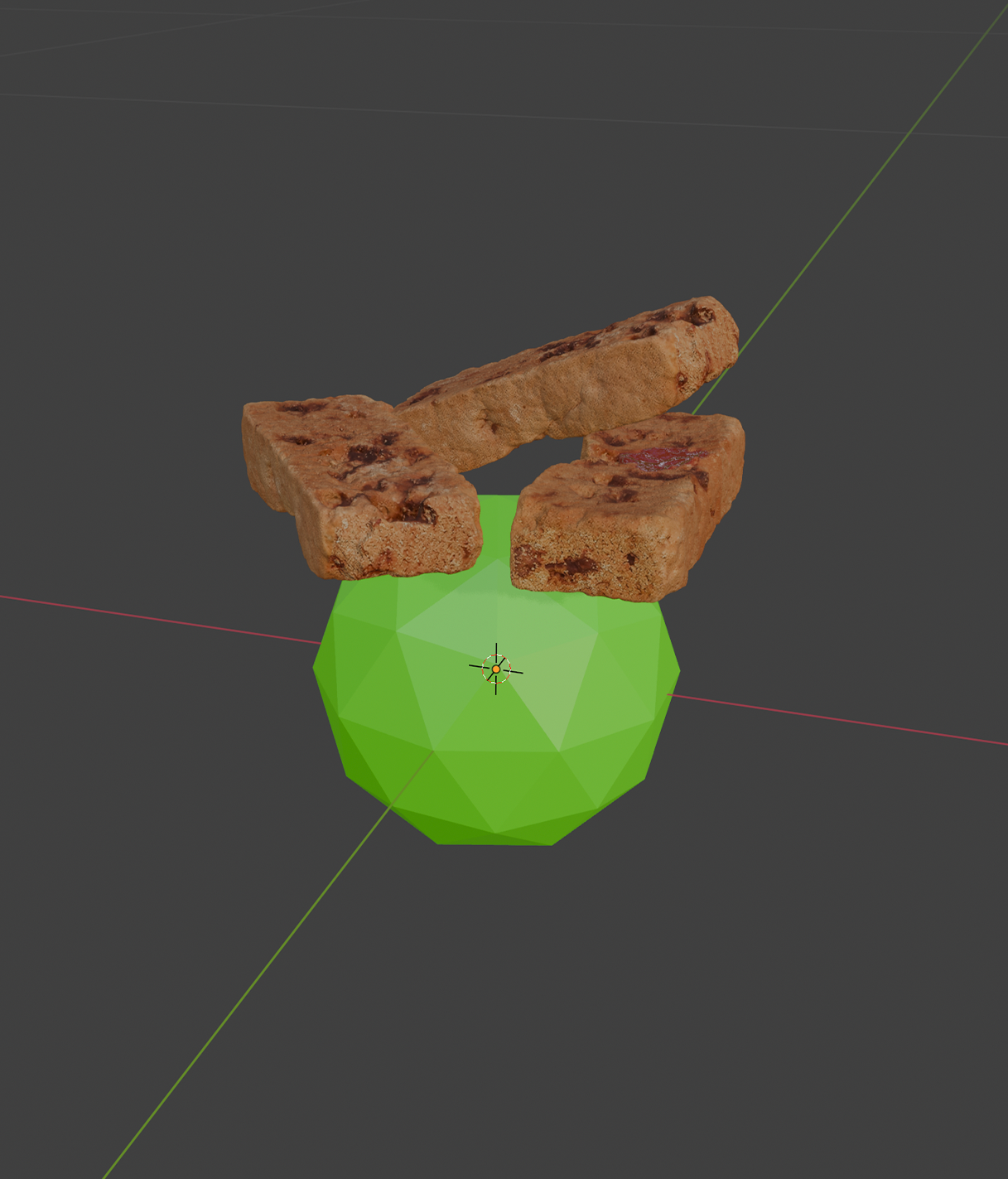
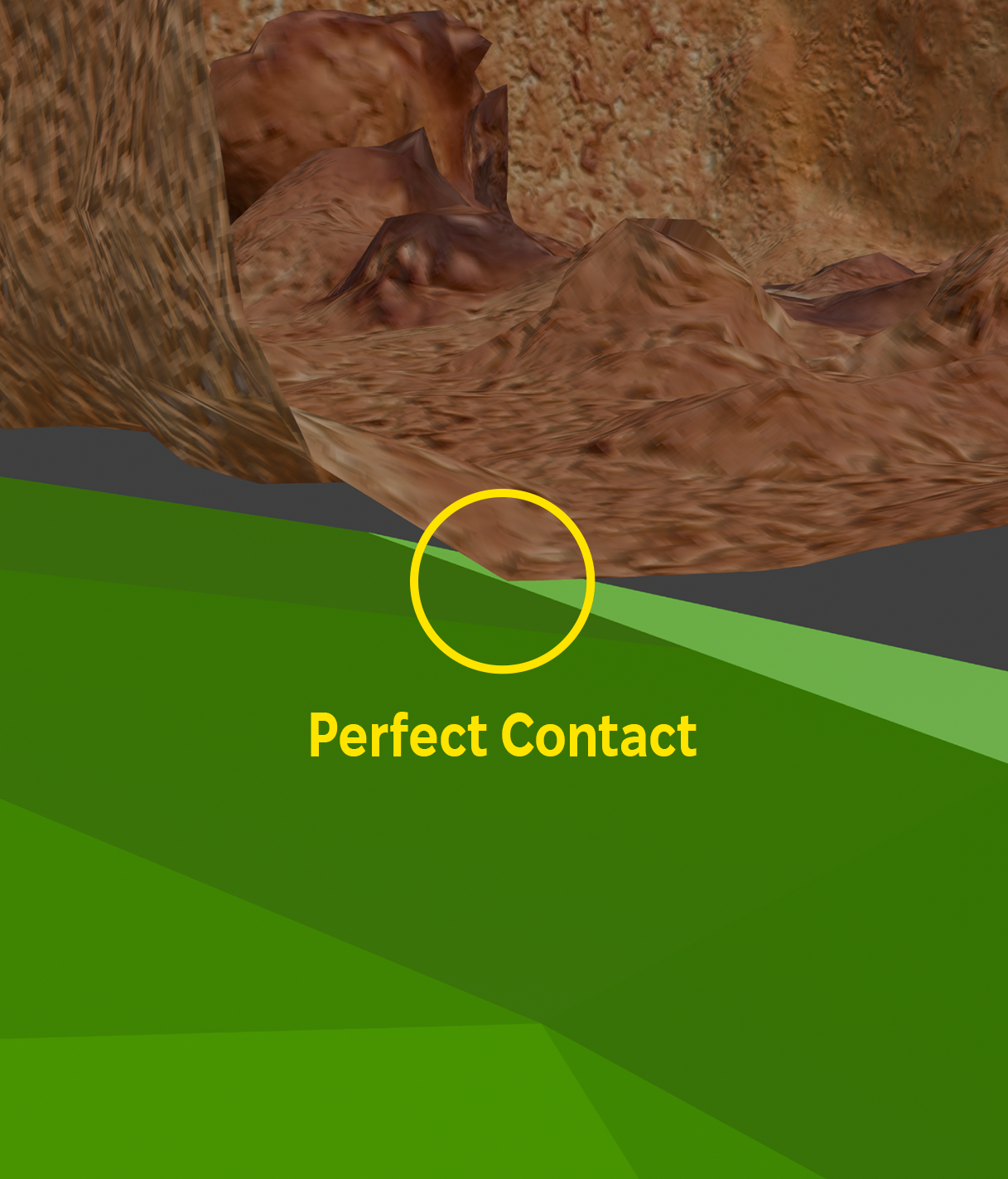
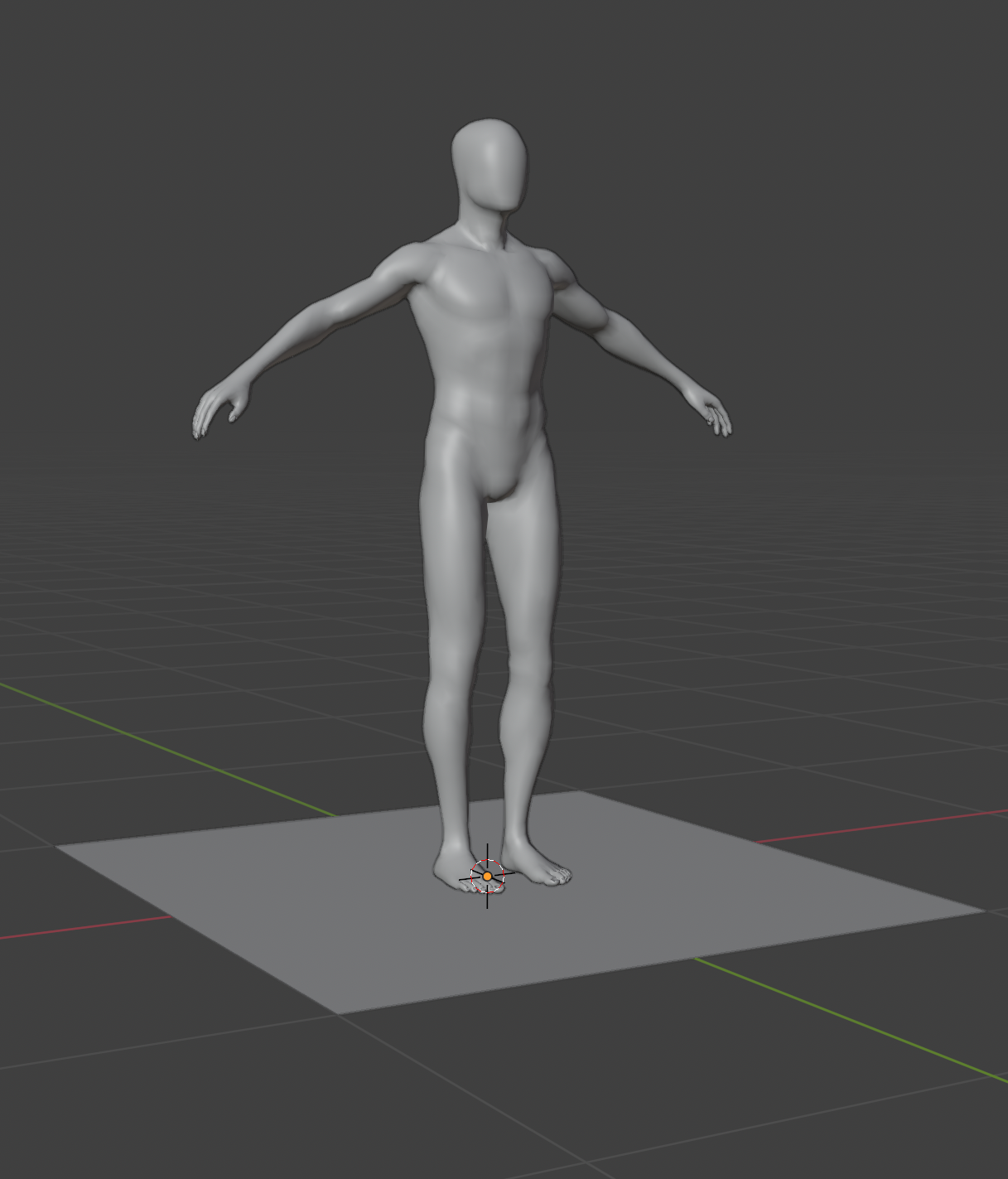
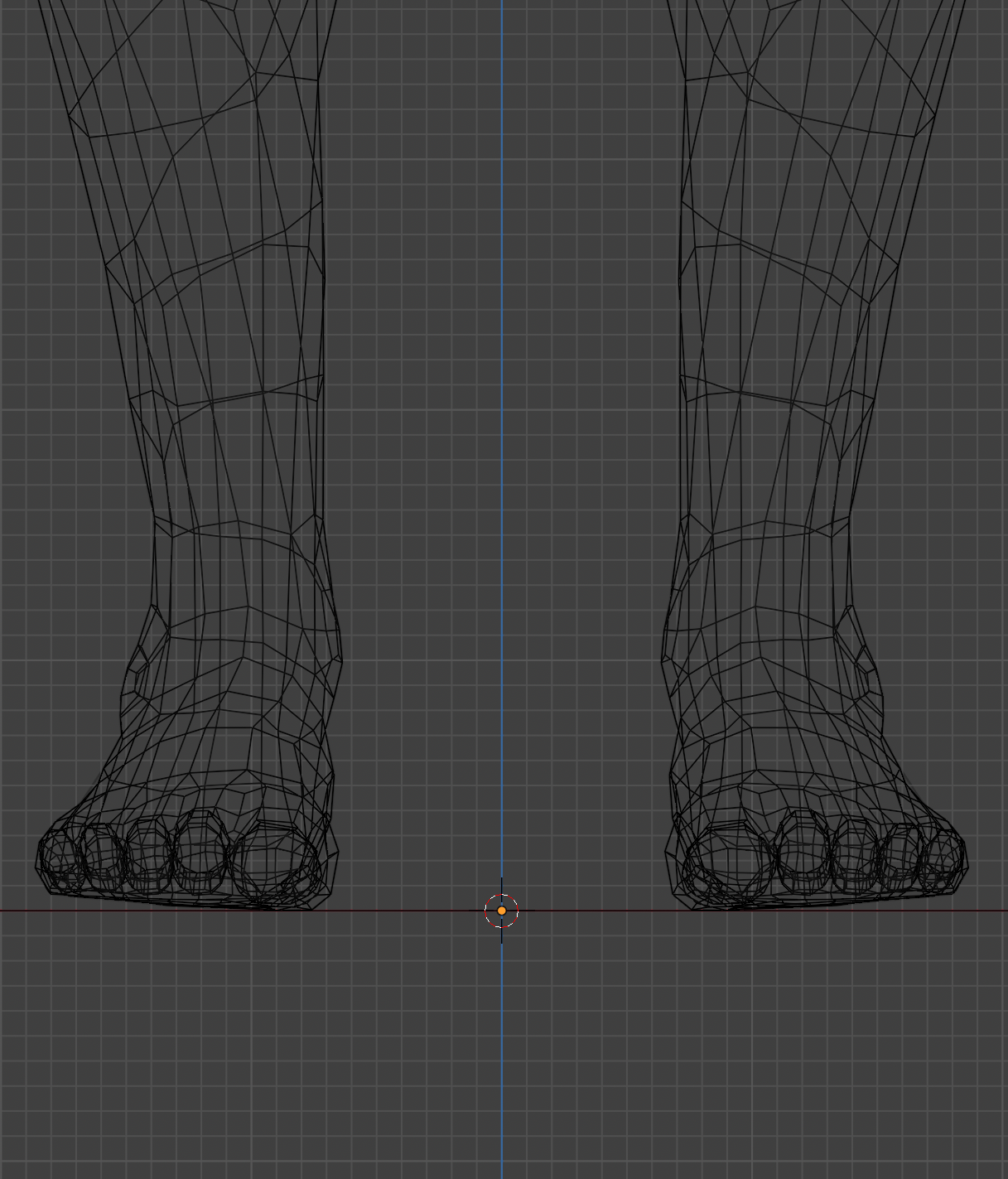
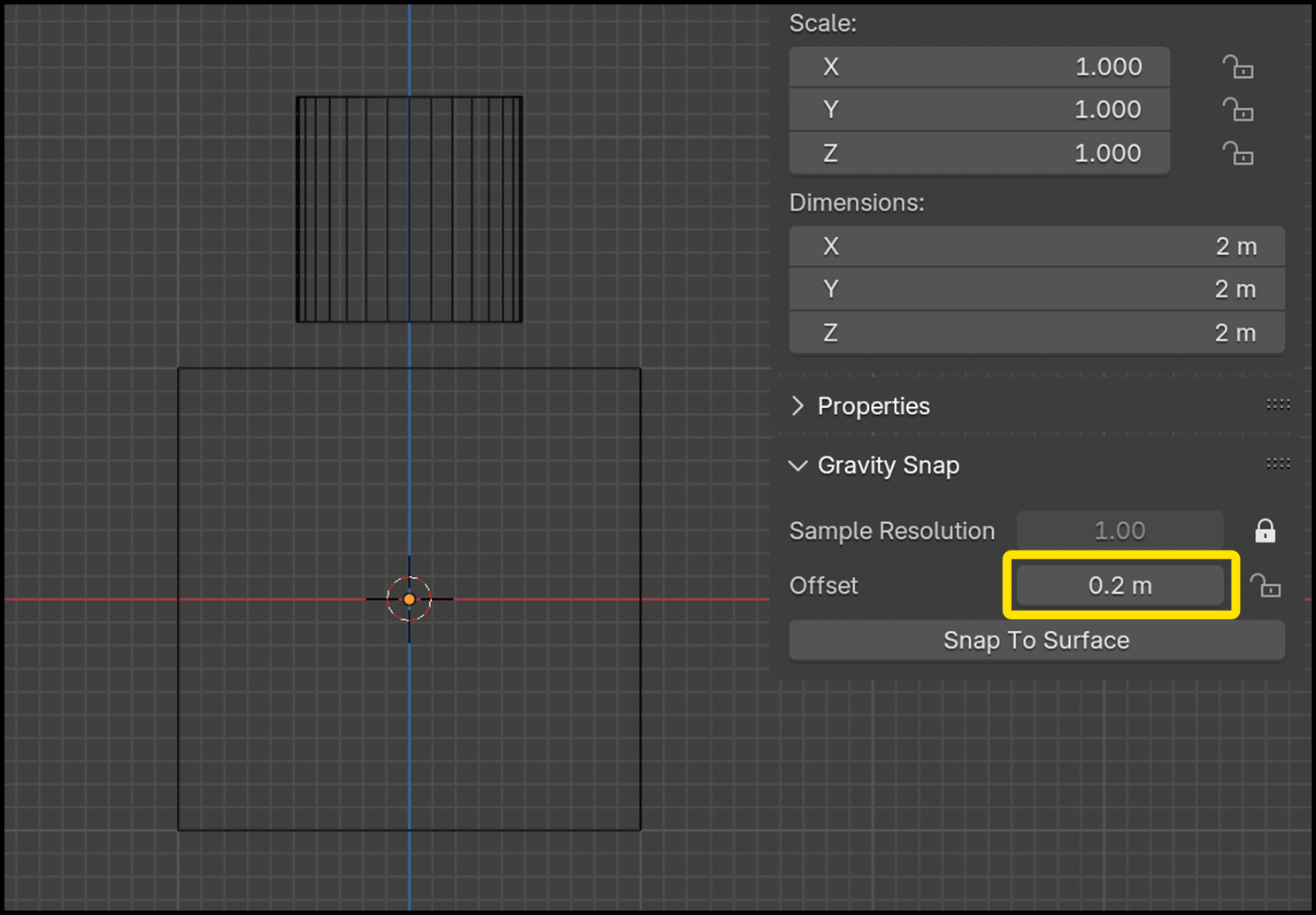
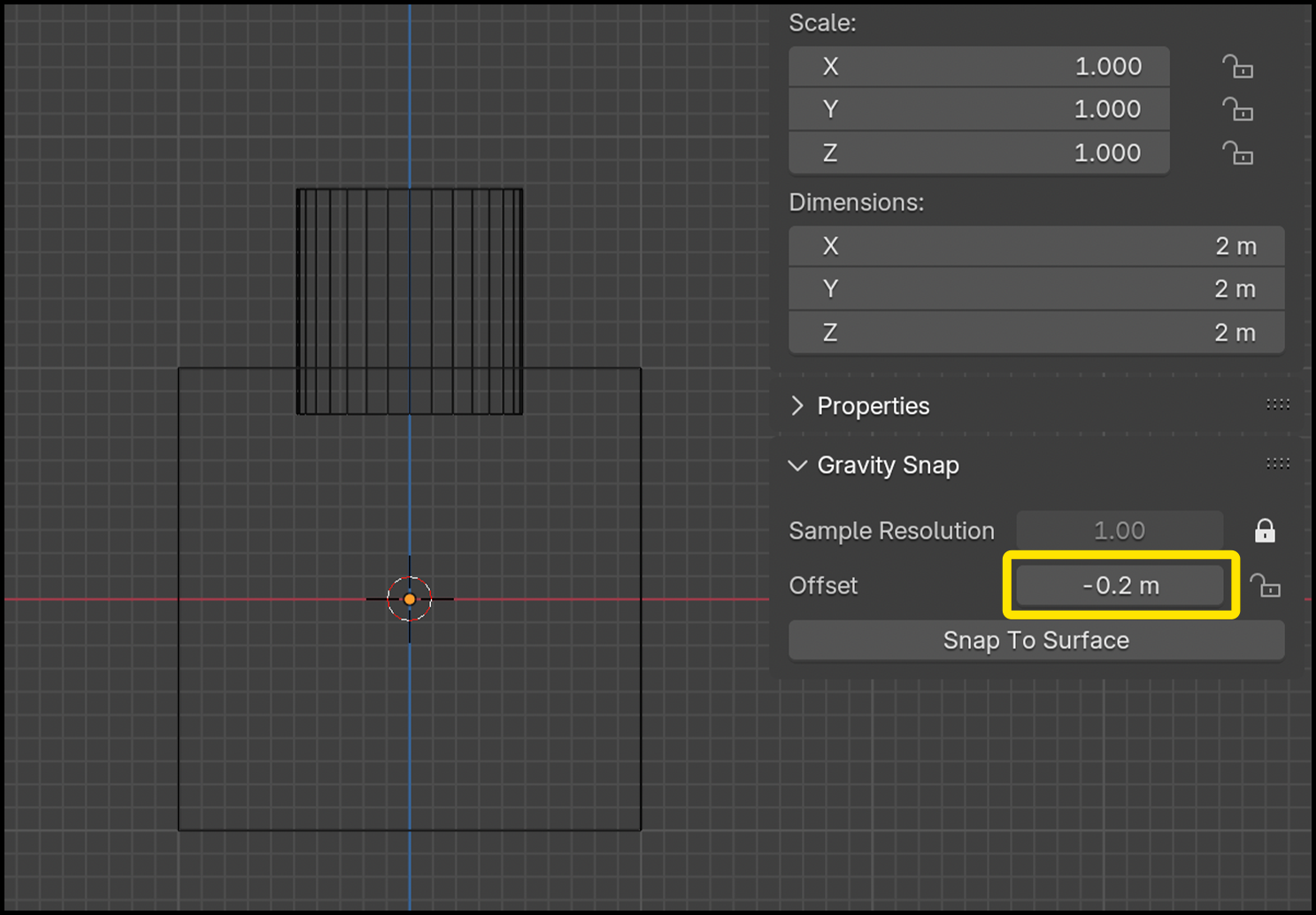
Offset - Set this value to offset the target object above or below the target surface by a set distance.
Example:
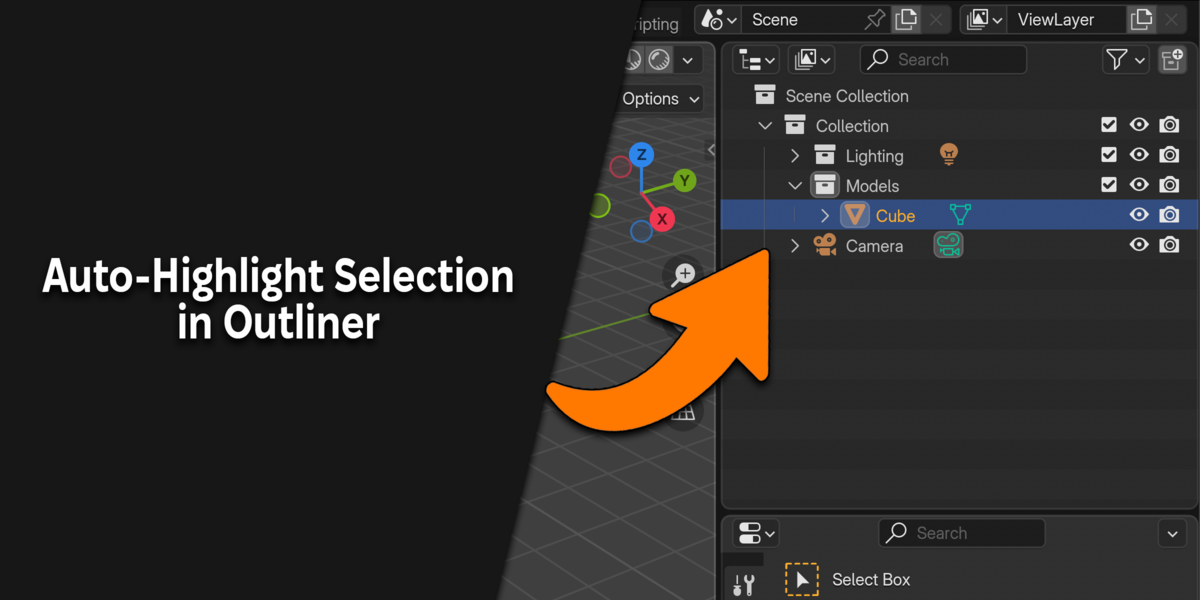
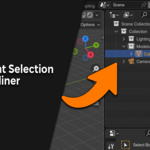
Auto-Highlight Selection in Outliner
Settings:
Auto Collapse Other Collections - When this is toggled off, as you select each object, the previously expanded collection in the outliner will remain expanded.
By default, this setting is turned on to keep the outliner clean, but there may be times you wish to turn this setting off, such as when you need to select 2 or more objects from different collections simultaneously.
Note: The Auto-Highlight feature will only expand selections in the outliner which are active object selections. For example, if you drag select an object, nothing will be expanded in the outliner, since this doesn't make it an active object. You must CLICK on the object to make it active.
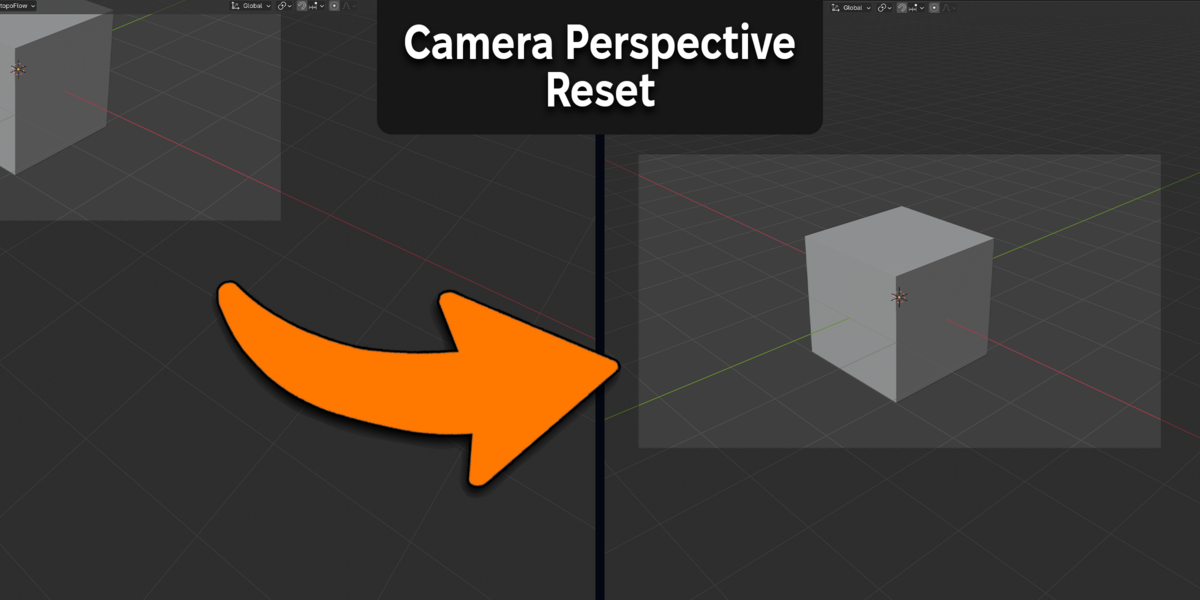
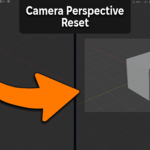
Camera Perspective Reset
Usage:
- Press N to open up the N-Panel.
- Then go to View > Camera Perspective > Reset Camera Perspective
Alternatively, you can also use the keyboard shortcut Alt+Numpad 0 (or Option+Numpad 0 for Mac).
Settings:
If you wish to change this keymap, you can do so by going to: Edit > Preferences > Keymap, then type into the search bar: view3d.reset_camera_perspective
-
$10
 Included
Includes 12 months of
- Support from Jackson Zheng
- Product updates
Extend this product’s Support Period +12 months: 50% of product price
Have questions before purchasing?
Login to message
| Blender Extension Compatible | Yes |
| Sales | 70+ |
| Dev Fund Contributor | |
| Published | over 1 year ago |
| Blender Version | 4.3 - 5.2 |
| Extension Type | Add-on |
| Render Engine Used | Arnold, Blender-Internal, Blender-Game-Engine, Cycles, Eevee, Freestyle, Luxrender, Mental-Ray, Octane, Vray, Yafaray |
| License | GPL |
Discover more products like this
outliner organizer text-editor outliner addon 3D camera tools 3D Workflow Solutions 3D Workflow Optimization outliner Blender python scripts gravity custom scripts action-essentials Python Scripts camera-perspective-reset align-camera Text Editor Essentials python scripting python script auto-highlight blender scripts #camera #perspective #calibration 3D Workflow Enhancers gravity-snap essentials drop-snap scripts addon scripts import-scripts surface-snap Blender outliner blender snapping camera essentials