 JESUS
JESUS


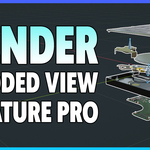
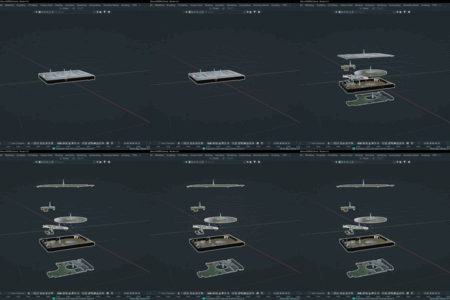
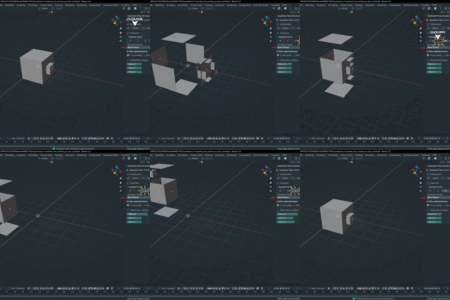
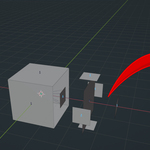
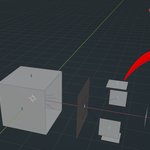
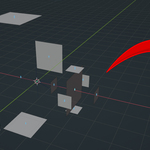
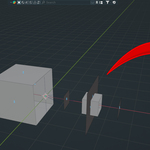
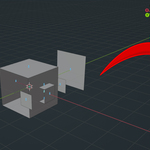
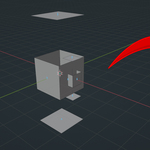
Instructions for Use: Exploded View Armature PRO
1. Installation
-
Download the
.zipfile of the addon. - In Blender, go to Edit > Preferences > Add-ons.
-
Click Install... and select the downloaded
.zipfile. - Enable the addon by checking the box next to Exploded View Armature PRO.
2. How to Use
A. Prepare your Armature
- Open your Blender project with the armature you want to explode.
- Make sure your armature is selected.
B. Access the Addon Panel
- Go to the 3D Viewport.
-
Open the Sidebar (press
Nif it’s hidden). - Find the tab labeled Exploded View (or similar, depending on your addon’s name).
C. Explode the Armature
-
Select Bones (optional):
- Select specific bones in Pose Mode to apply the effect only to them, or leave nothing selected to affect all bones.
-
Adjust the Sliders:
-
Use the Explode Factor and axis sliders (
X,Y,Z) to control how far and in which direction the bones will separate. -
You can choose the origin of the explosion:
- Armature Center or Bone Parent (selectable in the panel).
-
Use the Explode Factor and axis sliders (
-
Observe the Effect:
- Watch your armature explode in real-time in the 3D Viewport.
D. Reset to Original Pose
- Click the Reset button in the addon panel to restore your armature to its original, un-exploded state.
3. Tips
- You can animate the explosion by inserting keyframes on the sliders for dynamic breakdowns in your animations.
- Works in both Object Mode and Pose Mode (for per-bone explosion).
- For best results, use on fully rigged armatures.
4. Support
-
For questions, support, or to request a commercial multi-user license, contact:
[email protected]
$8.99$6.29
Have questions about this product?
Login to message
| Sales | 10+ |
| Published | over 1 year ago |
| Blender Version | 4.0 - 5.1 |
| Extension Type | N/A |
| License | GPL |
Discover more products like this
summer2025 3D Animation Character exploded exploded view generative view blender addon winter2025