 Digital Sculptors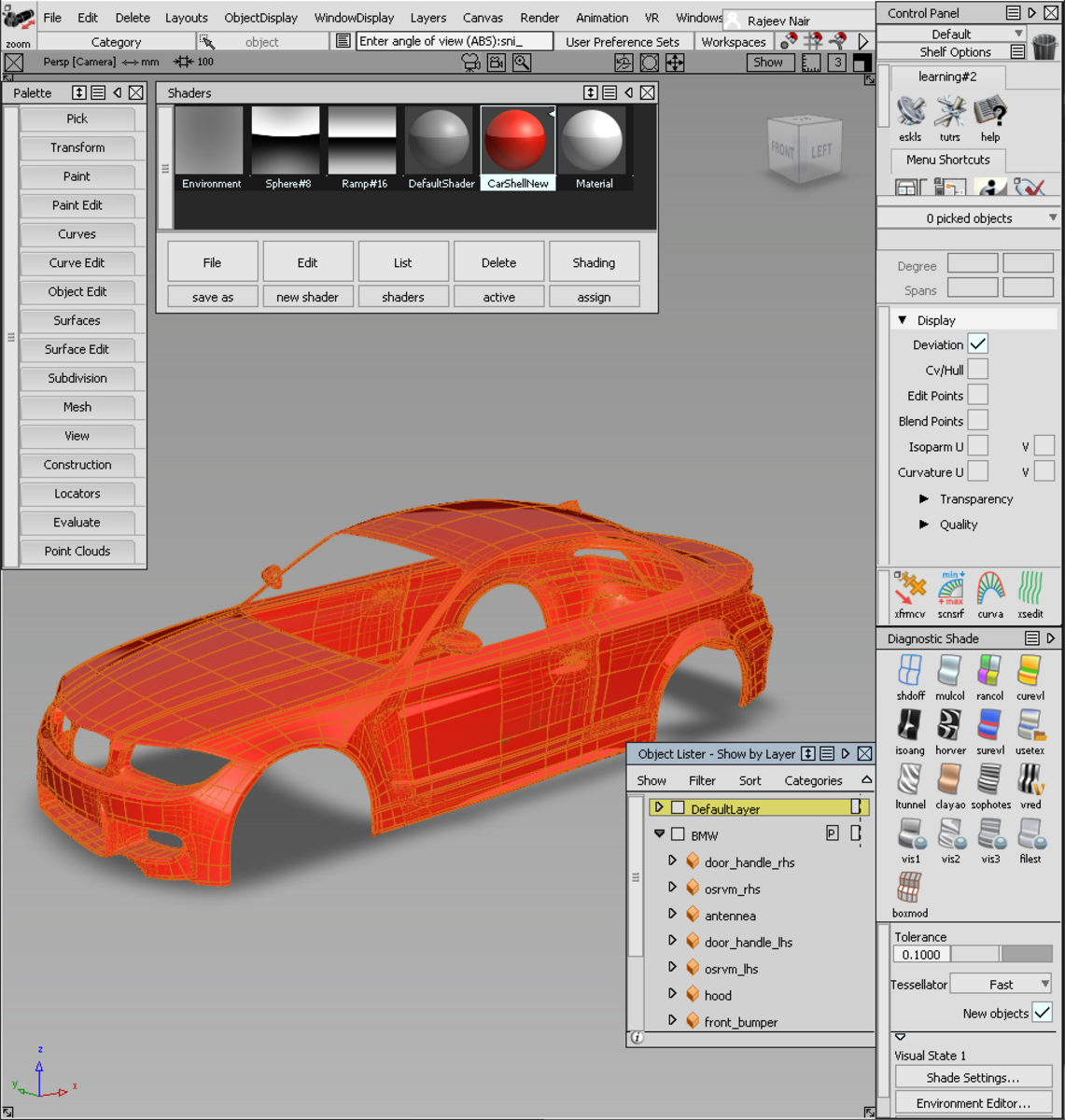
ExportAlias Addon
Description:
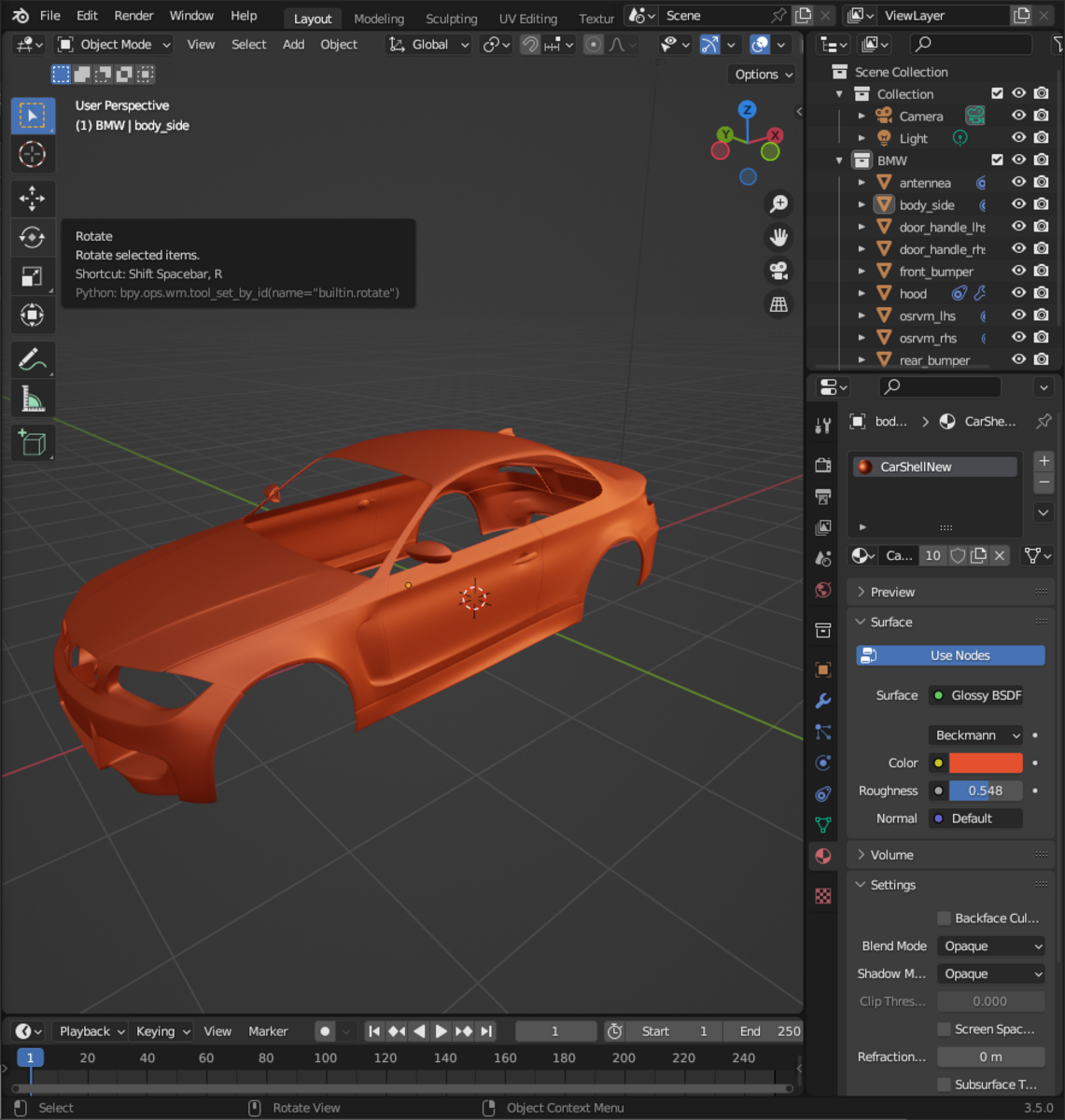
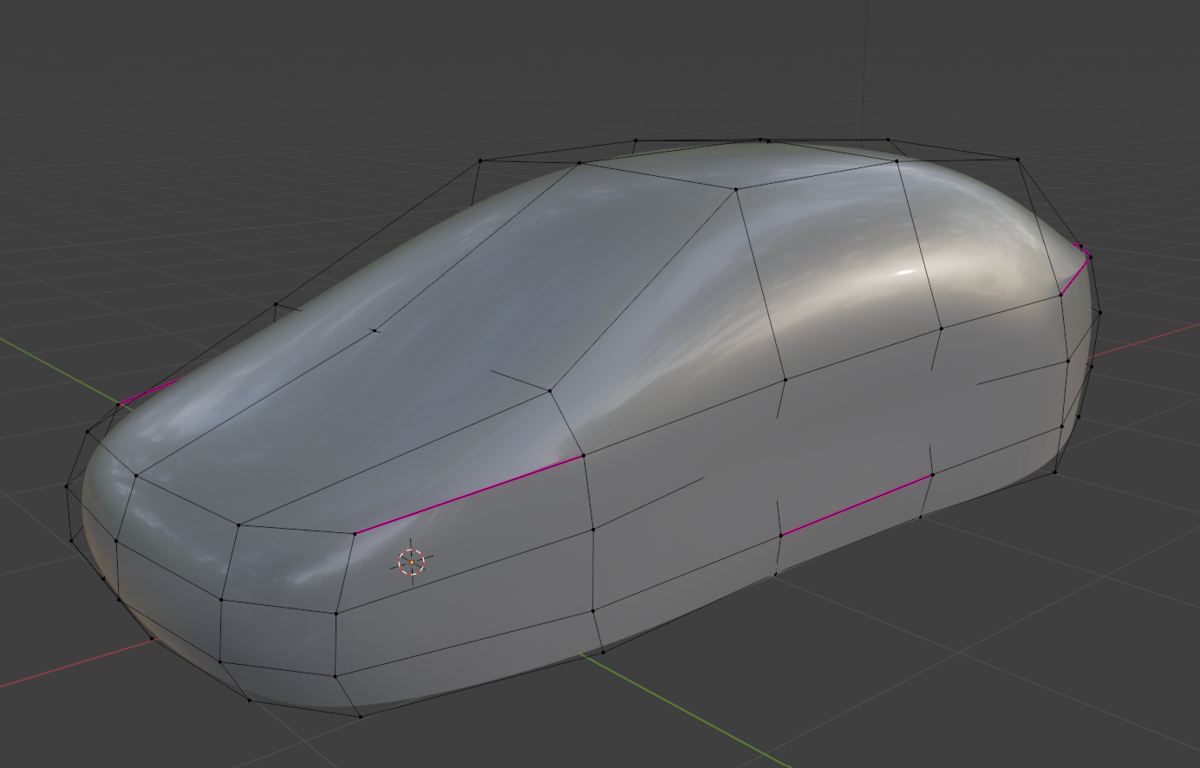
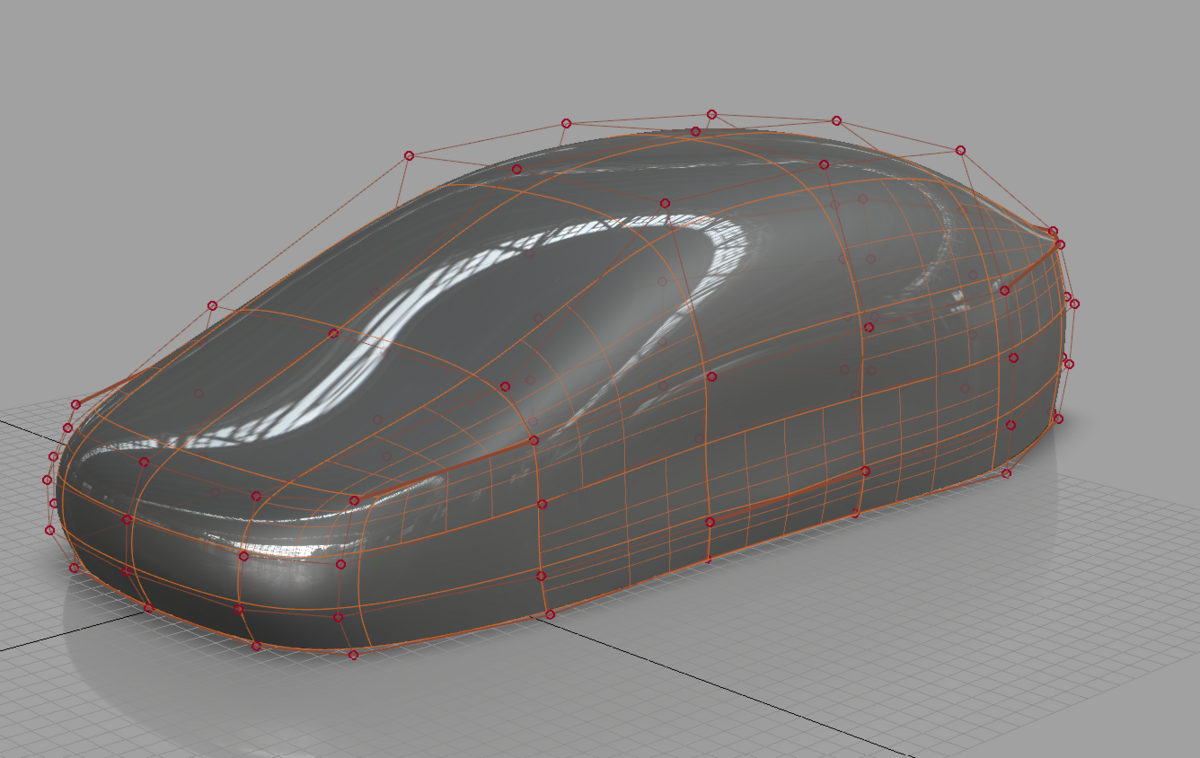
A convenient way to transfer data from Blender to Autodesk Alias.
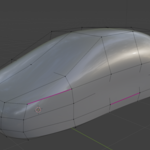
From Blender
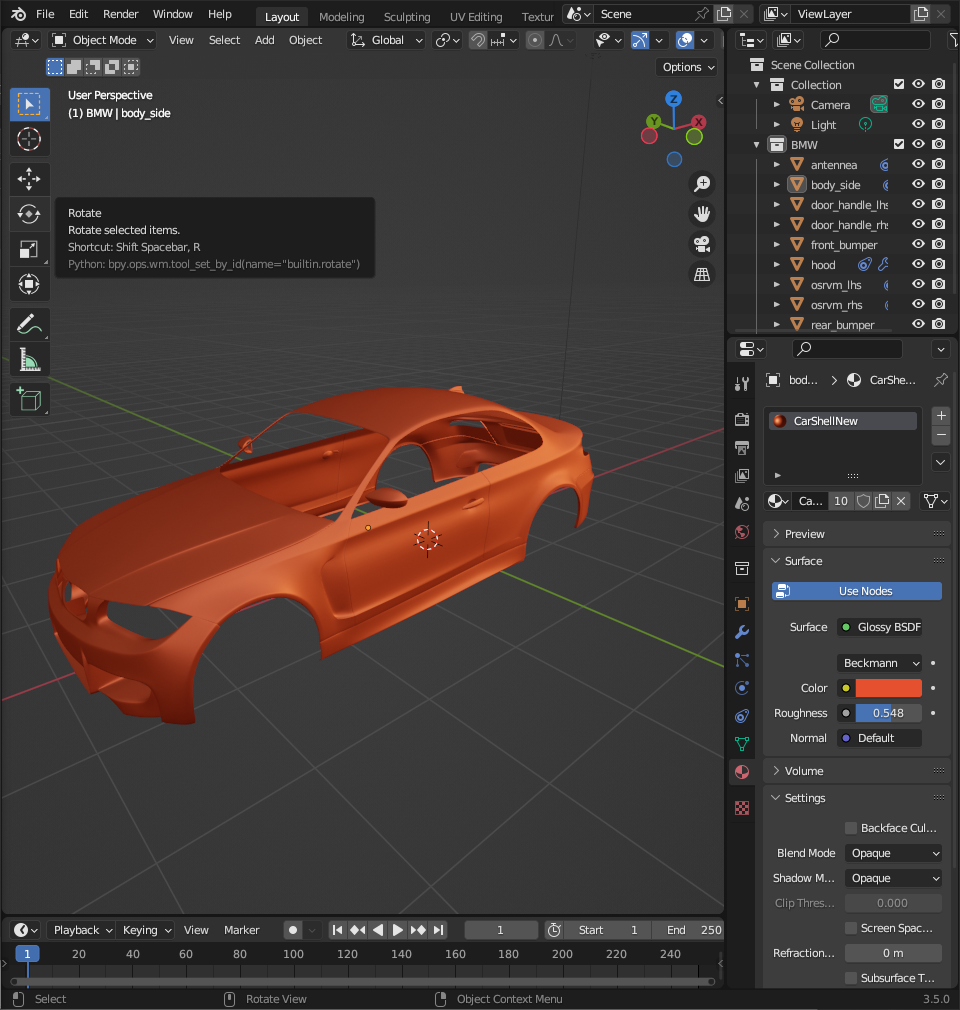
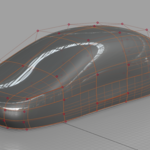
To Alias
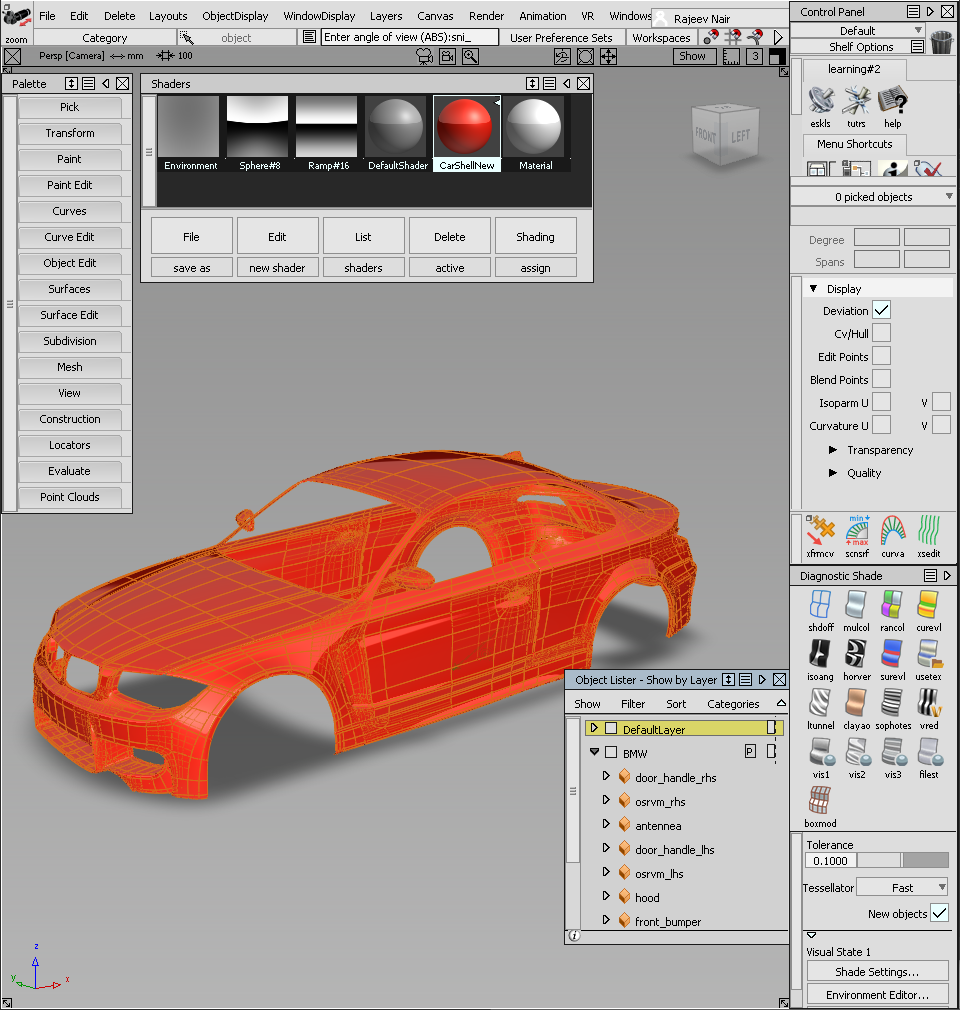
System Requirements:
- Alias: Alias 2024.1 up to 2026.1.1. For Alias 2027.0.1 and newer, use ExportAlias_2027 Addon.
- Network: Active network connection to the internet for the ExportAlias_2027 version
- Blender: Blender version 3.0 or above
- OS: Windows 10/11 64bit with VC++ runtime 2019 or above.
Installation:
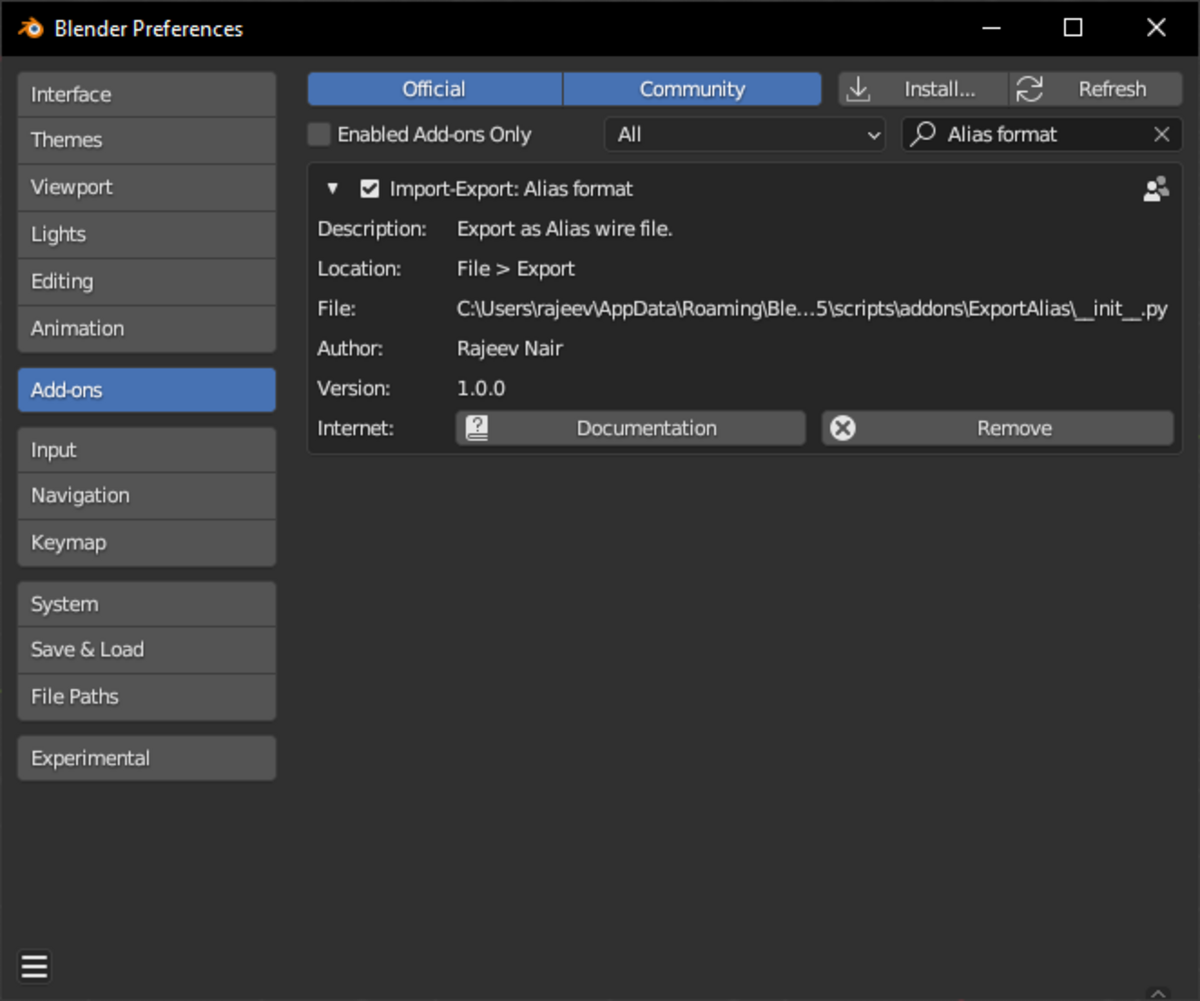
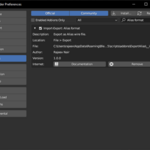
Install the downloaded ExportAlias_win_x64.zip file using Edit->Preferences->Install and choose the downloaded ZIP file. Do not unzip the file prior to installation. For Blender 4.2 and newer, drag and drop the ZIP file into blender.
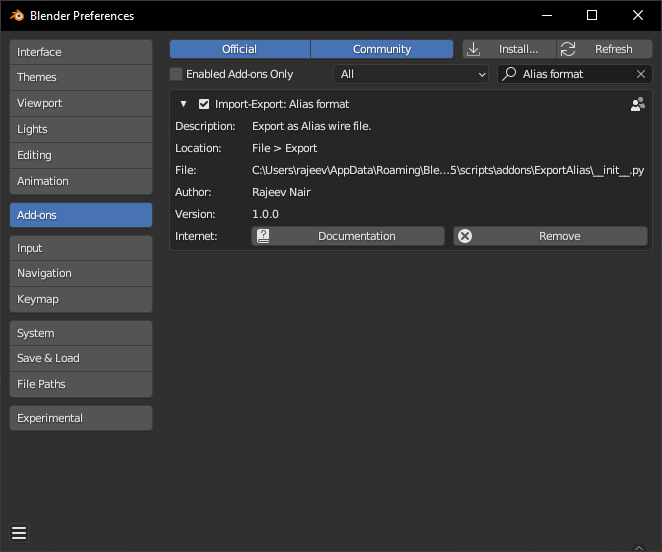
Addon Preference:
This is specifically for ExportAlias_2027 version:

- Product key: For Alias Autostudio this value should be "966S1" for Alias Surface should be "736S1"
- Version: For Alias 2027 install this should be "2027.0.0.F"
- License Type: For User Subscription this should be "USER". For Network license this should be "N W". For Stand Alone this should be "SA" and for Multi User Stand alone this should be "MSSA"
- License Path: Please select the file named "License" in the bin directory of Alias install location.
Please contact Autodesk Alias Support if you are not sure about these values.
Usage:
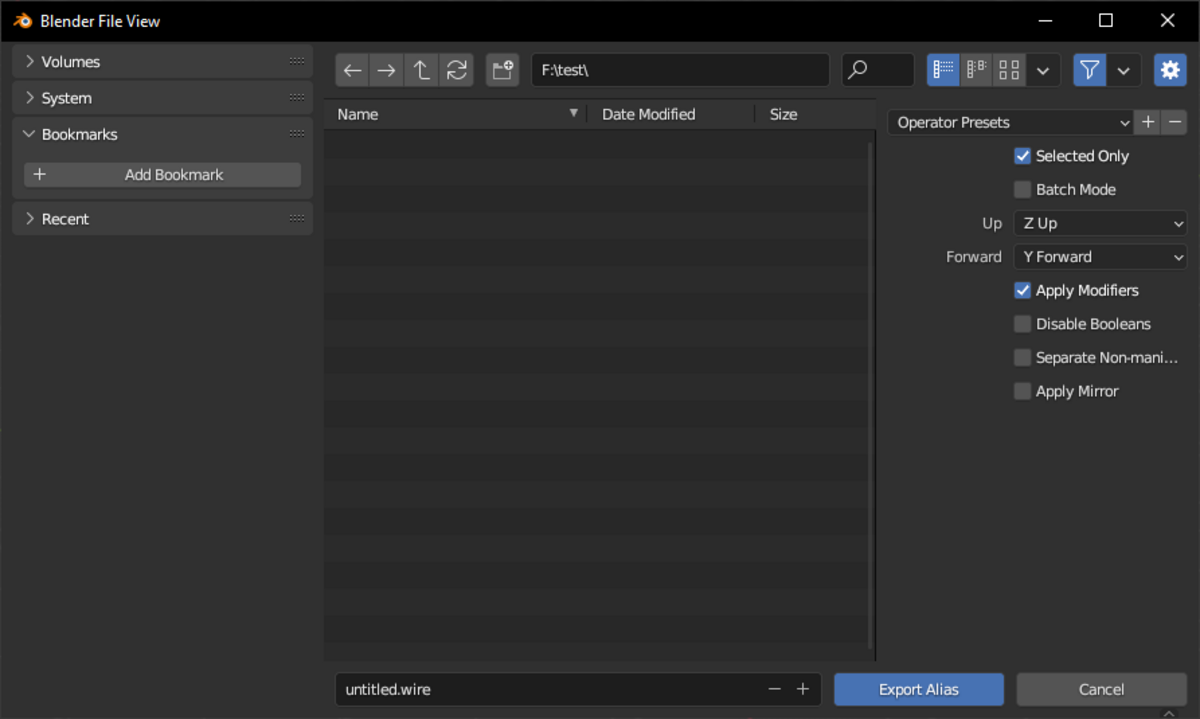
Select the objects to be exported as a Alias file and File->Export->ExportAlias
The following objects are transferred.
- Mesh objects to SubD or Mesh
- Materials as Shaders
- Collections as Layers
ExportAlias export options:
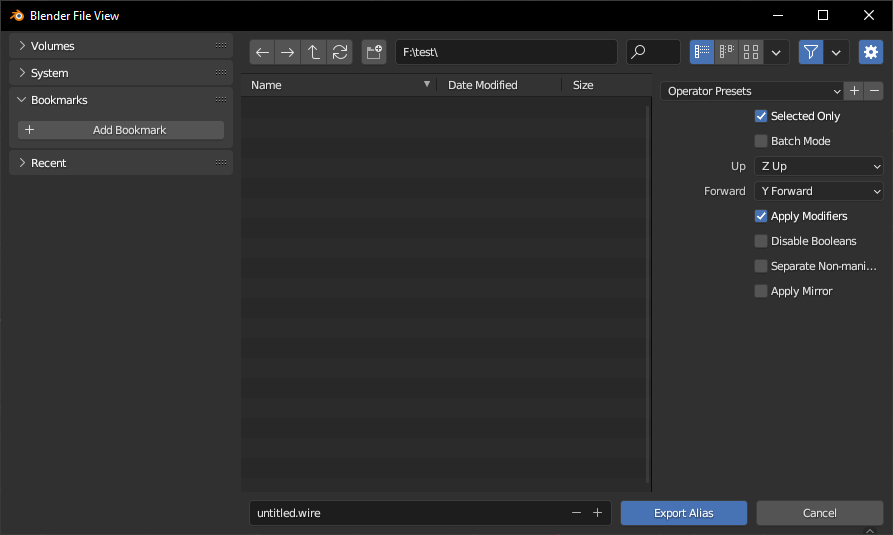
If the objects has SubD modifiers, those will be transfered as Alias SubD objects. Else the objects will be saved as Alias Mesh objects.
- Selected Only: Exports only selected objects.(default on)
- Batch mode: Exports each object as a separate Alias file.(default off)
- Up axis (default Z Up)
- Forward axis (default Y forward)
- Apply Modifiers: Applies all the modifiers before exporting.(default on)
- Disable Booleans: Disables all the boolean modifier. It is very helpful to export the tool objects as separate objects and trimmed in the Alias. That way, distortions could be minimized and the data can be much lighter (default off)
- Alias does not support non-manifold subdivision geometry. For the same reason the following two options are provided. warning: Enabling them will change the file content. Please save the file before using the following options.
- Separate Non-manifold: Automatically splits objects by loose parts. (default: off).
- Appy Mirror: Should be used along with Separate Non-manifold option. (default: off)
Best practice:
To have the best interoperability between Blender and Alias, please follow the general guidelines listed below.
- Naming convention: Avoid using special characters and spaces in material/collection/object names. (the addon will replace all spaces with underscores)
- Split non-manifold subdivs: Alias does not support non-manifold subdivs.
- Mirror Geometry subdivs: Objects with mirror modifier, even if they are individual subdivs, will be transfered as non-manifold subdivs. To avoid this, please apply mirror modifier before splitting objects by loose parts. The Apply Mirror option will automatically do this step.
Limitations:
- There should be only one subdiv modifier and the subdiv modifier should be the last in the stack. The output might not match the shape if there are muliple subdiv modifiers and/or such subdiv modifer is not the last one. In such cases, apply such subdiv modifiers (except the last one) manually.
- Limited support for Blender Materials.
- https://youtu.be/Ew2hGnueiCUExportAlias_2027 version will fail if the licensing information is not correct.