Favorites Addon With Tabs, Consolidate Your Favorite Panels Into a Single Addon View for Quick Access
 Luke Adwick


LA Favourite Panels - Documentation
1. Installation
- Download the LA Favourite Panels addon ZIP file
- Open Blender and go to Edit > Preferences > Add-ons
- Click "Install..." and select the downloaded ZIP file
- Enable the addon by checking the box next to "3D View: LA Favourite Panels"
- The "Favorites" tab will appear in the 3D View sidebar
2. Overview
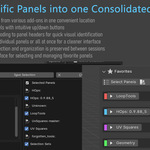
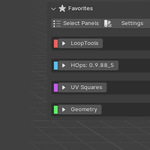
LA Favourite Panels allows you to collect and organize UI panels from multiple addons into a single "Favorites" tab in Blender's 3D View. This eliminates the need to constantly switch between different tabs to access your frequently used panels.
3. Getting Started
Selecting Panels
- In the 3D View, open the "Favorites" tab
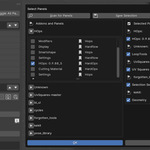
- Click the "Select Panels" button
- In the dialog that appears, browse through available addons
- Click the arrow next to an addon name to expand and view its panels
- Check the boxes next to panels you want to add to Favorites
- Click "Save Selection" to confirm
Managing Your Favorites
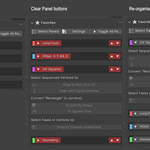
- Reordering: Use the up/down arrows on each panel to change its position
- Expanding/Collapsing: Click the triangle icon next to a panel name
- Toggle All: Use the expand/collapse all button (triangle icon in the header)
4. Customization Options
Color Coding
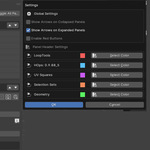
- Click the "Settings" button in the Favorites tab
- For each panel listed, click "Select Color"
- Choose a color from the available options
- Click "No Color" to remove color coding
Global Settings
In the Settings dialog, you can configure:
- Show Arrows on Collapsed Panels: Toggle visibility of up/down buttons on collapsed panels
- Show Arrows on Expanded Panels: Toggle visibility of up/down buttons on expanded panels
- Enable Red Buttons: Apply a red highlight to panel headers
5. Files and Data Storage
The addon saves your preferences in these files in the Blender config directory:
-
LA_FavouritePanels_prefs.json: Selected panels and their properties -
LA_FavouritePanels_expansion.json: Panel expansion states -
LA_FavouritePanels_settings.json: Global settings
6. Panel Color Customization
The addon supports custom colors for panel headers. Colors are loaded from PNG files in the "colors" folder within the addon directory. Each PNG file represents a color option.
7. Troubleshooting
No Panels Appearing in Favorites
- Ensure you've selected panels using the "Select Panels" dialog
- Click "Refresh Favorites" if panels were selected but aren't showing
Missing Colors
- Verify the "colors" folder exists in the addon directory
- Make sure color files are PNG format
Lost Settings
- Check if the JSON files exist in your Blender config directory
- If settings are corrupted, try clearing selections and restarting
8. Tips and Tricks
- Use color coding to group related panels visually
- Collapse rarely used panels to save space
- Place your most frequently used panels at the top of the list
- Use "Select All" within an addon to quickly add multiple related panels
9. Keyboard and Mouse Shortcuts
The addon uses standard Blender UI interactions:
- Left-click to select, expand/collapse
10. Compatibility
LA Favourite Panels is designed to work with standard Blender panels from addons. Custom or non-standard panels may have limited compatibility.
Have questions about this product?
Login to message
| Published | over 1 year ago |
| Blender Version | 4.4, 4.3 |
| Extension Type | N/A |
| Render Engine Used | Cycles |
| License | GPL |

Discover more products like this
favourite Consolidate quick-favorite 3d-user-interface Blender quick access sort