 ZEG
Installation
In Blender open Edit, Preferences, Get Extensions, then use Install from Disk and pick the window_generator zip.
Usage
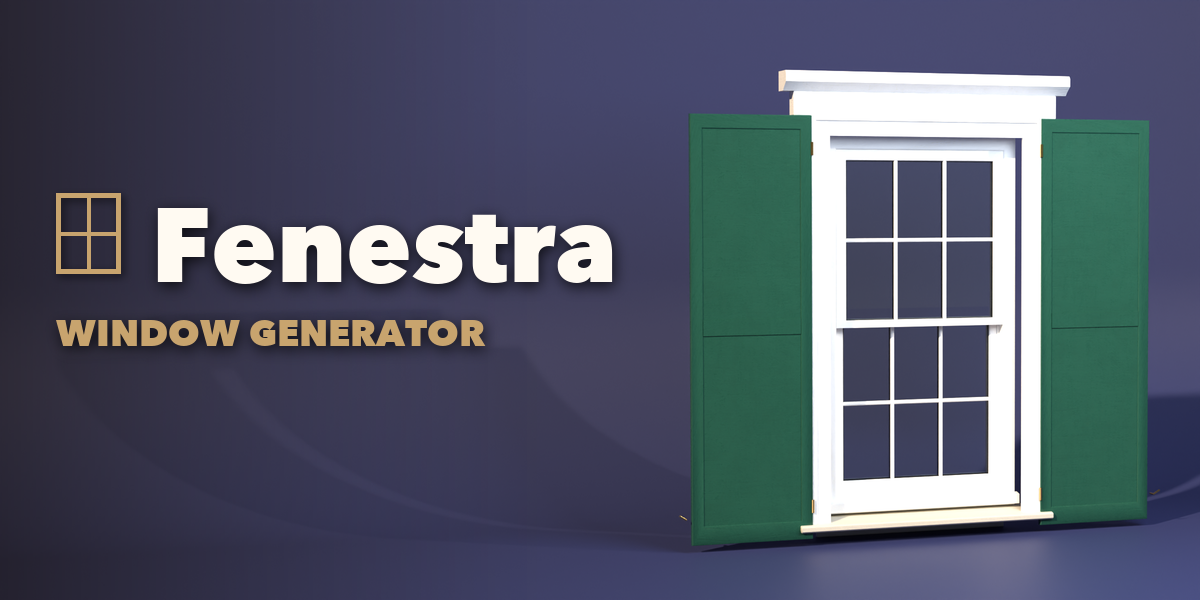
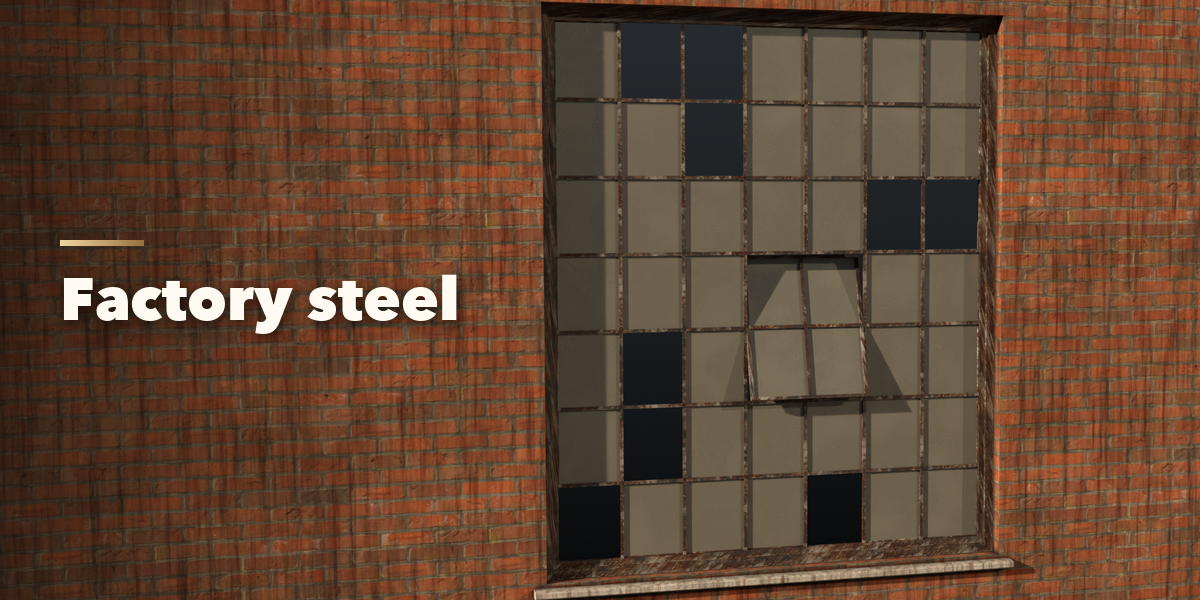
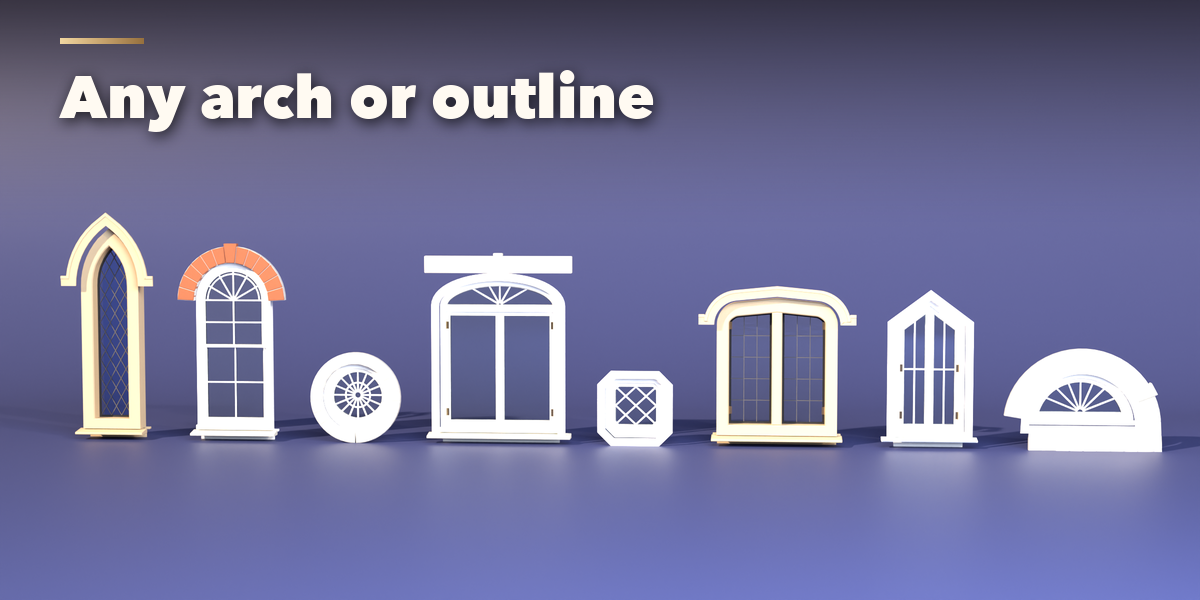
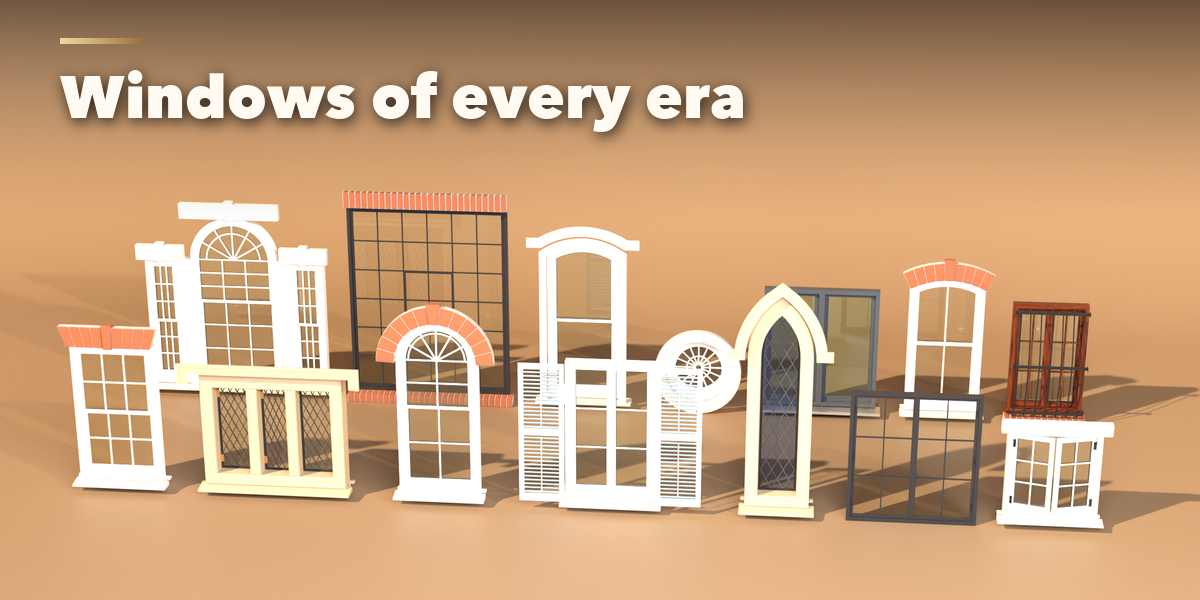
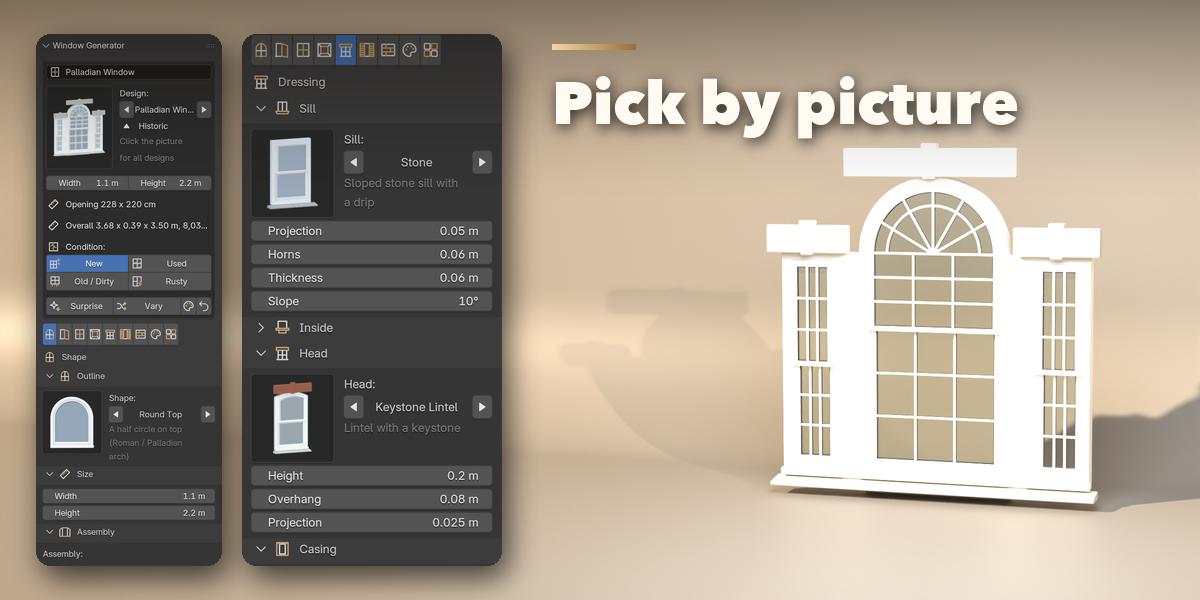
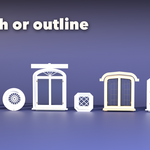
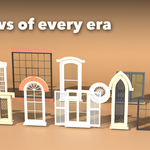
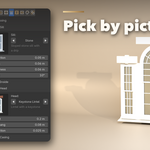
- Open the Window tab in the 3D viewport sidebar (N). With nothing selected, click the picture to choose one of the 71 designs, or browse the ten families, and add it at the 3D cursor. You can also use Shift+A, Mesh, Window.
- The card at the top shows the design, its width and height, its size and face count. Surprise makes a new random window, Vary changes the current one a little, the palette button picks a random finish and the arrow resets the design.
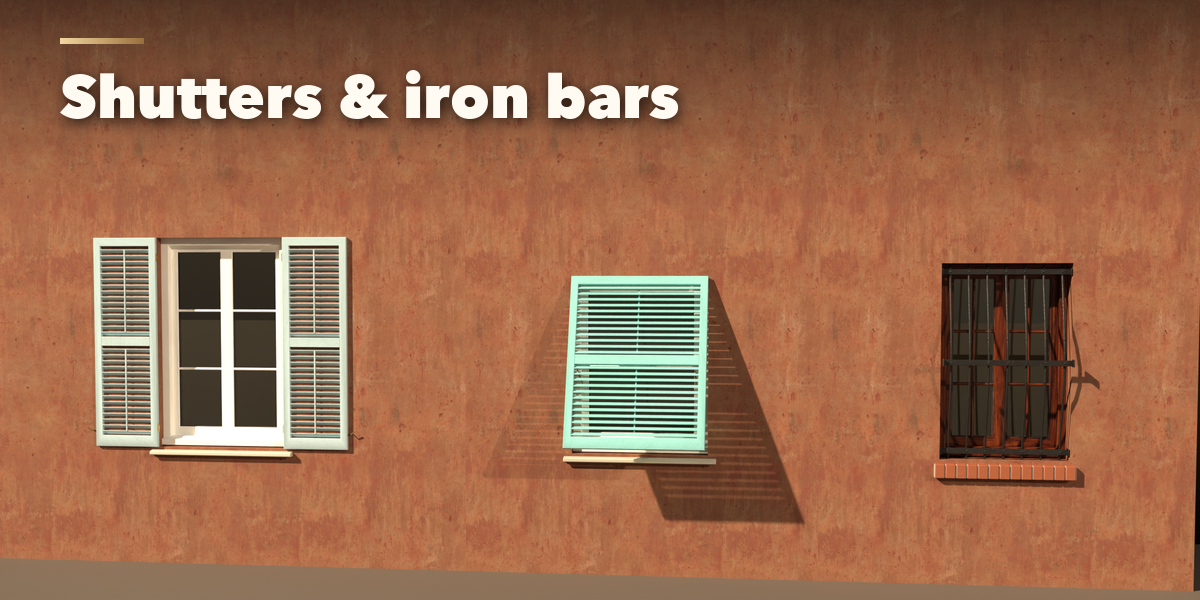
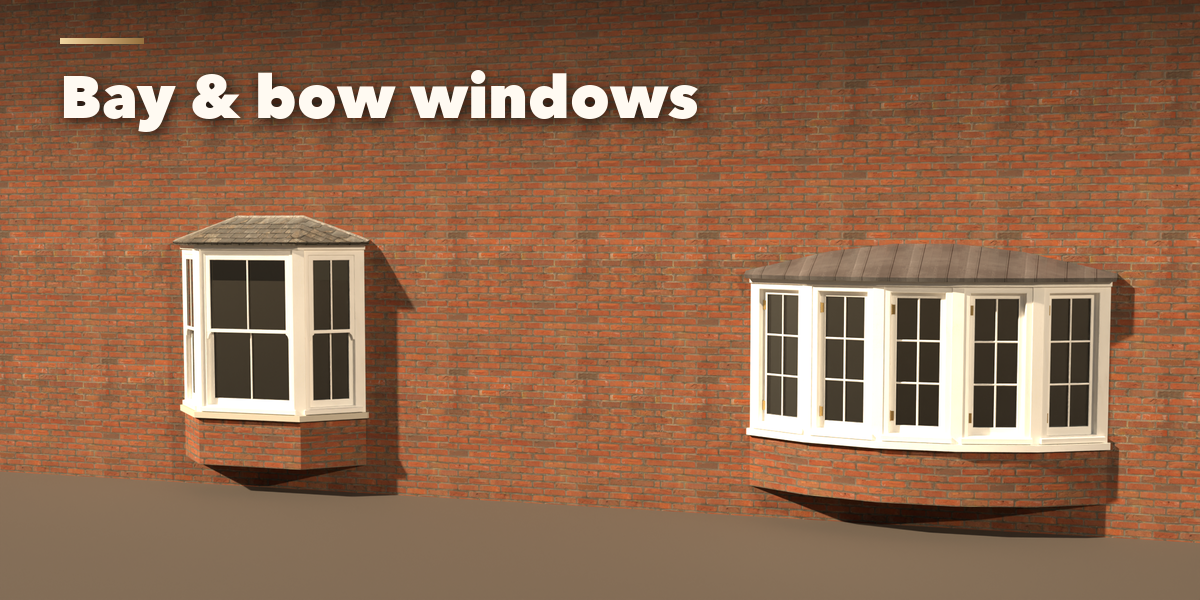
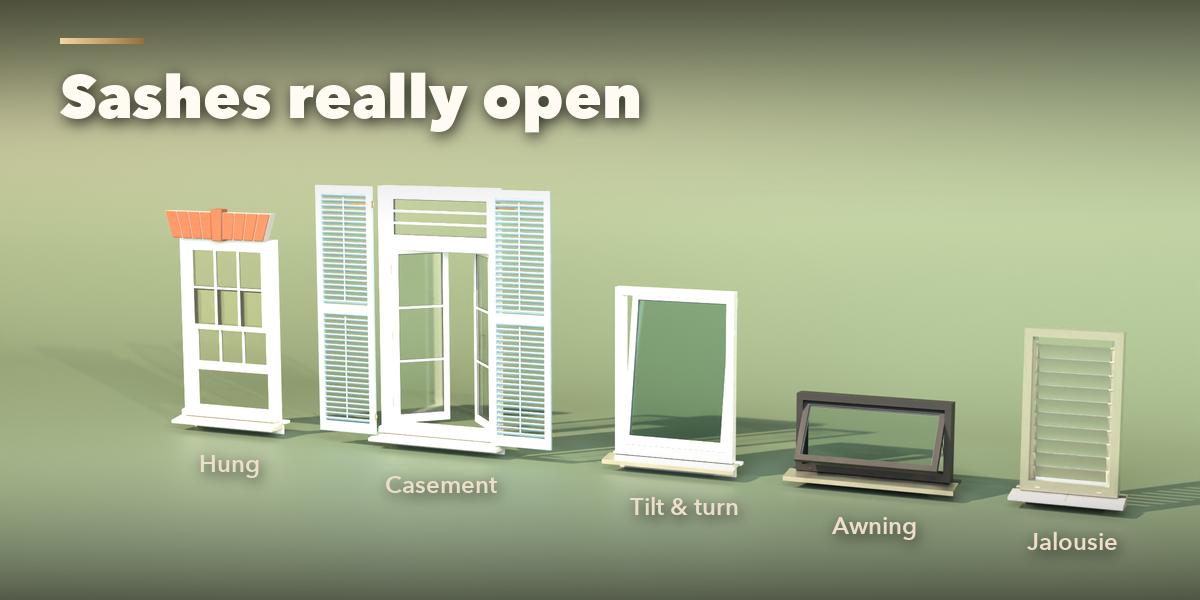
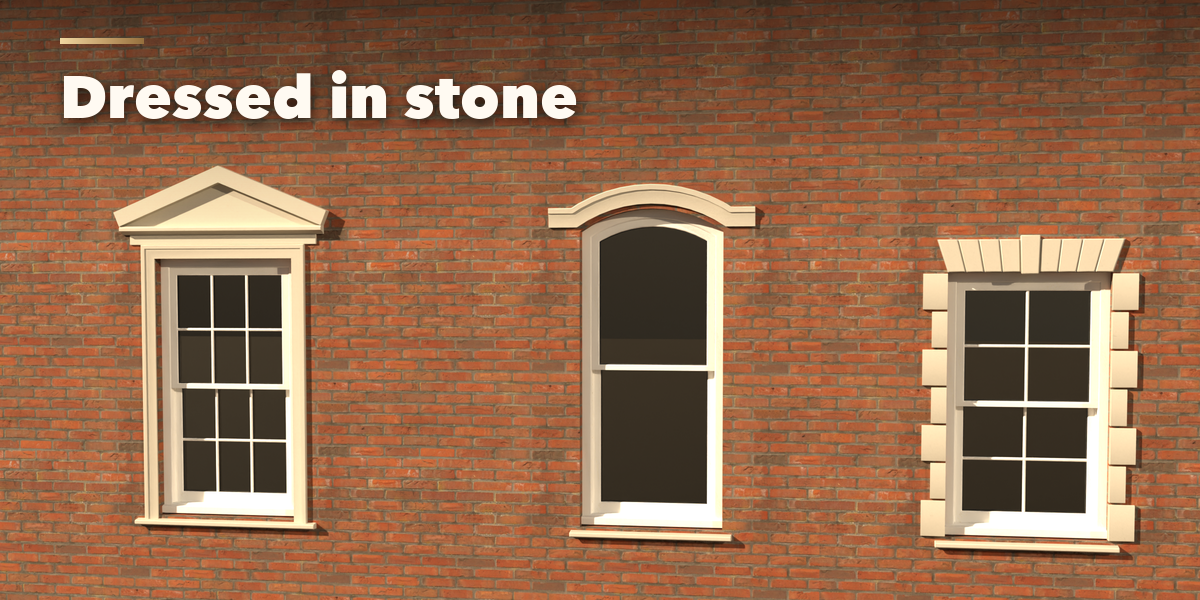
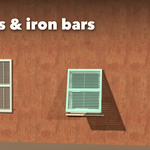
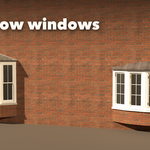
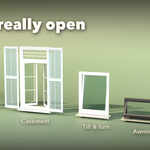
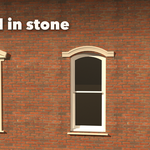
- The icon tabs hold every setting: Shape (outline, size, single, bay, bow or Palladian), Type (how it opens, units, transom, how far it is open), Grille, Frame (frame, sash and glazing sizes), Dressing (sill, head and casing), Shutters & Bars, Wall & Dormer, Finish (materials and weathering) and Parts (part visibility, detail, standard sizes, Convert to Mesh, Delete).
- To cut the opening into your own wall, select the wall, then the window, and press Cut Into Wall in the Wall & Dormer tab. The opening follows the window when you change it.
The window's origin sits at the bottom centre of the opening, with the outside facing -Y, so it snaps easily onto walls.
Have questions about this product?
Login to message
| Blender Extension Compatible | Yes |
| Published | about 20 hours ago |
| Blender Version | 4.2 - 5.2 |
| Extension Type | Add-on |
| Render Engine Used | Cycles, Eevee |
| License | GPL |

Discover more products like this
dormer facade building Bay window casement ArchViz Generator procedural shutters architecture window sash