 RUIDO VFX


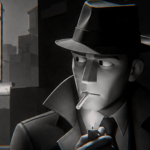
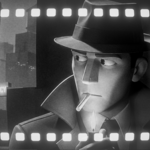
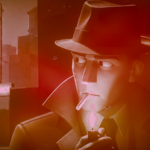
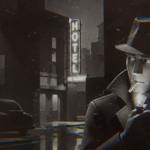
INSTALLATION:
- Open Blender.
- Go to Edit > Preferences.
- In the Preferences window, open the Add-ons section and click "Install from Disk".
- Locate and select the file "film_look_generator.zip" and confirm installation.
- The add-on will appear in the list as "Film Look"; enable it by checking the box.
- It is recommended to close and reopen Blender, as this may refresh the add-ons.
- Installation is complete.
INSTRUCTIONS:
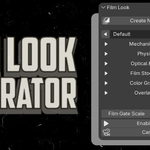
- Getting Started: Open the Compositor editor, click "New", and then look for the Film Look Generator tab in the sidebar (N-panel).
- Setup: Click "Create Node Group" to build the effect chain.
- Connecting Nodes: Connect the Image output of your Render Layers node to the input of the newly created node group. Then, connect the output of the node group to your Composite node (for the final render output) and your Viewer node (to preview the results).
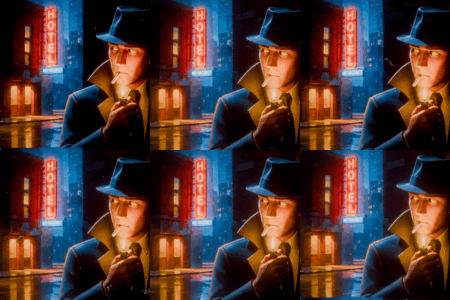
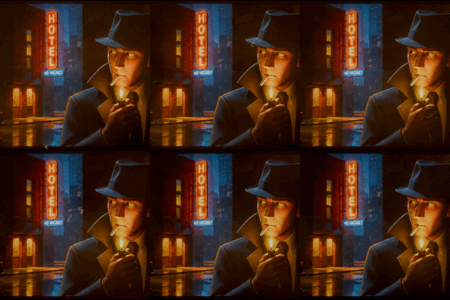
- Viewing the Effect: Click the "Enable Effect" button in the panel to turn the effect ON and see it in your viewport. You can press the Spacebar to play the timeline and see the animated effects in real-time.
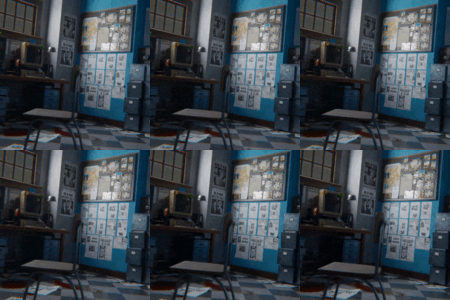
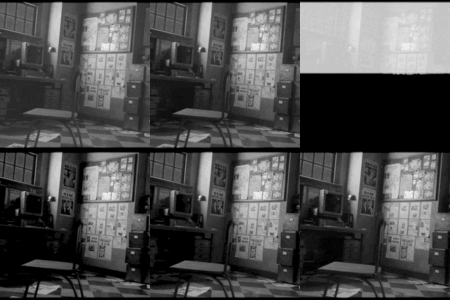
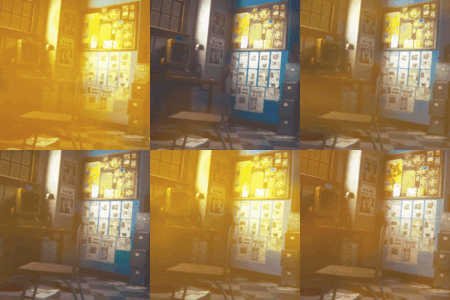
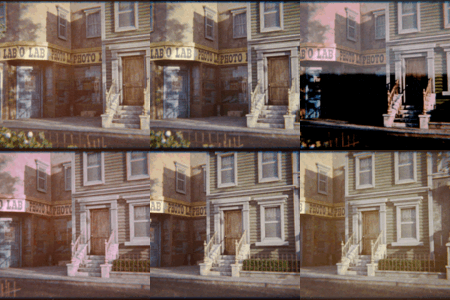
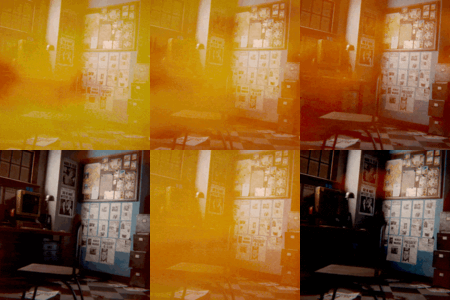
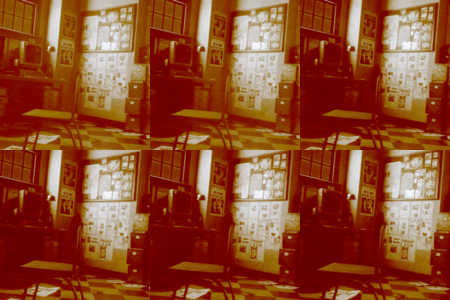
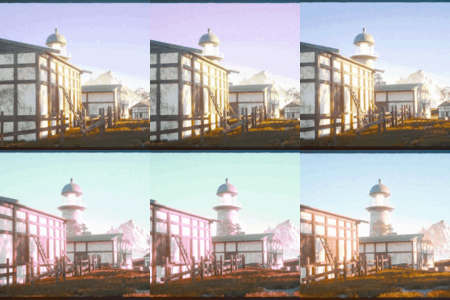
- Applying Presets: Use the Preset dropdown to switch between 20 custom styles. Your manual adjustments for each style are automatically saved and remembered when you switch.
- Performance & Rendering: Because this add-on simulates realistic analog film behavior procedurally, it can slow down viewport navigation and increase final rendering times depending on the number of active effects. For a smoother workflow, it is recommended to keep the effect toggled OFF while editing your scene, and only turn it ON when tweaking the look and rendering the final output.
DETAILED SETTINGS GUIDE:
AUTOMATIC ANIMATION (CLOCK BUTTON)
Next to several settings in the interface, you will find a clock button. Activating this clock button enables automatic animation for that effect, which is driven by the project timeline (using frame-based drivers). Turning it off freezes the effect, allowing you to keyframe or adjust it manually.
The following features support this option:
- Gate Weave & Breath (independent toggles for weave motion and breathing scale)
- Flicker (random brightness fluctuation over time)
- Scratches (changes the scratch line pattern dynamically per frame)
- Light Leaks (volumetric evolving light blobs)
- Film Grain (animates grain noise on each frame)
- Hue Drift (dynamic shifting of hue values over time)
- Sprocket Transport (scrolls the sprocket holes vertically to simulate moving film)
MECHANICAL INSTABILITY & MOTION
- Gate Weave & Breath (activate the clock button to animate): Simulates the horizontal/vertical translation and breathing scale pulse of film moving through the gate.
- Frame Jitter: Triggers abrupt, vertical micro-jumps (stutter/enganche) at set frame intervals to simulate transport snags.
- Flicker Intensity (activate the clock button to animate): Random brightness fluctuation per frame.
- Exposure Shift: General exposure offset.
PHYSICAL DAMAGE & ARTIFACTS
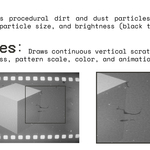
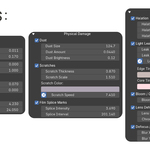
- Dust Size & Amount: Scale and density of the dust particles.
- Dust Brightness: Adjusts the tone of the dust from -1.0 (Black/Dirt) to 1.0 (White/Lint).
- Scratches (activate the clock button to animate): Adjust scratch thickness, pattern scale, animation speed, and custom color.
- Splice Marks: Controls the intensity and interval of splice line marks and overexposure flash frames.
OPTICAL & LENS EMULATION
- Halation: Simulates red/orange glow at high-contrast margins where light bleeds into the emulsion (threshold, radius, and intensity).
- Light Leaks (activate the clock button to animate): Evolving volumetric light blobs at frame margins (intensity, scale, speed, and dual color tints).
- Bloom: Soft diffuse glow simulating light scattering on uncoated vintage glass.
- Chromatic Aberration: Emulates radial color fringing at frame borders.
- Lens Distortion: Applies barrel or pincushion distortion.
- Defocus: Soft focus blur with independent X and Y control.
FILM STOCK & EMULSION
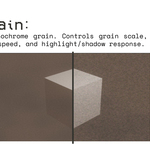
- Film Grain (activate the clock button to animate): Multi-layer RGB grain structure with custom scale, intensity, animation speed, chroma grain, and luma response.
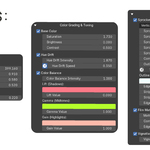
- Color Fading: Chemical dye degradation (Vinegar Syndrome) leaving a magenta/red cast.
- Base Color: Saturation, contrast, and brightness settings.
- Hue Drift (activate the clock button to animate): Dynamic color hue shifts over time (speed, intensity, and threshold).
COLOR BALANCE & GRADING
Lift, Gamma, & Gain: ASC-CDL color correction controls with color vector wheels and overall balance mix factor.
SPROCKET HOLES, BURNS & FRAMING
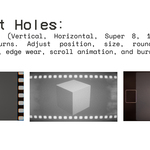
- Sprocket Holes (activate the clock button to animate): Select perforation styles (Vertical, Horizontal, Super 8, 16mm, outlines only) and adjust scale, width, margin, roundness, outline thickness, and color. Toggling the clock button enables vertical scrolling to simulate active film transport.
- Edge Wear: Controls organic roughness/wear on sprocket hole edges.
- Transport Speed: Vertical scrolling speed of the sprocket holes.
- Edge Burn: Overexposure glow at the film margins.
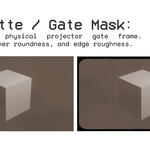
- Film Matte: Matte border overlay with adjustable corner roundness and gate edge roughness.
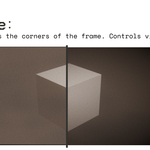
- Vignette: Radial darkening of the frame corners.
NOTES:
- For additional details on functions and values, hover the cursor over the desired item to trigger a descriptive tooltip.
- For the most accurate preview, always view your scene through the camera and maximize the 3D viewport as much as you can. This helps reduce differences between the viewport and the final render. Otherwise, the result may look slightly different from the final render.