Find Objects
 alexdepario
in Modeling
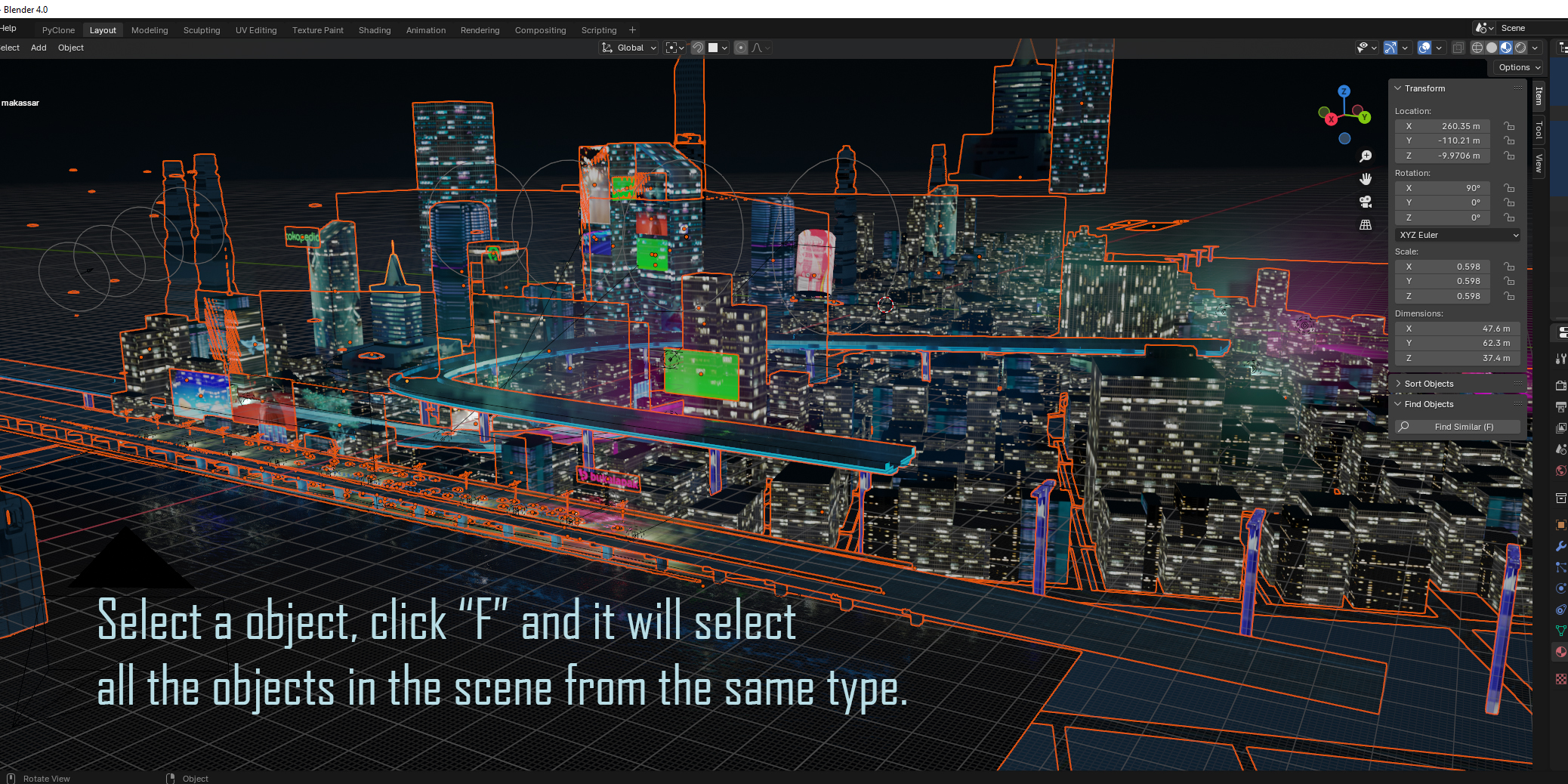
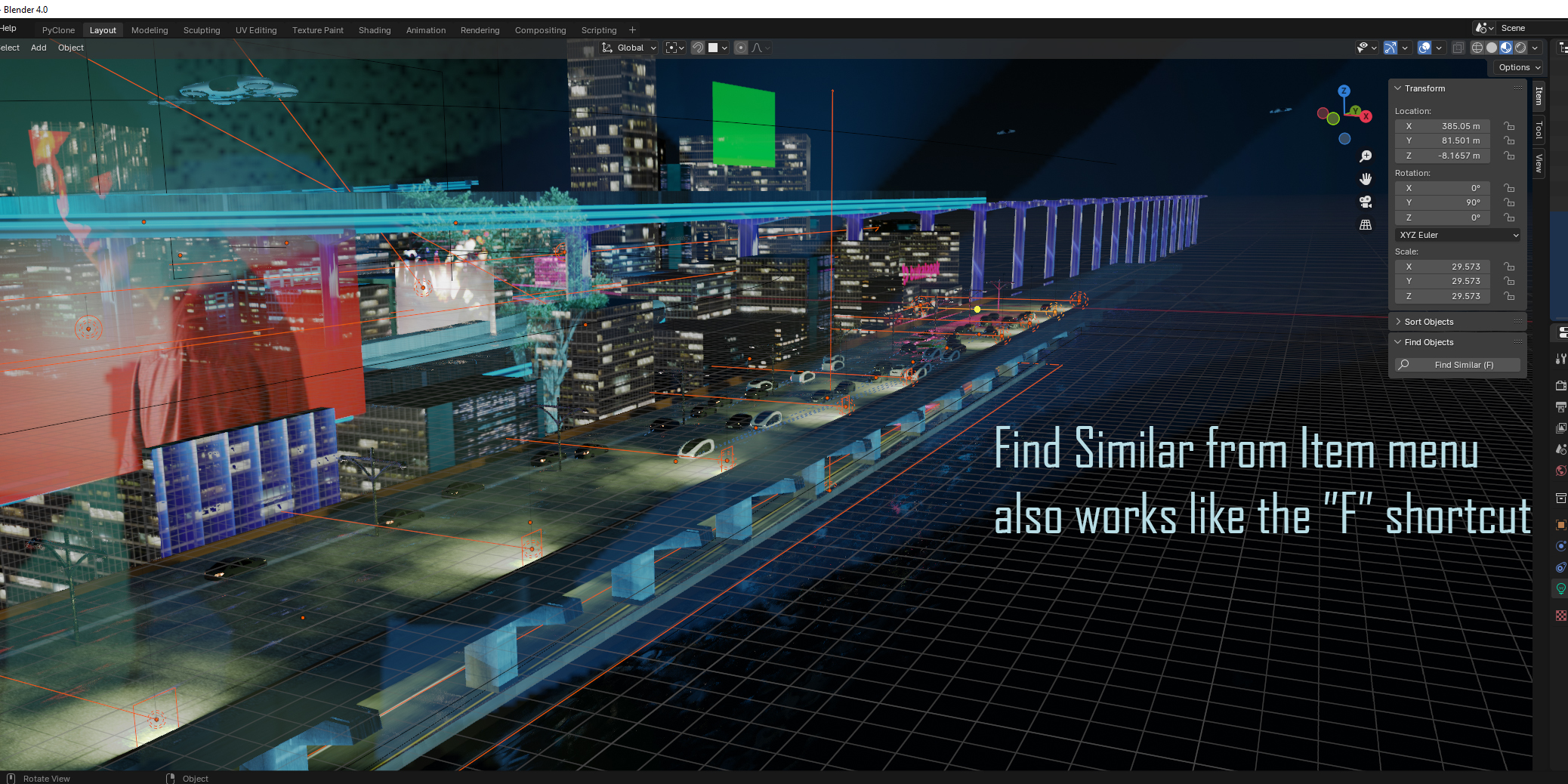
How does Find Objects help manage large or complex scenes?
Instead of manually expanding nested collections and scrolling through hundreds of items in the Outliner, Find Objects lets you search, filter, and locate specific scene objects directly from the 3D Viewport in seconds.
Is Find Objects compatible with Blender 4.2 and newer versions?
Yes. The package includes a blender_manifest.toml extension manifest, making it natively compatible with Blender 4.2+ extension workflows.
Do I need to extract Find_Objects.zip before installing it?
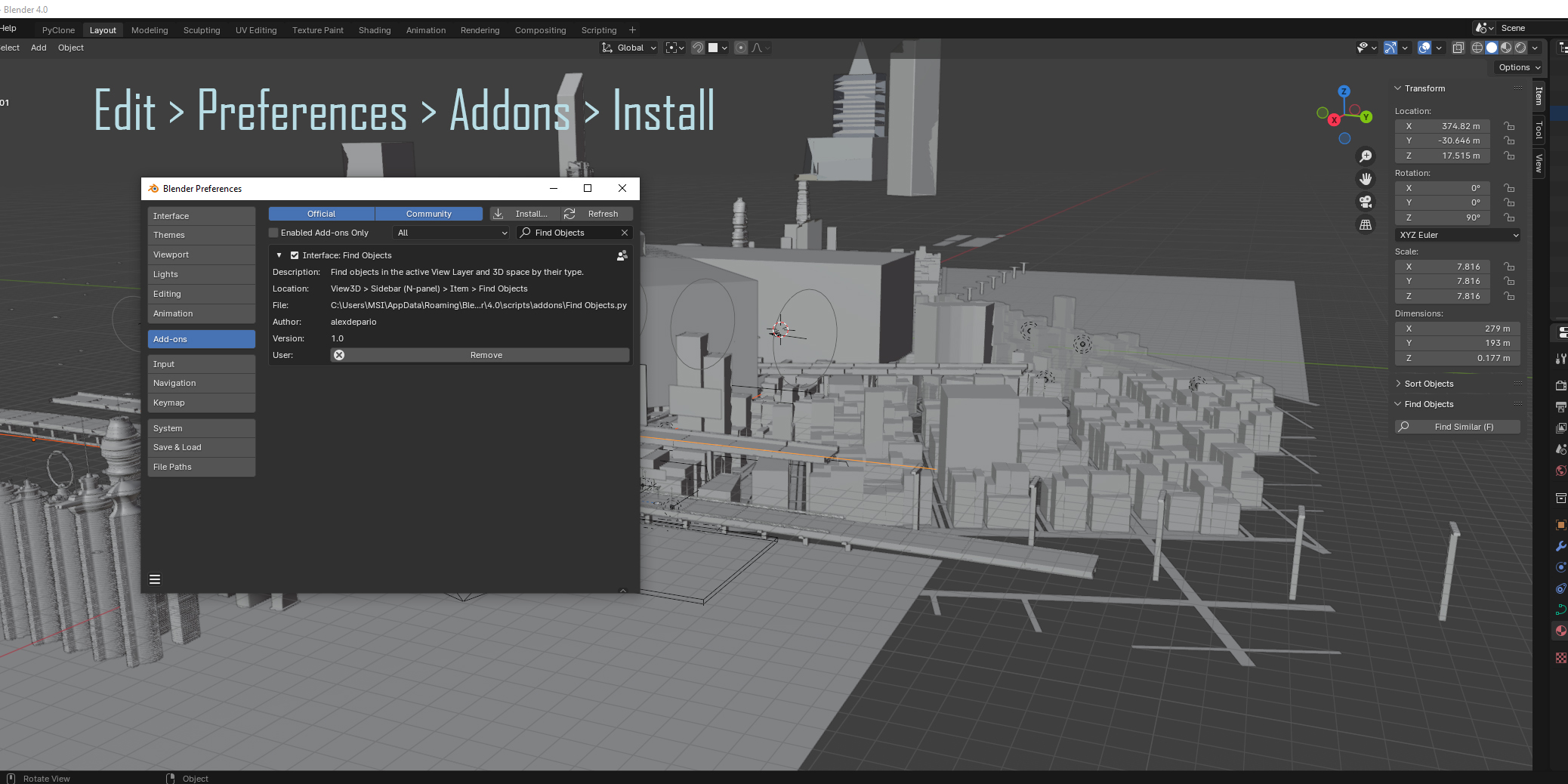
No. Keep the .zip archive compressed—which contains the Find_Objects/ folder along with __init__.py, Find_Objects.py, and blender_manifest.toml—and install it directly inside Blender via Edit > Preferences > Add-ons (or Get Extensions) using Install from Disk, or drag and drop the .zip file straight into the Blender window.
Where do I find the Find Objects panel inside Blender?
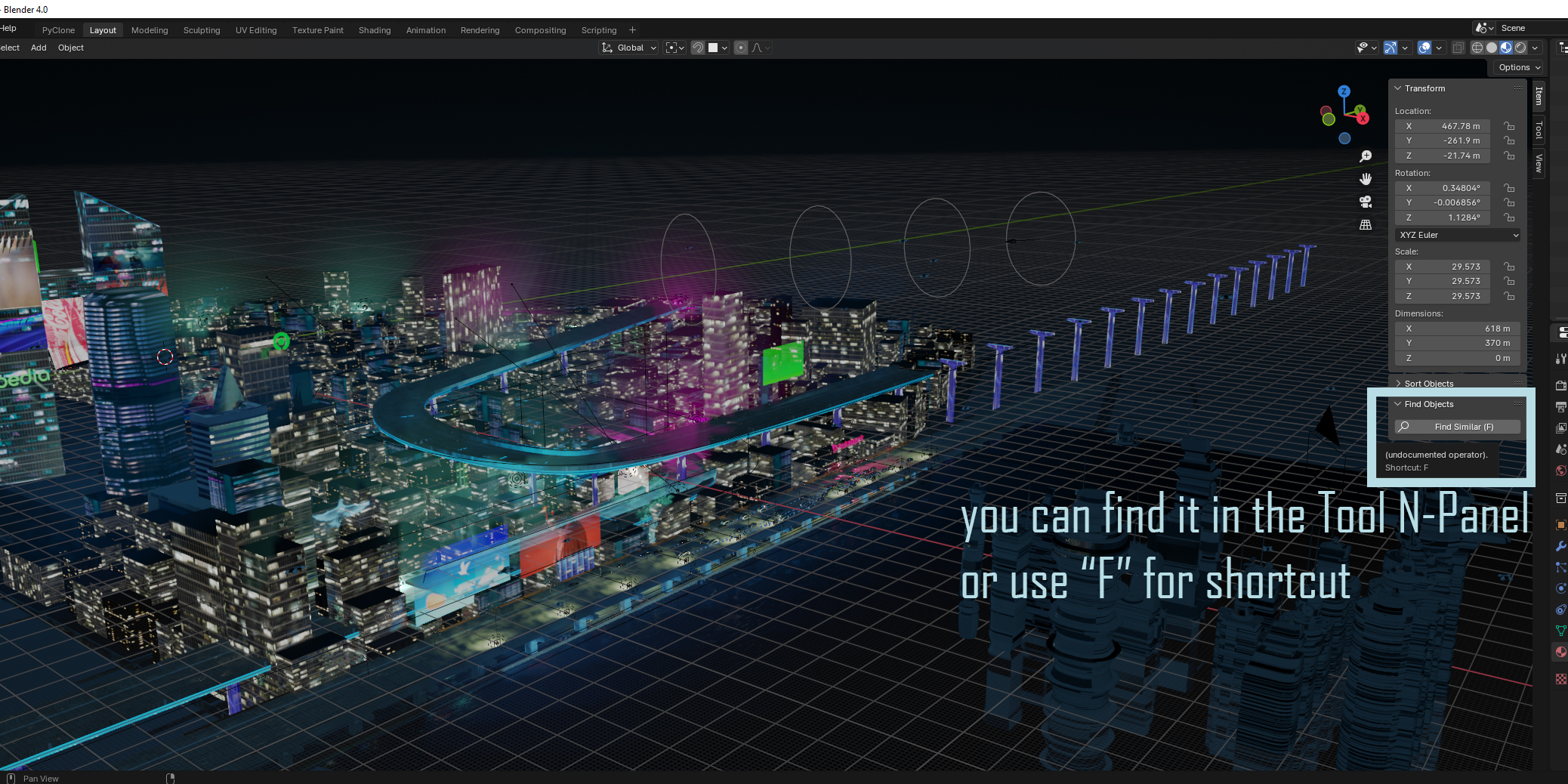
Open the 3D Viewport, press N on your keyboard to open the Sidebar (N-Panel), and select the Find Objects tab.

Discover more products like this
Object Finder keymap customization blender Object Selection interface 3d modeling addon search mesh navigation