Find Me
 3DF


Installation
Open Blender - Preferences - Add-ons - Install From Disk (small dropdown arrow top right) - choose ZIP-archive with the addon.
Disclaimer
All buttons have tooltips
Add-on does not fix issues, only highlights them.
Add-on does not work in realtime due to complexity of checks
Check FindMe.blend in blend folder
Basic Usage
Open Search Filter - Choose one or multiple collection colors.
Objects in collections of that colors will be available for check.
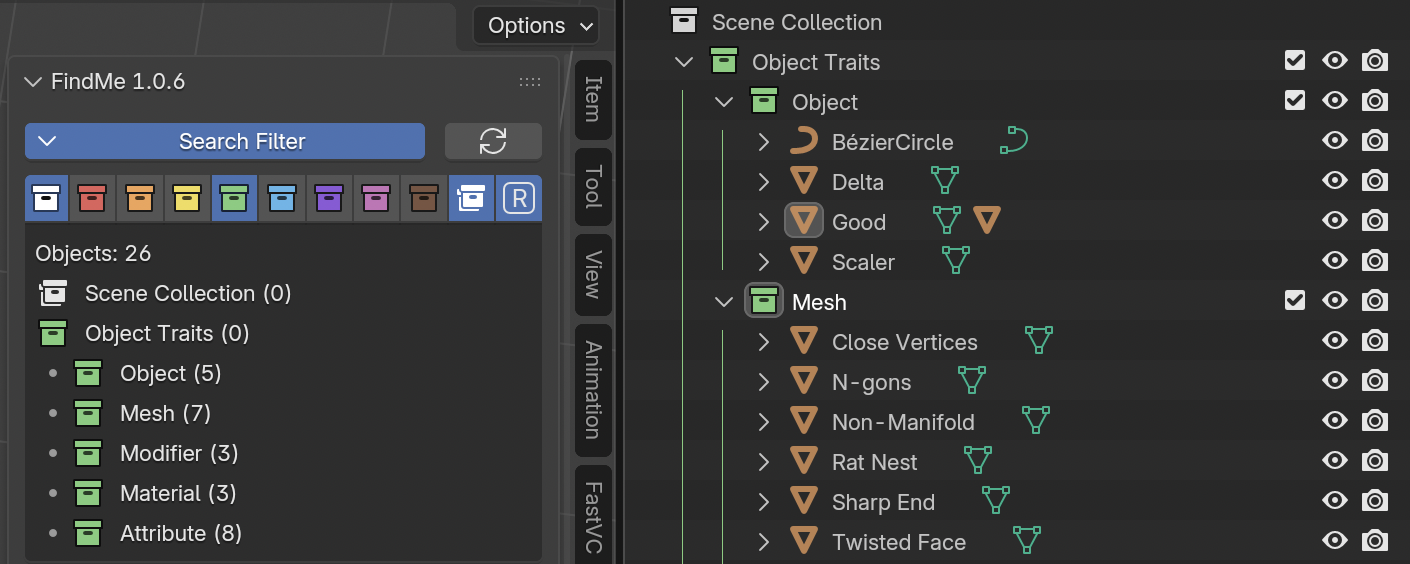
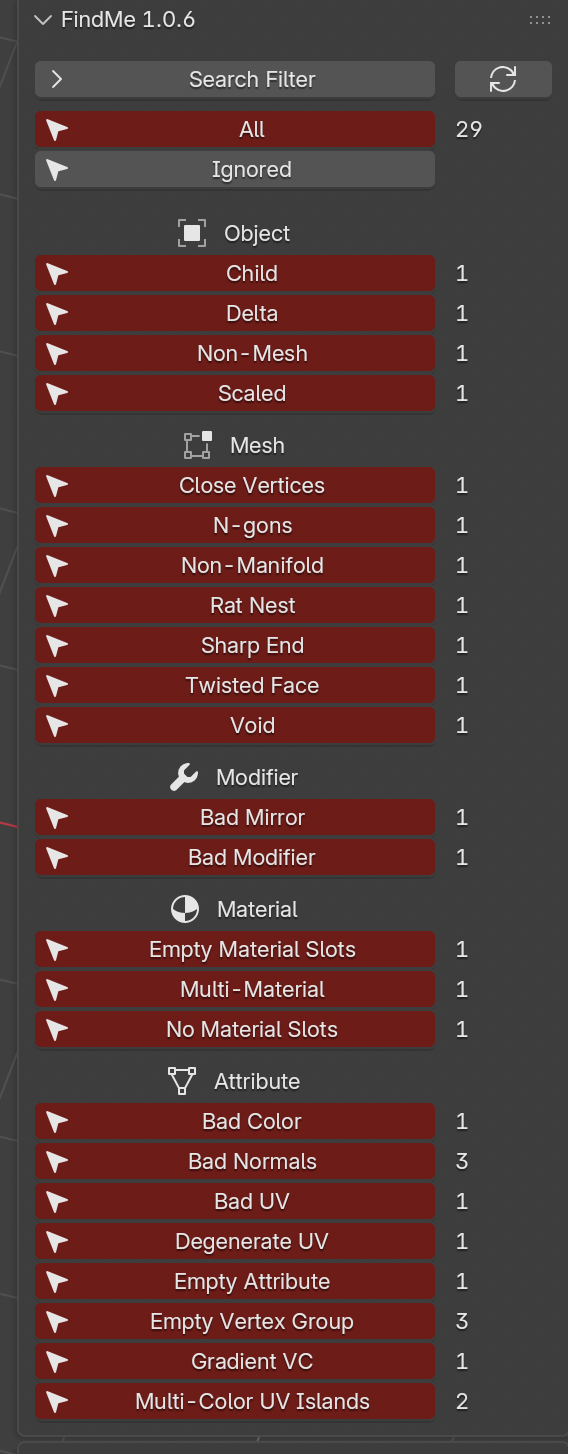
Once filter is set press Refresh Counts button you get something like this:
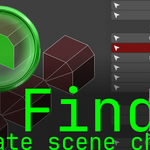
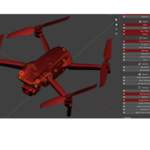
a bunch of red buttons called Finders followed by a number, pressing a Finder button will select objects with corresponding trait, and number shows how many objects with that trait are in scene.
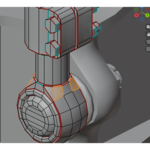
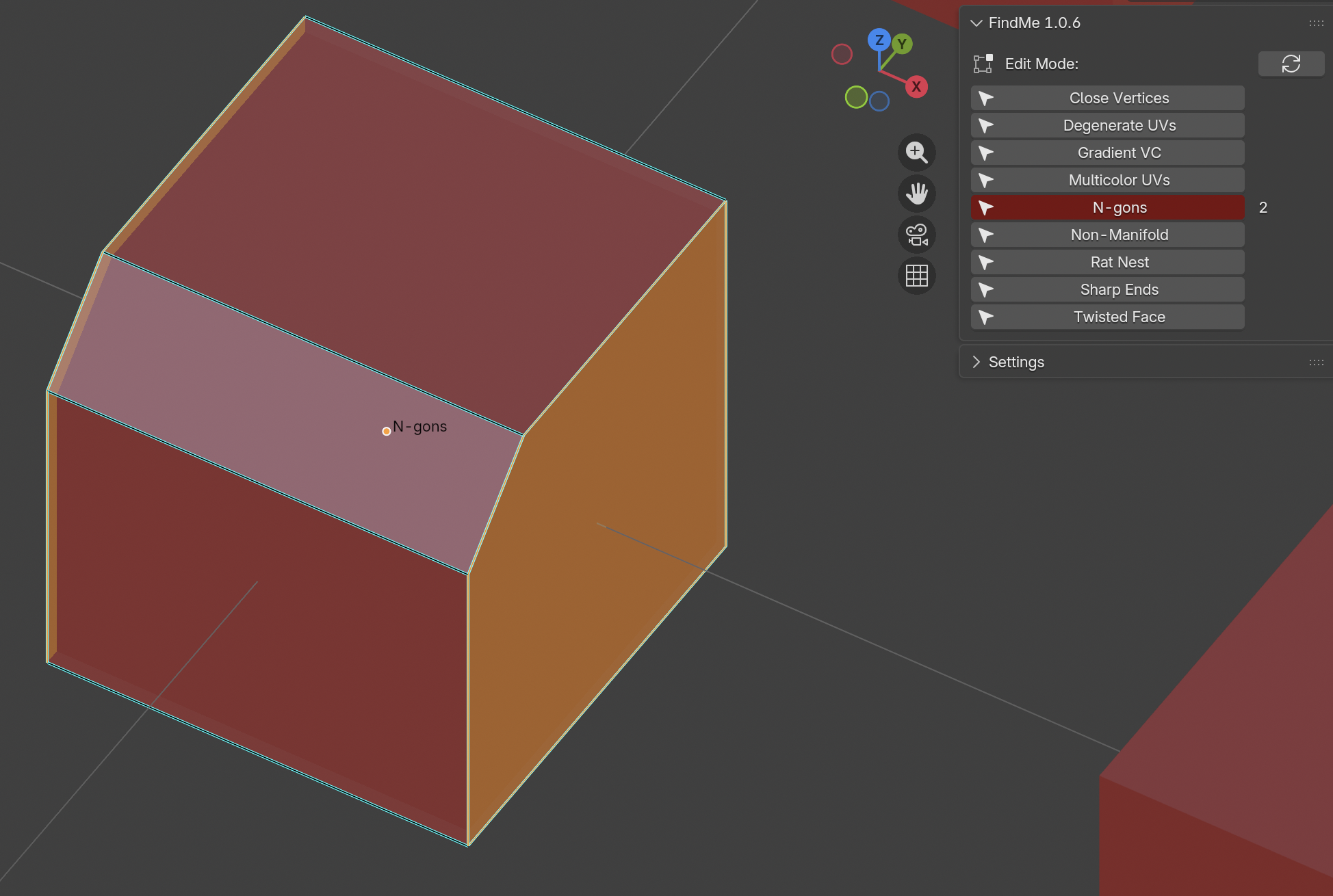
FindMe also works in Edit Mode, press refresh counts and then select mesh parts by trait by calling corresponding Finder
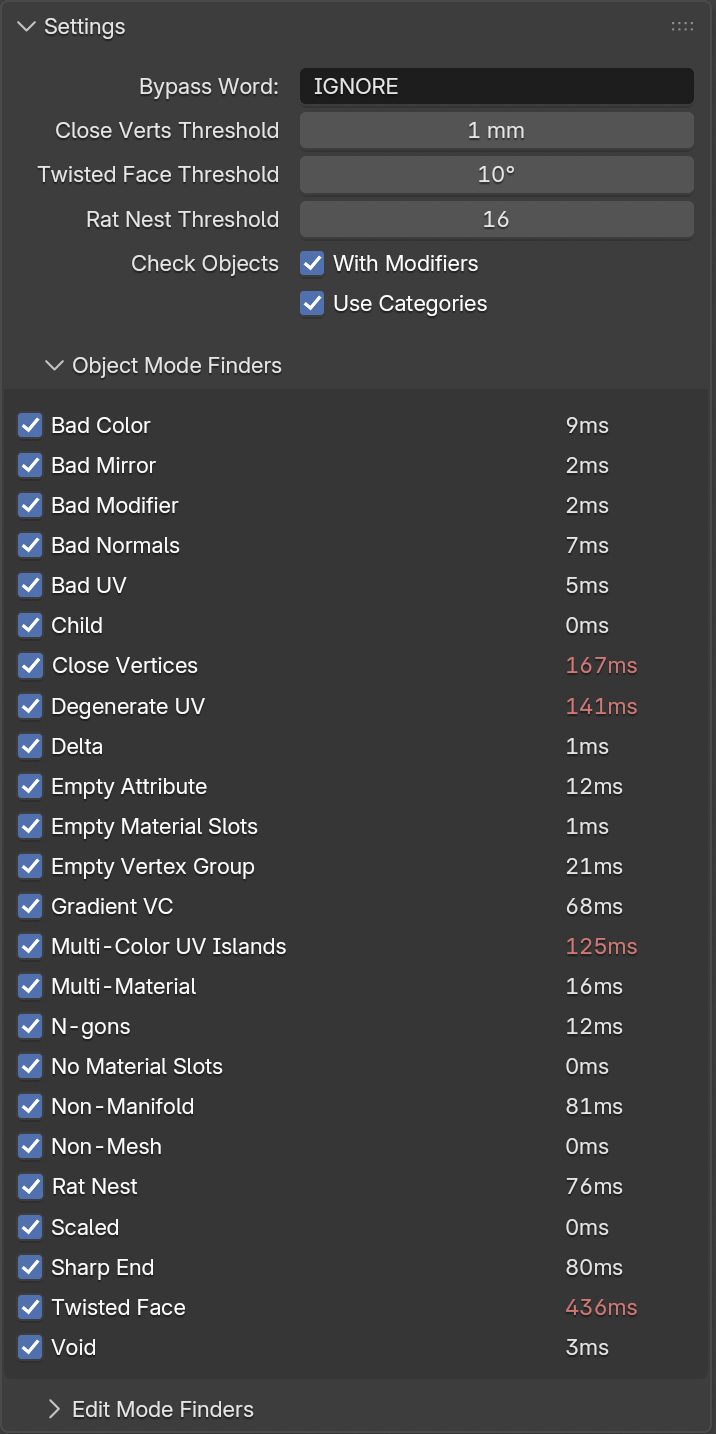
Settings
Bypass Word - if object name contains this string, object will be omitted from being checked.
Close Verts, Twisted Face and Rat Nest Thresholds are settings for corresponding finders.
Check objects
With Modifiers - check final evaluated state of object after modifiers, useful when modifier can introduce an issue, e.g. bevel can create N-gons etc.
Use Categories - organize finders by category
Object/Edit Mode Finders - shows timings for Finders, also here you can enable or disable Finders.
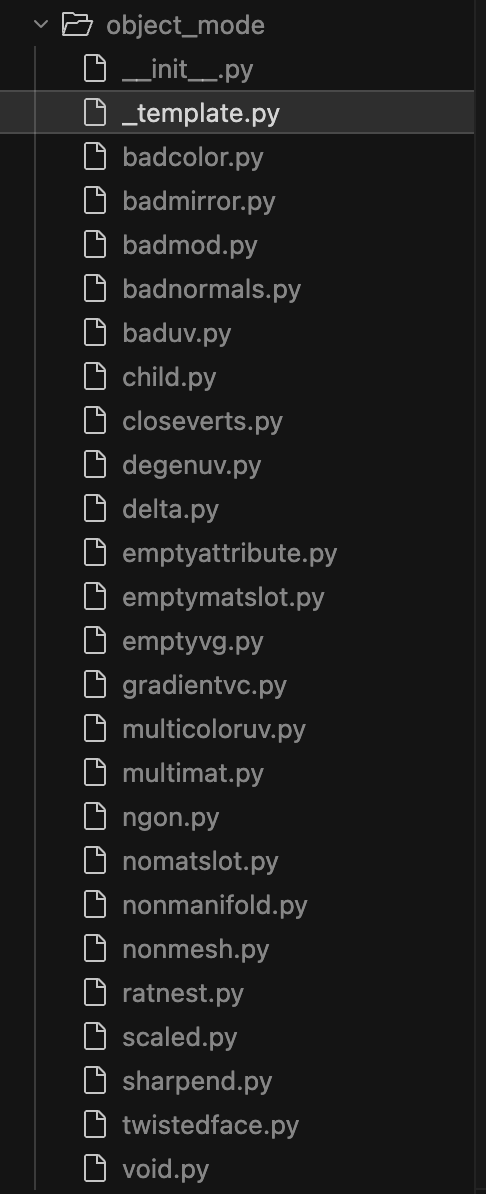
How to add your own Finder:
Navigate into add-on folder. There is _template.py in object mode and edit mode folders, follow the instructions in these files.
Have questions about this product?
Login to message
| Blender Extension Compatible | Yes |
| Published | 7 months ago |
| Blender Version | 5.0 - 5.1 |
| Extension Type | Add-on |
| Render Engine Used | Cycles, Eevee |
| License | GPL |
Discover more products like this
Workflow non-manifold Quality Control UV Checker QA Object Selection ngon scene checker Checker Pipeline Tools mesh analysis Geometry