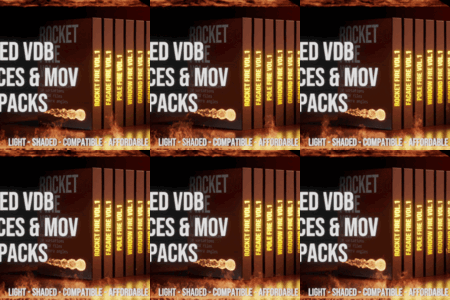
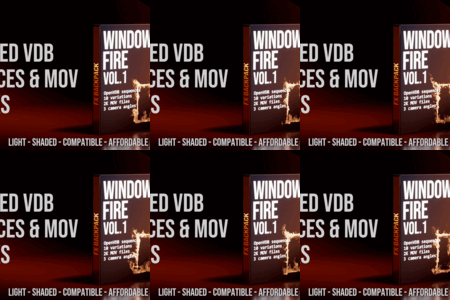
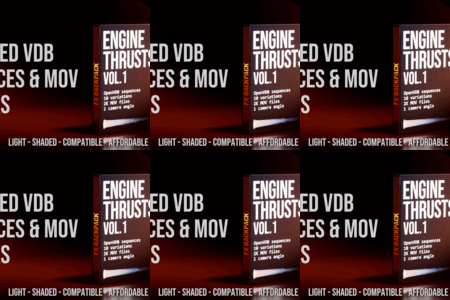
Fx Backpack - Fire Bundle - 9 Packs
 FX Backpack









Using the FXBP Add-on
Installation
-
In Blender, go to Edit > Preferences > Add-ons
-
Click Install from Disk and select the latest add-on file (FXBP Add-on X.X.X)
-
Enable it from the list
The add-on is available in the Discovery Pack, bundled with VDB packs, or as a standalone download.
Setting the FXBP Path
After installation, set the FXBP Root Folder Path — this is where you extracted your FXBP packs or the Discovery Pack.
Example folder structure:
FXBP (root folder)
• FIRE
• SMOKE
• FXBP_VOLUME.blend
The Discovery Pack includes this correct structure by default.
Adding New Packs
When you buy a new FXBP pack, it follows the same folder structure.
You don’t need to enter subfolders or move files manually — simply drop the entire extracted pack into your FXBP root folder.
It will automatically populate the correct category (FIRE, SMOKE, etc.) and appear in the add-on.
Asset Detection
The add-on scans the root folder and subfolders for recognized FXBP assets.
Renaming files or folders will prevent detection — keep assets as originally extracted or use the Discovery Pack to restore proper naming.
Updating
If upgrading the add-on, restart Blender after installation.
Once your FXBP path is set, you can save the Default Startup File so Blender remembers it.
Shaders
Place the latest FXBP_VOLUME.blend shader in the root folder.
If multiple versions are present, the add-on automatically uses the newest one.
This shader is the standard FXBP material for all assets.
-
$99.99
-
$200
If you are buying for an entity
Have questions about this product?
Login to message
| Rating | 1 ratings |
| Dev Fund Contributor | |
| Published | over 1 year ago |
| Blender Version | 4.3, 4.2, 4.1, 4.0, 3.6, 3.5, 3.4, 3.3, 3.2, 3.1, 3.0 |
| Misc Data | Animated, Low-High-Resolution |
| License | Royalty Free |
Discover more products like this
fxbackpack fxbp vdb fire animated fire pack volume essential collection simulation