FitFace — Face Mocap Adapter for Blender
 DayDream Studio
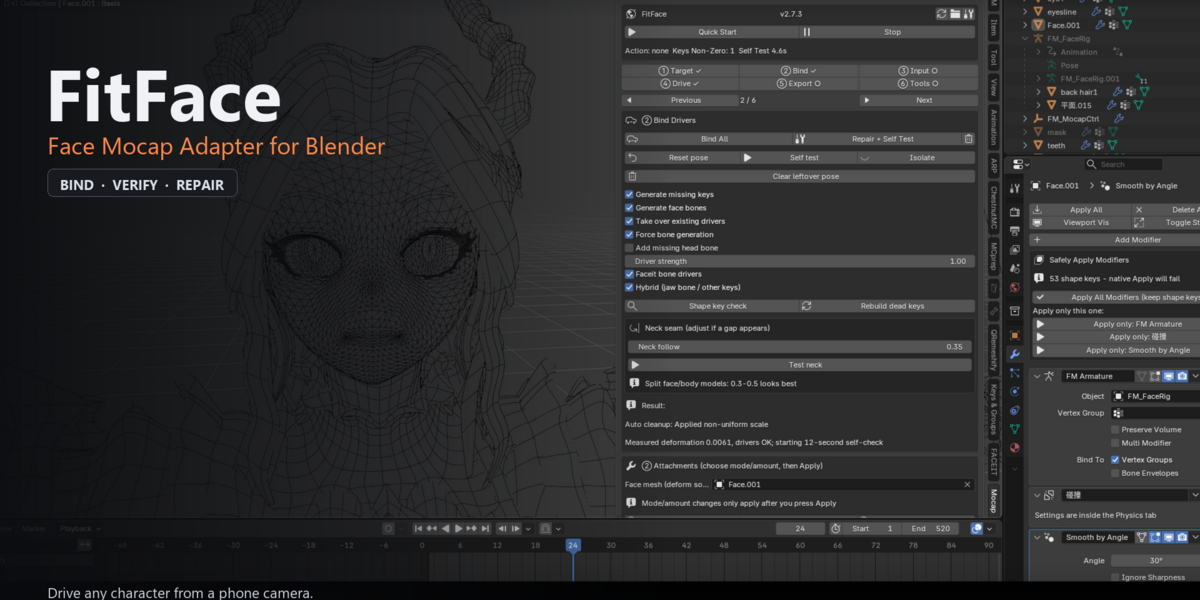
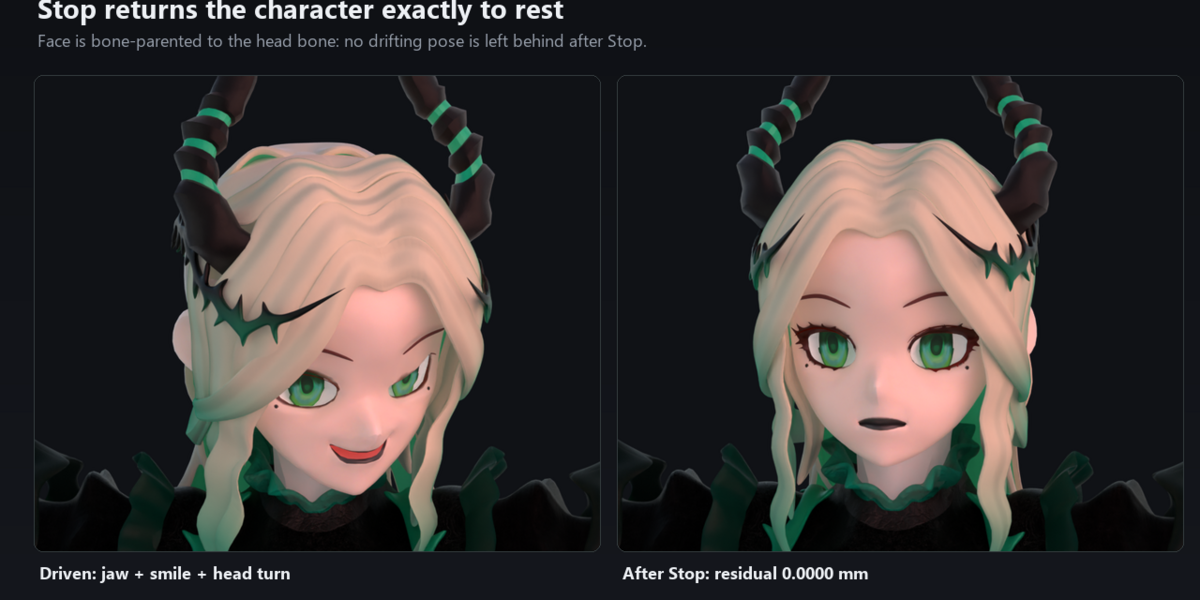
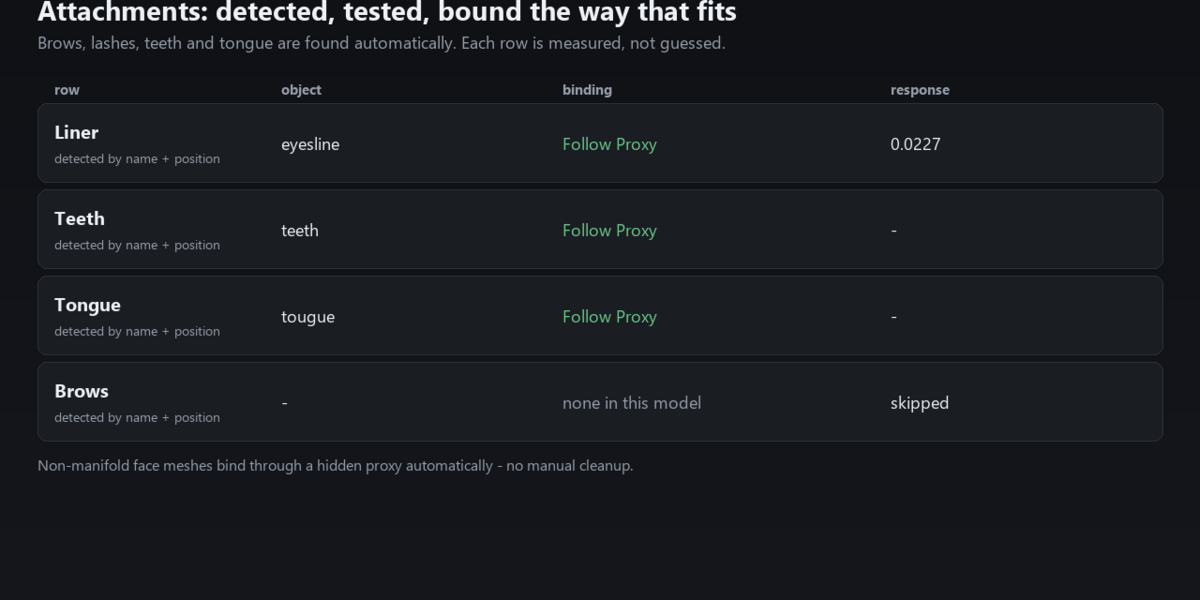
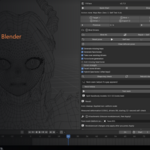
# FitFace — Quick Start
## Requirements
- Blender 4.0 – 5.2 (tested on 5.2.2 LTS)
- A phone, tablet or webcam for browser capture (UDP / CSV work without a camera)
- No account, no cloud, no subscription
## Install
1. Edit → Preferences → Add-ons → Install from Disk…
2. Pick FitFace-v2.7.4.zip, enable "FitFace — Face Capture Adapter"
3. Press N in the 3D viewport and open the "FitFace" tab
> Back up your .blend before binding. Binding changes vertex weights, drivers and
> parenting; Bind All also stores a snapshot you can restore from the Tools tab.
## Five steps
1. ① Target — select the face mesh. Whole-body mesh? Use "Select Face Region" first.
2. ② Bind — press Bind All, then read the report.
3. ② Bind → Attachments — Auto-detect attachments → Smart adapt → Apply.
4. ③ Input — Start Browser Capture, open the URL, scan the QR code on your phone.
5. ④ Drive — move your head. ⑤ Export to CSV or bake an action when you are done.
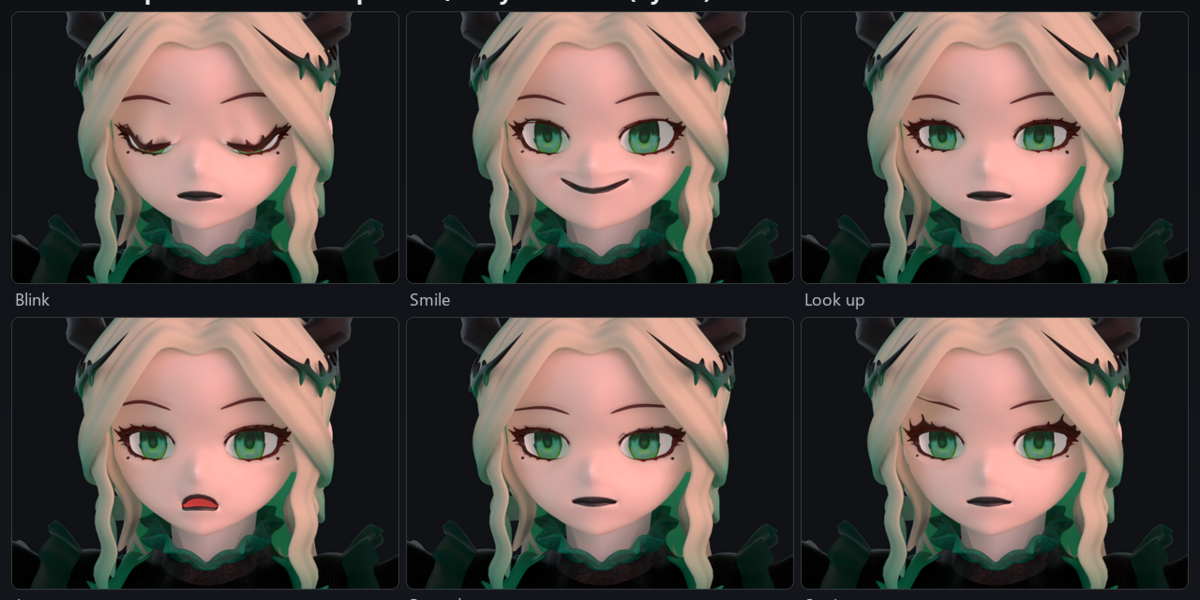
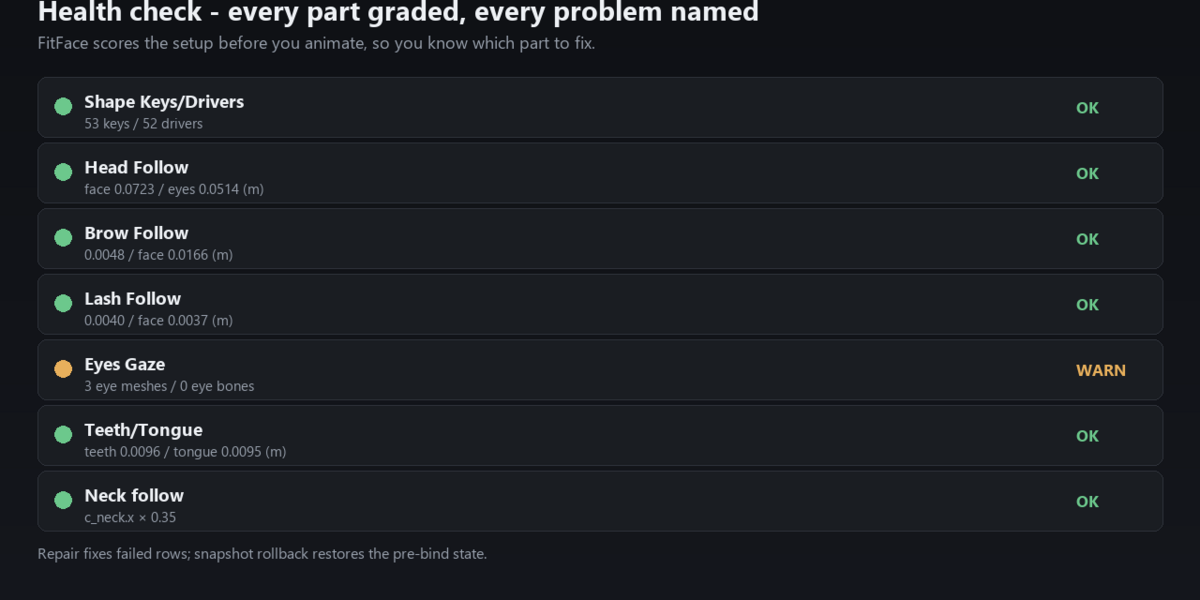
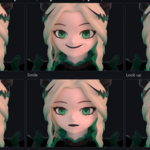
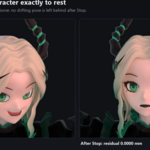
Finally run Tools → Run expression test (6 images). If a pose looks wrong, run
Tools → Run health check, then Repair from Health Check.
## Panel map
- ① Target: model wizard, face mesh, deformation source
- ② Bind: bind/repair, shape keys, neck follow, attachments, expression test
- ③ Input: browser capture, UDP / CSV / Live Link, Faceit bridge
- ④ Drive: live channels, smoothing, recording, self test
- ⑤ Export: CSV export, bake action, cleanup
- ⑥ Tools: health check, repair, sync check, profiles, snapshot/rollback, scan/heal
## Troubleshooting
- Face does not follow the head → ② Bind → Bind All again
- Eyeline or brows do not move → ② Bind → Attachments → Apply
- Teeth fly away on jaw open → use Smart adapt
- Browser page does not open → ③ Input → Fix Connection (reports the verified URL)
- Expression test renders the whole body → update to 2.6.2 or newer
## Support
Run Tools → Run health check first, then Copy diagnostics and send it with your
Blender version and model type. Response: 2 business days (Standard), 1 business day (Studio).
Have questions about this product?
Login to message
| Published | 28 minutes ago |
| Blender Version | 4.0 - 5.3 |
| Extension Type | N/A |
| Render Engine Used | Cycles, Eevee |
| License | GPL |