Floaty - Free Claim Coupon Inside - Open Editors In New Windows
 Trestle Trotter


Complete Documentation
How to use
When you install floaty you will see a new button in your headers.
That's called the float button.
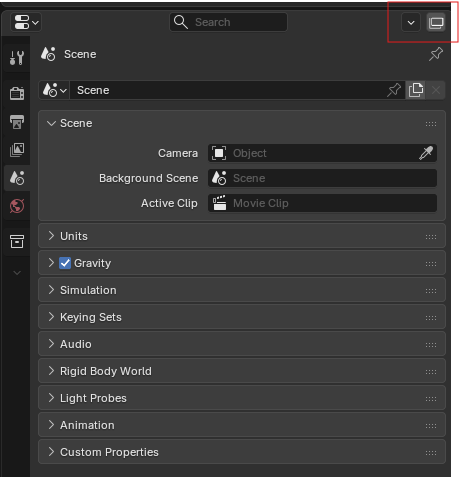
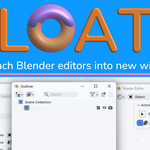
By clicking float you will detach the editor.
By clicking it again on detached windows you will be able to attach it again in the position you want.
By holding shift and clicking you will be able to move the editor space without detaching it.
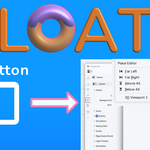
The positions to place the editor are
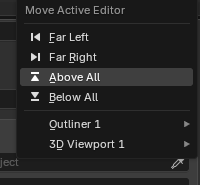
- Far Left - To the left of all editors.
- Far Right - To the right of all editors.
- Above All - Above all editors.
- Below All - Below all editors.
And per each editor in your workspace you have options to attach a window:
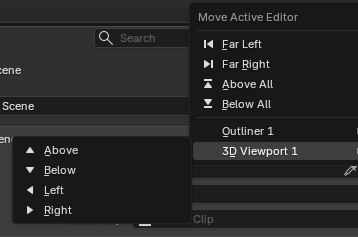
- Below - Below the select editor.
- Above - Above the selected editor.
- Left - To the left of the selected editor.
- Right - To the right of the selected editor.
Sidebar
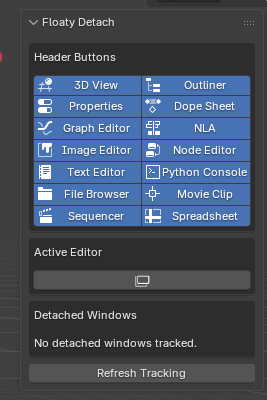
3d-View->sidebar
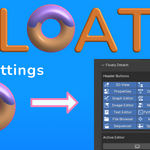
Header Buttons
- Select where you want to see the float button.
Active Editor.
- Float button.
Detached Windows
- Track the currently detached windows.
Preferences
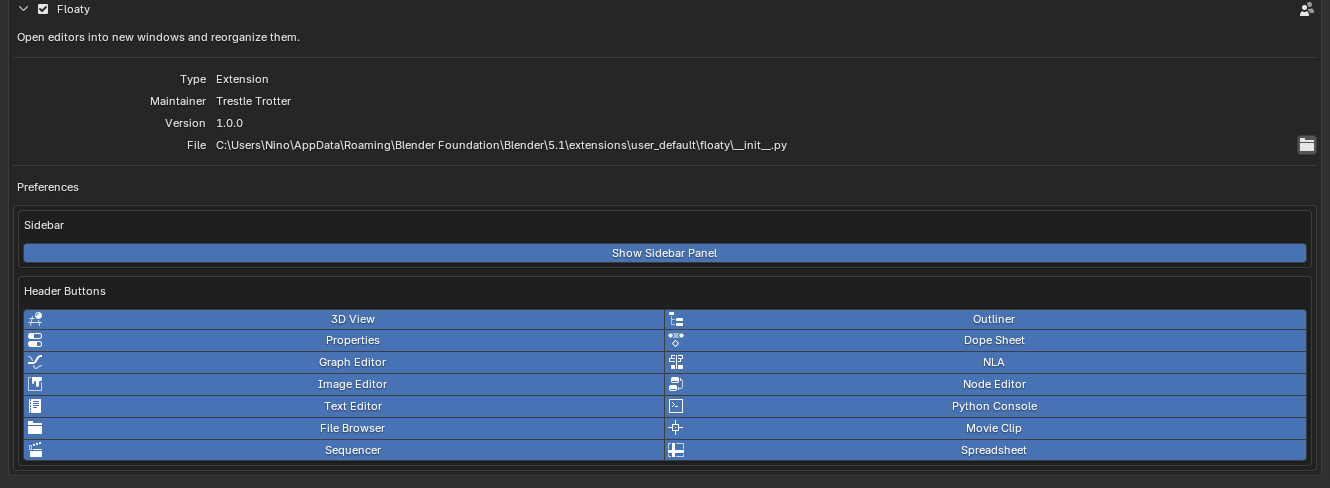
Sidebar Options
- Option to hide or show the sidebar panel.
Header Buttons
- Select where you want to see the float button.
-
$5.40 $9
Support me please! (optional)
Have questions about this product?
Login to message
| Blender Extension Compatible | Yes |
| Published | 4 months ago |
| Blender Version | 4.2 - 5.1 |
| Extension Type | Add-on |
| Render Engine Used | Cycles, Eevee |
| License | GPL |
