Game Ready One-Click
 Mavorklith











Game Ready One-Click — Documentation
Overview
Game Ready One-Click is a Blender toolkit for preparing 3D assets for real-time and game-engine workflows.
The addon combines asset analysis, cleanup, optimization, LOD generation, collision helpers, texture utilities, pivot tools, validation, reporting and export inside a single Blender sidebar.
The recommended workflow is:
Scan → Review → Fix → Optimize → Generate LODs/Colliders → Validate → Export
Requirements
Blender: 5.1 or newer
Tested version: Blender 5.1.2 on Windows
Primary use: Static mesh game assets
Some operations intentionally skip rigged meshes, shape-key meshes or other data that could be damaged by destructive processing.
Installation
- Download the Game Ready One-Click ZIP file.
- Open Blender.
- Go to Edit → Preferences → Add-ons.
- Click Install from Disk.
- Select the downloaded ZIP file.
- Enable Game Ready One-Click.
- Return to the 3D Viewport.
- Press N to open the sidebar.
- Open the GameReady tab.
The addon is now ready to use.
Quick Start
For most static assets, use this workflow:
- Select your asset.
- Open GameReady → Dashboard.
- Set Asset Scope to the desired target.
- Click Scan Asset.
- Review the Game Readiness Score and detected issues.
- Use Make Game Ready or open the individual tools for more control.
- Review the processed asset visually.
- Generate LODs and collision helpers if required.
- Review textures and production budgets.
- Open Export, validate the asset and export it.
Important: Automatic processing should always be followed by visual inspection. Game Ready One-Click assists the artist; it does not replace artistic or technical judgment.
Asset Scope
Many tools provide an Asset Scope option.
Depending on the tool, you can process:
Selected — operates on the currently selected supported assets.
Collection — processes supported assets from the chosen/current collection.
Scene — processes supported assets across the scene.
For initial testing, Selected is recommended.
Dashboard
The Dashboard is the central starting point.
Run Scan Asset to analyze the asset and calculate its Game Readiness Score.
The score is divided into categories including:
- Geometry
- UVs
- Materials
- Textures
- Transforms
- Naming
- Performance
- Export
A lower category score indicates that the scanner has detected findings worth reviewing.
The score is a Blender-side preparation indicator, not a guarantee that an asset will perform correctly in every game engine or project.
Scan
The Scan workspace provides detailed findings from the asset analyzer.
Each finding includes a category, severity and description.
Select a finding to see additional information and, where available, use Select Affected Object to locate the relevant asset.
The scanner can identify conditions involving geometry, UVs, materials, textures, naming, transforms, performance and export preparation.
Some findings are informational and do not reduce the readiness score.
Fix / Make Game Ready
The Fix workspace provides three processing levels:
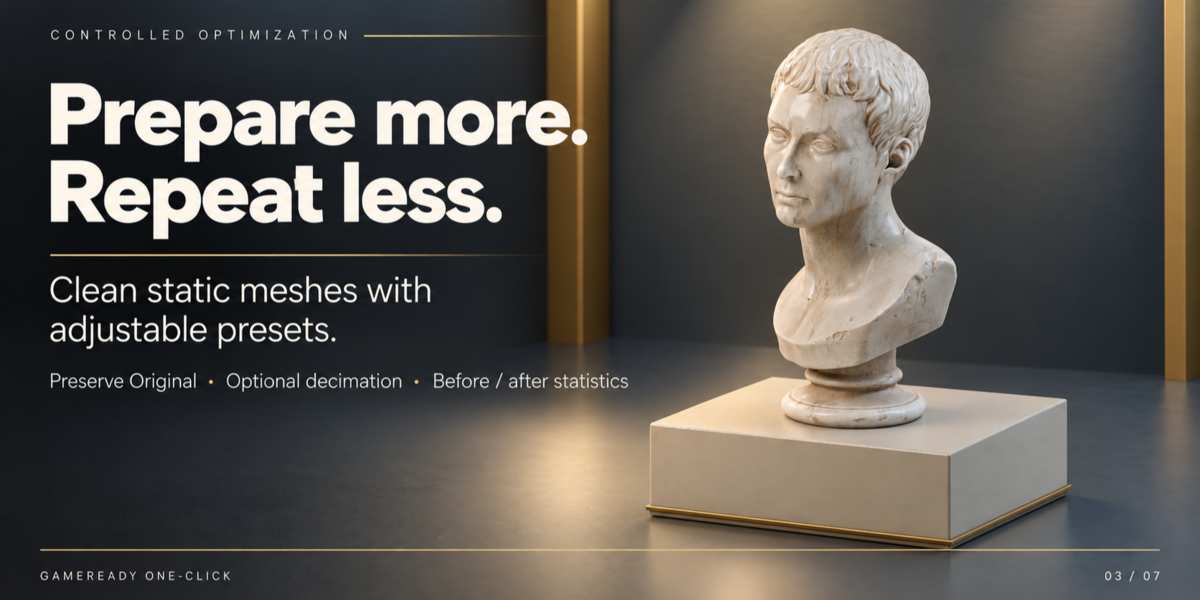
Safe — conservative processing intended to minimize changes.
Balanced — the recommended general-purpose preset.
Aggressive — stronger processing for assets requiring additional cleanup.
For most assets, start with Balanced.
Preserve Original
When Preserve Original is enabled, the addon preserves the source asset according to the selected workflow rather than treating it as disposable data.
Keeping this enabled is recommended until you have inspected the processed result.
Naming
Naming tools can normalize object names and apply prefixes, suffixes and supported replacement rules.
This is useful for maintaining consistent asset naming before export.
Pivots
Pivot tools allow origins to be positioned using common bounds, geometry and workflow-oriented positions.
Always verify the resulting pivot visually, particularly for gameplay-dependent assets such as doors, wheels and interactive objects.
Optimization
The Optimize workspace helps prepare assets around configurable production budgets.
Available controls include targets for:
- Triangle count
- Texture memory
- Material count
- Maximum texture dimensions
- Texel density
Production presets provide useful starting configurations.
Optimization can optionally add reduction modifiers and integrate LOD/collision preparation into the workflow.
Before / After Statistics
After processing, measured statistics can display changes to:
- Objects
- Vertices
- Triangles
- Materials
- Textures
- Estimated texture memory
- Material slots
These measurements help you understand what actually changed rather than relying on an arbitrary optimization label.
Triangle reduction targets are approximate. Always inspect silhouettes, shading and UV-dependent results.
LOD Generation
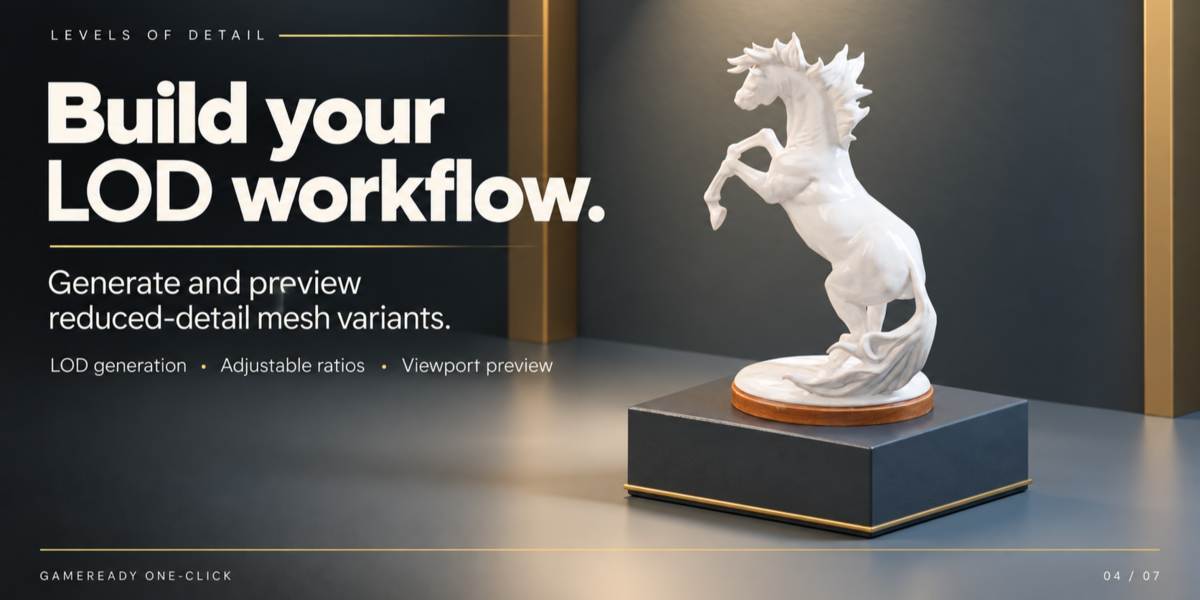
Open the LOD workspace to generate Levels of Detail.
Configure the number of reduced levels and the ratio for each LOD.
For example:
LOD0 — original/evaluated source
LOD1 — 0.60
LOD2 — 0.35
LOD3 — 0.18
Click Generate LOD0 + Reduced Levels to build the LOD chain.
Use the preview controls to inspect individual levels.
Reduction is approximate. Always inspect:
- Silhouette
- Shading
- UVs
- Important small details
Rigged and shape-key meshes may be skipped where reduction could produce unsafe results.
Collision Helpers
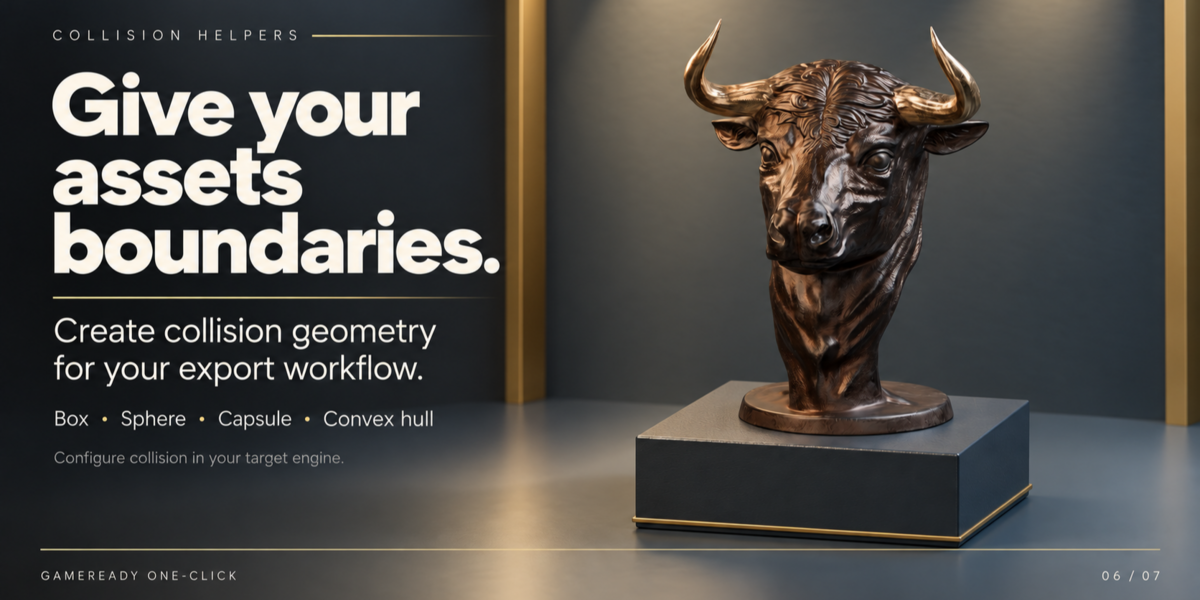
The Colliders workspace generates Blender-side collision helper geometry.
Available strategies include:
- Box
- Sphere
- Capsule
- Convex Hull
- Mesh
- Connected-component hull
- Smart primitive selection
The Smart option uses object dimensions to select an appropriate basic primitive.
For example, approximately equal dimensions may favor a sphere, while elongated objects may favor a capsule.
Collision helpers are preparation geometry. Final collision configuration, physics settings and testing must be completed inside your target engine.
Texture Tools
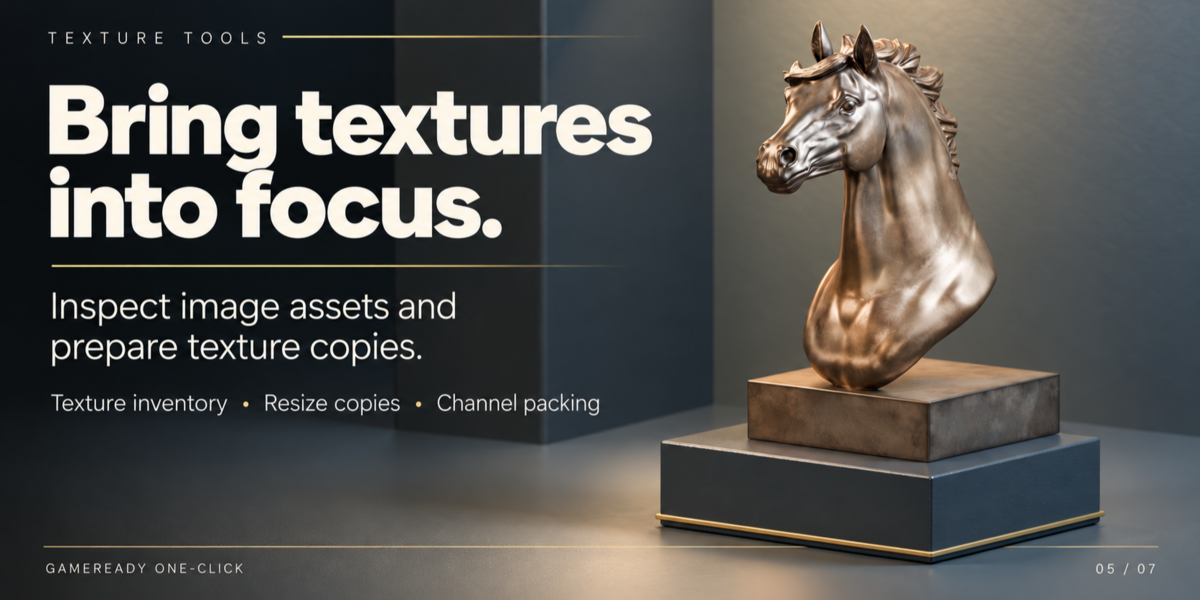
The Textures workspace allows you to inspect image assets associated with your models.
Information can include:
- Resolution
- Estimated uncompressed memory
- Color space
- Bit depth
- File information
You can create resized or converted texture copies without intentionally overwriting the original source texture.
Additional tools include:
- Save resized/converted copies
-
Pack selected images into the
.blend - Relink selected images
- Prepare custom RGBA channel-packed textures
For data maps such as normal, roughness and metallic textures, verify the correct color-space configuration for your pipeline.
Reporting
The Report workspace records information about processing operations and scan results.
Reports can be saved as:
TXT
JSON
HTML
JSON data can also be copied to the clipboard where supported.
Profiles
Reusable profiles can store workflow configurations for repeated asset-preparation tasks.
Profiles stored through the addon may be associated with the current .blend file, so verify your required configuration before starting a new project.
Export
The Export workspace is the final stage of the recommended workflow.
Configure:
- Engine-oriented profile
- Export format
- Output folder
- File name
- Export scale
- Animation where supported
- Armatures/skins where supported
- Triangulation
- Generated LOD inclusion
- Collider inclusion
- Materials
Supported workflow formats include common interchange formats such as FBX, GLB/GLTF and OBJ, depending on the selected configuration.
Validate Before Export
Use Validate Before Export before producing the final file.
Critical findings can prevent accidental export until they are reviewed.
An override may be available when you intentionally want to continue despite a reported issue.
Unity & Unreal Engine Workflows
Game Ready One-Click provides Blender-side preparation features for common Unity and Unreal Engine workflows, including naming, axes, LOD/collision preparation and export configuration.
The addon does not automatically configure your Unity or Unreal project.
After exporting, always verify:
- Scale
- Orientation
- Materials
- LOD configuration
- Collision
- Normals
- UVs
- Texture assignments
inside the destination engine.
AI Model Rescue
AI Model Rescue is intended as a cleanup and preparation workflow for dense, fragmented or imperfect generated meshes.
It can help with supported cleanup and preparation tasks, but it is not automatic retopology.
AI-generated assets vary significantly, so always inspect topology, UVs, shading and optimization results manually.
Non-Destructive Workflow
Game Ready One-Click favors source preservation where practical.
For important production assets:
-
Save your
.blendfile before major processing. - Enable Preserve Original.
- Process the asset.
- Compare the result with the source.
- Inspect shading and UVs.
- Validate before export.
- Test the exported result in the target engine.
This provides a safer workflow than treating automatic optimization as a guaranteed final result.
Current Limitations
Game Ready One-Click is primarily designed for static mesh asset preparation.
The addon does not claim to provide:
- Automatic professional retopology
- Complete automatic UV unwrapping
- Full texture baking
- Automatic texture atlasing
- Automatic animation cleanup
- Semantic identification/removal of arbitrary floating geometry
- Complete UV intersection/stretch analysis
- Automatic Unity/Unreal project configuration
LOD reduction and automated optimization are approximate and should always be inspected.
Large or complex scenes may require additional processing time and Blender may appear temporarily unresponsive during intensive operations.
Recommended Workflow
For the majority of assets:
1. SCAN
Understand the asset first.
2. FIX
Clean common technical problems.
3. OPTIMIZE
Work toward your production budget.
4. REVIEW
Check geometry, shading, UVs and textures.
5. GENERATE
Create required LODs and collision helpers.
6. VALIDATE
Run the scanner again.
7. EXPORT
Send the prepared asset to your target pipeline.
8. ENGINE TEST
Verify the final asset inside the actual game engine.
Support
If you encounter an issue, include the following information when requesting support:
- Blender version
- Game Ready One-Click version
- Operating system
- Tool/workspace being used
- Error message, if applicable
- Screenshot of the problem
- Steps required to reproduce the issue
Providing these details makes troubleshooting significantly faster.
Game Ready One-Click
From Blender to Engine. Ready.
Have questions about this product?
Login to message
| Published | 3 days ago |
| Blender Version | 5.1 |
| Extension Type | N/A |
| Render Engine Used | Cycles, Eevee |
| License | GPL |
Discover more products like this
collision mesh cleanup low poly game development game assets unity Export LOD game ready Unreal Engine asset-preparation optimization