 Yoko
Yoko


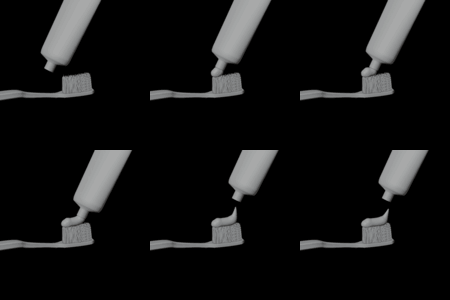
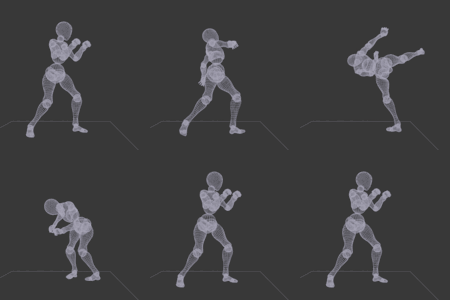
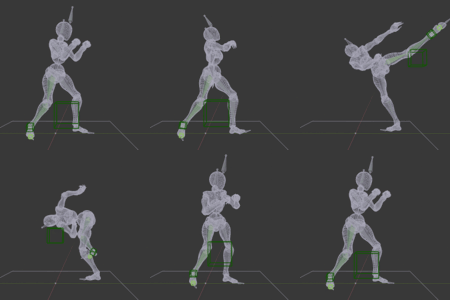
★What "GIF Exporter" can do★
With just a few clicks, you can export your Blender 3D viewport screen as a GIF animation.
■Main features
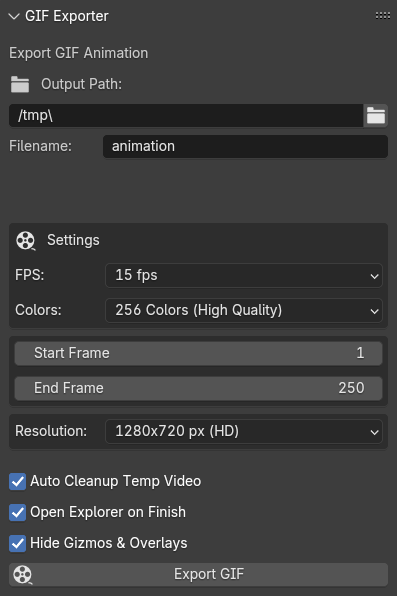
・Easy file name editing
If you want to change only the file name while keeping the file path the same, you can easily do so.
If a file with the same name already exists, a suffix will be automatically added.
• Frame Rate (FPS) Setting
Select the smoothness of the GIF animation.
Supports both smooth animations and stylized animations with fewer frames.
FPS can be set to four levels: 5, 15, 24, and 30.
・ex: 72framescene, 5fps, 32Color, 1280x720px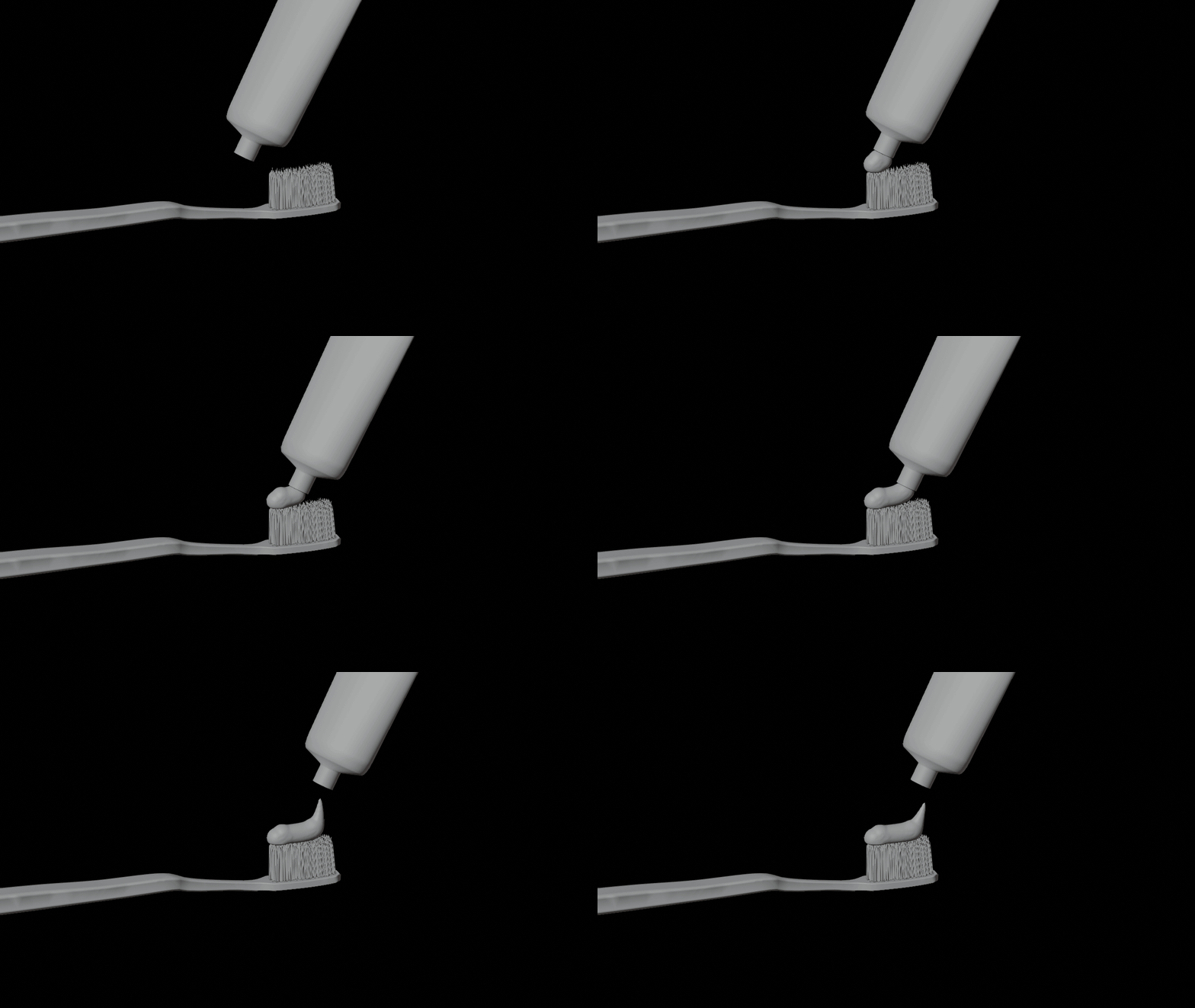
・ex: 72framescene, 15fps, 32Color, 1280x720px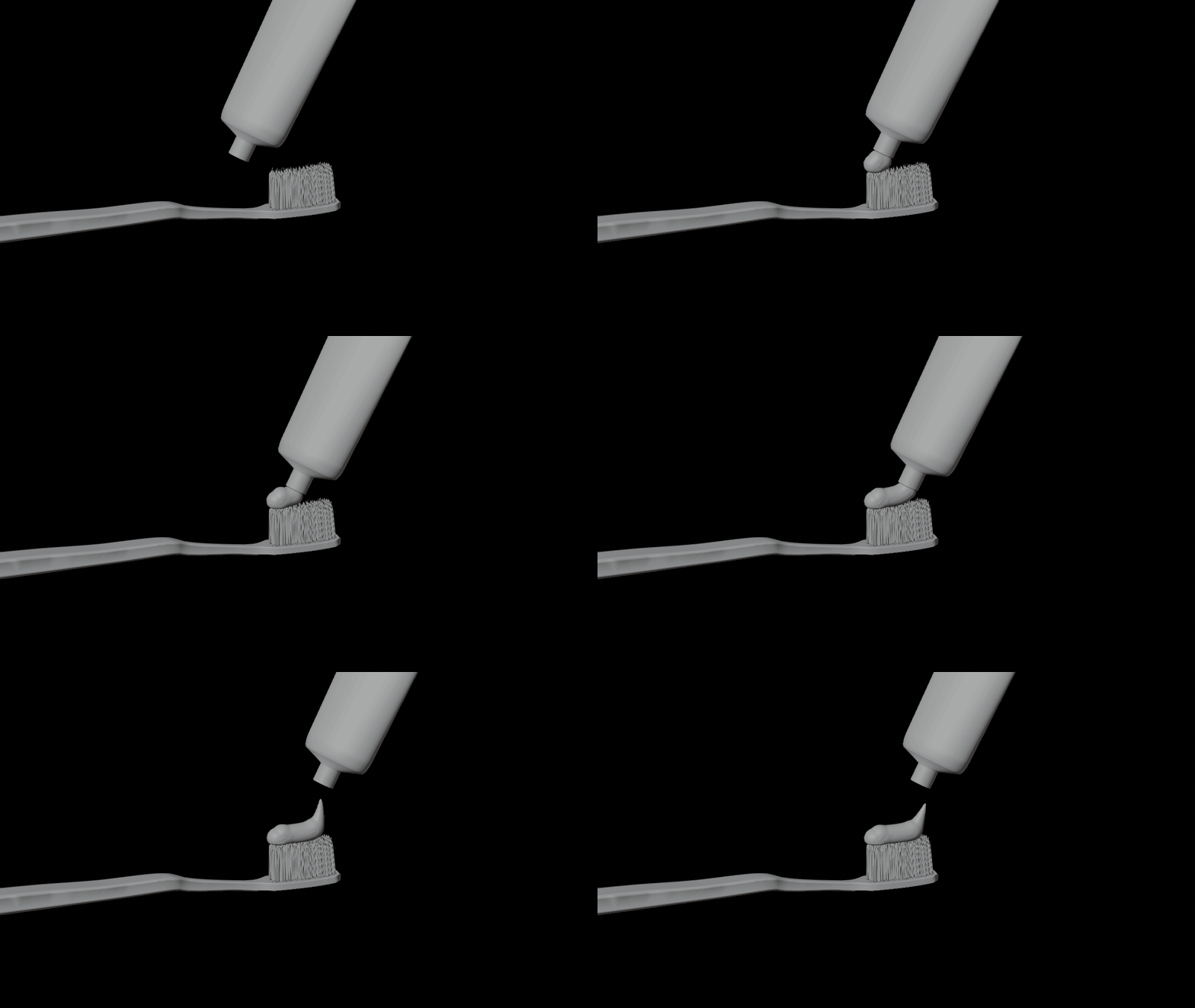
・ex: 72framescene, 24fps, 32Color, 1280x720px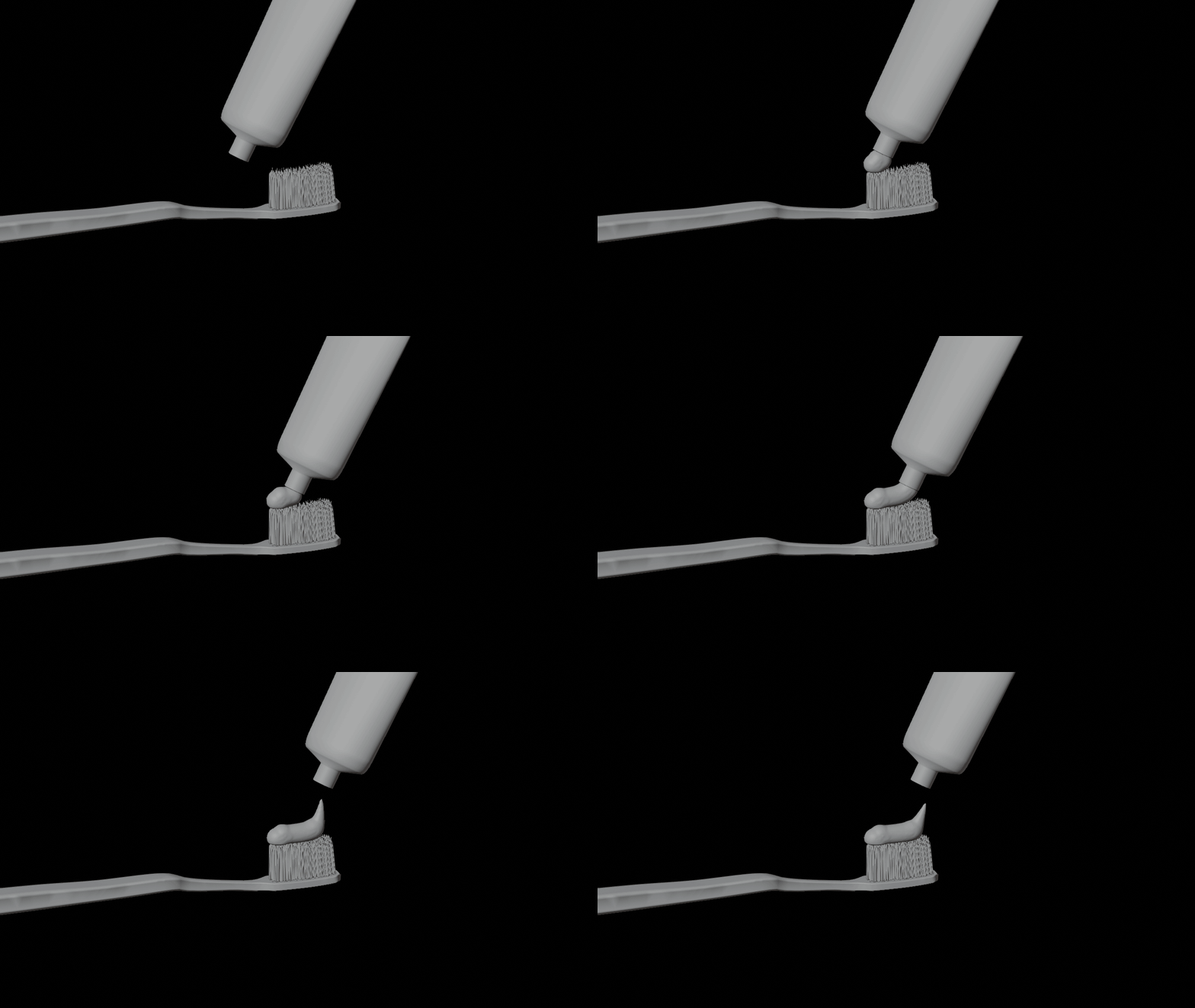
・ex: 72framescene, 30fps, 32Color, 1280x720px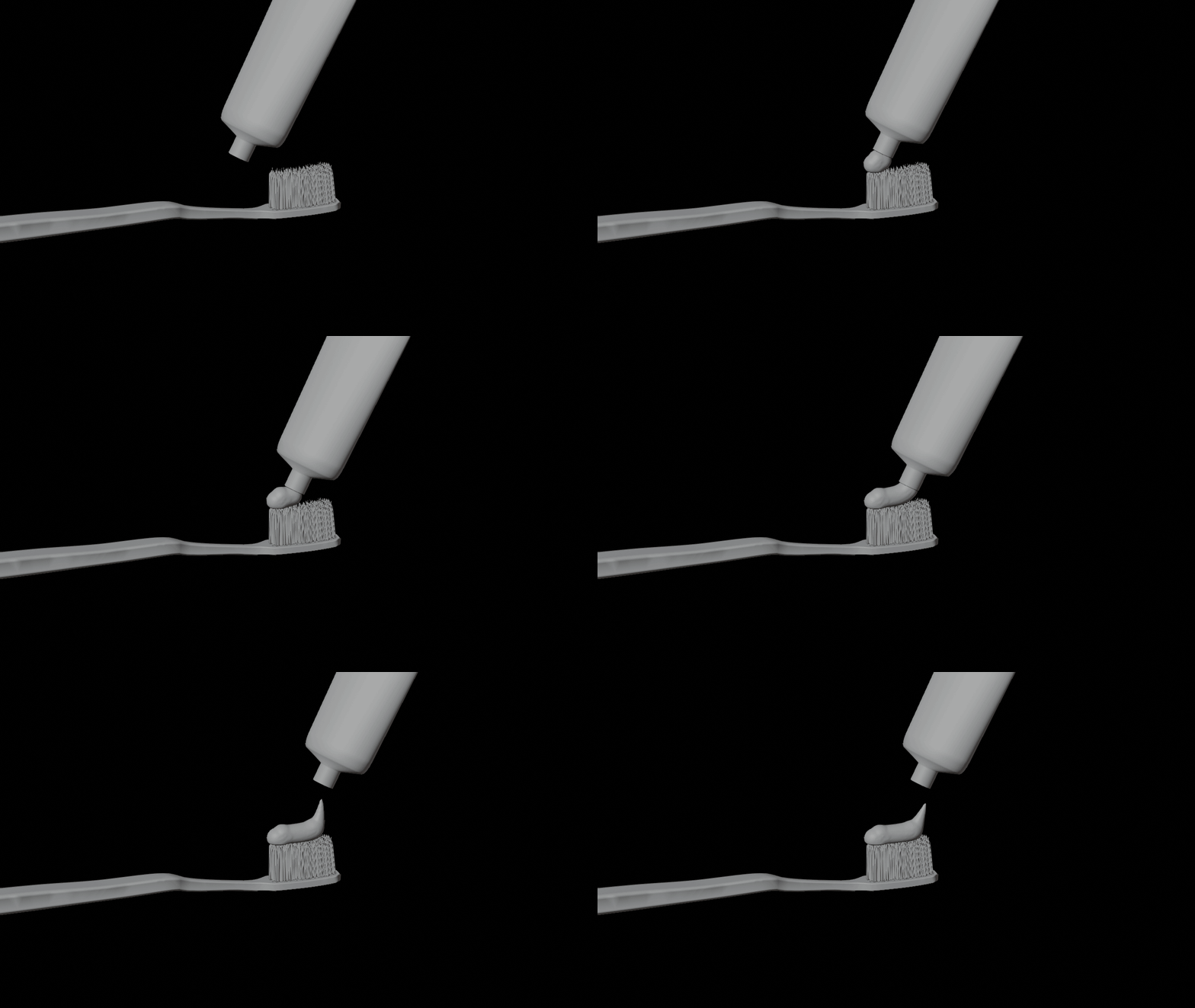
• Adjust Number of Colors
Choose the balance between GIF file size and quality from 256 to 32 colors.
Fewer colors result in a smaller file size.
• Resolution Settings
Easily select presets ranging from small sizes for social media posts to high resolution.
• Automatic Frame Range Synchronization
Specify the frame range to export.
The range you specify will be synchronized with the start and end frames in Blender's render settings to avoid confusion.
■ Options
• Automatic Cleanup of Temporary Files
Automatically deletes temporary files used during conversion.
(It is recommended to keep this option checked.)
• Open Explorer Window After Completion
Opens the export folder after conversion.
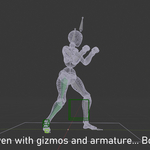
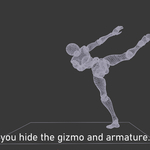
• Hide Gizmos and Overlays
Toggle the display of grid lines, gizmos, etc.
Start exporting your GIF animation immediately with just a few clicks in the sidebar.
■GIFStocker
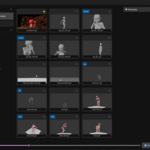
This is a viewer for viewing exported GIF files.
You can register individual metadata using tags and memos, and perform sorting and filtering.
It can be used for animation checking, etc.
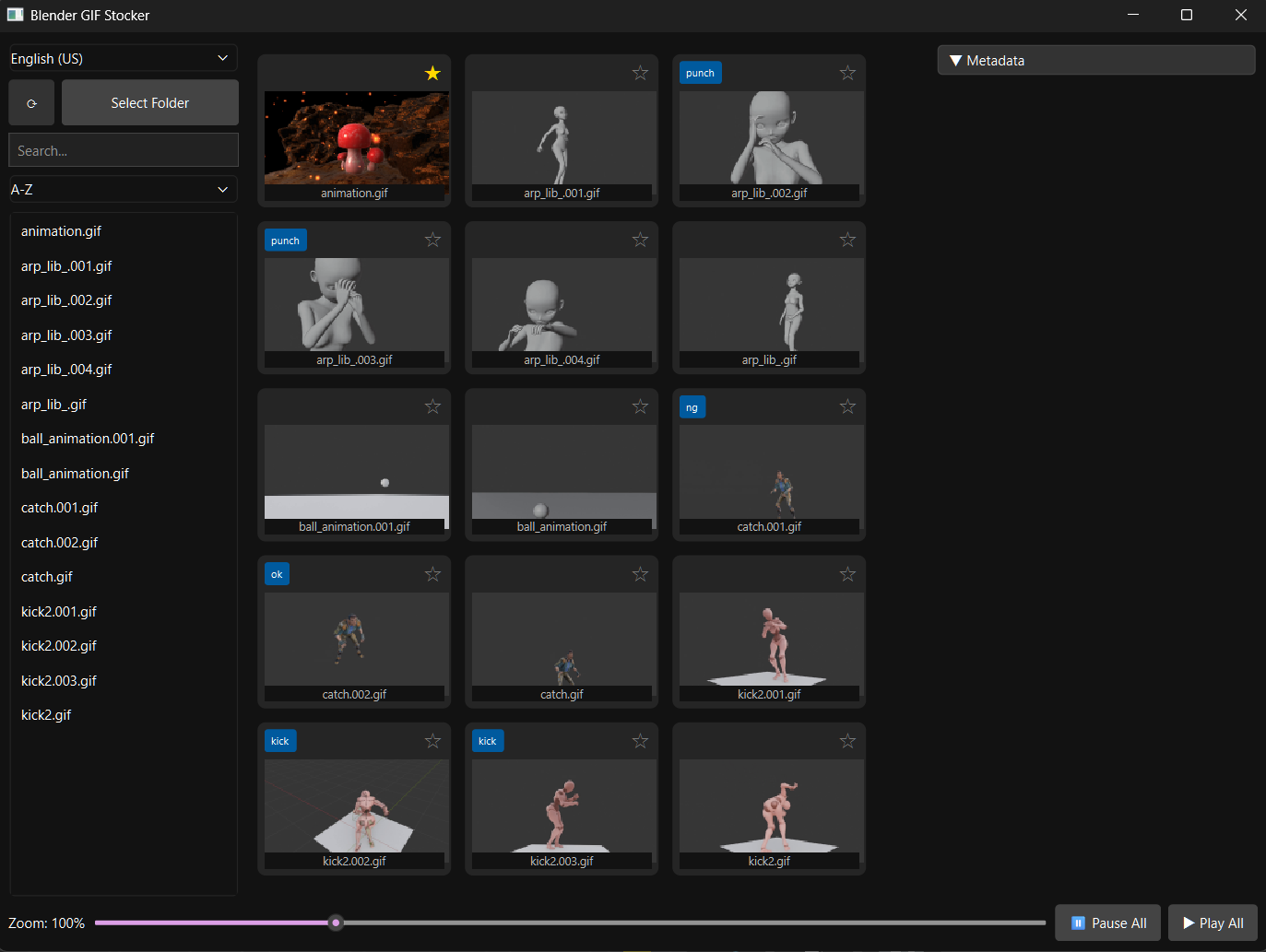
At the bottom of the layout are thumbnail zoom, play, and stop buttons.
You can also play and stop individual thumbnails by right-clicking on them.
On the left side of the layout are language switching (US/Ja), search, sort, and file list buttons.
The right side of the layout contains a set of functions, including metadata display and the ability to set tags and notes.
Tags and memos can be locked.
Please install it from www.python.org.
To use GIFStocker, you need to have Python installed on Windows in order to use Pyside 6.
(Not the Python built into Blender)
■ Recommended for
• Those who create animations, motion graphics, and effects in Blender
Want to easily create GIFs for checking progress or reporting updates.
• Those who upload screenshots from Blender
Want to easily post screenshots to social media or blogs.
■ Notes
However... Due to the nature of the GIF file format, it functions as a video data file for playback only.
The number of seconds displayed is accurate when played on a media player,
but when loaded into non-linear editing software,
there will be a slight error in the fps, so it is not suitable for editing purposes.
(*Editing software calculates FPS based on the integer delay time (in 1/100th of a second) stored in the GIF file,which can cause this discrepancy.)
Also, if the rendering mode is viewport shading, the standard renderer is used, and it will not be displayed correctly.
To accurately preview textures in rendered mode, perform a full render.
■Add-on installation
Download the .zip file.
Go to Edit menu -> Preferences -> Add-ons and select Install from Disk.
A GIF Exporter item will be added to the N panel.
■Functionality tested and confirmed (version 1.6.0)
Windows only,
Blender versions 4.4.3 ~ 5.0
※Portable and Steam versions are not supported.
■Update History
Ver2.0
New feature GIFstocker added
Ver1.7
Updated to support Blender 5.0.1.