GLBlite: Batch GLB Optimizer and Exporter for Blender
 Bretema

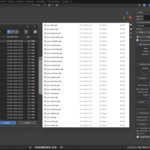

1. Choose your folders
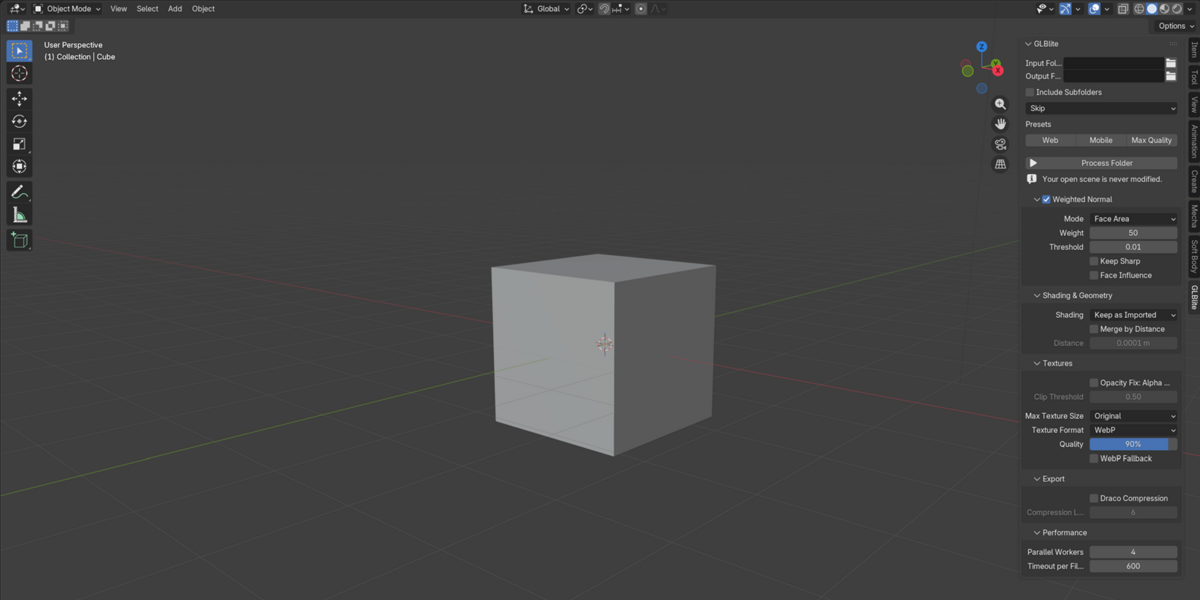
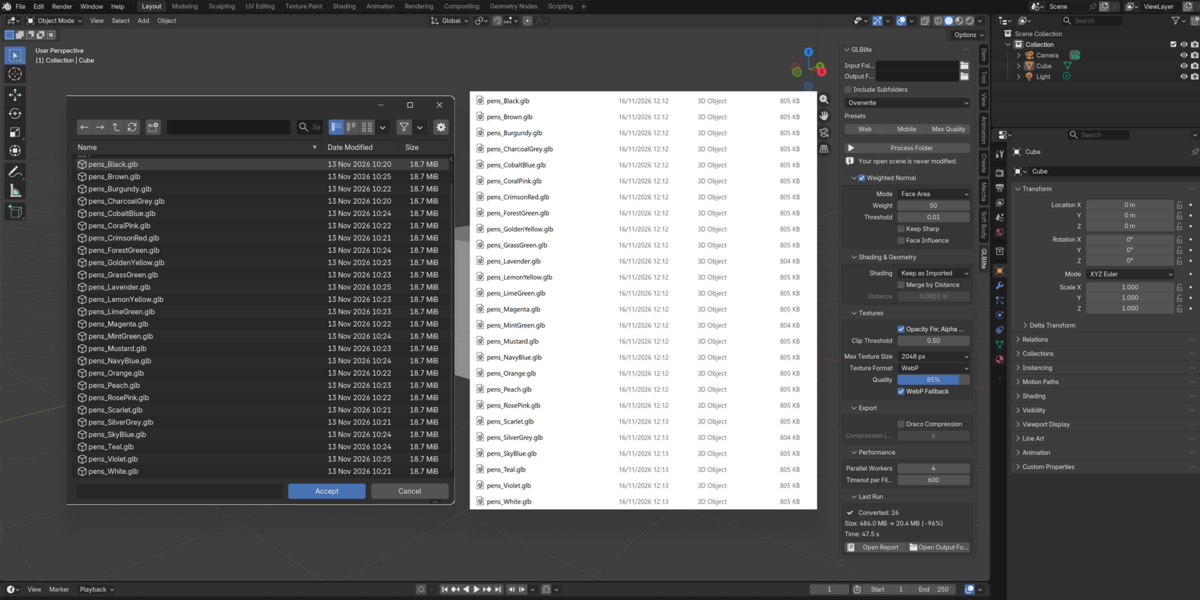
Open the sidebar (press N) and go to the GLBLite tab. Set the Input Folder with your .glb files. The Output Folder is optional: if you leave it empty, converted files go to a converted folder inside the input folder. Your originals are never touched.
2. Pick a preset
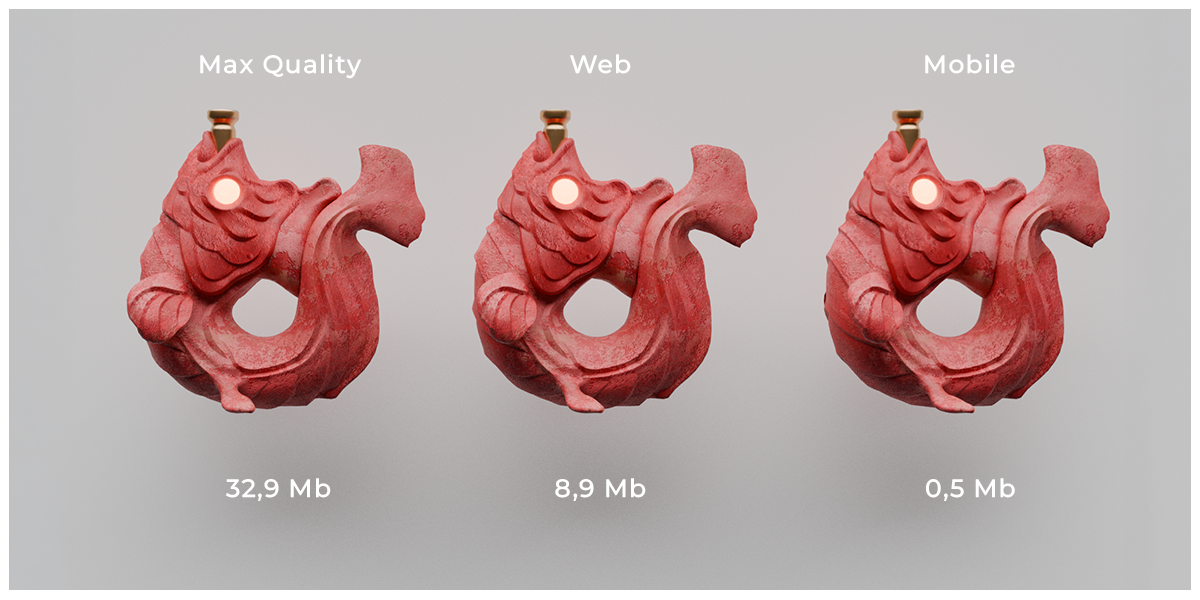
Click Web, Mobile or Max Quality for one-click settings. Want more control? Open the sections to adjust Weighted Normal, shading, texture size and format, Alpha Clip and Draco compression.
3. Click Process Folder
Every file is optimized in its own background Blender instance, several at a time. You can keep working: your open scene is never modified. Watch the progress counter, or press Cancel (or ESC) to stop at any time.
4. Get your files and report
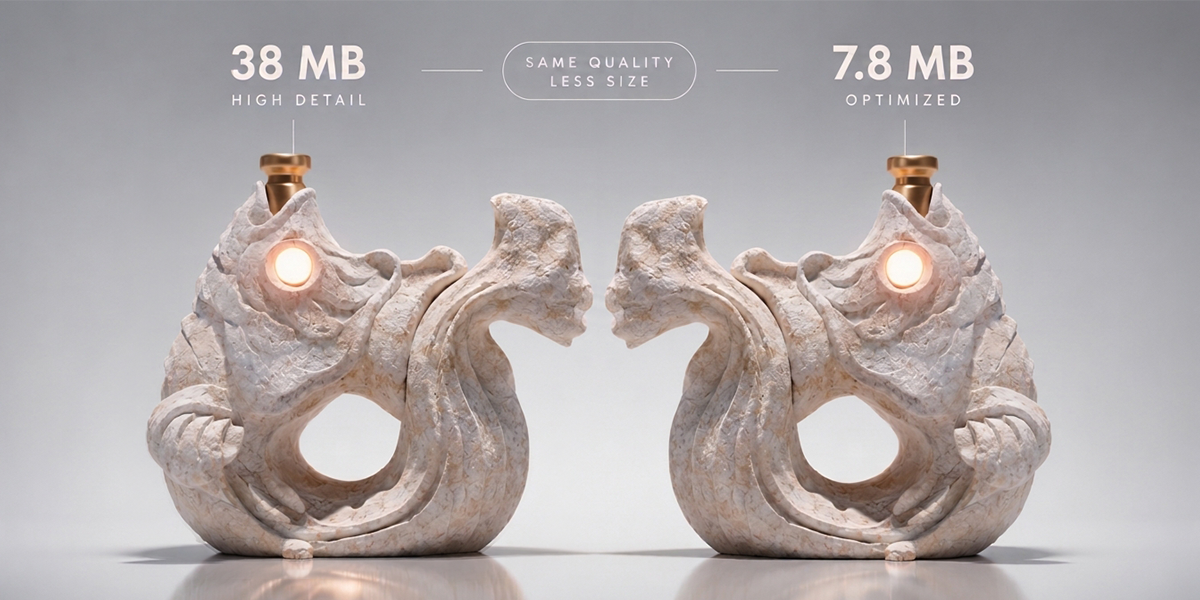
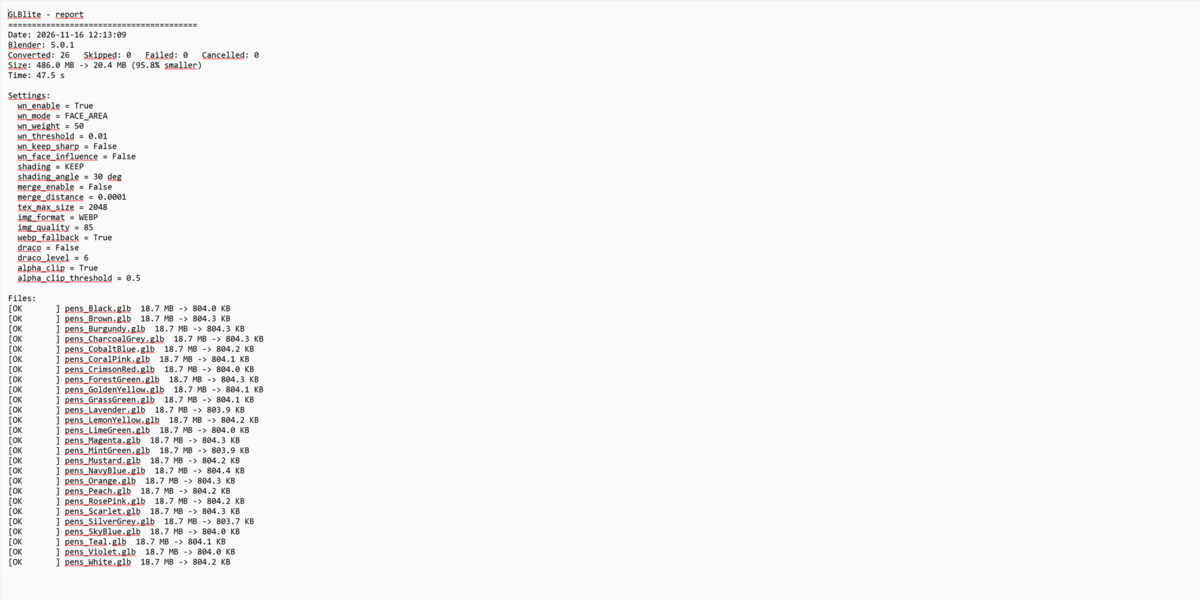
When it’s done, the Last Run panel shows how many files were converted and the total size before and after. Open the folder or the report to check each file.
Have questions about this product?
Login to message
| Blender Extension Compatible | Yes |
| Published | about 5 hours ago |
| Blender Version | 4.0 - 5.3 |
| Extension Type | Add-on |
| Render Engine Used | Cycles |
| License | GPL |
Discover more products like this
texture compression draco web 3d Batch processing optimizer E-commerce Webp ar batch-export glb gltf weighted normal