 Studio156
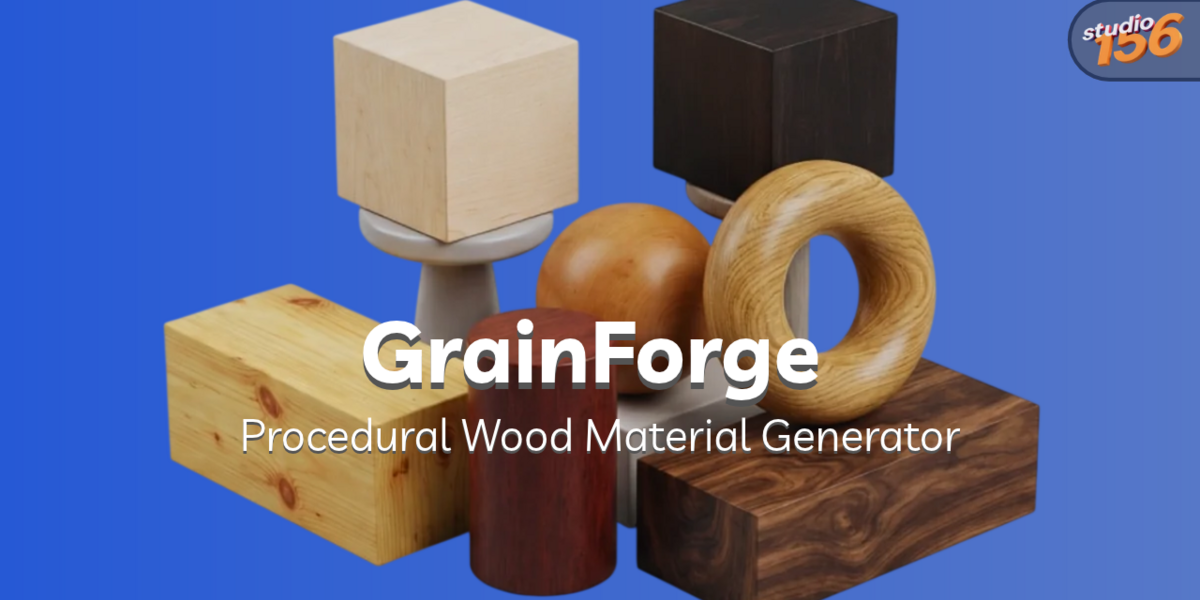
Procedural Wood Material Generator for Blender
Create unique procedural wood materials for your 3D models in seconds!
GrainForge makes it easy to generate realistic wood materials, complete with natural grain patterns, knots, and color variations. Choose from seven wood styles, customize individual parameters, and automatically assign a unique material to every selected mesh object.
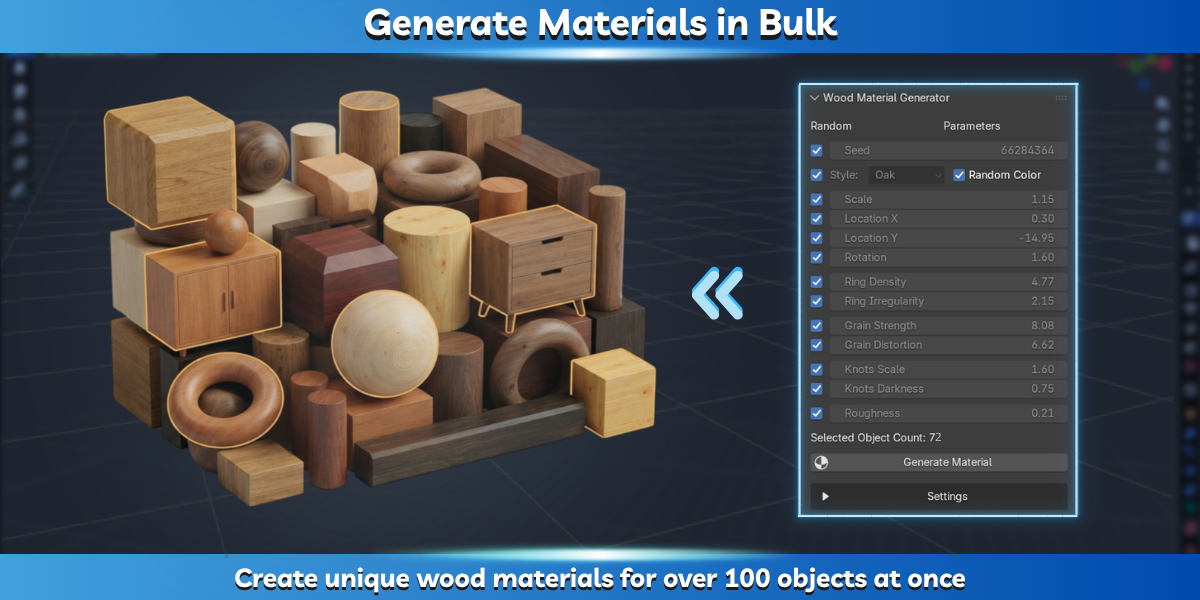
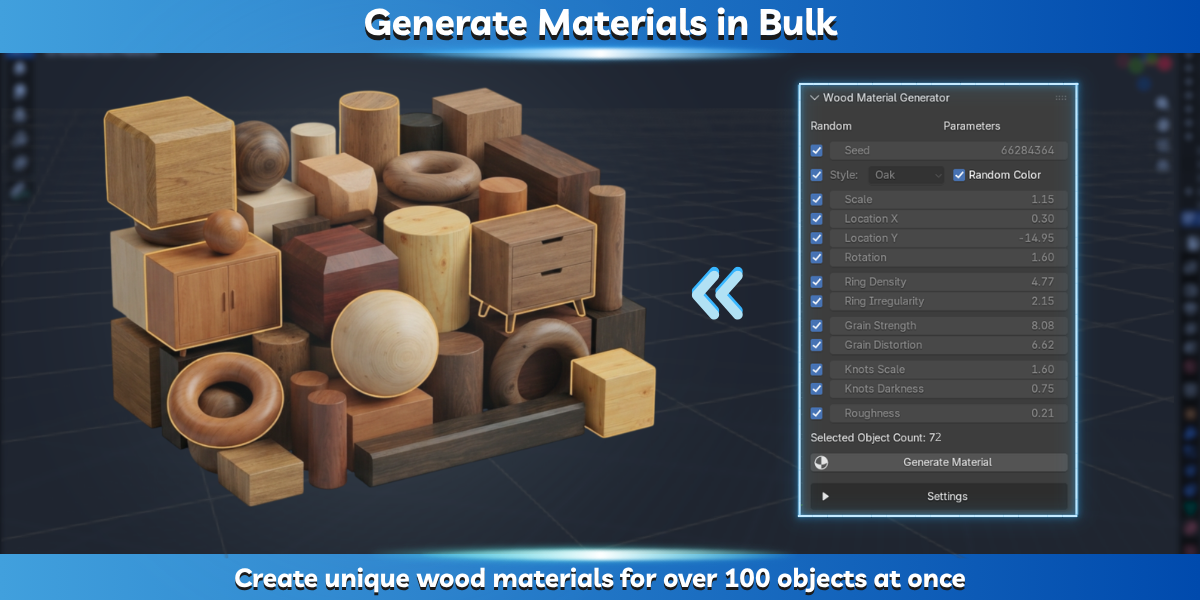
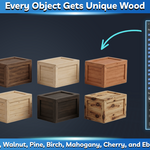
Generate unique wood materials for hundreds or even thousands of objects in a single operation. Each selected mesh receives its own independently generated material, making it easy to add natural wood variations to entire scenes.
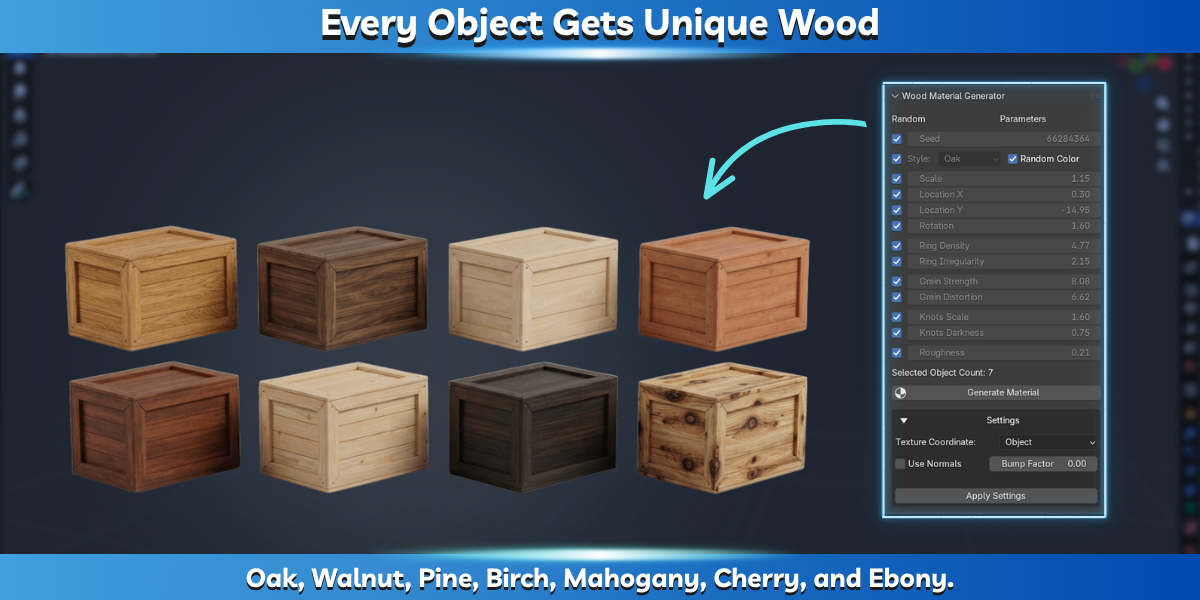
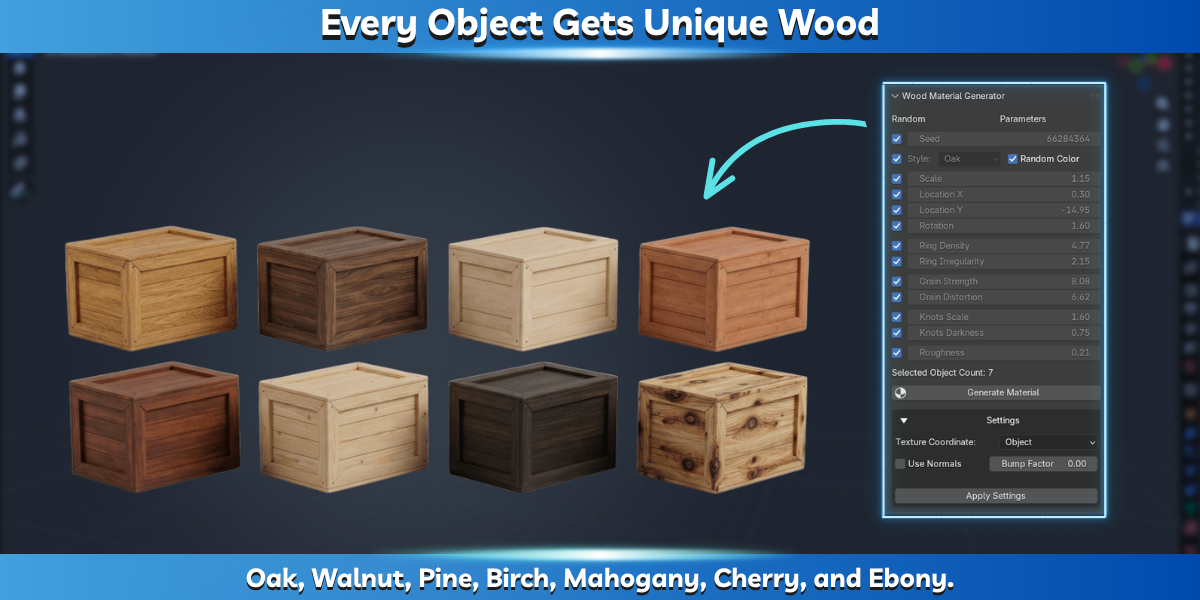
No more identical-looking wooden objects! Each material is generated independently, allowing grain patterns, knots, and other properties to vary from object to object — even when using the same wood style.
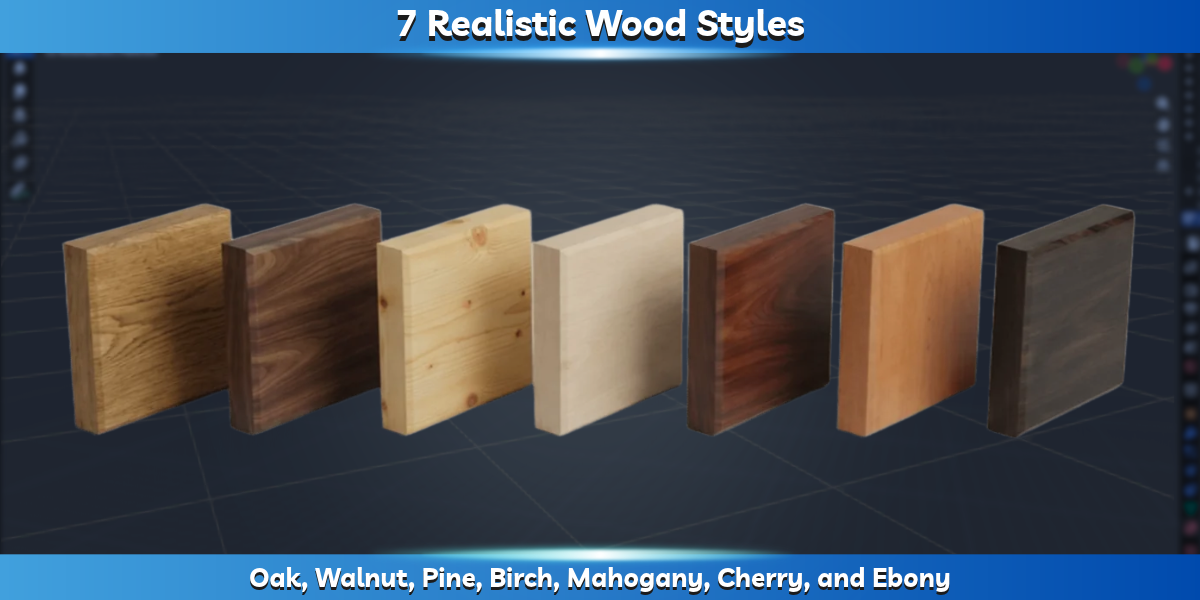
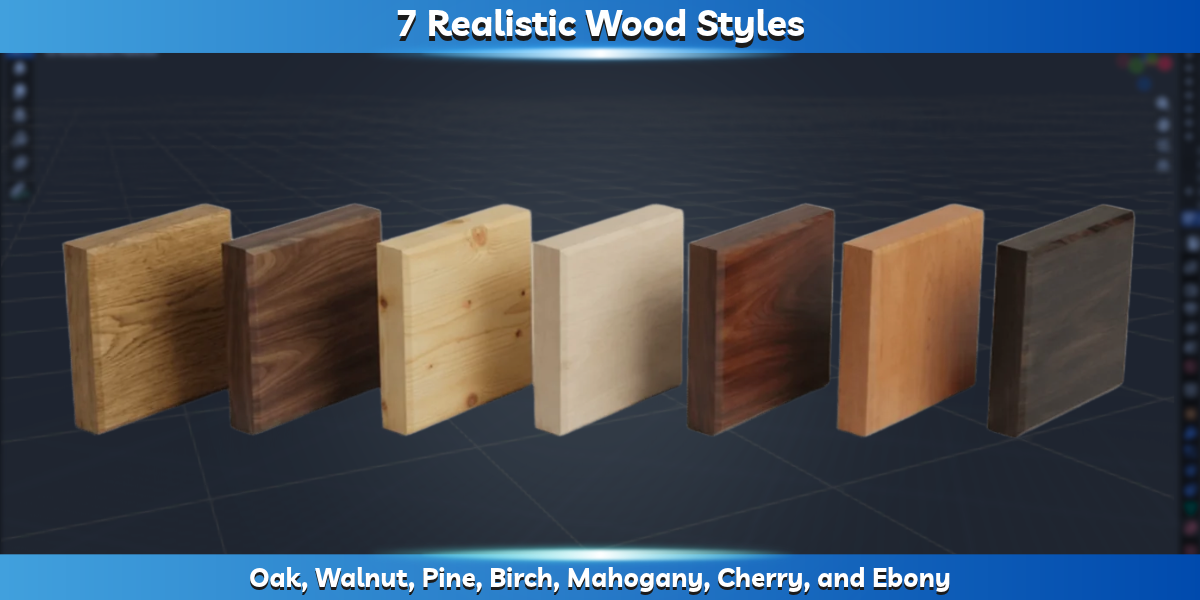
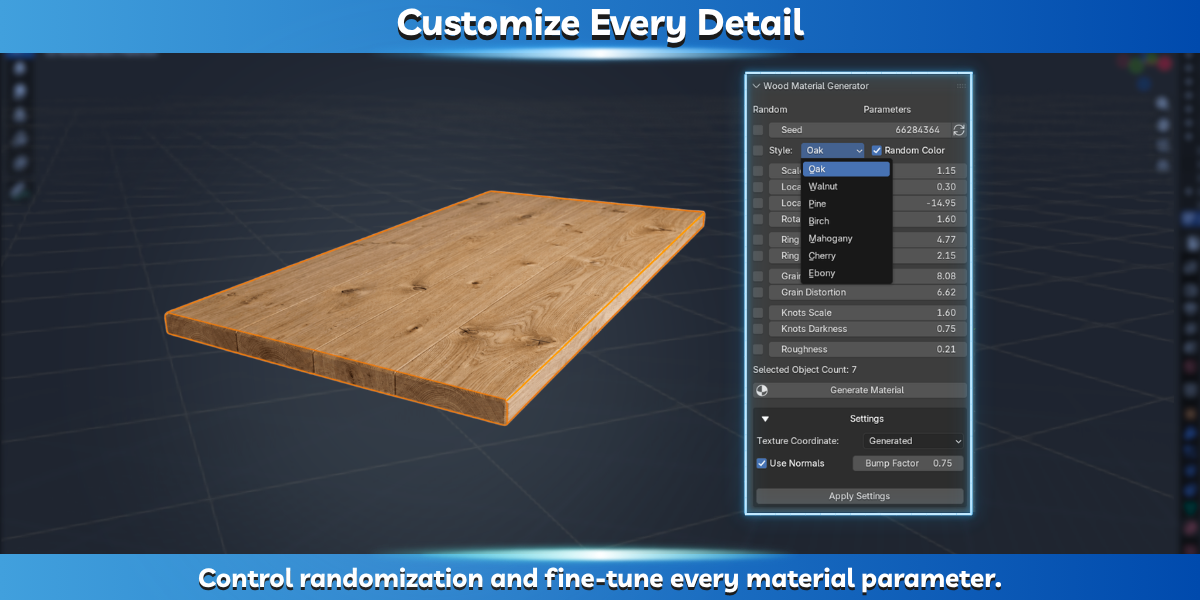
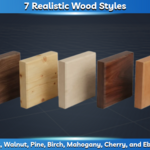
Choose from seven distinct wood appearances:
Oak · Walnut · Pine · Birch · Mahogany · Cherry · Ebony
Each style provides its own characteristic base color and knot color, giving you a variety of natural wood appearances to work with.
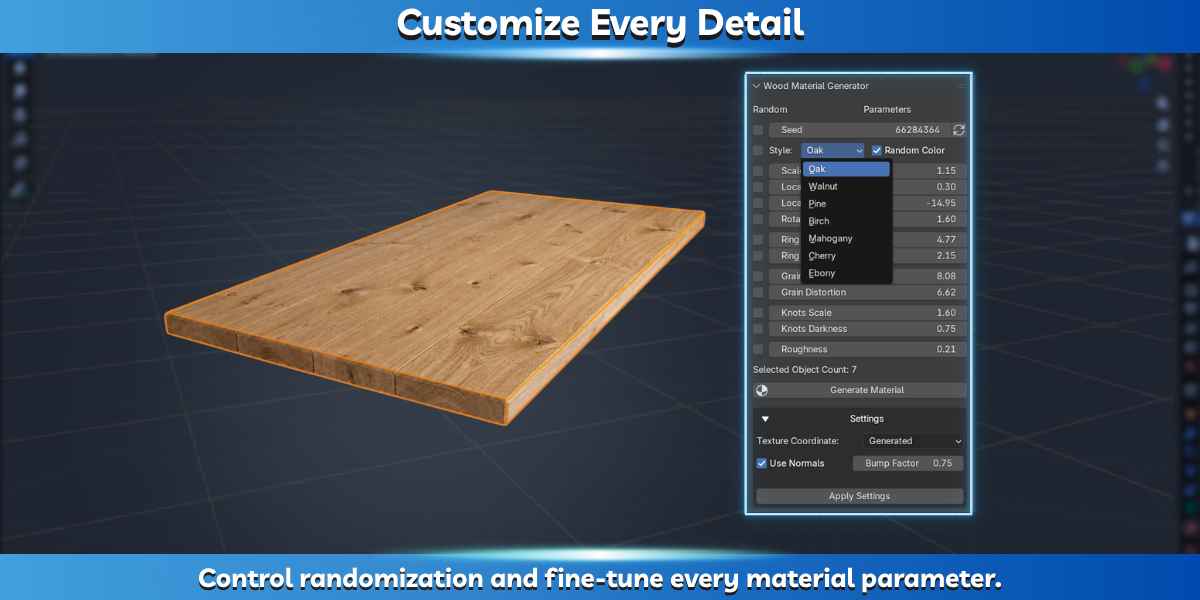
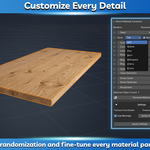
Take control of the generation process. Randomize individual parameters independently, adjust their values manually, and decide which properties should remain consistent across your materials.
Available parameters include grain density, grain irregularity, grain strength, grain distortion, knot scale, knot darkness, roughness, and more.
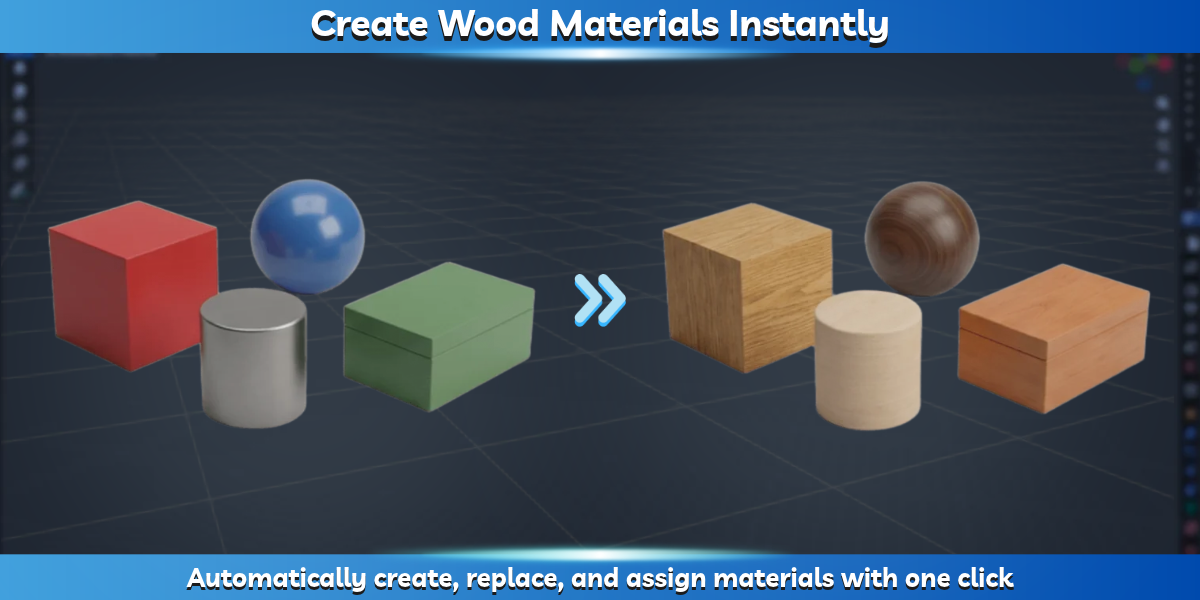
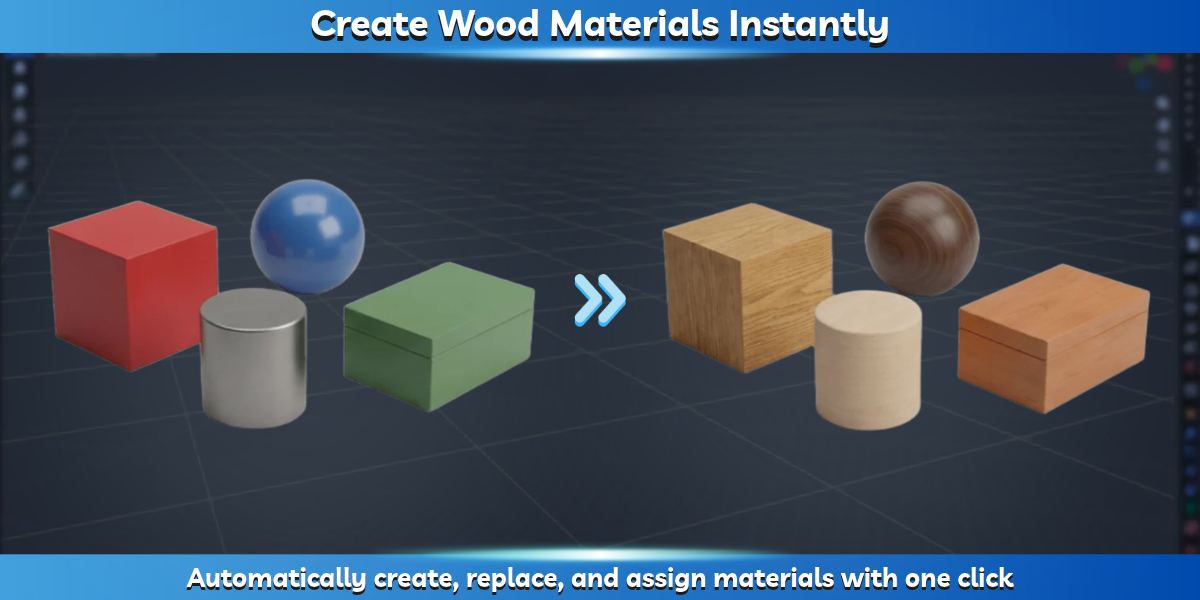
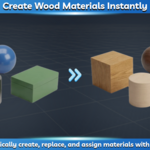
Create, replace, and assign materials automatically with a single click. Existing material assignments are replaced, and objects without materials are handled automatically.
Use the random seed to reproduce your material variations or experiment with new combinations whenever you like.
Installation
Download the GrainForge ZIP archive.
Open Blender and navigate to Edit → Preferences → Add-ons.
Click Install from Disk and select the downloaded ZIP archive.
Enable GrainForge in the add-ons list.
No additional dependencies or manual setup are required.
Opening GrainForge
Select one or more mesh objects in the 3D Viewport.
Press N to open the Sidebar.
Navigate to the Wood Generator tab.
Generating Materials
Select the objects you want to process.
Choose your preferred wood style.
Adjust the material parameters as desired.
Enable or disable individual randomization checkboxes to control which parameters should vary.
Click Generate Material.
GrainForge will create and assign a unique material to every selected mesh object. Existing materials are replaced automatically, while objects without materials receive a new one.
Non-mesh objects are ignored.
Understanding the Parameters
Seed: Controls the randomization seed, allowing you to reproduce material variations.
Style: Select one of the seven available wood styles.
Random Color: Introduces subtle color variations within the selected wood style.
Scale: Controls the overall texture scale.
Location X / Y: Adjusts the texture position.
Rotation: Controls texture orientation.
Ring Density: Adjusts the density of the wood growth rings.
Ring Irregularity: Controls variations in the ring patterns.
Grain Strength: Adjusts the visibility and intensity of the wood grain.
Grain Distortion: Controls distortions in the grain pattern.
Knots Scale: Adjusts the size of the wood knots.
Knots Darkness: Controls the darkness of the knots.
Roughness: Adjusts the surface roughness of the material.
Each parameter has an individual checkbox. When enabled, its value can be randomized during generation. Disable the checkbox to preserve its current value.
Additional Settings
Texture Coordinate: Choose the coordinate source used by the procedural material.
Use Normals: Enables or disables the normal connection used by the material's shader.
Bump Factor: Controls the bump intensity.
Click Apply Settings to apply changes made in this section.
Note: Changes to generation parameters are not reflected in existing materials automatically. Click Generate Material to create or replace materials using the current settings.