Graph Profiler Addon & Modifier
 Antic
Antic



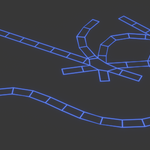
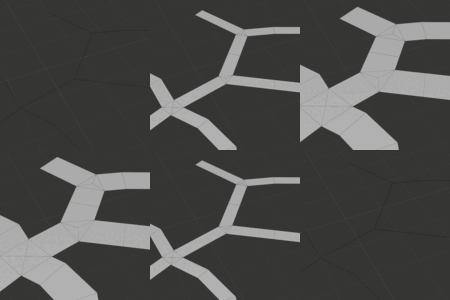
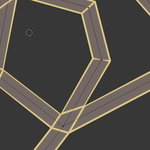
Installation and Usage
After you purchase the product, you can download it as an addon, or as an asset.Asset
You have to download the .blend file, open it and save the modifier into the assets folder. You can reuse it from there in any project.
Addon
After downloading the .zip file, you can install the Graph Profiler as an addon. It also applies the same modifier like the previous method, but you don't have to mess around with the assets folder.
To use the modifier, go to the object data properties and click on the "Add Graph Profiler" button. The addon places the modifier on the selected graph, you can adjust its settings on the modifiers panel.
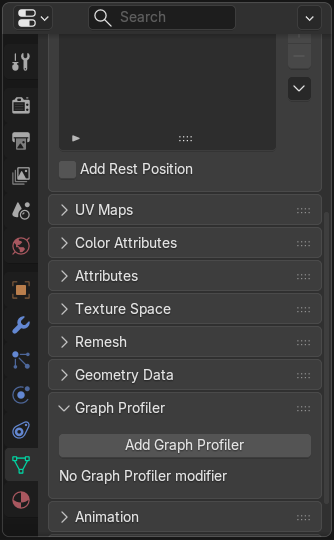
Using the modifier
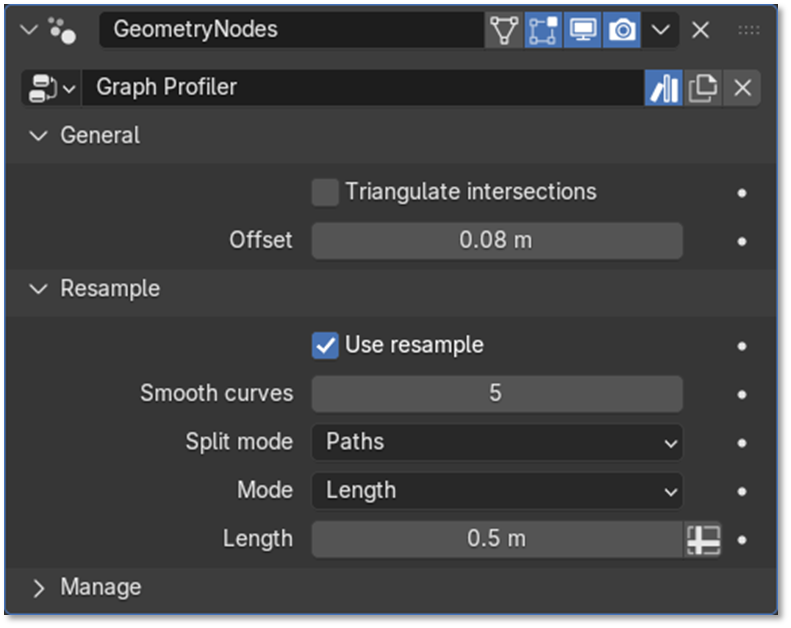
The modifier comes with quite a lot of options, despite being a simple tool.
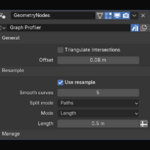
You can adjust the offset value to define the width of the paths.
If you enable the "Triangulate intersections" option, it will split the n-gons created at the intersections into triangles.
The resample options can be turned on by activating the "Resample" panel.
The Smooth curves property is responsible for smoothing the angular curves. Higher values result smoother curves.
The Split mode is created, so you can choose if you only want the intersection points to hold their position, or all of them.
The Mode and Length options aren't probably unkown, if you used geometry nodes before, these are connected to a Resample curve node, and control how the resampling have to be done.
Warnings
The modifier was built only for graphs, which means it cannot contain any faces, only edges and vertices.
The modifier will automatically set the Z coordinate of every point to 0, because it's needed for the graph to be 2D.
Be careful when resampling the graph, high offset value combined with high resolution can result in overlapping faces.
Have questions about this product?
Login to message
| Dev Fund Contributor | |
| Published | 8 months ago |
| Blender Version | 5.0 - 5.2 |
| Render Engine Used | Blender-Internal, Blender-Game-Engine, Cycles, Eevee, Freestyle |
| License | Royalty Free |
Discover more products like this
offset extrude curve intersections graph profile intersection curve Blender_Geometry_Nodes