 kattour


How to use Graphi:
1. Install and enable the add-on in Blender.
2. Select an object with animation keyframes.
3. Select the keyframes you want to modify.
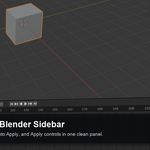
4. Open the Graphi panel from the Blender sidebar.
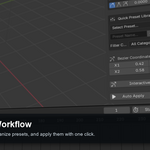
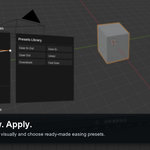
5. Shape the easing curve using the curve editor, or choose a saved preset from the Quick Preset Library.
6. Click Apply to apply the curve to the selected keyframes.
7. Use Auto Apply if you want changes to update faster while editing.
8. To save a curve as a preset, enter a preset name and click Save Current.
9. Use categories to organize your presets.
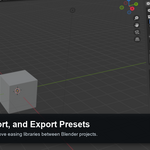
10. Presets can be imported and exported to move your easing libraries between Blender projects.
Notes:
Graphi works with selected objects and selected keyframes. Presets are stored locally and can be managed from the add-on panel and preferences.How to use Graphi:
1. Install and enable the add-on in Blender.
2. Select an object with animation keyframes.
3. Select the keyframes you want to modify.
4. Open the Graphi panel from the Blender sidebar.
5. Shape the easing curve using the curve editor, or choose a saved preset from the Quick Preset Library.
6. Click Apply to apply the curve to the selected keyframes.
7. Use Auto Apply if you want changes to update faster while editing.
8. To save a curve as a preset, enter a preset name and click Save Current.
9. Use categories to organize your presets.
10. Presets can be imported and exported to move your easing libraries between Blender projects.
Notes:
Graphi works with selected objects and selected keyframes. Presets are stored locally and can be managed from the add-on panel and preferences.
Have questions about this product?
Login to message
| Blender Extension Compatible | Yes |
| Published | 5 months ago |
| Blender Version | 4.2 - 5.2 |
| Extension Type | Add-on |
| License | GPL |