 CGR Addons
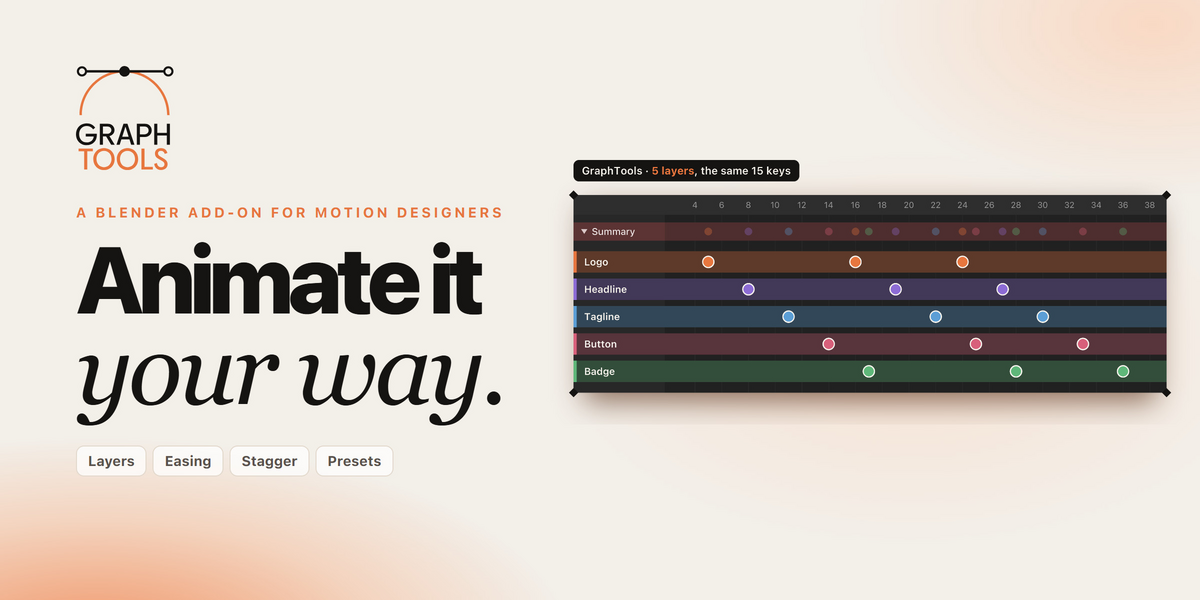


GraphTools is a Blender add-on for motion designers. It doesn't ask you to learn a new way to animate. It fixes the parts of Blender's animation editors that slow you down every single day.
| ◆ |
01 · THE PROBLEM
Blender shows you everything.
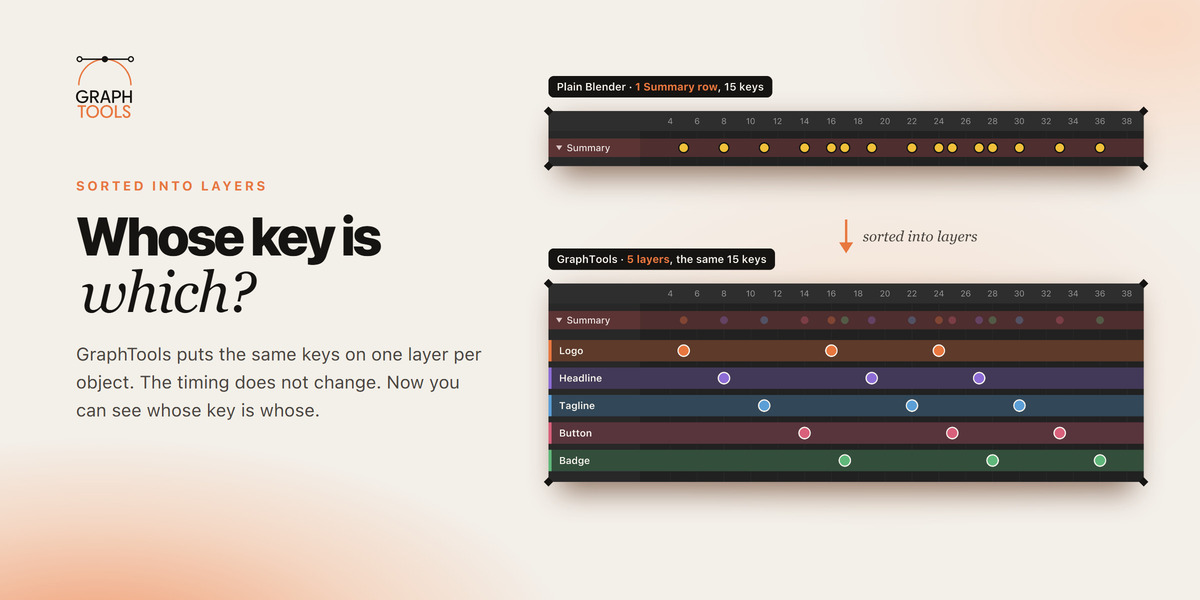
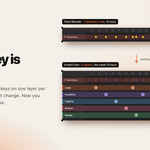
Five simple objects. Each one pops in with a move, a turn and a scale. This is plain Blender's Dope Sheet:

Every axis is its own row. Before you can fix your timing, you have to find the right rows.

GraphTools puts the same keys on one layer per object. The timing does not change. Now you can see whose key is whose.
| ◆ |
02 · THE GRAPHTOOLS WAY
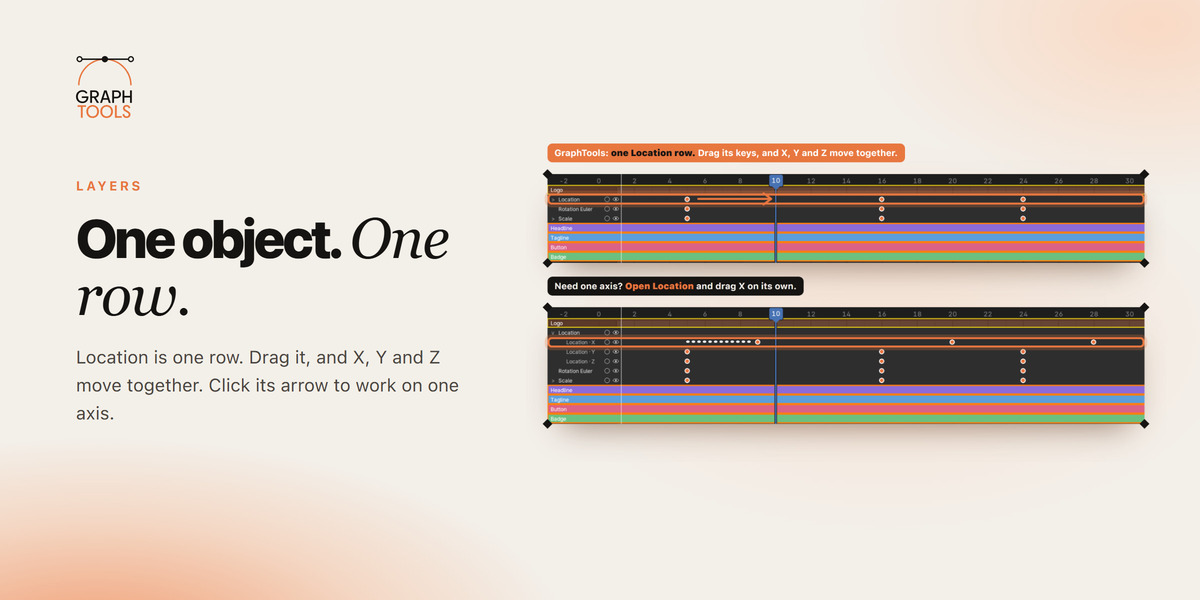
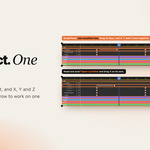
One object. One row.
GraphTools draws a layer timeline on top of the Dope Sheet and the Graph Editor, like the timeline in After Effects. Each object is one layer.


Location is one row. Drag it, and X, Y and Z move together. Click its arrow to work on one axis.
| ◆ |
03 · FROM FIRST KEY TO FINAL POLISH
Six steps. One tab.
|
01.
STEP 1 OF 6
|
Key it.
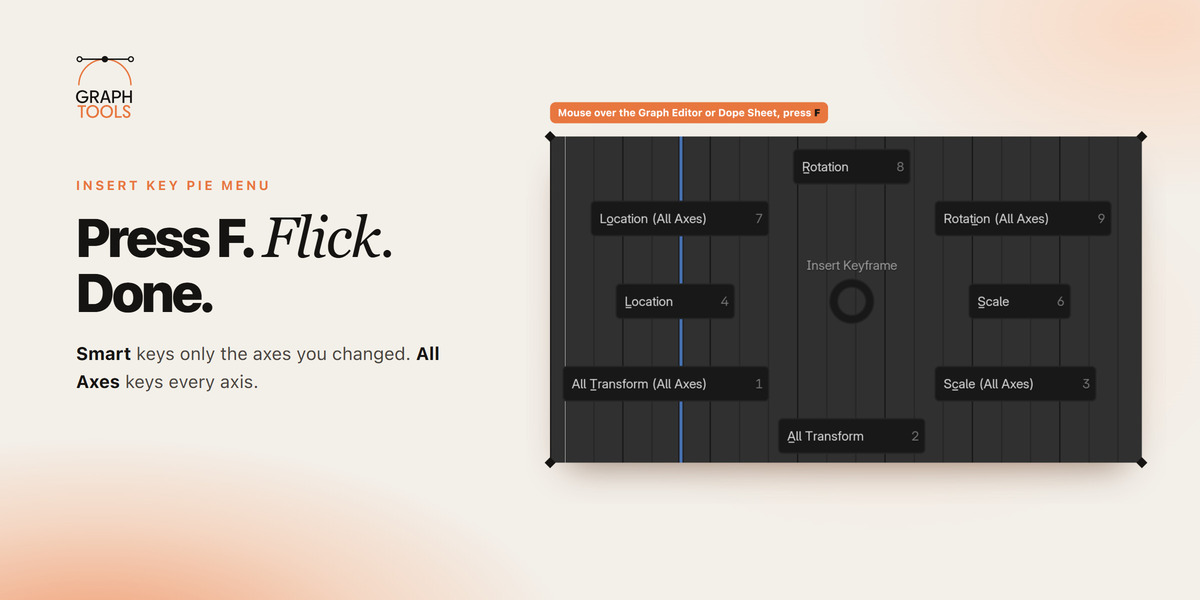
Press F in the Graph Editor or Dope Sheet and pick what to key: Location, Rotation, Scale or All.
F
|

|
02.
STEP 2 OF 6
|
Layer it.
One click turns every selected object into a layer.
Add Selected as Layer(s)
|

|
03.
STEP 3 OF 6
|
Time it.
Drag a layer to slide its whole animation. Drag a dot to move one key.
Drag
|

|
04.
STEP 4 OF 6
|
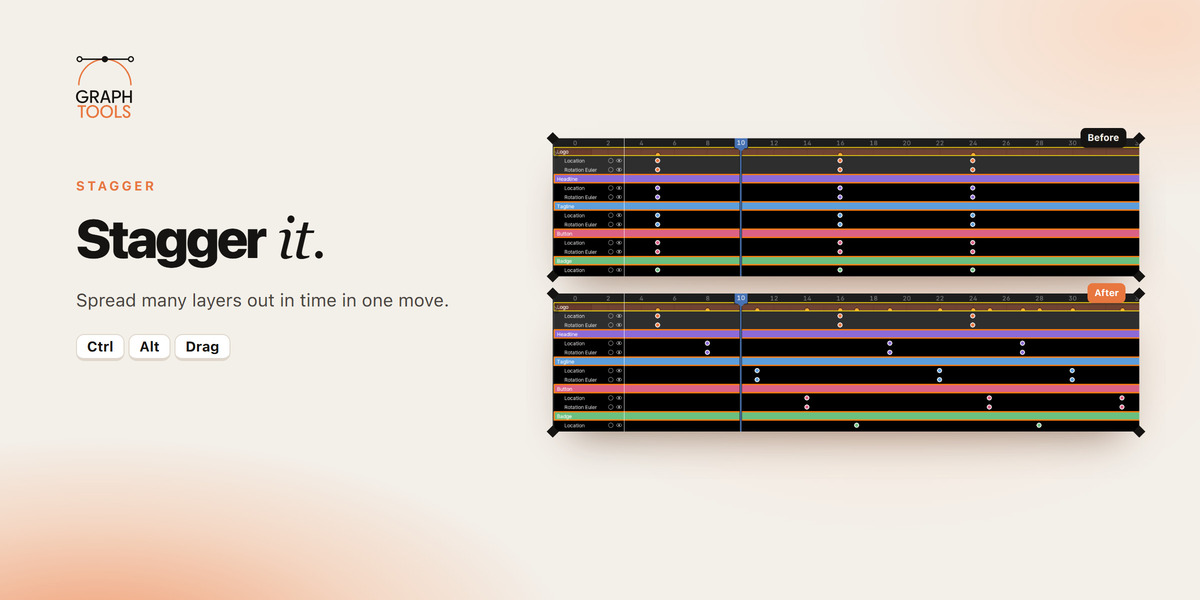
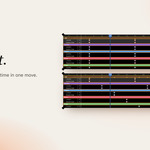
Stagger it.
Spread many layers out in time in one move.
Ctrl Alt Drag
|

|
05.
STEP 5 OF 6
|
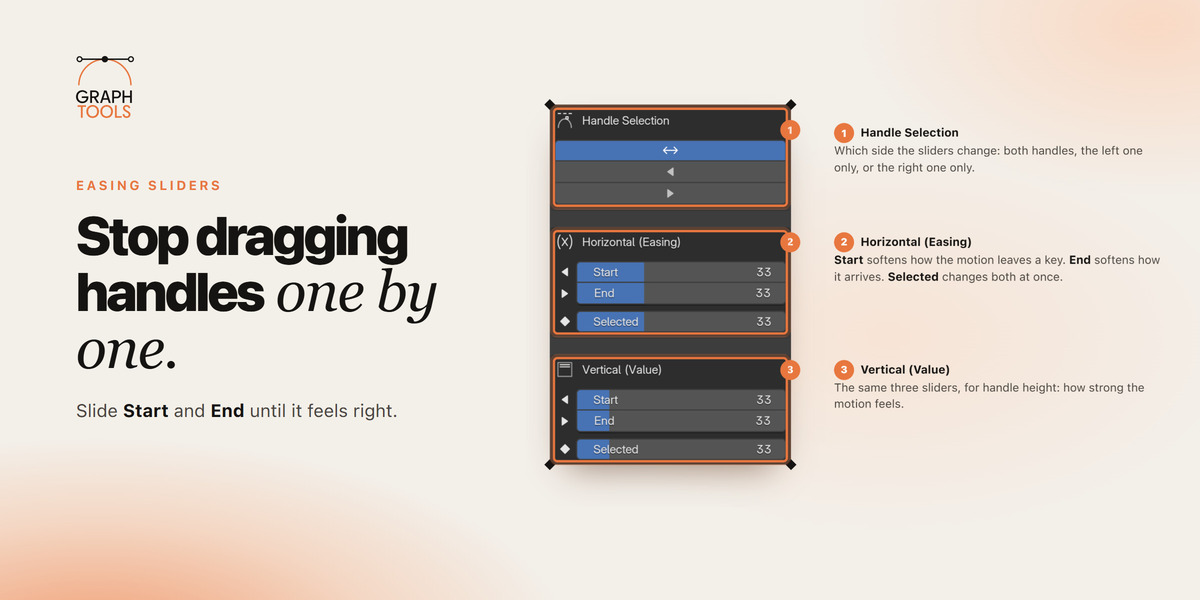
Ease it.
Slide Start and End until it feels right, or apply one of 31 presets.
Start End
|

|
06.
STEP 6 OF 6
|
Reuse & clean.
Copy the feel of one curve onto other keys. Clean extra keys in one click.
CopyGraph SmartKeys
|

| ◆ |
04 · EASING SLIDERS
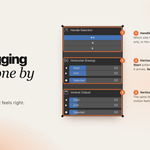
Stop dragging handles one by one.
IN PLAIN BLENDER
To make a motion start or stop softly, you drag curve handles by hand. Key by key.
Easing = how softly a motion starts or stops. Without it, things move like robots.

Select two or more keys in the Graph Editor, then move a slider. The curve changes live. No Apply button.


Coming from After Effects? This is the "Influence" number in Keyframe Velocity, as a slider.
| ◆ |
Make your evenings yours again.
Less time hunting for channels and nudging handles. More time on the feel of the motion.

| ◆ |
05 · LAYER TIMELINE
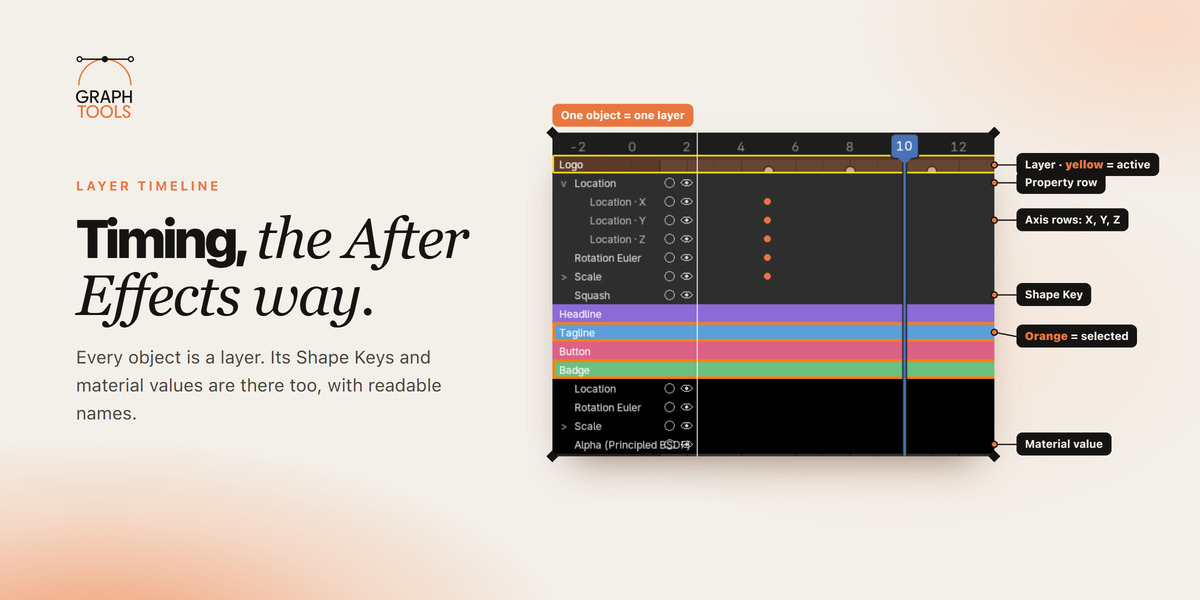
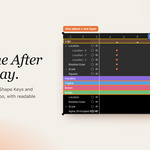
Timing, the After Effects way.
IN PLAIN BLENDER
To start one object later, you select its keys on every channel, then move them. Five objects, five times.
Every object is a layer. Its Shape Keys and material values are there too, with readable names.

Click a dot and drag. To move a whole layer or stagger many, see steps 3 and 4.

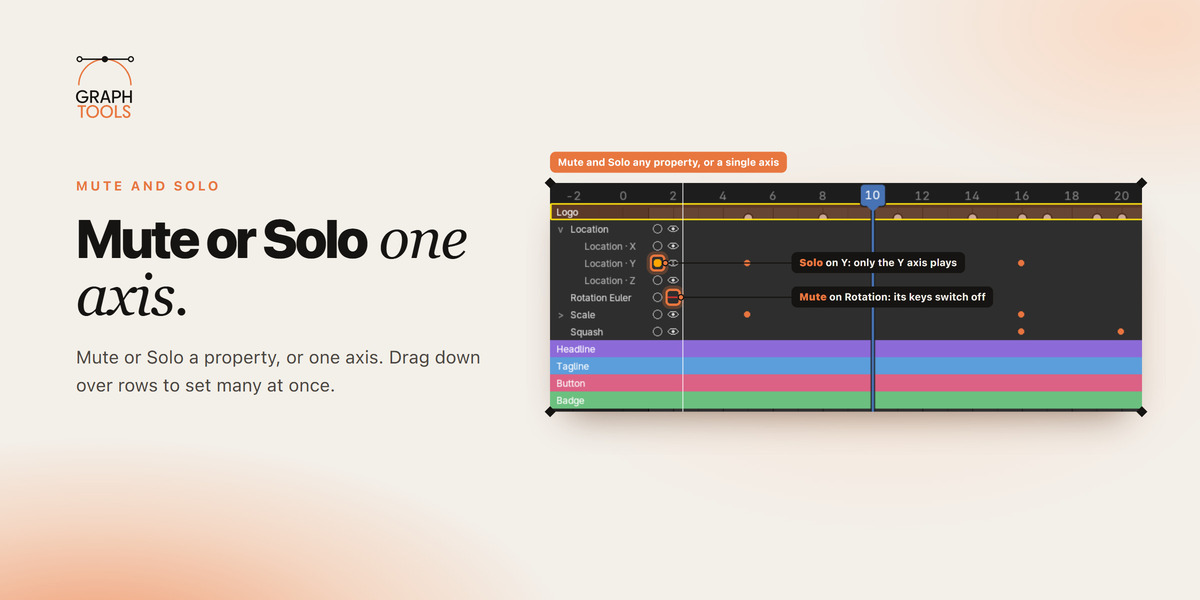
Mute or Solo a property, or one axis. Drag down over rows to set many at once.

Each layer gets its own color tag. Solo and Mute a whole layer from the side panel.

Copy a layer's animation, move the playhead, paste it on one layer or many.

Right-click the frame numbers to play only part of your timeline, like the Work Area in After Effects.

Select a layer and its object is selected in the viewport. It works both ways.
| ◆ |
06 · CURVE PRESETS
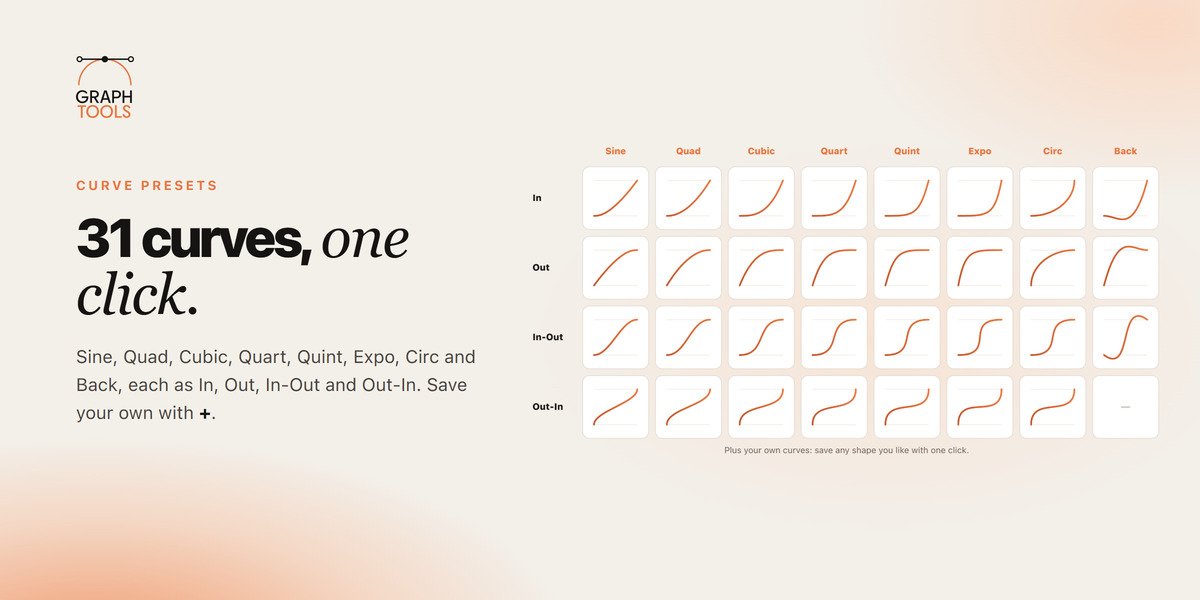
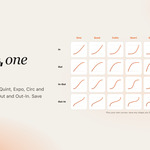
31 curves, one click.

Sine, Quad, Cubic, Quart, Quint, Expo, Circ and Back, each as In, Out, In-Out and Out-In. Select keys, pick a curve, click Apply Preset. Save your own with +.
| ◆ |
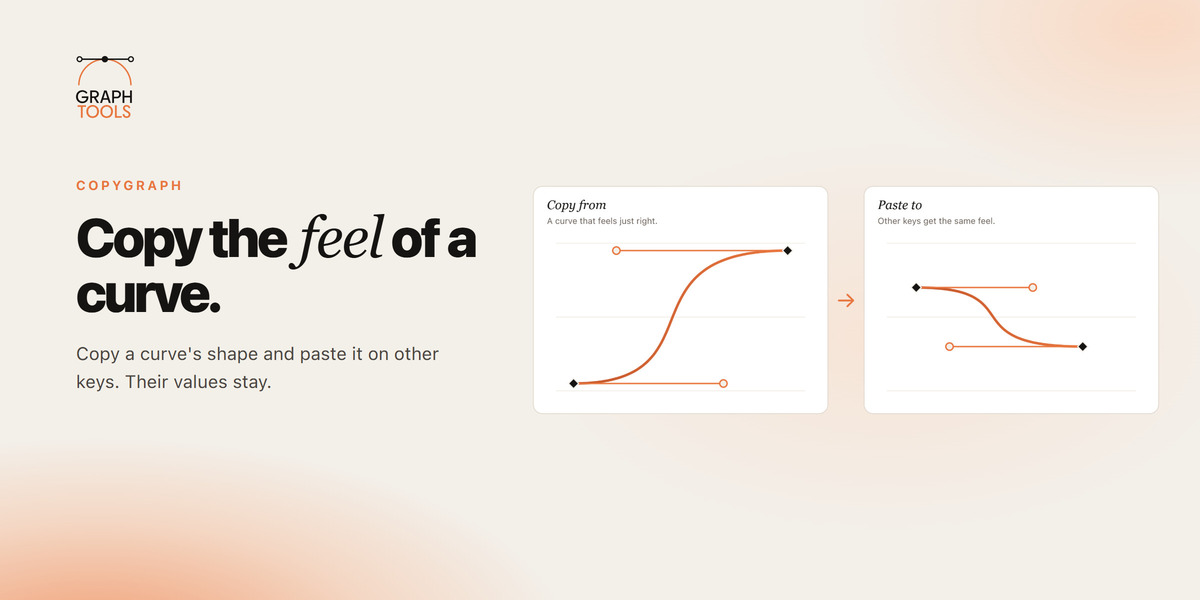
07 · COPYGRAPH
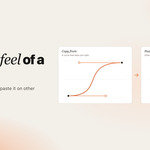
Copy the feel of a curve.

Copy a curve's shape and paste it on other keys. Their values stay. Works on a Whole Channel or Specific Keyframes, and can paste it mirrored.
| ◆ |
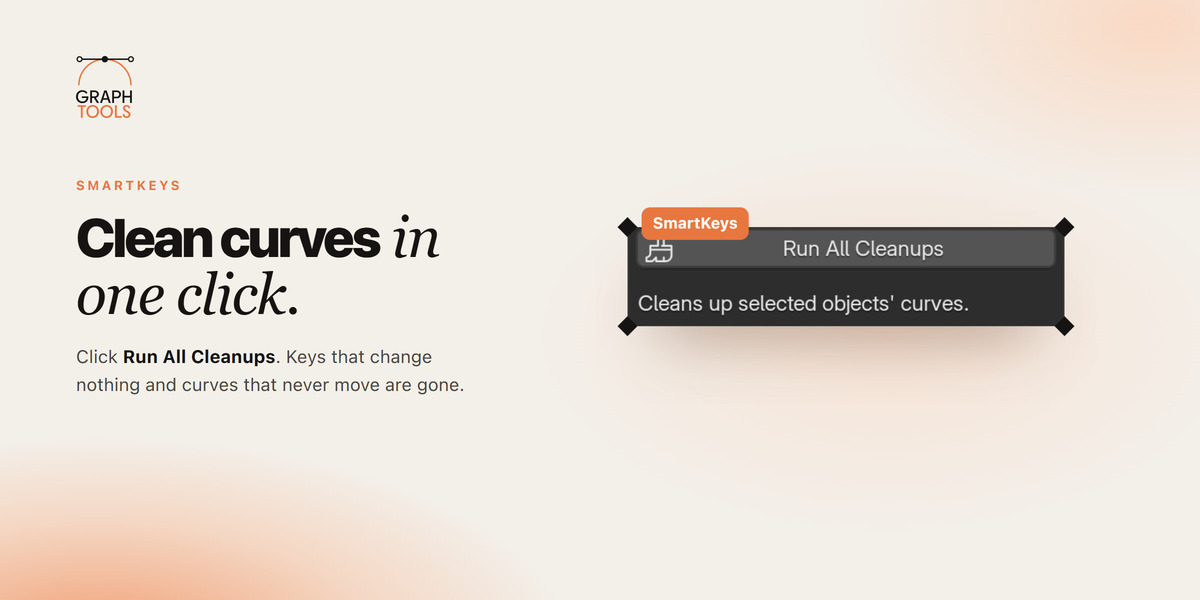
08 · SMARTKEYS
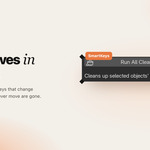
Clean curves in one click.
Select your animated objects. Click Run All Cleanups. Keys that change nothing and curves that never move are gone.
| ◆ |
09 · INSERT KEY PIE MENU
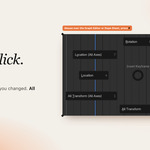
Press F. Flick. Done.

Smart keys only the axes you changed. All Axes keys every axis. For the very first key, use All Axes.
| ◆ |
10 · QUICK START
Start in one minute.
| 1 | Open the Graph Editor or the Dope Sheet. |
| 2 | Press N and click the GraphTools tab. |
| 3 | Select your animated objects in the 3D Viewport. |
| 4 | Click Add Selected as Layer(s). |
| 5 | Click Show Visual Timeline. |
| ◆ |
11 · SHORTCUTS
On the layer timeline.
| DO THIS | TO GET THIS |
|---|---|
| Click a dot | Select that key |
| Shift + click a dot | Select all keys up to the last one you clicked (same row) |
| Ctrl + click a dot | Add it to the selection, or remove it |
| Drag on an empty spot | Box-select keys |
| Drag a selected dot | Move the selected keys |
| Drag a layer's name row | Move the whole layer |
| Ctrl + Alt + drag | Stagger the selection |
| Ctrl + click / drag the frame numbers | Move the playhead, jumping from key to key |
| Ctrl + Alt + mouse wheel | Scroll the layer list |
| Right-click a layer's name row | Copy / Paste Layer Animation |
| Right-click the frame numbers | Mark In / Mark Out / Clear In-Out |
| ◆ |
12 · FAQ
Quick answers.
Where do I find GraphTools?
Graph Editor or Dope Sheet → press N → GraphTools tab.
The easing sliders do nothing.
Select at least two keys in the Graph Editor first.
I pressed F with Smart and nothing happened.
Smart only keys values you changed on things already animated. For a first key, use All Axes.
Too many layers to see them all?
Hold Ctrl + Alt and scroll, or click Collapse All.
I deleted an object. What about its layer?
It is removed for you.
| ◆ |
13 · DETAILS
What you need to know.
| Blender version | 4.5 and newer |
| Where | Graph Editor and Dope Sheet, side panel → GraphTools tab |
| Made for | Motion designers, especially from After Effects |
| License | GPL |
GraphTools
MADE BY CG REFAAT
Questions? Send me a message here on Superhive.
