Greasepencil Halftone Fill
 De Wei Shi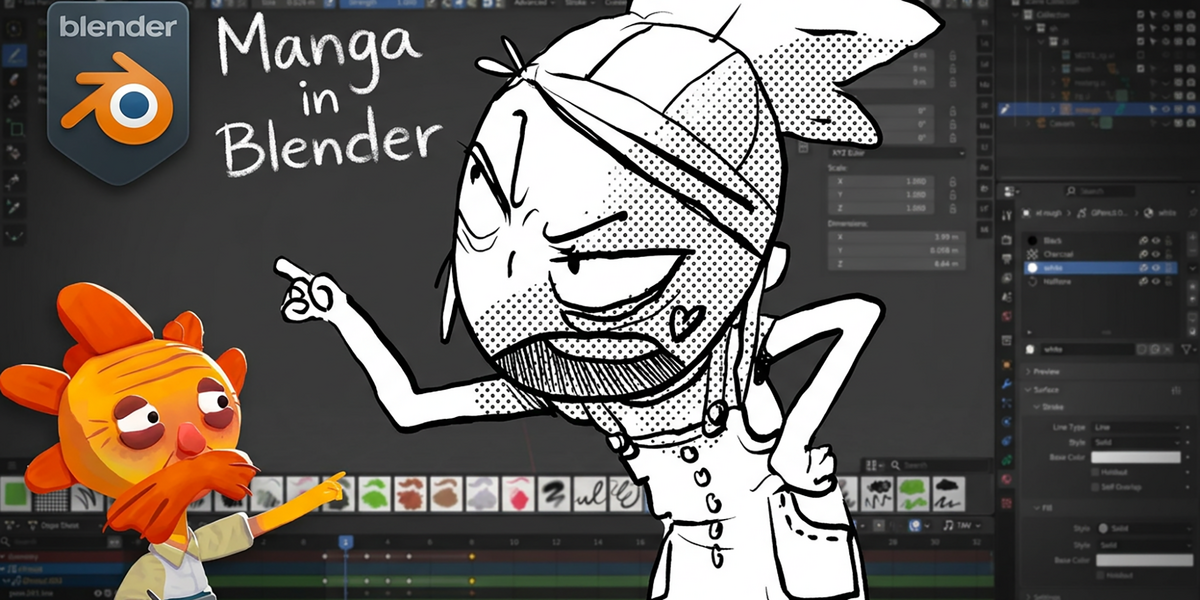
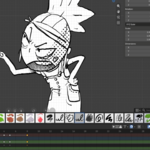
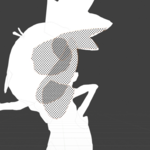
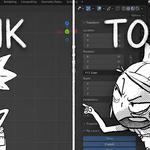
Manga style character workflow
GreasePencil Halftone Fill
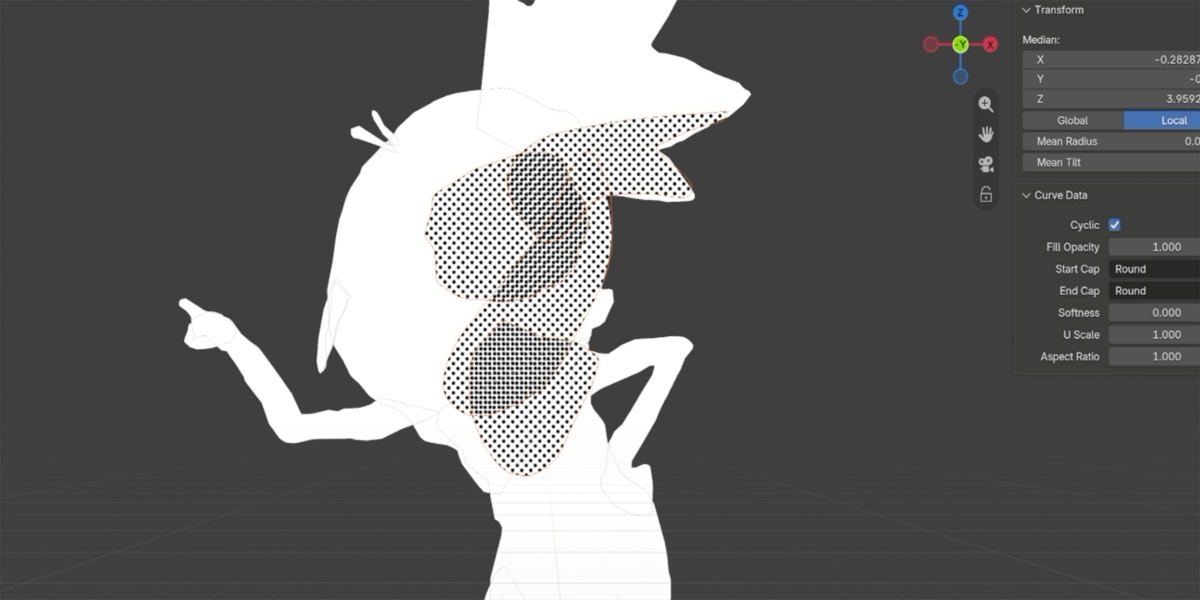
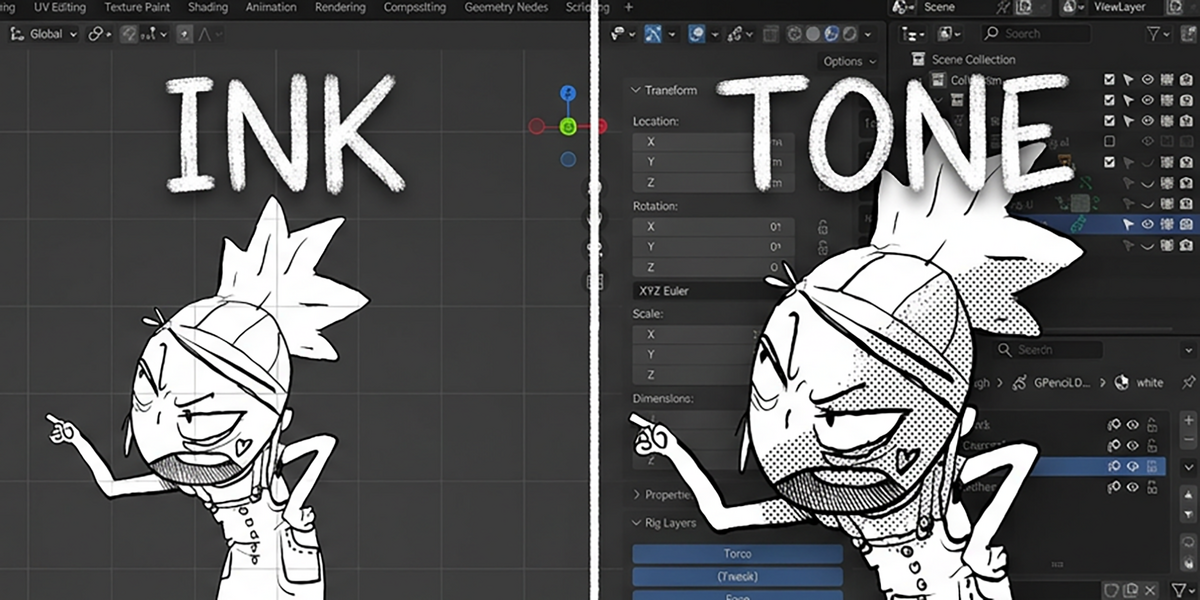
Japanese manga-style halftone texture material for grease pencil fill in Blender
GreasePencil Halftone Fill
Version: 1.2.5
Supported Versions: Blender 5.0 and above
Installation Method
1. Open Blender, go to Edit → Preferences → Add-ons
2. Click Install… in the upper right corner.
3. Select the GreasePencil_Halftone_Fill.py file and click Install Add-on.
4. Find GreasePencil Halftone Fill in the Add-ons list and check the box to enable it.
5. Close Preferences.
⚠️ If you have previously installed an older version, please manually delete the old file in the addons folder before restarting Blender to avoid conflicts.
How to Use
Basic Steps
1. Select a Grease Pencil object
2. Go to Properties → Material
3. Select the material to apply
4. Expand the Fill section and find the Style dropdown menu
5. Select Halftone Texture
6. Switch Viewport Shading to Material Preview (Alt+Z) or Rendered (Ctrl+Alt+Z) to see the effect
⚠️ Halftone effects will not be displayed in Solid mode; this is a normal limitation of Blender GP.
Parameter Description
Parameter Description
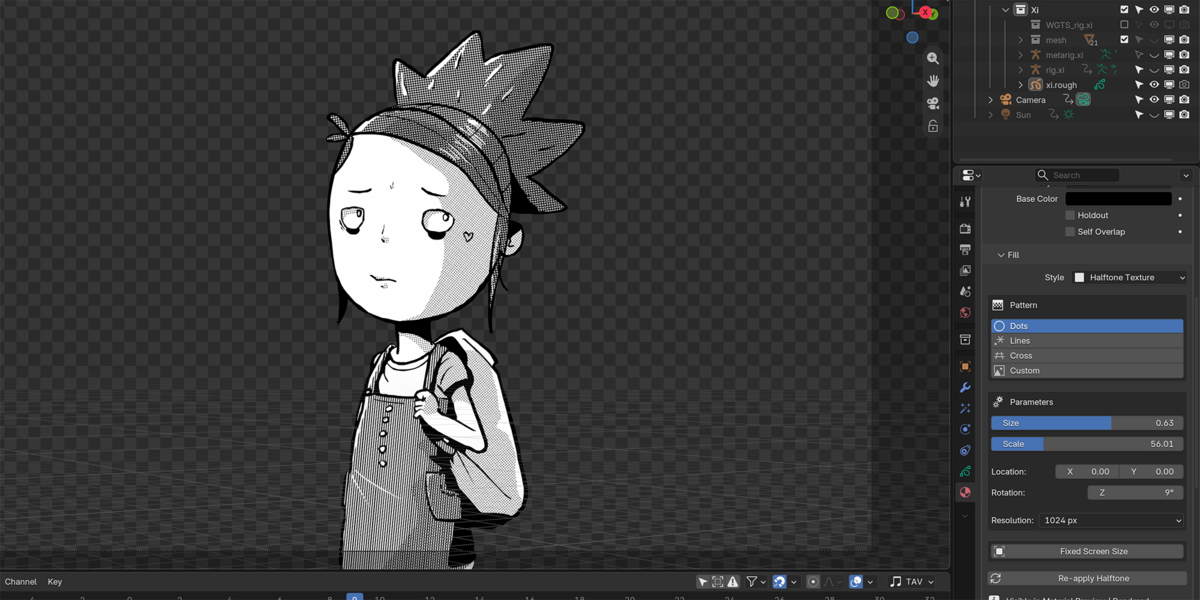
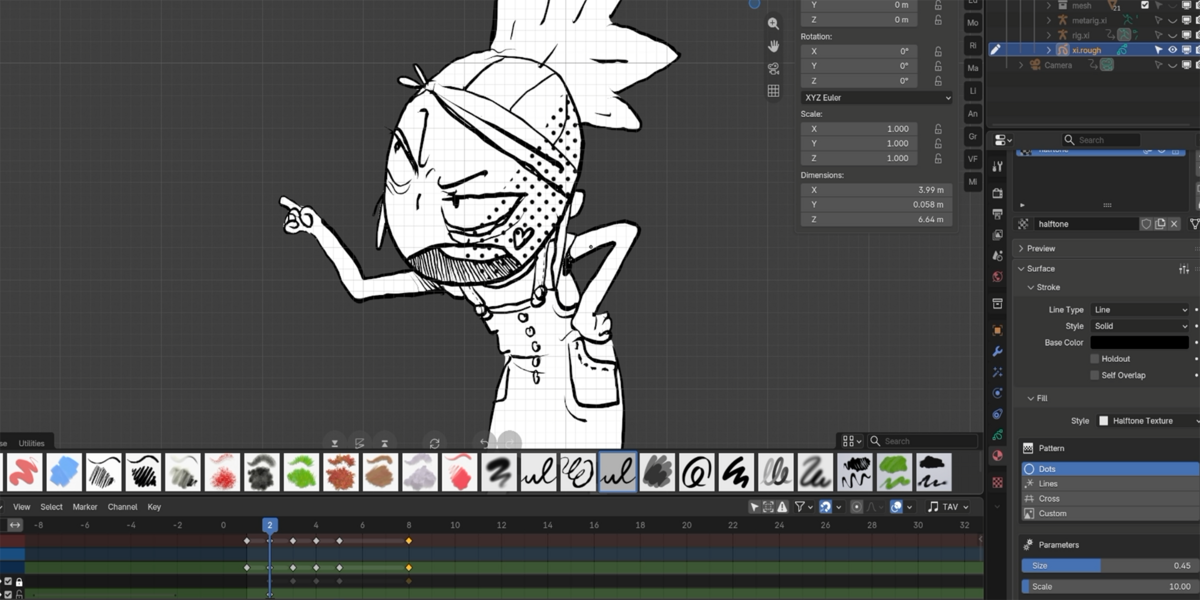
Pattern: Pattern type: Dots / Lines / Cross / Custom
Size: Radius of the dots or thickness of the lines (0 = thinnest, 1 = full)
Scale: Pattern density; the larger the number, the more dots and the denser the texture.
Location X / Y: UV offset of the pattern within the fill area.
Rotation Z: Pattern rotation angle (seamless rotation, no seams)
Resolution: Resolution of the generated texture; higher resolution results in greater detail but slower update speed.
Resolution Recommendations:
- Quick Preview: 512 px
- General Use: 1024 px (preset)
- Fine Output: 2048 / 4096 px
Custom Mode
Selecting Custom allows you to specify a custom image as a mask:
• Square images are recommended (e.g., 512×512, 1024×1024)
• Black areas → Show (opaque)
• White or transparent areas → Cutout (Displays Material Background Color)
• The image must be opened in Blender (Image Editor → Open Image) before it can be selected from the menu.
• If the image itself is not a seamless texture, seams may appear when rotating.
Fixed Screen Size
The toggle button is located below the parameters section:
Status Effect
OFF (Preset) The pattern scales with the object; dots enlarge as the camera zooms in.
ON The pattern maintains a fixed screen size; dot size remains unchanged when the camera zooms in or out.
• When enabled, the eyedropper button next to it can reset the current camera distance as the reference point.
• Requires a camera in the scene to work.
Re-apply Halftone Button
If the effect does not update immediately after adjusting the parameters, click this button to force a reapplication.
Independent Materials
Different materials within the same Grease Pencil object can have different Halftone styles set independently, without affecting each other. For example:
• Skin → Dots, Scale 20, Rotation 45°
• Shadow → Lines, Scale 15, Rotation 0°
• Highlight → Cross, Scale 10, Rotation 30°
Removing an Addon
1. Edit → Preferences → Add-ons
2. Find GreasePencil Halftone Fill, expand it, and click Remove
3. Restart Blender
The generated HalftoneFill_* images will remain in the .blend file and can be manually deleted in the Image Editor or Outliner (Filter: Orphan Data).
Have questions about this product?
Login to message
| Published | 1 day ago |
| Blender Version | 5.0 - 5.2 |
| Extension Type | N/A |
| Render Engine Used | Eevee |
| License | GPL |
Discover more products like this
grease pencil add-on grease pencil materials greasepencil manga mangaart