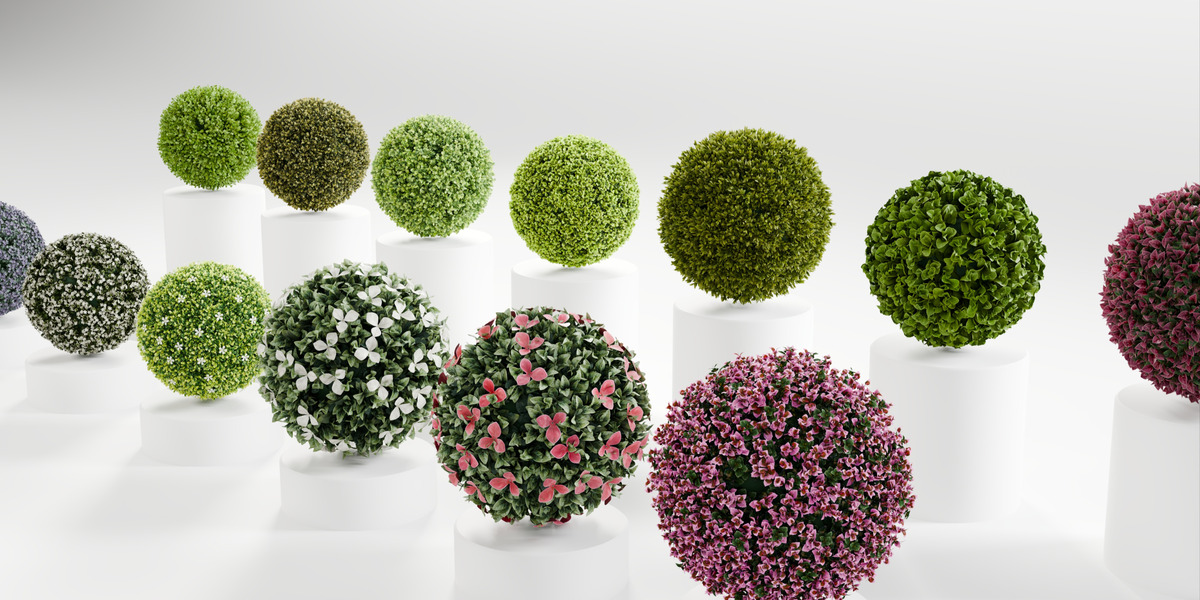
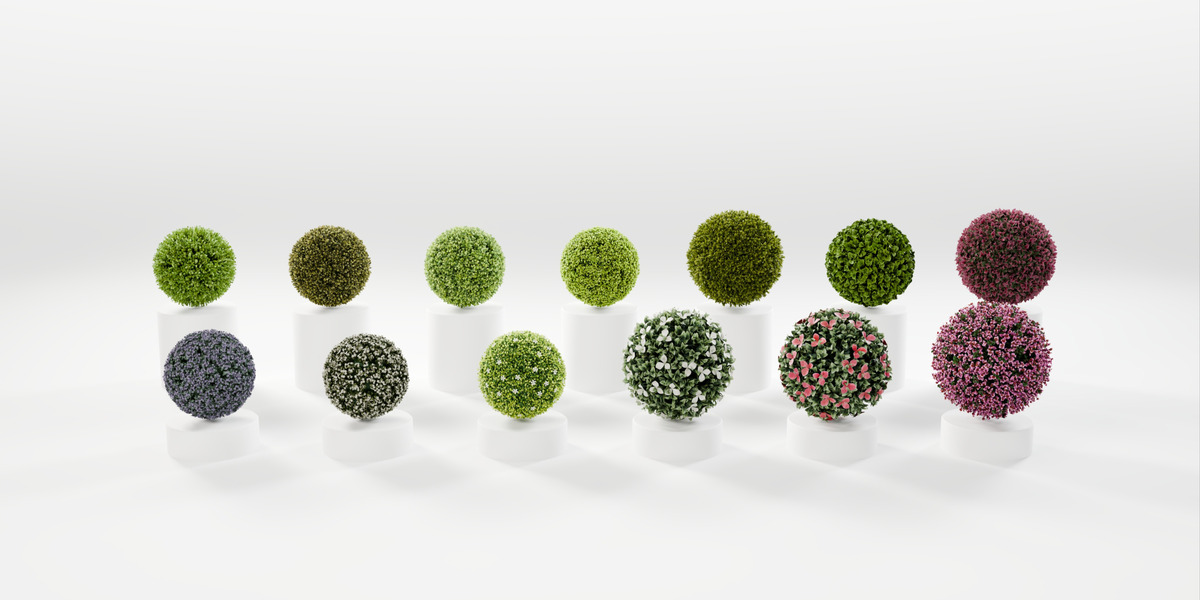
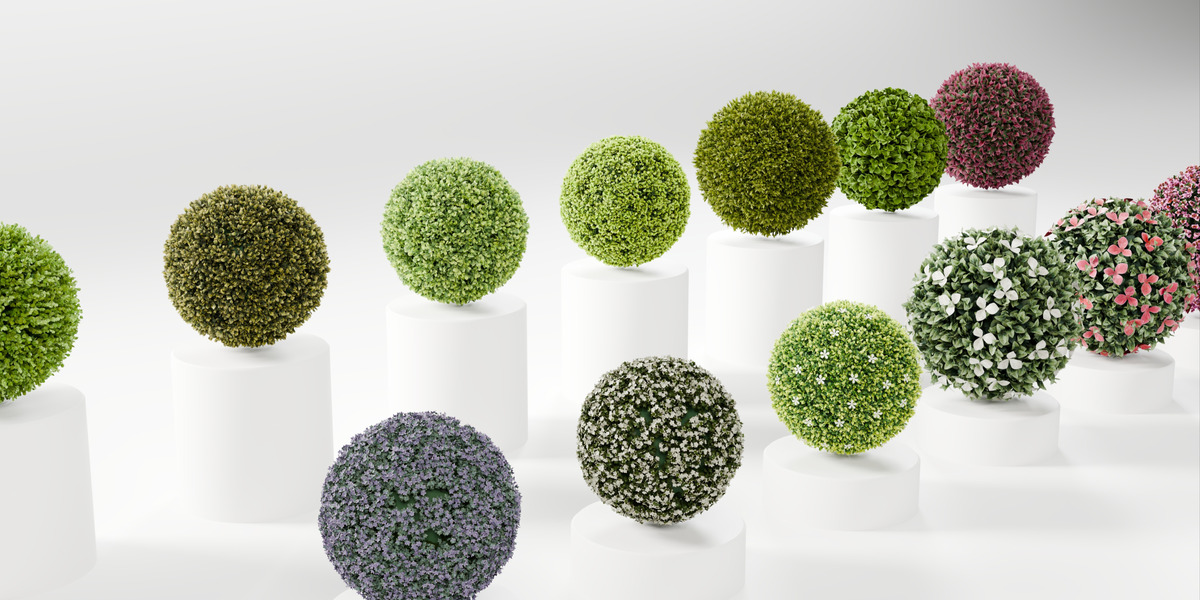
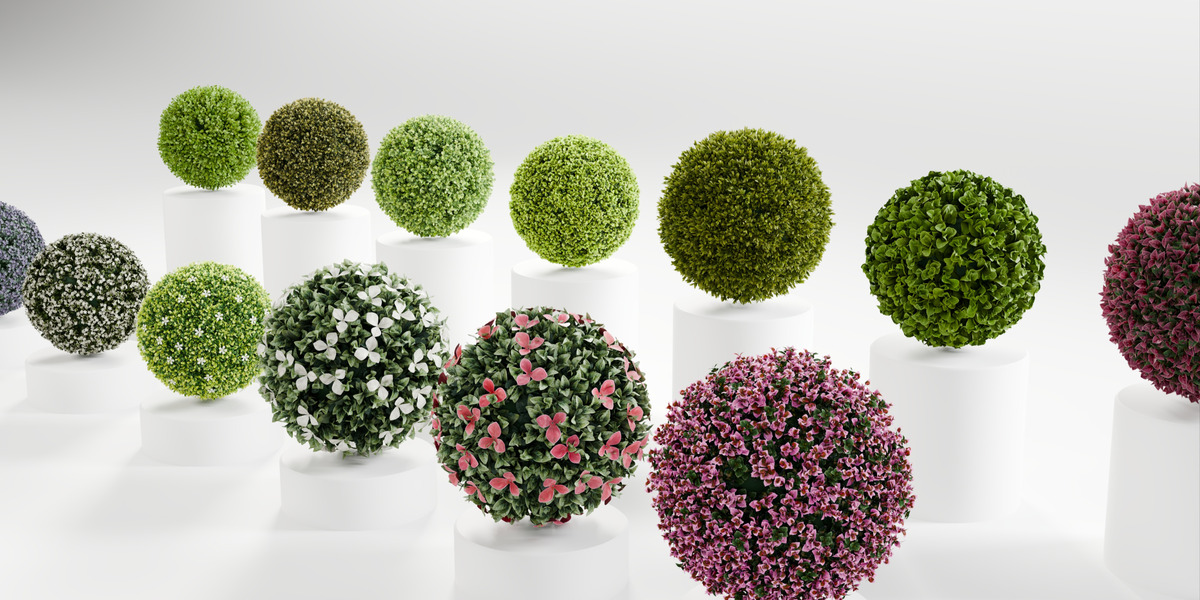
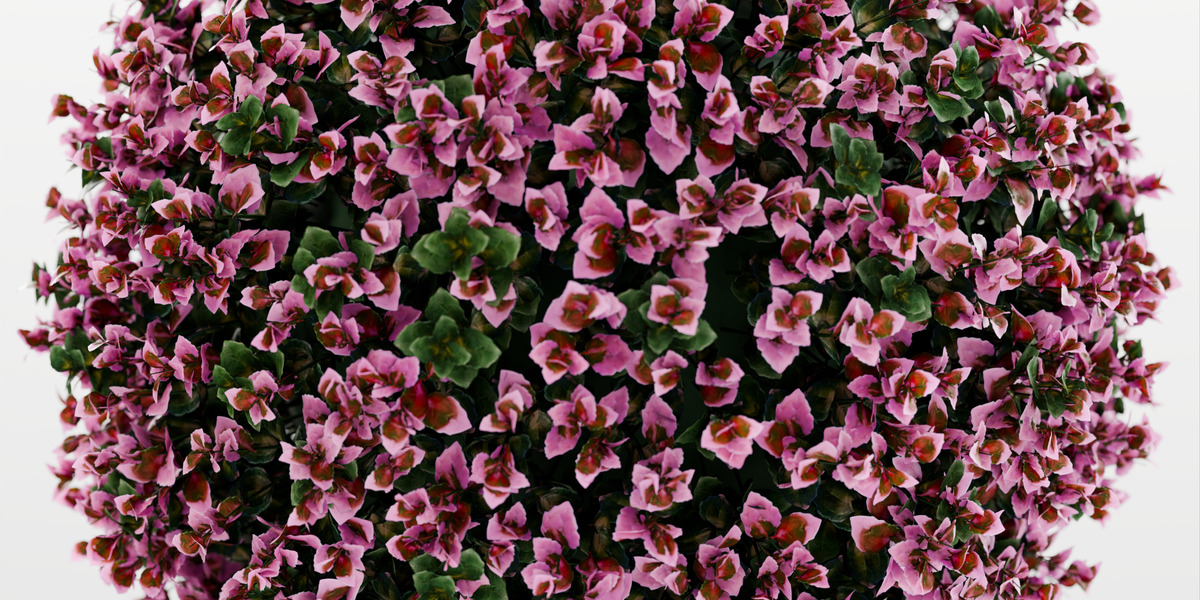
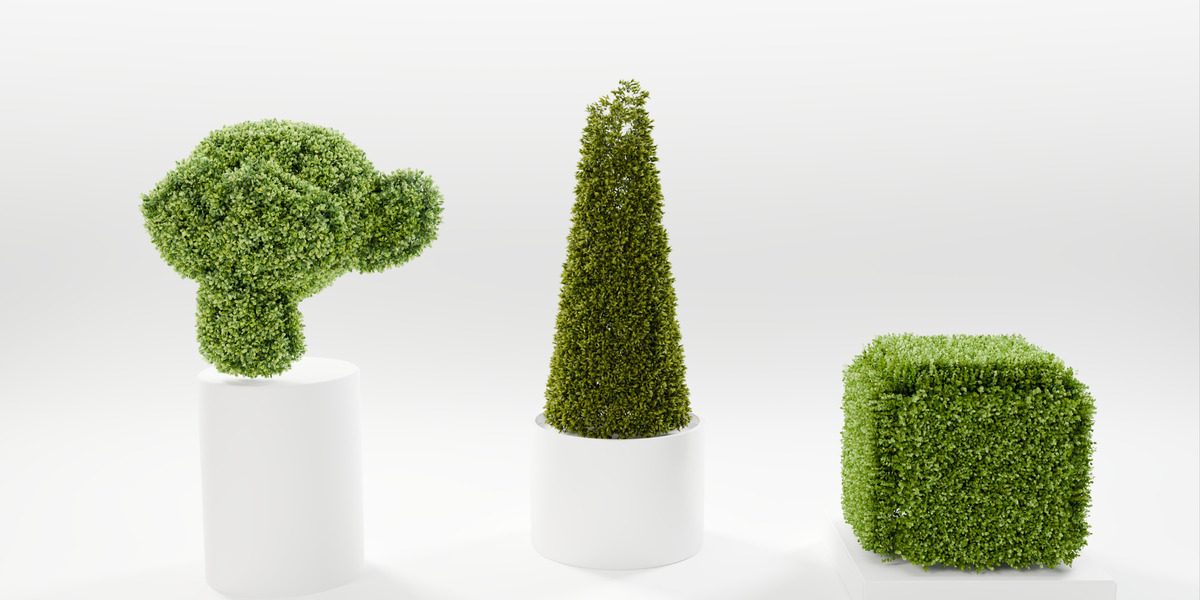
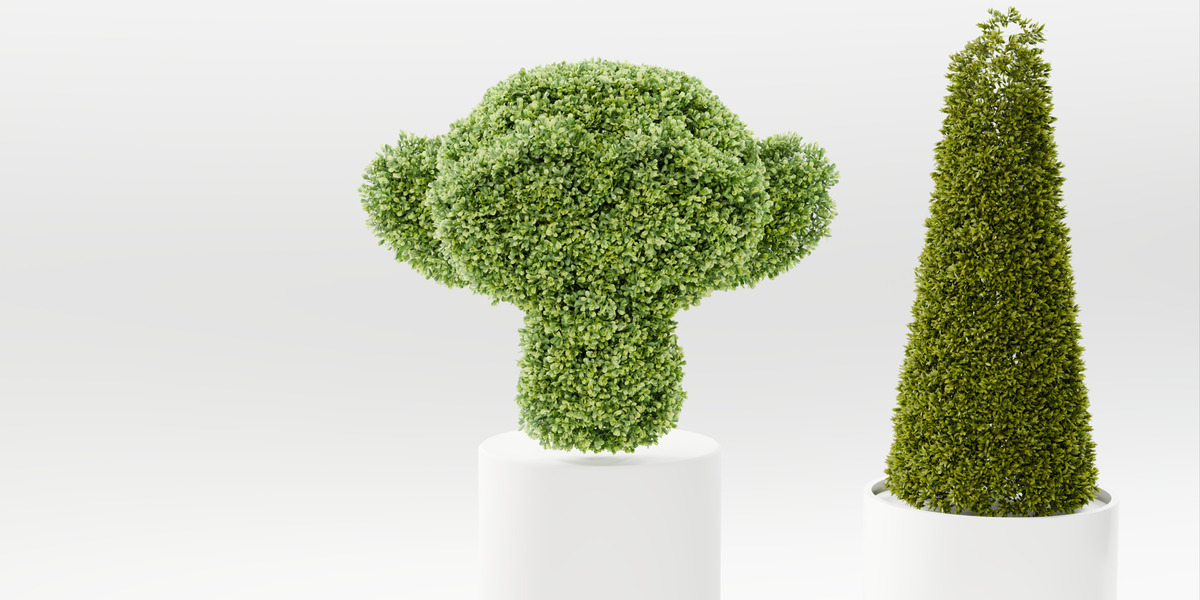
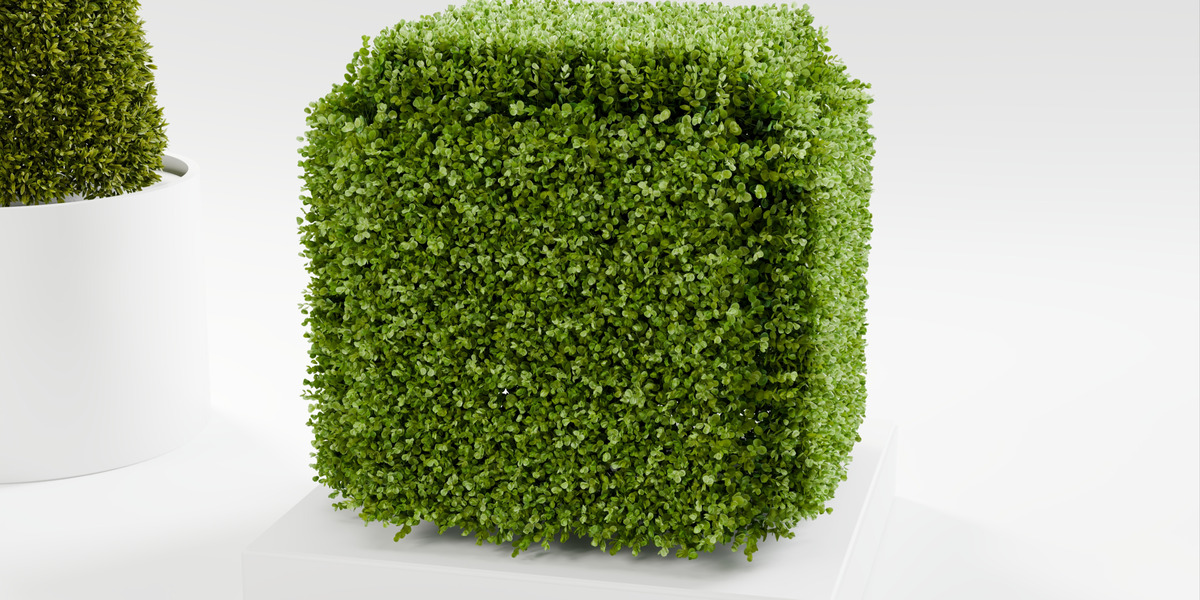
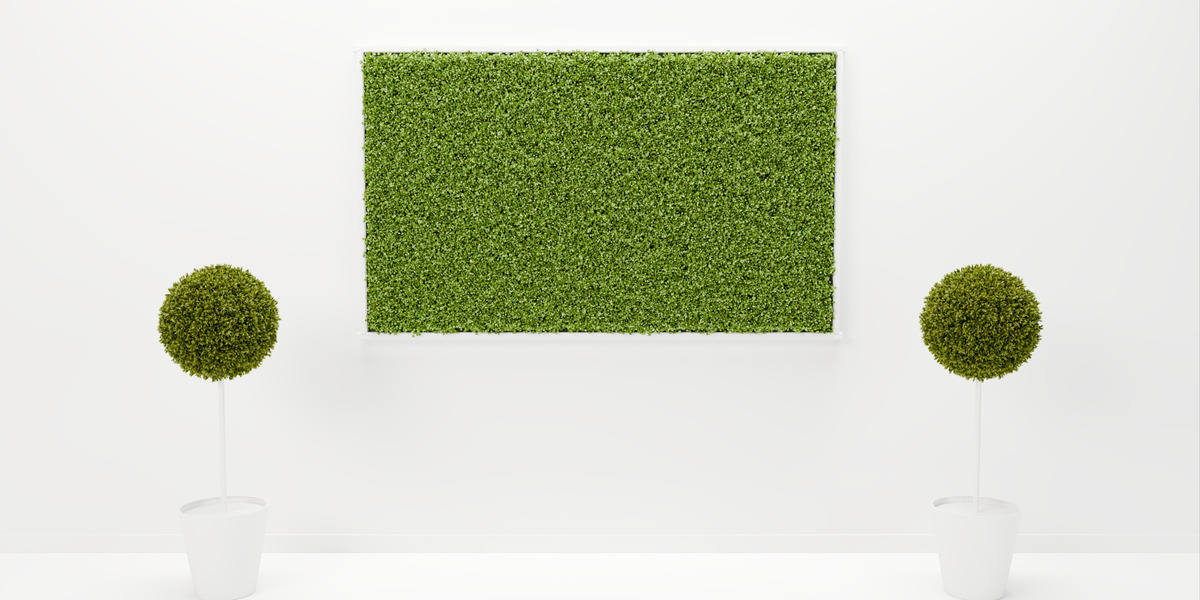
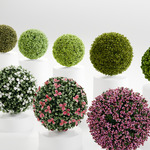
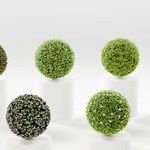
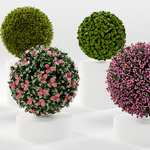
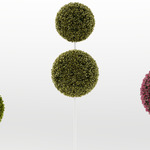
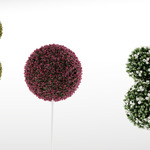
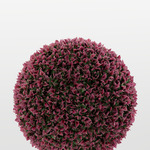
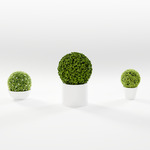
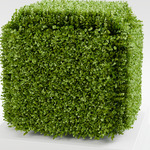
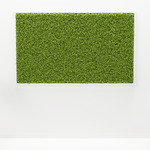
Green Ball - Artifical Topiary Ball Generator (10+ Variants)
 slavik_dsgn
Installation
- Download
green_ball-1.3.0.zip. Do not unzip it. - In Blender go to Edit › Preferences › Get Extensions, open the menu in the top right corner and choose Install from Disk…
- Select the zip. The add-on is enabled right away.
- Open the sidebar in the 3D Viewport (N) and click the Green Ball tab.
Requires Blender 4.2 or newer. Tested in Blender 4.2, 4.5 and 5.2.
Adding a ball
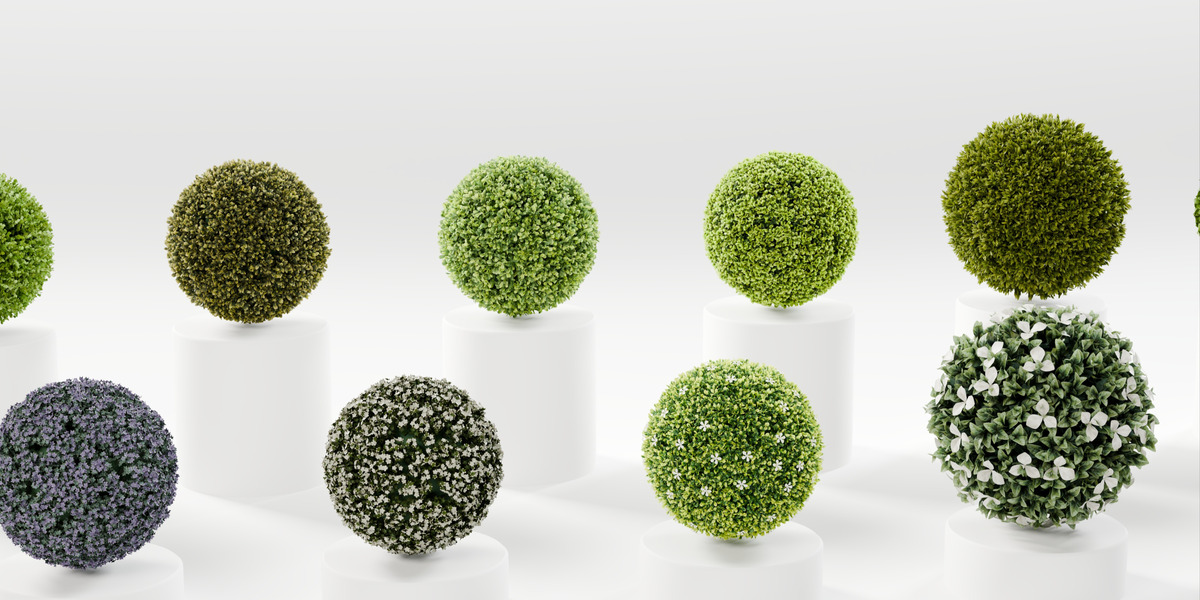
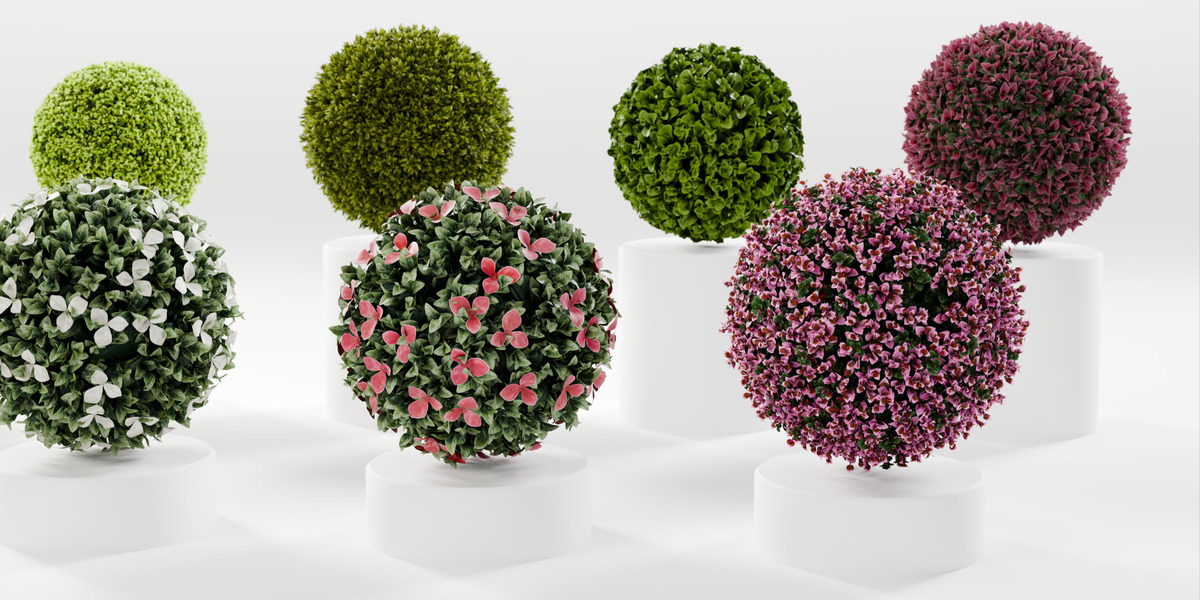
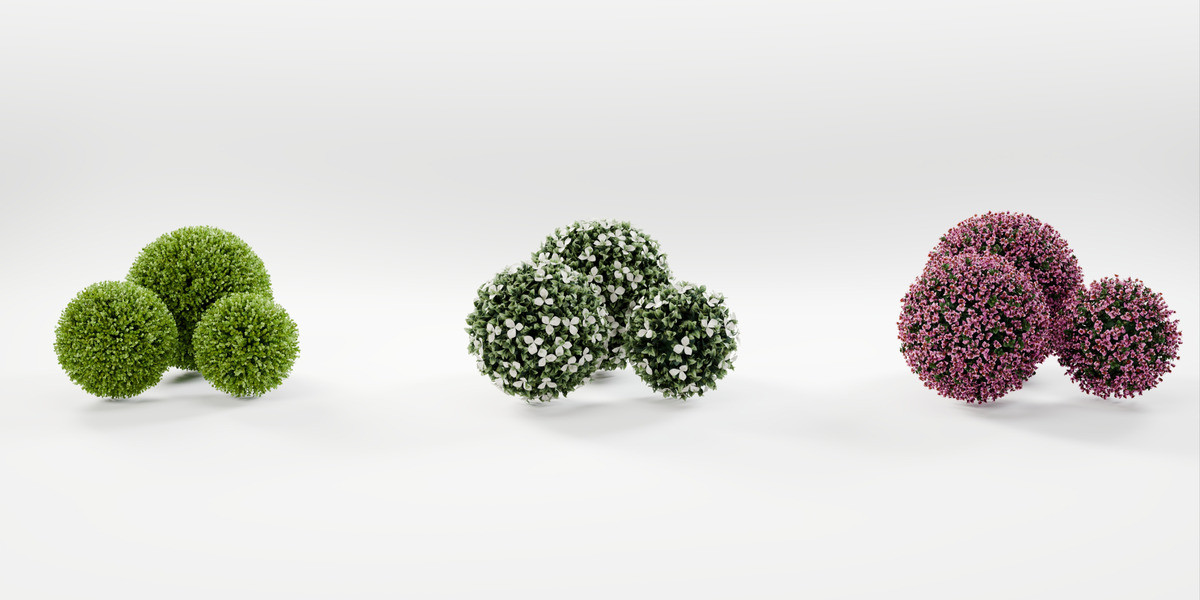
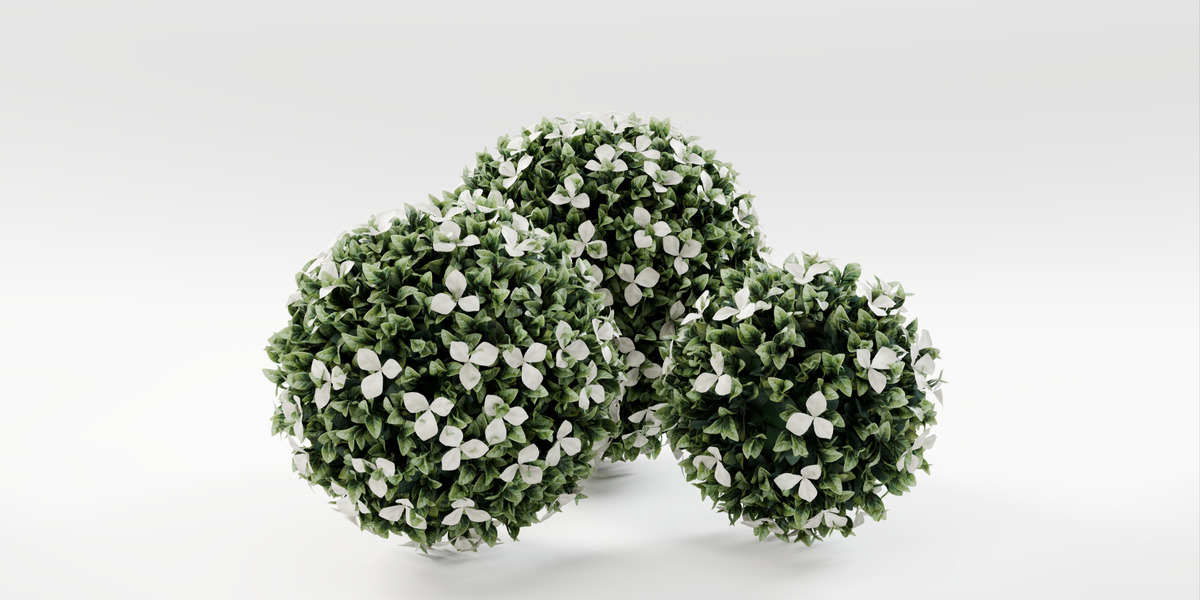
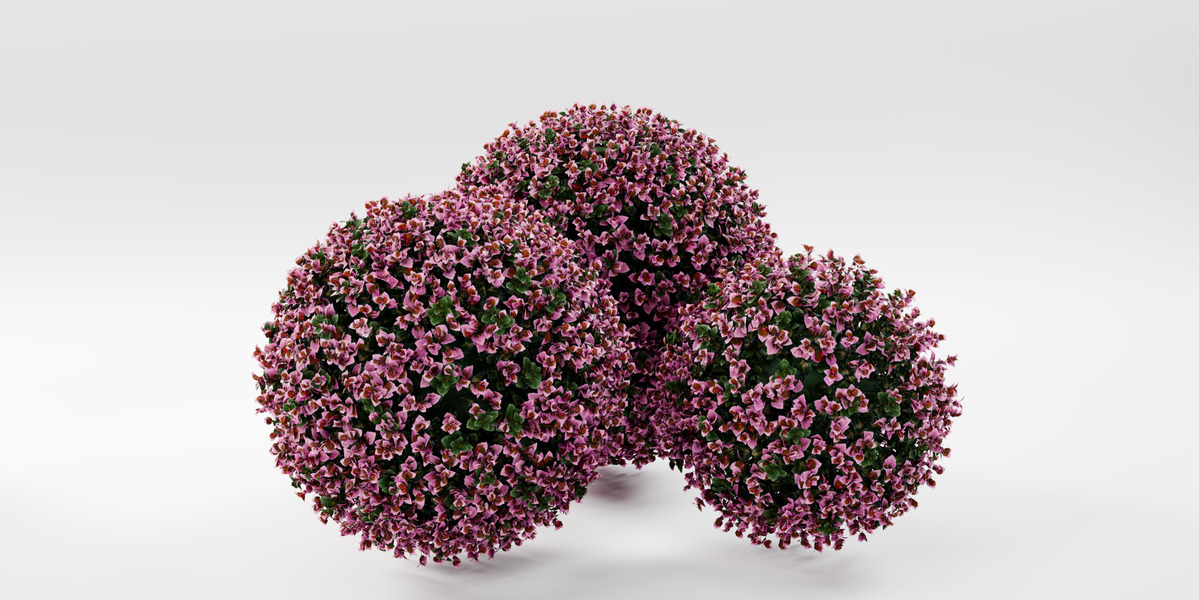
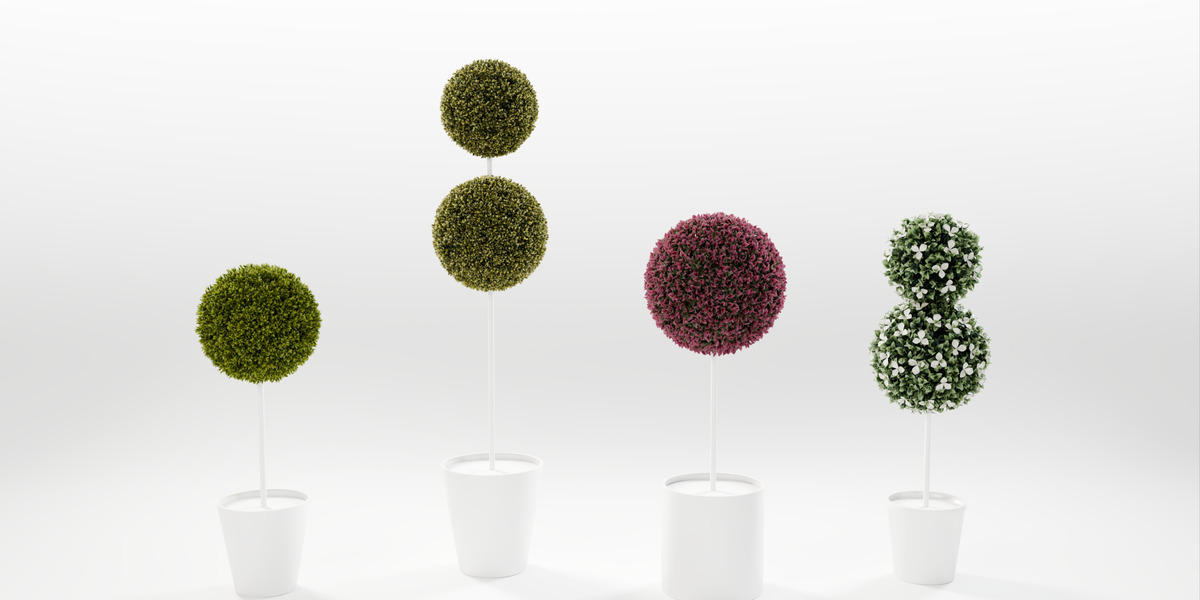
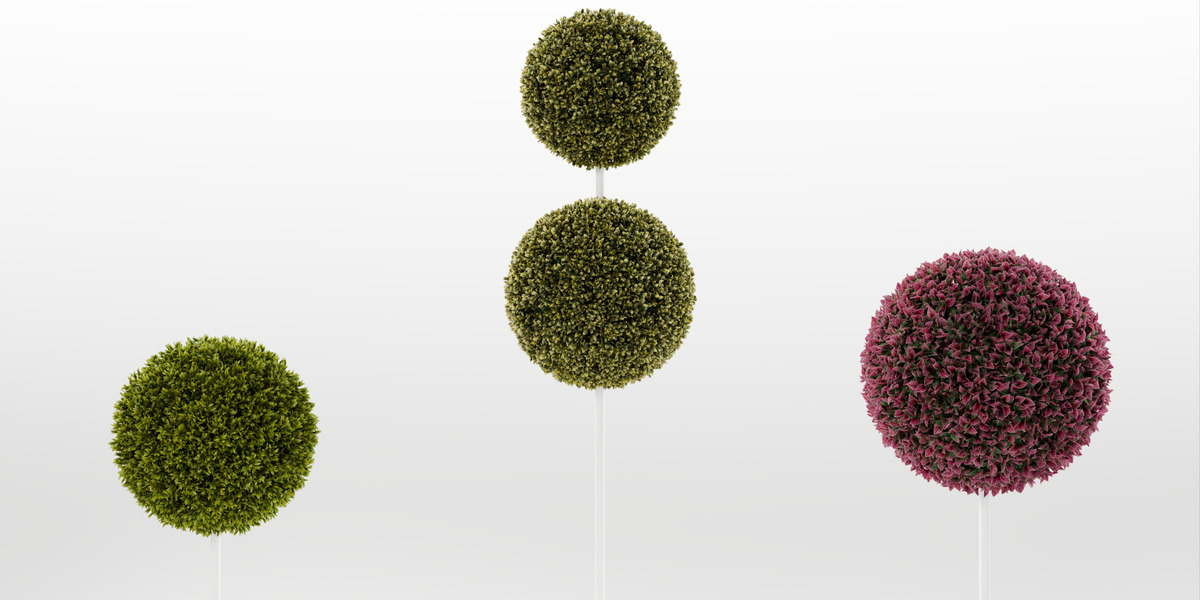
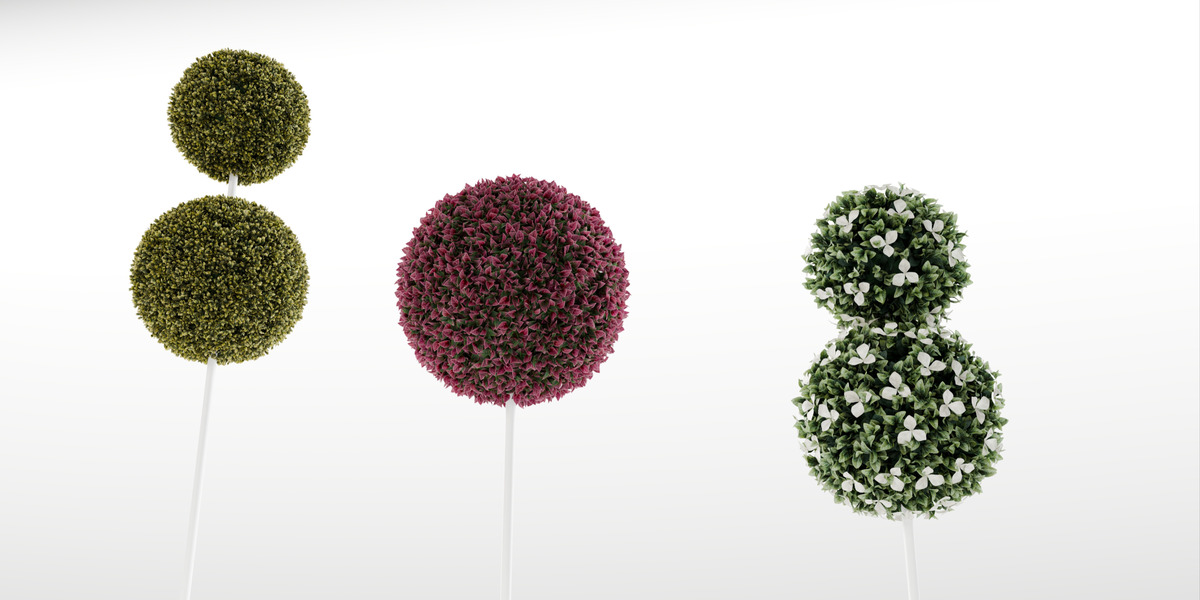
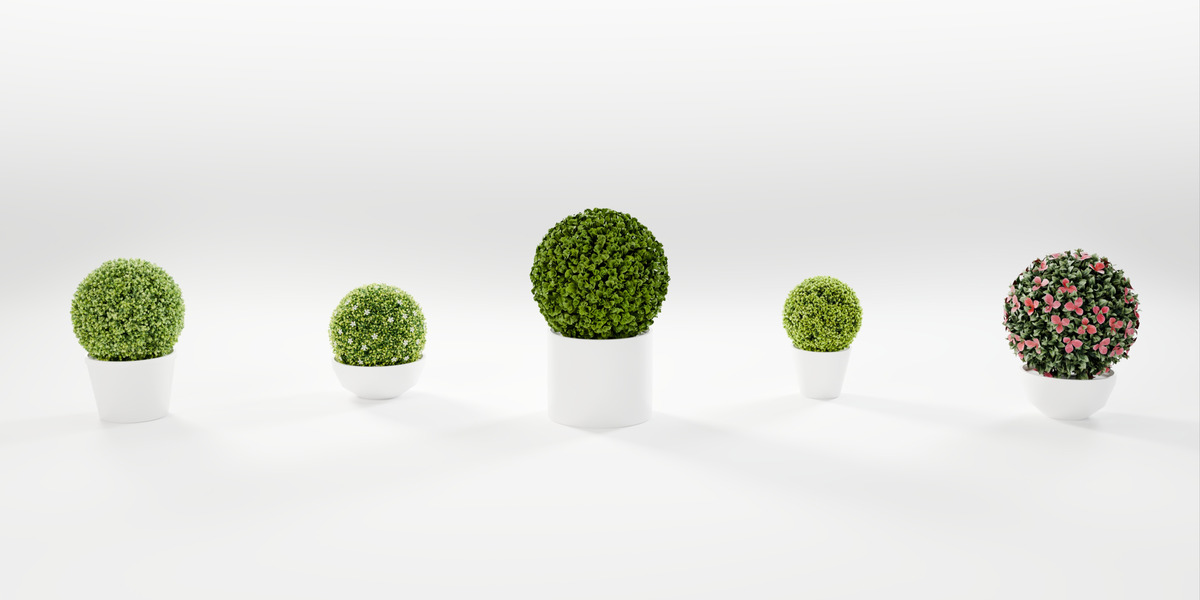
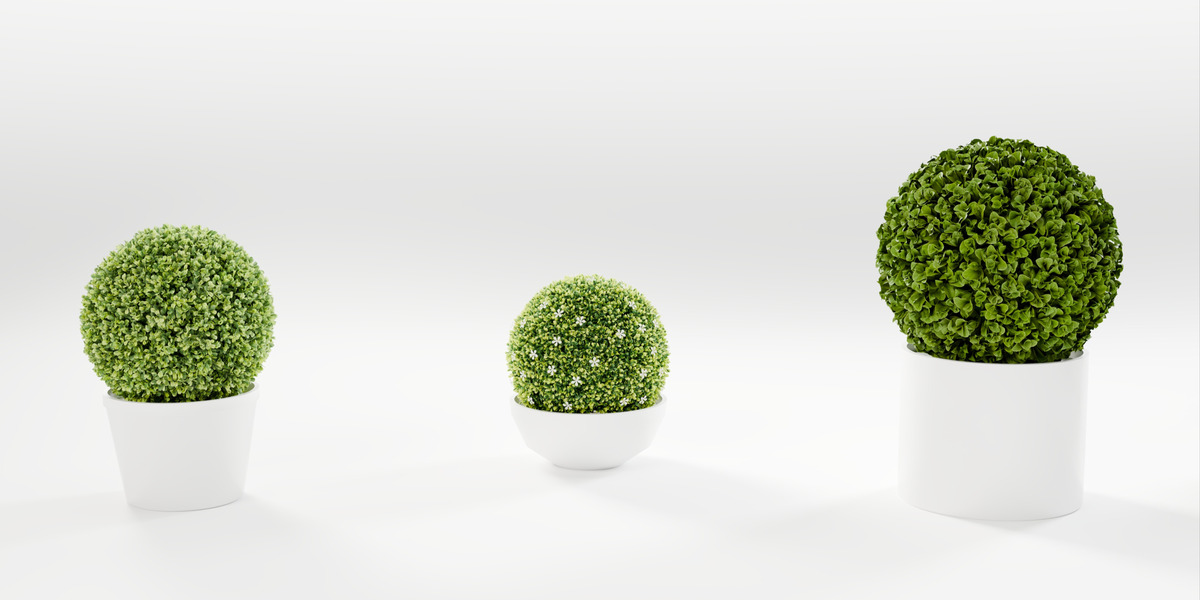
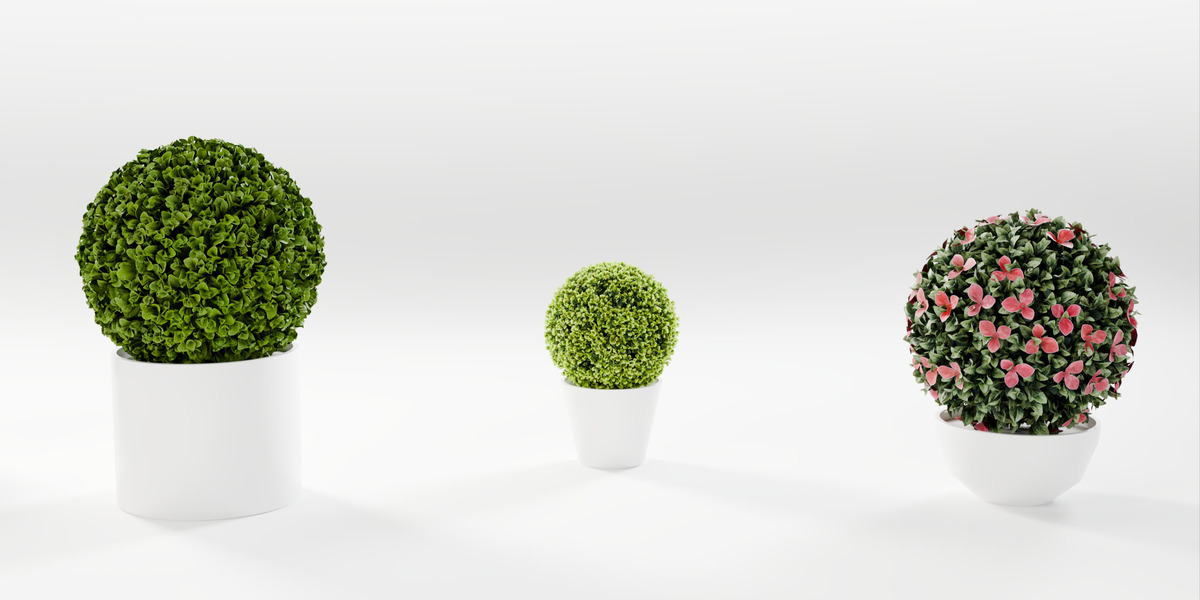
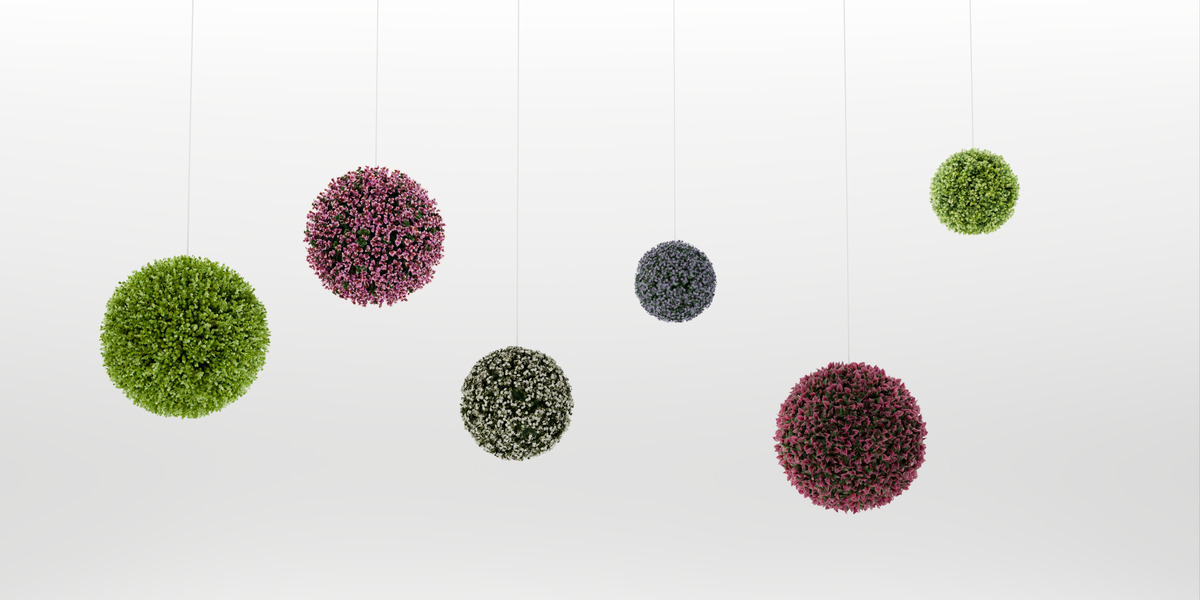
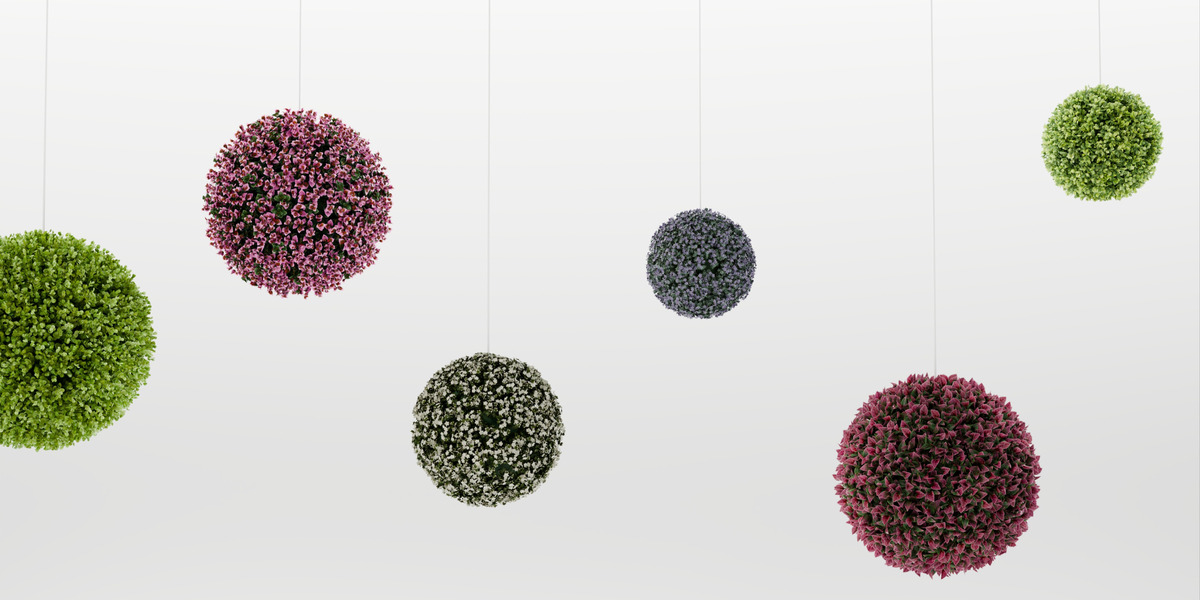
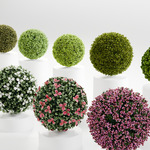
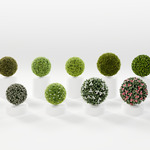
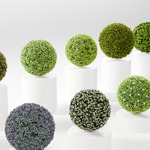
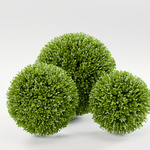
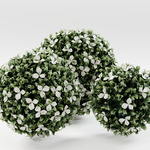
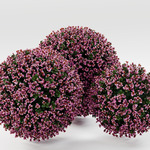
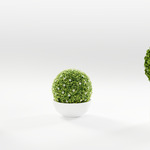
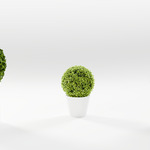
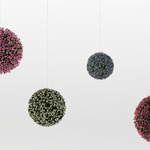
In New Ball, click the thumbnail (or the name below it) to choose a variant, then pick S, M or L.
- Add Ball – a ball at the 3D cursor.
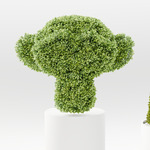
- Cover Active Object – the same foliage on the surface of the selected mesh object. The button is available when a mesh object is active.
Select a ball to see its settings; each ball has its own.
Variant
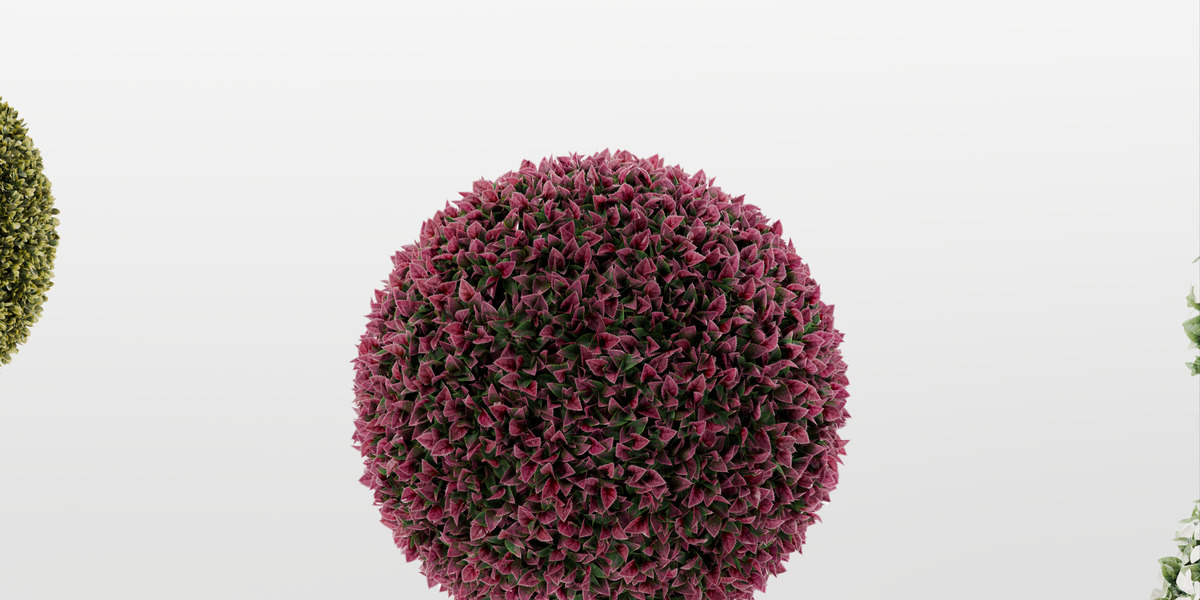
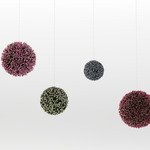
The name and thumbnail of the ball's variant are shown at the top of its settings. Click Change and pick another variant. The size (or your own radius), colour and leaf settings are kept; tilt and scale randomness are set to the new variant's defaults.
Shape
Choose Ball or Object.
Ball
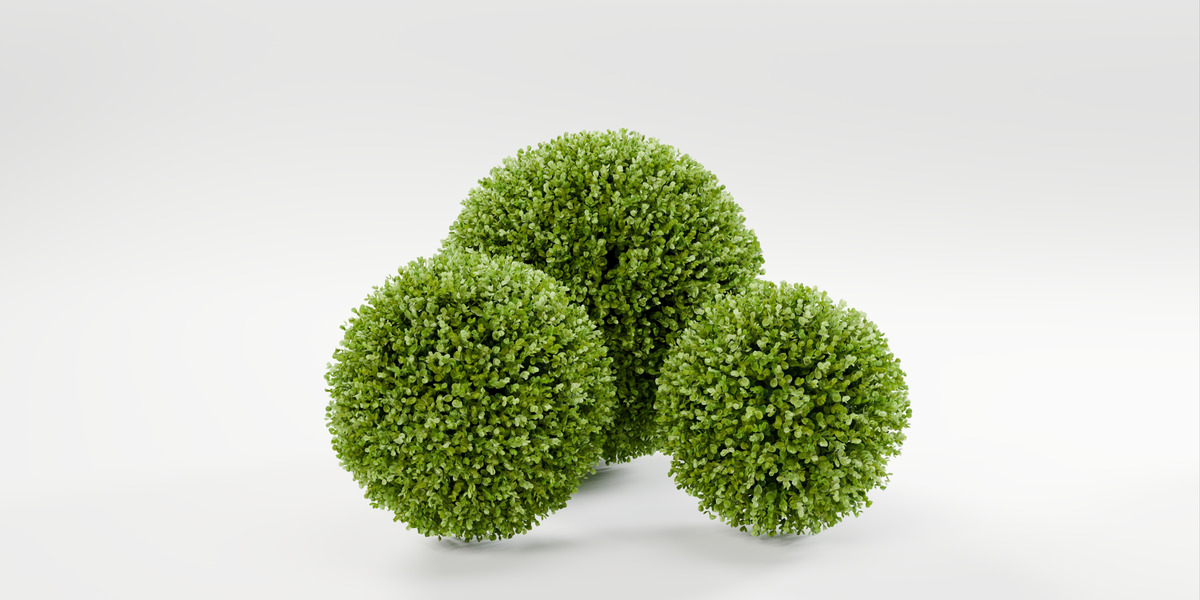
- S / M / L – the real sizes of the variant, with their outer diameter. A click also resets Density and Scale to 1.
- Core Radius – any size. The number of twigs follows the surface.
- Outer diameter and Twigs – shown for the current ball (and the number of flowers for flowering variants).
- Inner Ball and Color – the core the twigs are fixed to. It keeps the background from showing through. Every ball can have its own colour.
Object
- Object – the mesh to cover. Its whole surface is covered, with the same number of twigs per m² as the chosen size of the ball.
- The foliage follows the object when it is moved, rotated or edited.
- The covered object stays in the scene. Give it a dark green material, or hide it in renders if the foliage closes completely.
- Faces you do not want covered (for example the bottom of a cube standing on the floor) are best deleted from the object.
Viewport Preview
What the viewport shows. Renders always use full geometry.
- Full – full geometry in the viewport.
- Low – low-poly twigs (the default for new balls).
- Dummy – simple cones. Dummy Density sets how many are shown.
- All: Full / All: Dummy – switch every ball in the scene at once.
- Renders: Low-Poly Far From Camera and Distance – balls farther than this distance from the scene camera render with low-poly twigs. It is checked before every rendered frame, also in animations. The viewport is not affected.
Distribution
- Density – more or fewer twigs than the real ball (1 = as produced).
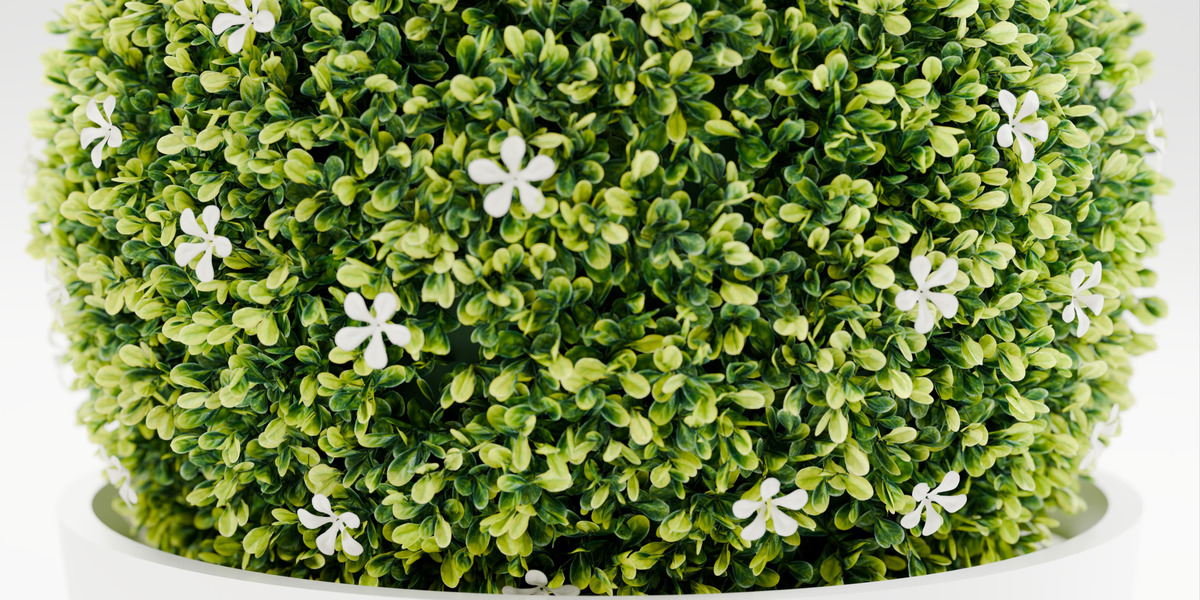
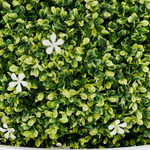
- Flowers – the amount of flowers relative to the real ball (0 = none). Shown for flowering variants only.
- Evenness – 1 spaces the twigs evenly, lower values make the spacing more random.
- Offset From Surface – moves the twigs out from (or into) the surface.
- Seed and the refresh button – a new random arrangement.
Twigs
Every setting has a Random value below it that varies it from twig to twig.
- Tilt – how far the twigs lean from the surface.
- Spin – rotation of each twig around its own stem.
- Scale – the size of the twigs.
Color
- Hue Shift, Saturation, Brightness – change the colour of all leaves (1 = original saturation and brightness).
- Random Per Twig – gives every twig a slightly different colour. 0 turns it off.
- Also Tint Flowers – applies the colour change to the flowers too (off by default, so white flowers stay white).
Leaves
- Opening – opens the leaves away from the stem (positive) or closes them (negative).
- Twist – rotates every leaf around its own axis.
- Random under each – varies the value from leaf to leaf.
- Twig Variations – how many different versions of the twig are generated. More looks less repetitive and uses a little more memory.
- Avoid Leaf Collisions – leaves of neighbouring twigs turn away from each other around their stems. Strength sets how far they may turn, Reach how close leaves have to be to react. Off by default: it takes more time to calculate, and the viewport uses a quicker version than the render.
Balls from an older version
When a file contains balls made with an older version, the panel shows Update Balls. One click converts every such ball in the file and keeps its settings.
Performance tips
- Keep balls on Low or Dummy while you work; renders use full geometry anyway.
- Turn on Avoid Leaf Collisions only for close-up shots.
- In large scenes turn on Renders: Low-Poly Far From Camera.
Have questions about this product?
Login to message
| Blender Extension Compatible | Yes |
| Published | about 2 hours ago |
| Blender Version | 4.2 - 5.2 |
| Extension Type | Add-on |
| Render Engine Used | Cycles, Eevee |
| Misc Data | Textured |
| License | GPL |