GripKit: One Click Hand Grips and 24 Hand Poses for Any Rig
 Meshwright
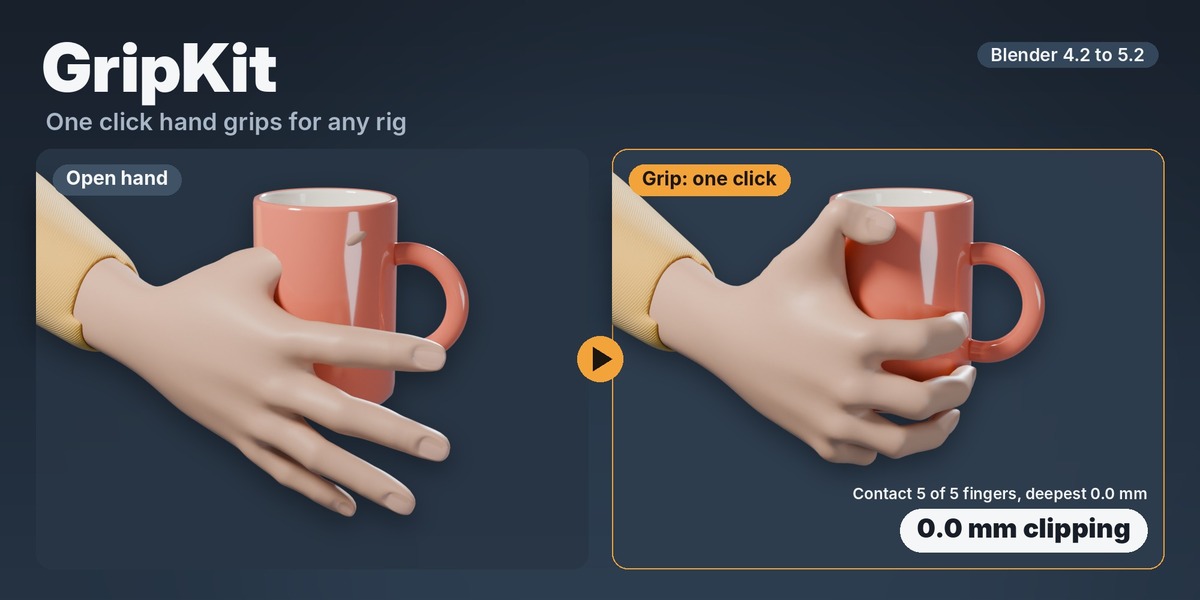
Install: Edit > Preferences > Get Extensions > arrow menu (top right) > Install from Disk > gripkit-1.0.0.zip. Blender 4.2 or newer. Nothing else is installed or downloaded.
Make a grip
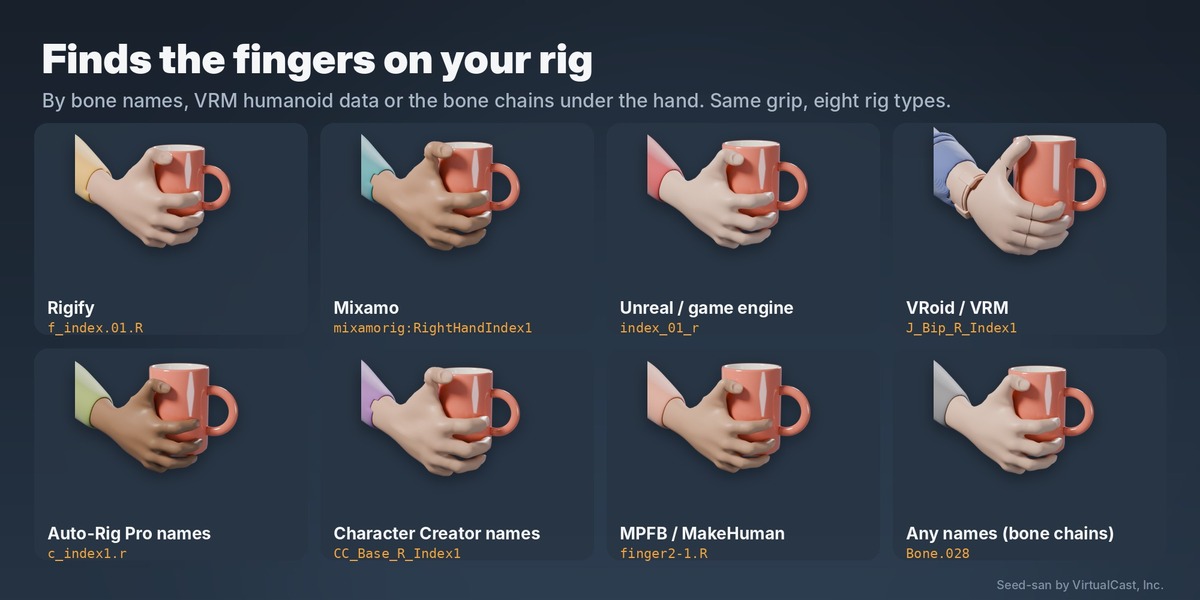
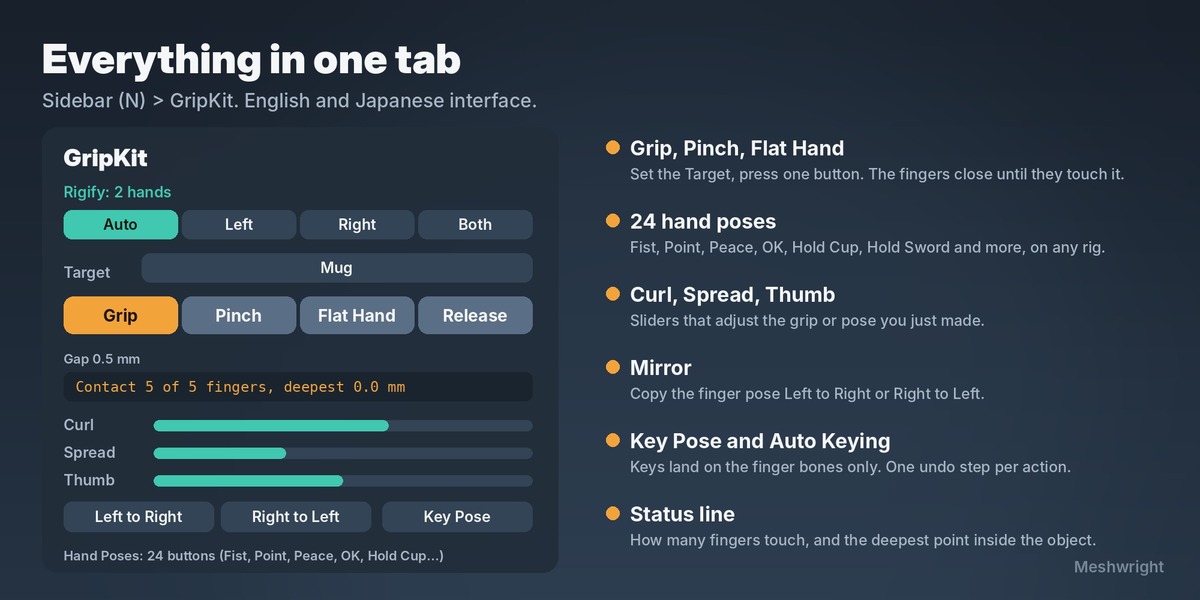
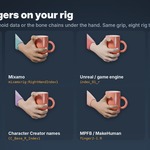
- Select the character's armature or one of its meshes (or set it in the Rig field). The panel shows how many hands it found. The Rig Setup subpanel lists every finger bone. If a hand is missing, pick its hand bone there, or press the refresh button to scan again.
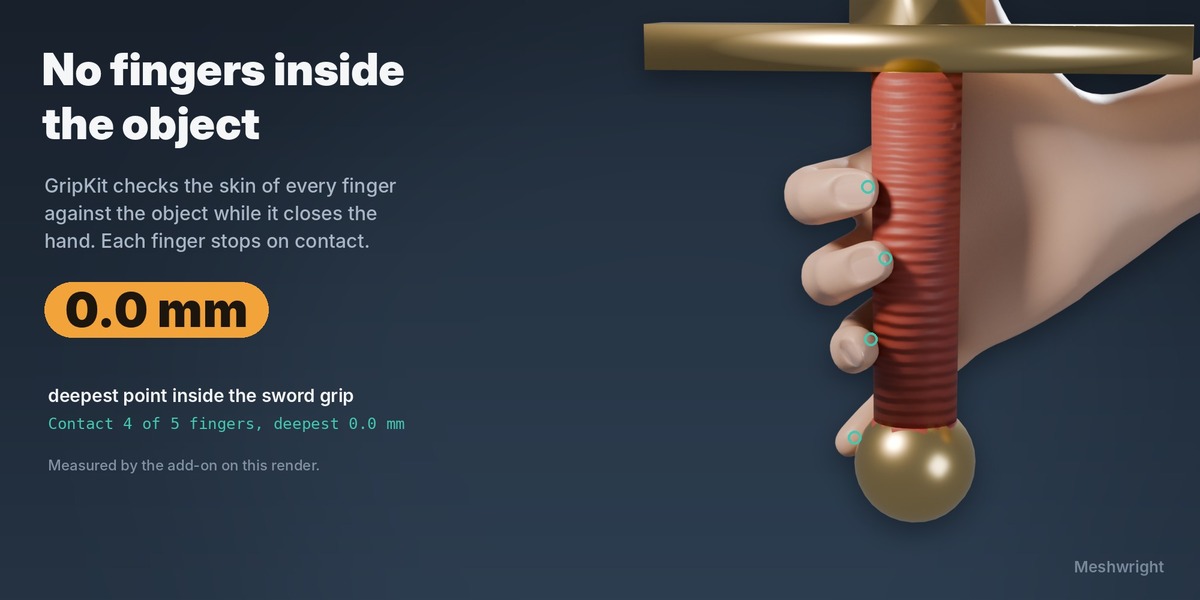
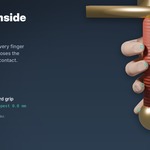
- Place the object so it rests against the open palm. A finger that starts inside the object is opened first.
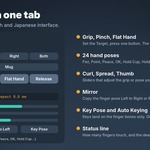
- Set the object as the Target. Hand: Auto (the hand nearest the target), Left, Right or Both.
- Press Grip (wrap around), Pinch (thumb and index finger) or Flat Hand (lay flat on a surface). Gap is the space left between skin and object (0.5 mm by default).
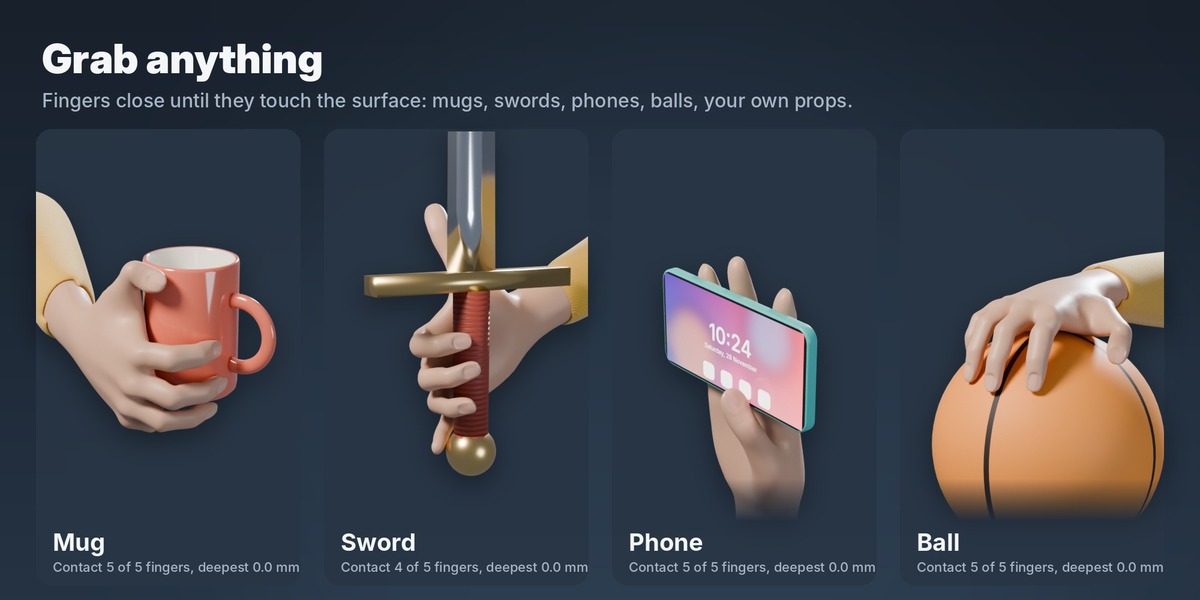
- Read the status line: how many fingers touch, and the deepest point inside the object.
- Fine tune with Curl, Spread and Thumb. Release opens the hand.
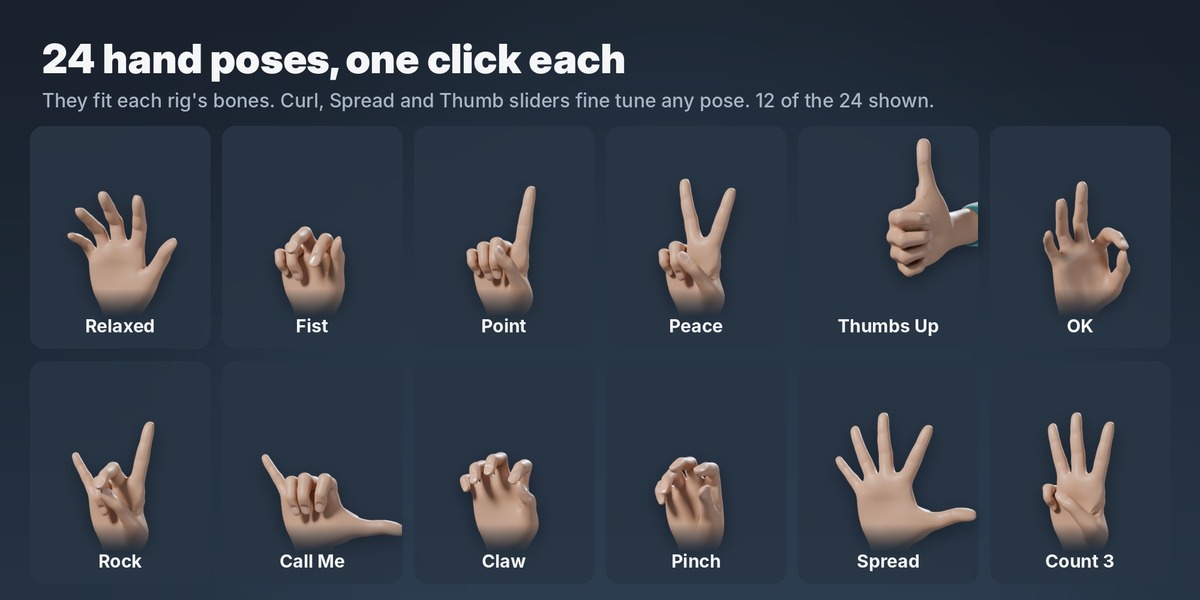
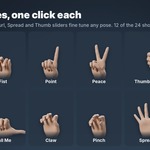
Poses: open the Hand Poses subpanel and press one of the 24 poses. The sliders work on poses too.
Mirror: pose one hand, then press Left to Right or Right to Left.
Keys: Key Pose keys the finger bones at the current frame. With Auto Keying on, Grip, poses and Mirror key the fingers for you.
Tips
- Phones and thin boxes: hold them in the fingers, with the far edge past the middle finger joints.
- A small ball resting in the palm: the thumb rests on its side. Bigger balls and cups wrap fully.
- Distances in the status line are millimetres at the scene's unit scale.
- Rigify: GripKit poses the FK finger controls (f_index.01.L and so on).
Have questions about this product?
Login to message
| Blender Extension Compatible | Yes |
| Published | 18 minutes ago |
| Blender Version | 4.2 - 5.2 |
| Extension Type | Add-on |
| License | GPL |