 hodgson3d


DETAILED DOCUMENTATION HERE
A comprehensive 70+ tool suite designed to automate, optimize, and accelerate your workflow. Born in the trenches of VFX, it provides tools to help with Navigation, Lattices, Shapekeys, UVs, Curves, Materials, Modeling, Modifiers Selection, Mesh Cleaning, Sculpt, Vertex Groups, Baking and Camera tools. It doesn’t just add new tools; it fills many gaps forgotten by default blender for a smoother user experience.
I update this toolkit almost on a daily basis so you can expect many improvements in future.
A few of my pre existing tools included are:
- Delete Intersecting Geo
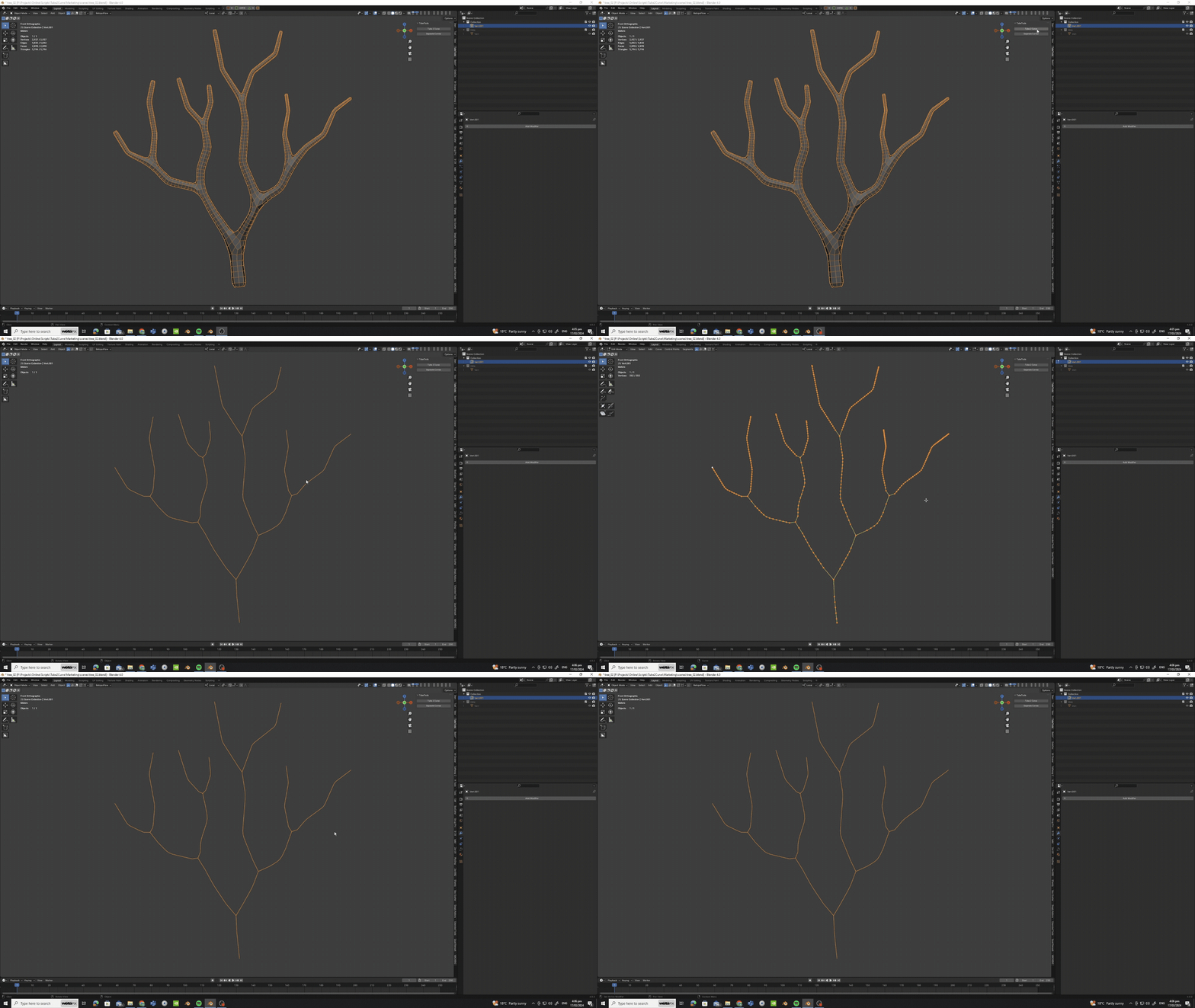
- Tube 2 Curve
-
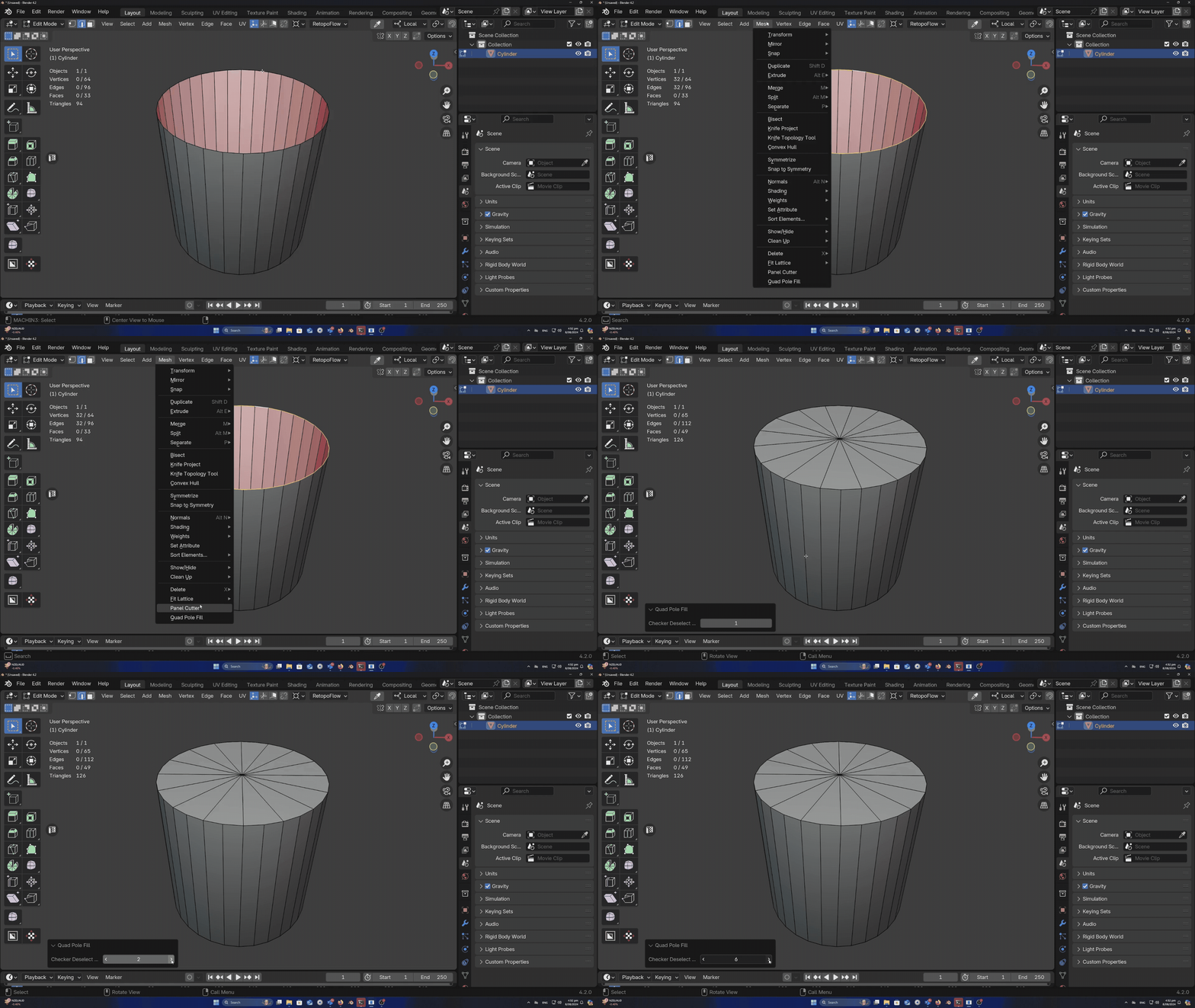
Quad Star Fill
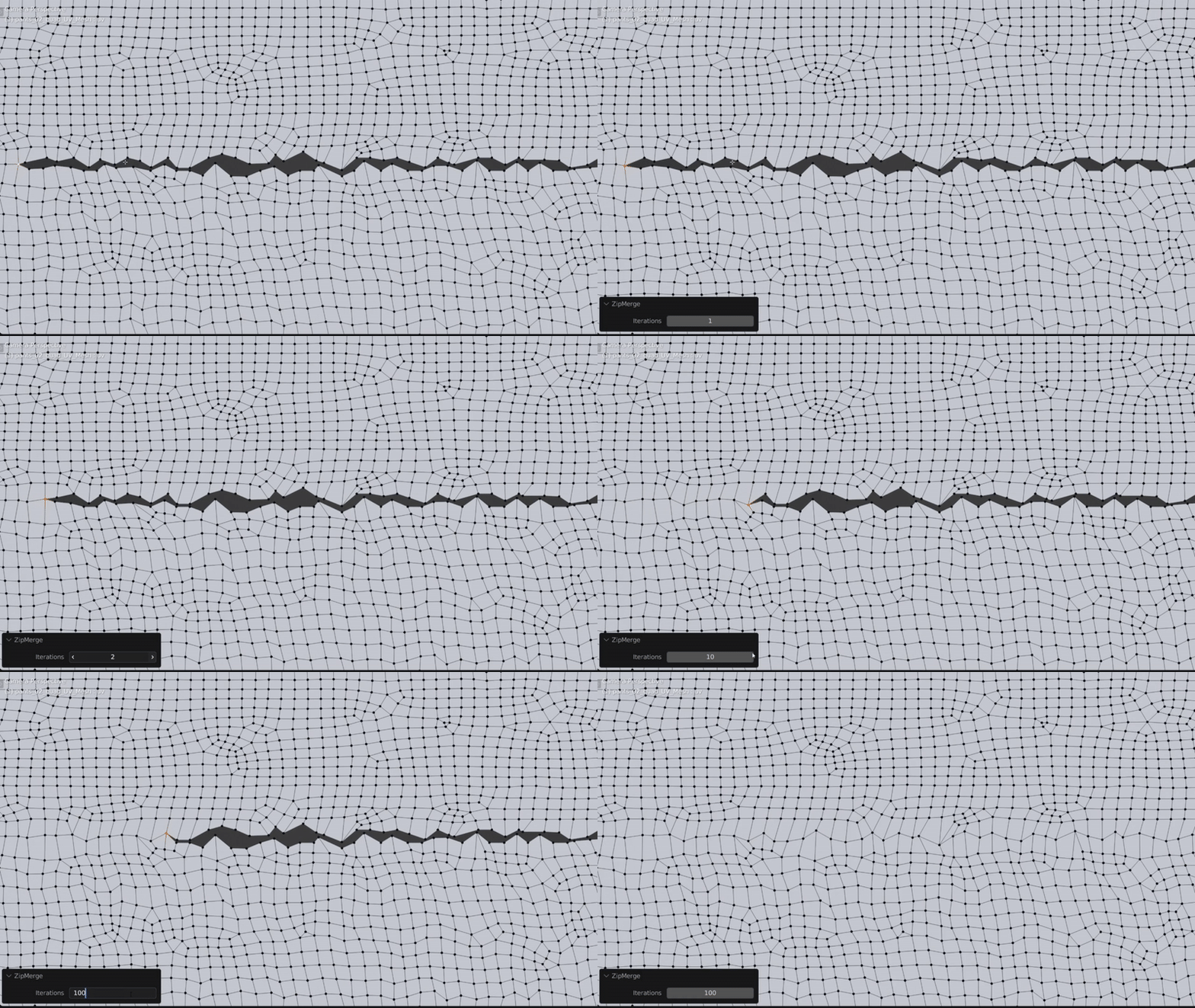
- Zip Merge
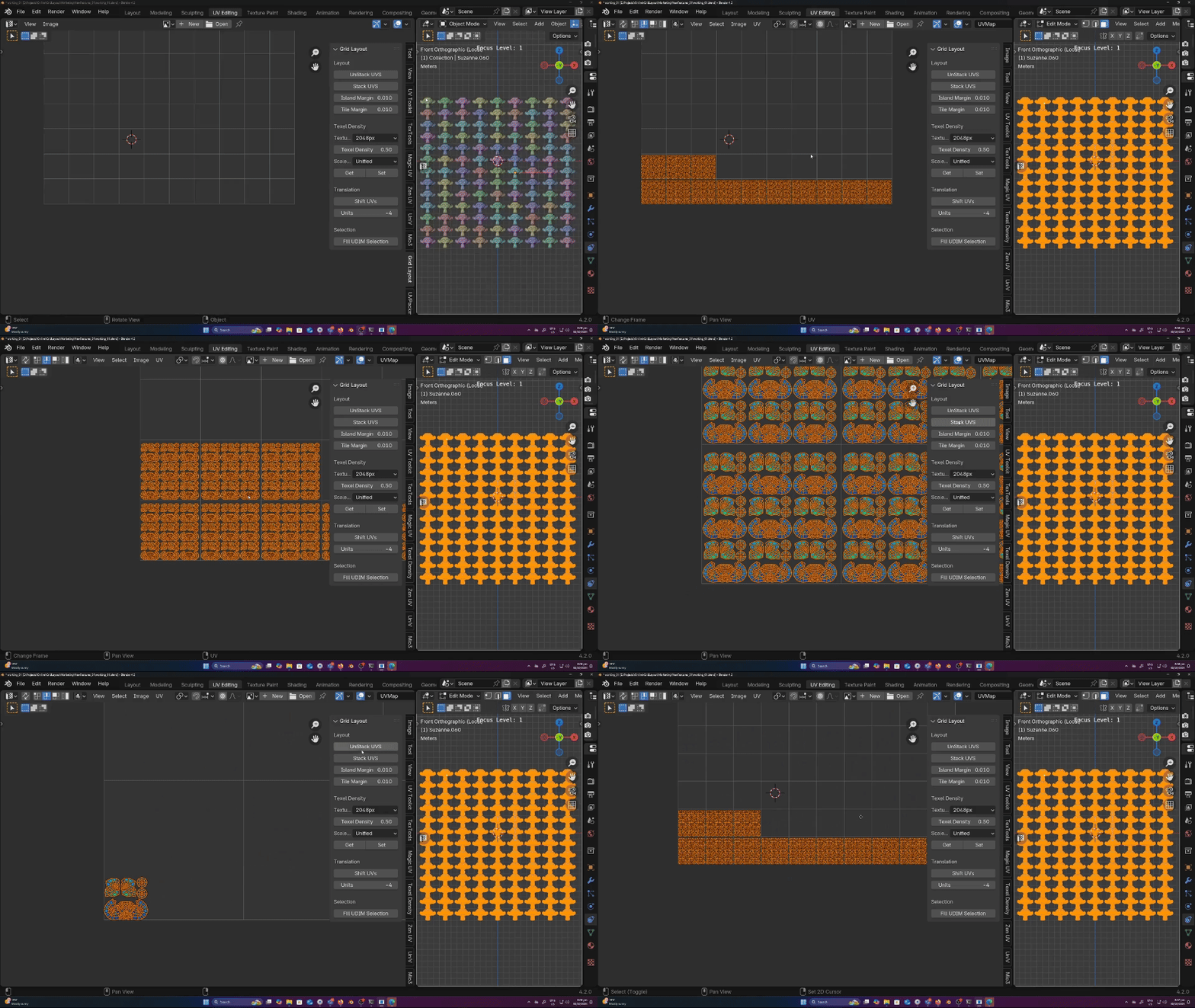
- Grid Layout
- Origin Radial Array
Complete Tool Overview
Navigation:
- VP Step Rotate 45/-45 - Assign a hotkey to this operator to quickly rotate any selected objects local axis that best aligns with the camera by 45 degrees. (I have personally mapped this to Ctrl+Shift+Mouse Wheel)
- VP Planar Move - auto-locks the local axis facing the camera and moves objects on the other two. Works on multiple selections. Assign a hotkey for ease of use.
Lattice Tools:
- Fit Lattice - This operator takes a selection of objects (or components in edit mode) and orients a lattice around them. Users can control the orientation to match the active object or world space.
- Select Lattice Users - Select a lattice and run this operator to select all objects being affected by the lattice.
- Reset Lattice - Resets the selected lattice back to its default state.
Shape Key Tools:
- Create Animated Shape Key - This tool allows users to automatically create a shape key on all selected objects and also set a keyframe to blend back and forth between shape keys.
UV Tools:
- Delete Unused UV Sets - This tool removes all UV sets that are not currently set as the active. Great for when you have done a large UV layout and find that you have created the layout on many different UV sets. Just collapse it all down into a single UV set to easy management.
- Select Objects From UV Selection - This tool is an essential addition to your UV debugging workflow. Since visualizing UVs requires the entire model to be in Edit Mode, this utility simplifies the process by allowing you to quickly isolate and inspect problematic geometry.
-
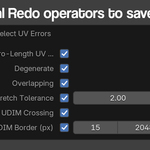
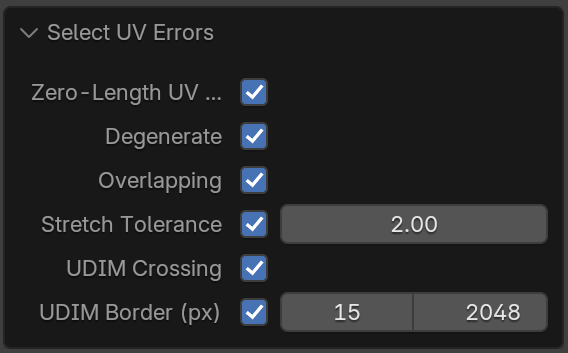
Select UV Errors - This is the most comprehensive UV error checker on the market. It encompasses every possible UV error you might encounter under a single easy to use modifier. It checks for zero length edges, degenerate UVs, overlapping UVs, stretching, UDIM crossing, UDIM boarder proximity.
- Box Unwrap - One of the most powerful operators included in this toolkit. It takes any mesh with cube-like topology and automatically cuts seams and unwraps the selected geometry. Not only that but it will bias the seams to be hidden from the facing angle of the camera and ensures the unwrap is a single UV island. It automatically detects if the topology is manifold or non manifold and adjusts cutting seams accordingly.
- Cylinder Unwrap - Similar to Box Unwrap, this operator cuts seams and unfolds cylinder-like topology. It also has the option of hiding the seam based on the view angle of the camera when the tool is run.
- Grid Layout - This tool is designed to preserve repeating objects UVs and arrange them into a clean layout. The addon will create vertical columns of stacking, and once that reaches capacity, it will shift over horizontally and start packing another column if required. If the number of objects exceed 1 UDIM tile, the addon will continue stacking in the next UDIM. (Works on both object and group (empty objects with children) selections)
-
UV Set Tools - Added UV set tools to rename/delete/set active/create over multiple selected objects.
Curve Tools:
- Resample Curve/Edge - This tool adds a geometry nodes modifier that allows users to resample either an edge or a curve via the modifier.
- Edge/Curve Pipe - This tool adds a geometry nodes modifier to create a tube/pipe out of any edge or curve. It automatically creates UVs and has the option to adding a custom profile.
- Separate By Loose Parts - Separates curves by loose parts similar to how blender handles separating mesh geometry by loose parts.
- Align Curve Direction - This tools tries to force all curves with a similar flow to have the same direction.
- Smooth Tilt (Gentle) - This tool is similar to blenders built in smooth tilt operator however this is much more sensitive with more control.
- Curve To Deform Verts - Quickly deform selected vertices along an editable curve with intuitive viewport controls such as dynamically increasing and decreasing the curve point amount and how verts are distributed along the curve. (Amazing tool for hard surface modeling where you need verts to follow a specific curvature.)
- Tube 2 Curve - This tool converts any tube/pipe geometry back to a center curve.
Material Tools:
- Keep Active Material Only - This removes all materials minus the active material for quick cleanup
- Delete Empty Material Slots - Deletes empty material slots
- Cleanup Duplicates - This tool inspects other materials with identical properties and collapses them down into a single material to avoid clutter in your .blend
- Remove Materials + Slots - This tool wipes away all materials and material slots.
Mesh Tools:
- Spread Objects - Spread objects along a line or a grid. Perfect for when you want to organize a kitbash library.
- Rebuild Local Axis - Great if you have applied transforms and need to reorient/center the origin point for many objects. For each selected mesh object, fits an oriented bounding box (OBB) to the geometry then rebuilds the local axes. This operator has the option to sample nearest neighbors to ensure consistent axis across many objects (Such as roof tiles where you need the axis orientation to be consistent)
- Set Origin - This operator takes the selected components of a selected mesh and snaps the origin and orientation to them (With the option of aligning to the world or the normal of the components). The best part is that this tool works on multiple selections at once.
Modeling Tools:
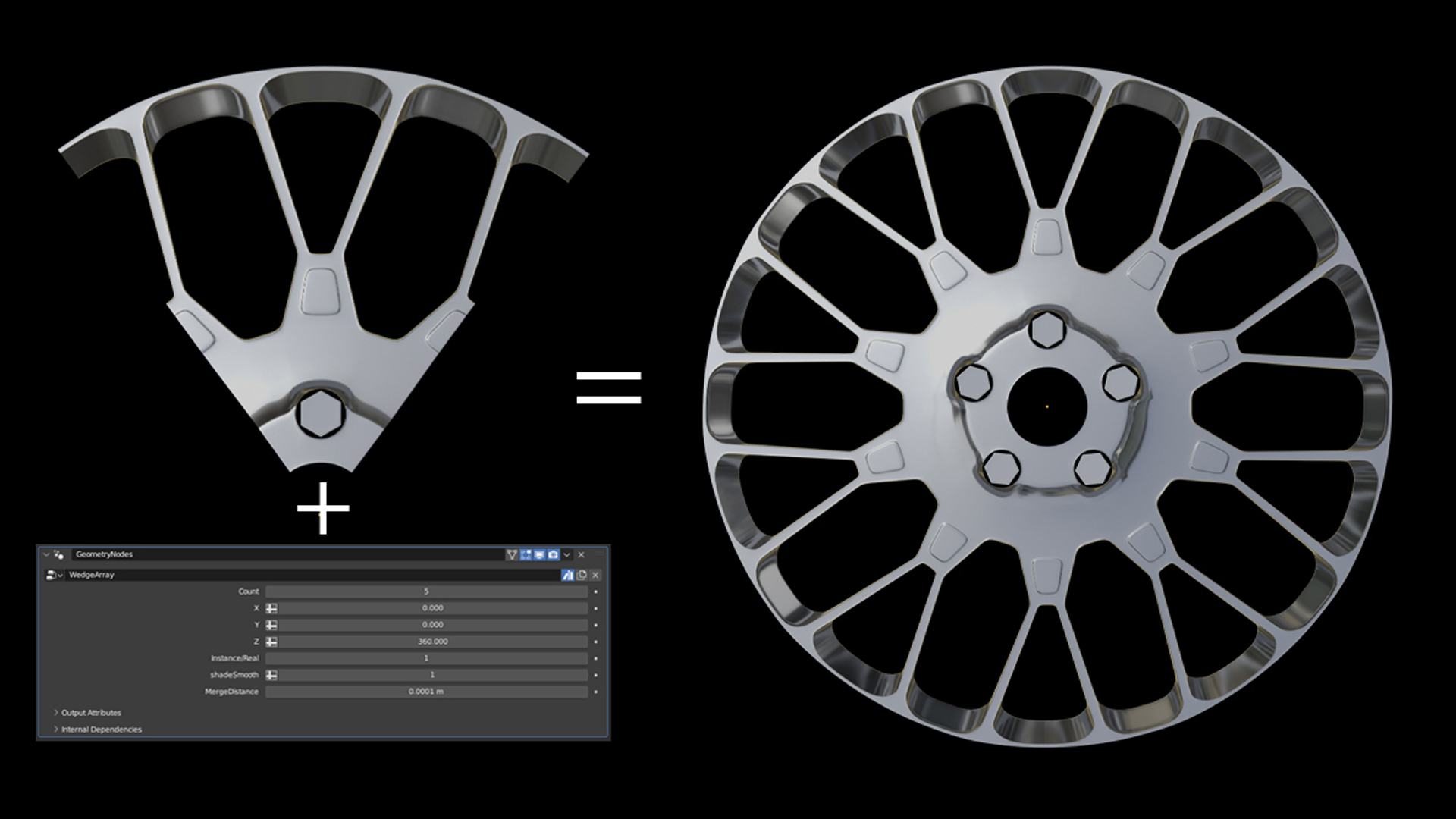
- Radial Array - Create a geometry nodes based radial array modifier. Unlike other radial array modifiers which rely on instances on a circle, this one is based on rotating around the origin point (preferred method 95% of the time)
-
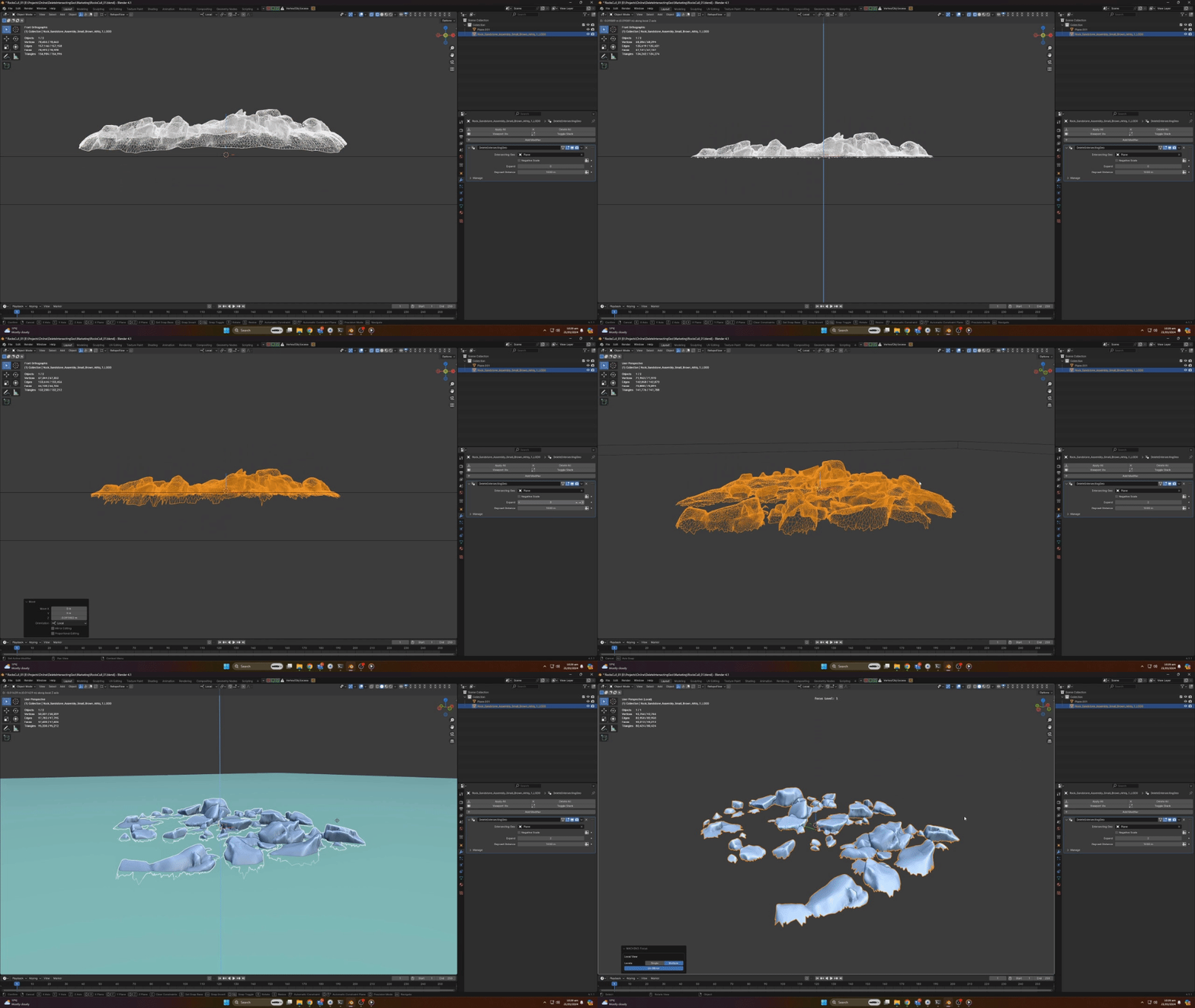
Delete Intersecting Geo - Creates a geometry nodes modifier that deletes geometry intersecting with another. It has the option of expanding and contracting the selected geometry being deleted. Perfect for environment artists wanting to cull unnecessary geometry.
- Quad Star Fill - Fills a hole with a quad star.
- Zip Merge - This addon is perfect for merging complex geometry together where merge by distance creates issues or you need to preserve UVs and want to avoid bridging faces. A handy use case is when you are trying to merge seams together on clothing.
- Extrude Border Edge - Extrude and rotate selected border edges (Blender 5.2+)
Modifier Tools:
- Select By Modifier Type - Allows users to select/apply/remove/disable modifiers based on a modifier type. You can filter by 'scene' or 'selection'. An added bonus is that you can apply these modifiers even on instances.
- Randomize Seeds - This operator will randomize any seed parameters exposed on a geometry nodes modifier. This is great if you have a modifier on many objects and you dont want to go through each object and manually change the seed to randomize the result.
Selection Tools:
- Select by Vert Count - Selects geometry based on poly count.
- Select Similar - You select something on a mesh (a vert, edge, or face — anywhere from one to many). Hit Select Similar, and Blender finds and selects other components elsewhere that look topologically the same as what you picked. Use it when you want to grab "all the corners that look like this one" or "every face like that one" without clicking each one manually.
- Select Instances - This tool builds upon blenders default "Select Linked" operator which only works on the active object. This new and improved operator enables users to select instances of multiple object selections.
- Select By Modifier Name - Selects modifiers based on their names. Great for selecting geometry with a specific modifier attached.
Mesh Clean Tools: (All cleaning tools deselect non problematic objects and enter edit mode on problematic objects highlighting the issue for quick inspection)
- Select Skewed Faces - This selects faces which are extremely skewed and breaking triangulation.
- Select Unpaintable Verts - Selects verts that only have 2 edge neighbours. (Has an angle tolerance to avoid selecting corner verts).
- Select Ngons - Selects Ngons
- Select Overlapping - Selects objects or components that are perfectly overlapping. When the tool is run, you can set its mode to 'Object' or 'Component'. The tool will do its best to select everything that is a problem so you can instantly delete. For example, if you have 5 objects overlapping, the tool will select 4 of the 5 objects leaving only a single object remaining after you delete.
- Clear Sharp Edges & Normals - Often when importing geometry from other software the normals and sharp edges are baked into the geometry. This tool automatically cleans these attributes leaving you with a soft shaded mesh with no custom normals.
- Delete Empty Objects - This tool deletes all objects from your scene that contain no verts/edges/faces.
Sculpt Tools:
- Delete Lower - Converts the current active subdivison level on a multiresolution modifier to be the new 'base' level. (works on multiple selections)
- Rebuild Subdivisions - This tool allows users to set the levels of rebuilding subdivisions and run it over multiple mesh selections. (Not possible in vanilla blender)
- Separate By Loose Parts - The default separate by loose parts destroys multiresolution sculpt data. This operator fixes that issue.
- Conform Shape - Applies conform shape for all multires modifiers selected.
Vertex Group Tools:
- Clear Vertex Groups - This allows users to delete vertex groups across multiple object selections.
- Create Vertex Group - This allows users to create a vertex group (and name it) across multiple object selections.
Baking Tools:
-
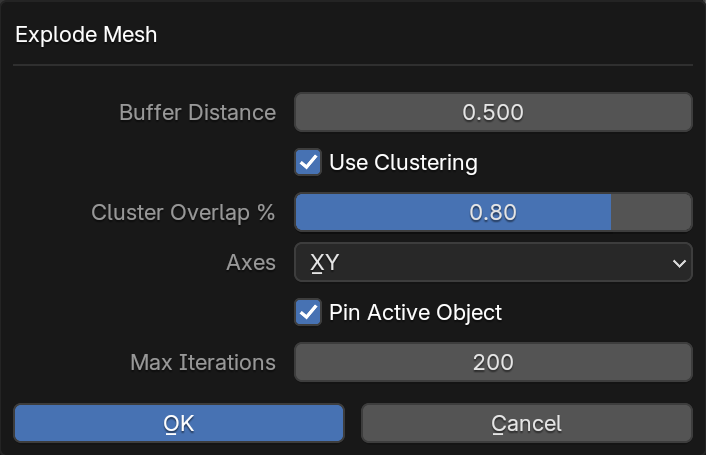
Explode Mesh - Is a versatile operator primarily designed to streamline the baking process by de-intersecting and separating overlapping geometry. Beyond simple separation, it features an intelligent clustering system that analyzes bounding boxes to group related objects. This is particularly useful when working with high-resolution and low-resolution meshes; by identifying objects with nearly identical spatial bounds, the tool ensures that baking pairs remain synchronized as they "explode" apart, maintaining their relative alignment while isolating them from surrounding geometry.
Transfer Tools:
- Transfer Shape - Select a source mesh, then a target mesh and run this operator. You can choose to transfer shape based on UVs or vertex order.
- Transfer UVs - Select a source mesh, then a target mesh and run this operator. You can transfer UVs based on vertex order, closest component or interpolated faces.
- Copy/Paste Vertex order - Select 2 faces to copy/paste vertex order.
Camera Tools:
- Camera Tools lets you batch-render multiple cameras in one go. Build a list of cameras (add selected, add all, reorder top-to-bottom, double-click to look through one), give each its own resolution and frame range, then hit Render Cameras to output them all to your Output folder. Options include viewport-preview rendering (respecting your current shading), animation mode (per-camera frame ranges, foldered per camera), and burning the camera name into each image. A progress bar tracks the batch and you can cancel anytime with ESC — even mid-animation.
VSE Tools:
-
Split and Offset - This operator takes an image sequence, splits each frame and offsets them by a user defined number of frames. This is perfect when getting assets reviewed where you need to compare to a plate/scan on every nth frame.

