Hatchliner
 Kito Studio


**************************************************
Hatchliner 1.1
Kito Studio 2026
**************************************************
Presentation
================
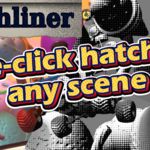
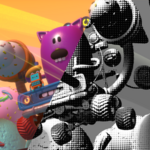
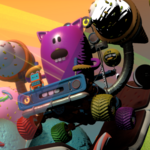
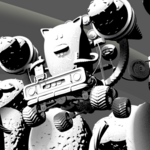
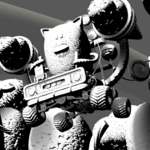
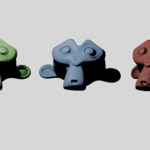
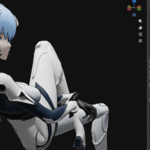
Hatchliner is an addon that allows to apply and customize anime/hatching styles to any materials of your meshes.
Hatchliner is designed for anime style designers, animators and studios
It support only EEVEE engine for the moment.
For best results, it is recommended to apply the styles on UV Unwrapped meshes.
Hatchliner is compatible with Blender 5.x.
1 - Installation
================
The main addon file is Hatchliner_1_0.zip
Don't unzip the file
- Run Blender
- Drag and drop the file
Or
- Go to Edit/Preferences/Extensions
- Click the menu "Install from disk..." in the top right of the windows
- Navigate to the file
- Select and validate
2 - Access to the addon
=======================
Hatchliner is accessible in the 3D View n-panel in the "Hatchliner" tab.
3 - Features
============
Hatchliner proposes a lot of features.
Let's go step by step
3.1/ Object info section
Hatchliner displays the name of the selected object and all of its materials if there are.
Material slots are selectable to specify the one you want to modify
If no object is selected, you can still select a Hatchliner style and apply it to the entire scene.
3.2/ Style Selection section
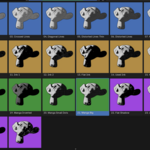
In this section, you can visualize the 27 presets proposed by Hatchliner. Select the one pleases you.
Different actions are possible:
- Overwrite material: It will replace the current selected material of your object by the Hatchliner style you have selected
- Merge material: It will merge the Hatchliner style you have selected with the selected material of the object. The new material will be suffixed "__SLMG"
- Apply to all scene: It will apply the Hatchliner style you have selected to all the scene (means all the materials of all the visible/activated objects in the scene)
If your selected mesh has multiple material slots, you can visualize and select the active one in the object materials section
New actions are available:
- Replace all materials: It will unassign all the material slots of the selected object and replace them by the Hatchliner style you have selected
- Merge with each material: It will merge the Hatchliner style you have selected with each of the materials of your object
3.3/ Style Customization section
This section fist displays the Hatchliner preset currently applied to the selected material, if any.
When a style has been applied, you can access to the properties of the style.
Each preset has specific properties you can play with
Only the "Style Opacity" property is available for all the presets
When tweaking the properties, you can see in realtime the effects on your meshe.
Different actions are possible:
- Reset to default values: Reinitialize the properties to their default values
- Copy Style: Copy in memory the current state of the object style
- Paste Style: Paste the copied style and properties values to the current object
- Paste to all materials: Merge the copied style and properties values to all the materials of the selected objects
- Paste to all scene: Paste the copied style and properties values to all the scene (means all the materials of all the visible/activated objects in the scene)
- Save style: Save the current style and values to a file
- Load style: Load a saved style/values and applies to the selected object
When applying or copying a style to all the scene, it can take several seconds/minutes depending on the complexity of the scene.
After styles assignement, EEVEE will also take some times to recompile the materials.
It is recommended to save your project before running these actions.
3.4/ Tools
In the Tools section, you will be able to specify if you want to exclude any collections frome the "apply all scene" or "paste to all scene" features.
Limitations
===========
Hatchliner is compatible with Blender 5.x. It has not been tested with previous Blender versions
Hatchliner only supports EEVEE engine. Using it with Cycle may render "random" hatching results
Hatchliner works best with UV unwrapped meshed. If you got full black results after applying styles, try unwrap your mesh (Smart UV project unwrap is enough)
Hatchliner analyzes styles based on the name of nodes in the generated Shader treenode. Never rename the nodes or you may break your work. If happened, you can still just reapply the style again from the presets
Version history
*******************
1.0:
- Initial release
1.1:
- Fix a bug with some presets due to the new Thin Wall parameter in Blender 5.2
Have questions about this product?
Login to message
| Dev Fund Contributor | |
| Published | 5 months ago |
| Blender Version | 5.1 - 5.2 |
| Extension Type | Add-on |
| Render Engine Used | Eevee |
| License | GPL |
Discover more products like this
Shader style cell-shader NPR hatching anime Material hatch shading manga Cell-shading cross-hatching