 Designers

Hover HUD Documentation
Overview
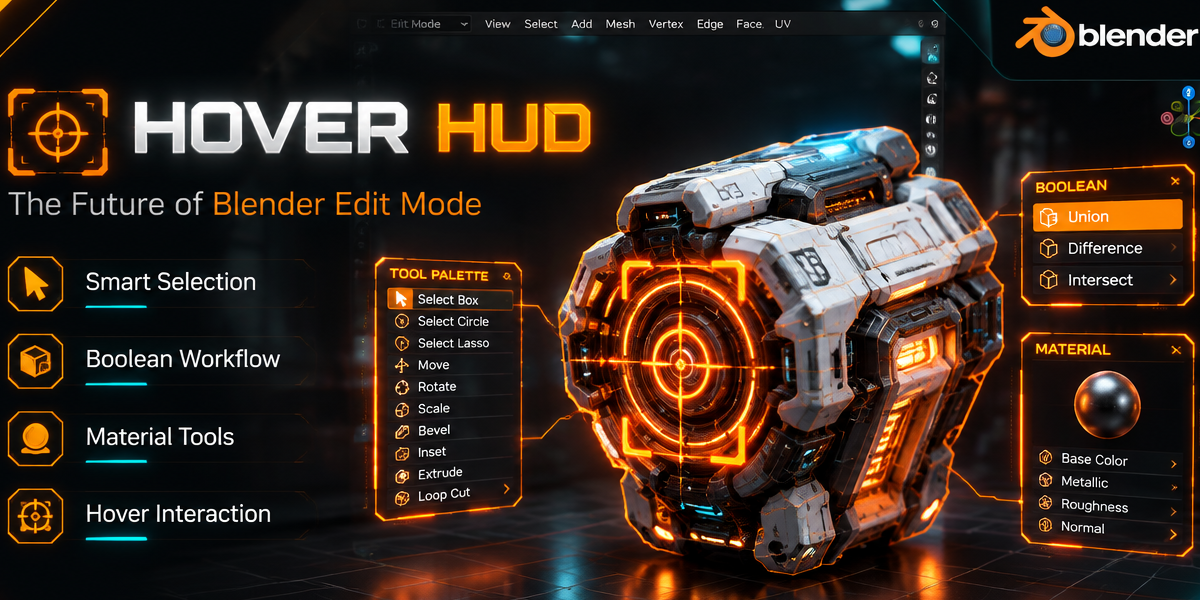
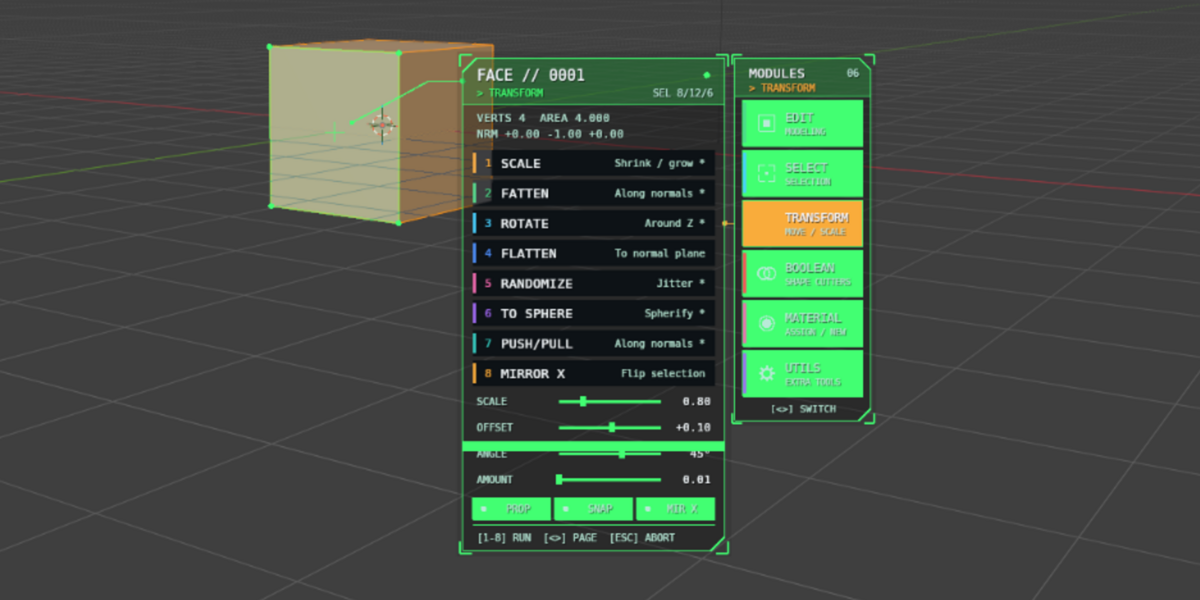
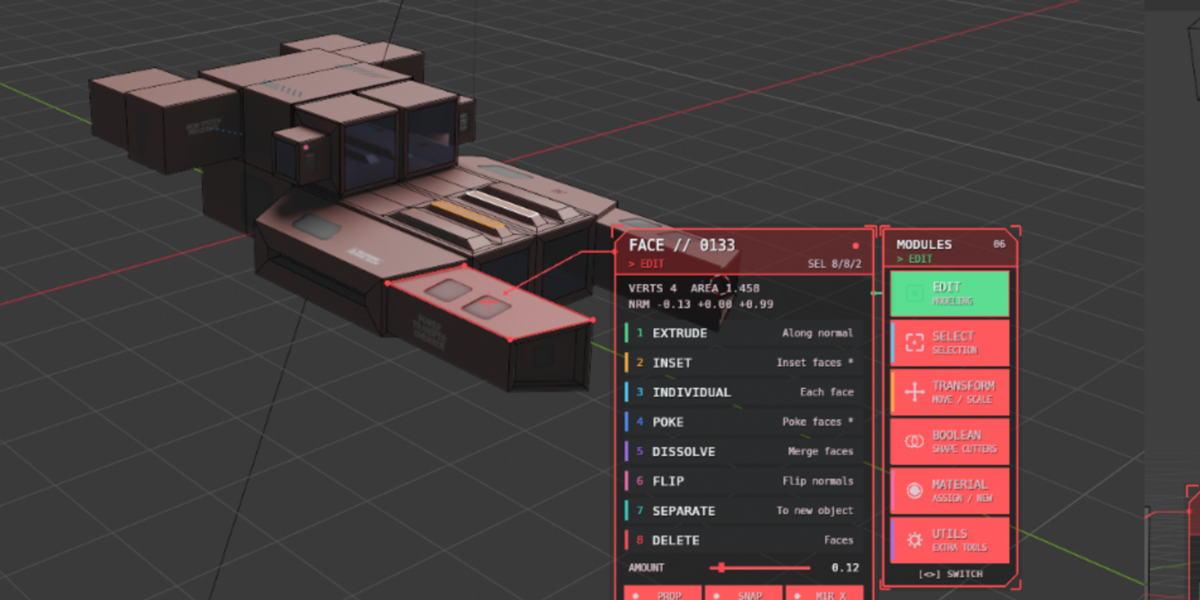
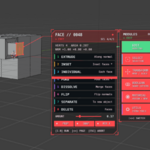
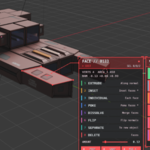
Hover HUD is a context-aware viewport interface designed to streamline Blender's Edit Mode workflow.
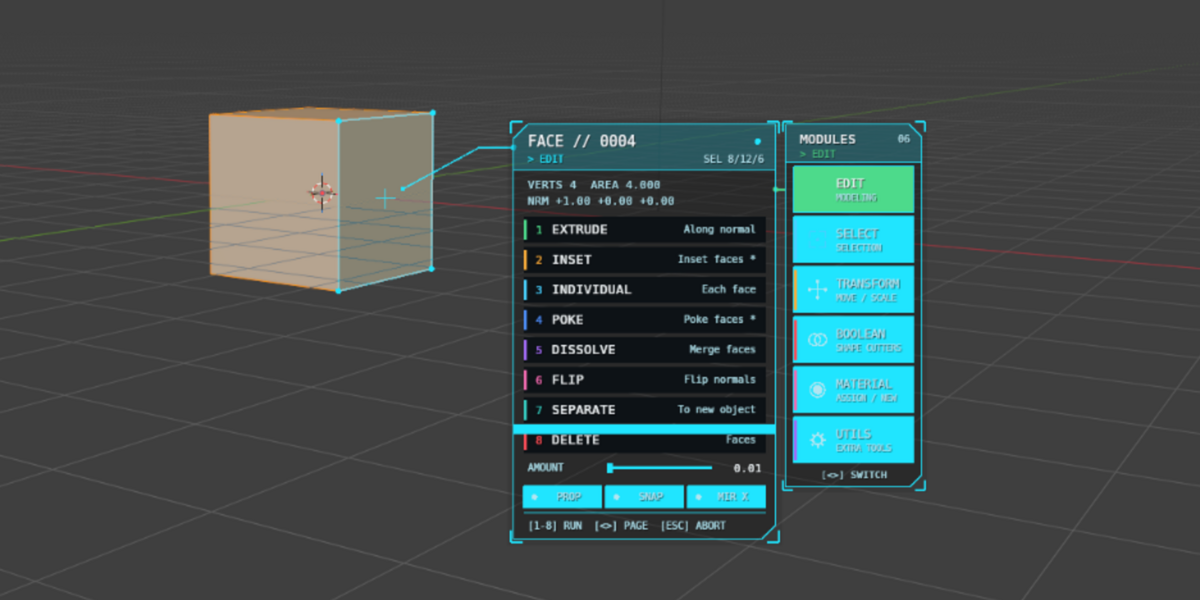
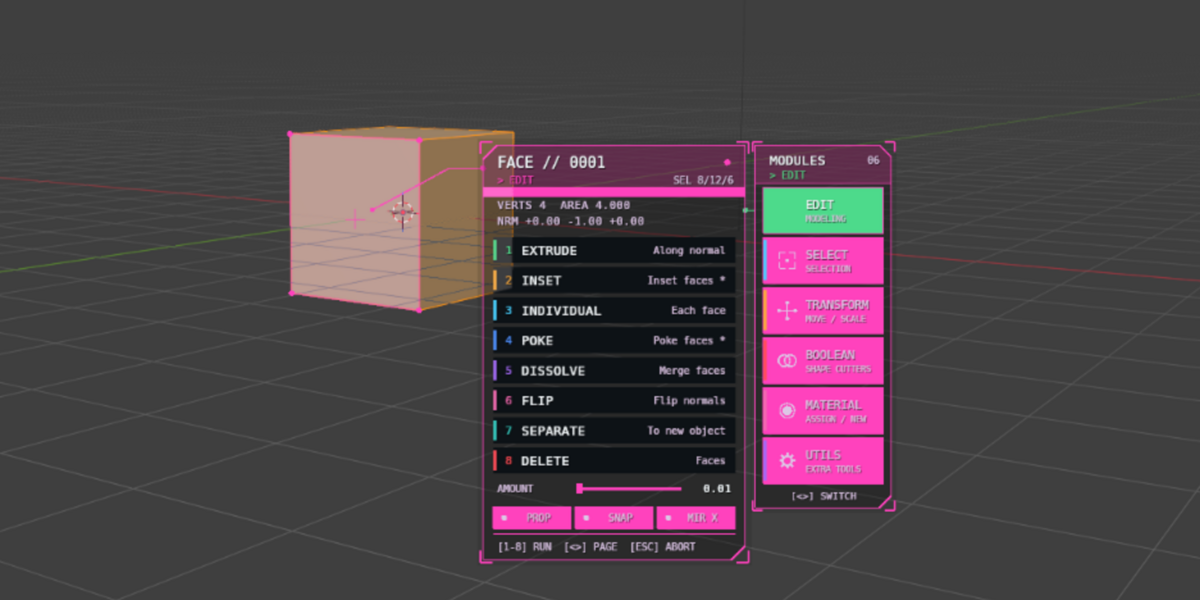
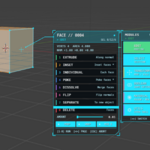
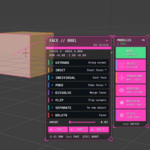
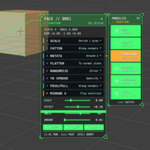
The addon automatically detects the mesh element under the cursor and displays a futuristic HUD containing relevant modeling tools. Instead of navigating menus, pie menus, or searching through shortcuts, artists can work directly from the viewport using an intuitive hover-based system.
Hover HUD supports vertices, edges, and faces, with each element providing its own set of context-sensitive operations.
Installation
- Download the ZIP package.
- Open Blender.
- Navigate to:
Edit > Preferences > Add-ons
- Click Install.
- Select the downloaded ZIP file.
- Enable Hover HUD.
The addon will start automatically when entering Edit Mode.
Getting Started
- Select a mesh object.
- Enter Edit Mode.
- Hover over a vertex, edge, or face.
- After the configured hover delay, the HUD will appear.
- Click a tool or press keys 1-8 to execute actions immediately.
Navigation
Switch Categories
Use:
- Mouse Wheel
- Left Arrow
- Right Arrow
Available categories:
- Edit
- Select
- Transform
- Boolean
- Material
- Utils
Execute Actions
Actions can be launched by:
- Left Click
- Number Keys 1-8
Example:
1 = First Action
2 = Second Action
3 = Third Action
...
Supported Element Types
Vertex Mode
Available tools include:
- Extrude
- Bevel
- Merge
- Connect
- Smooth
- Delete
- Weld
- Subdivide
Edge Mode
Available tools include:
- Extrude
- Bevel
- Bridge
- Edge Slide
- Dissolve
- Mark Seam
- Mark Sharp
- Grid Fill
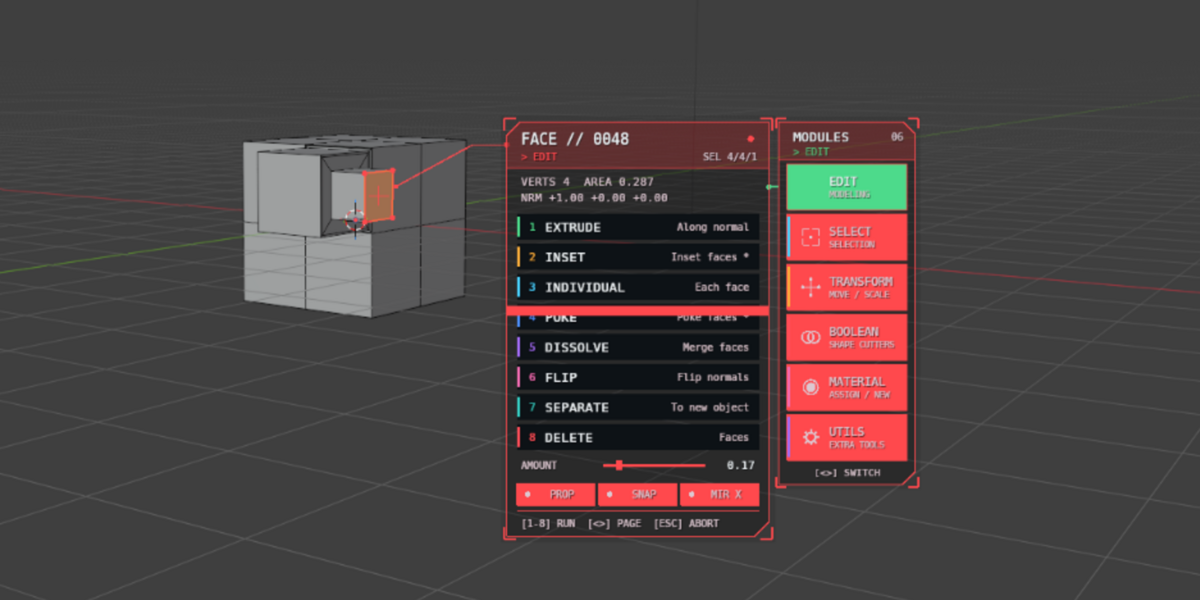
Face Mode
Available tools include:
- Extrude
- Inset
- Individual Extrude
- Poke
- Dissolve
- Flip Normals
- Separate
- Delete
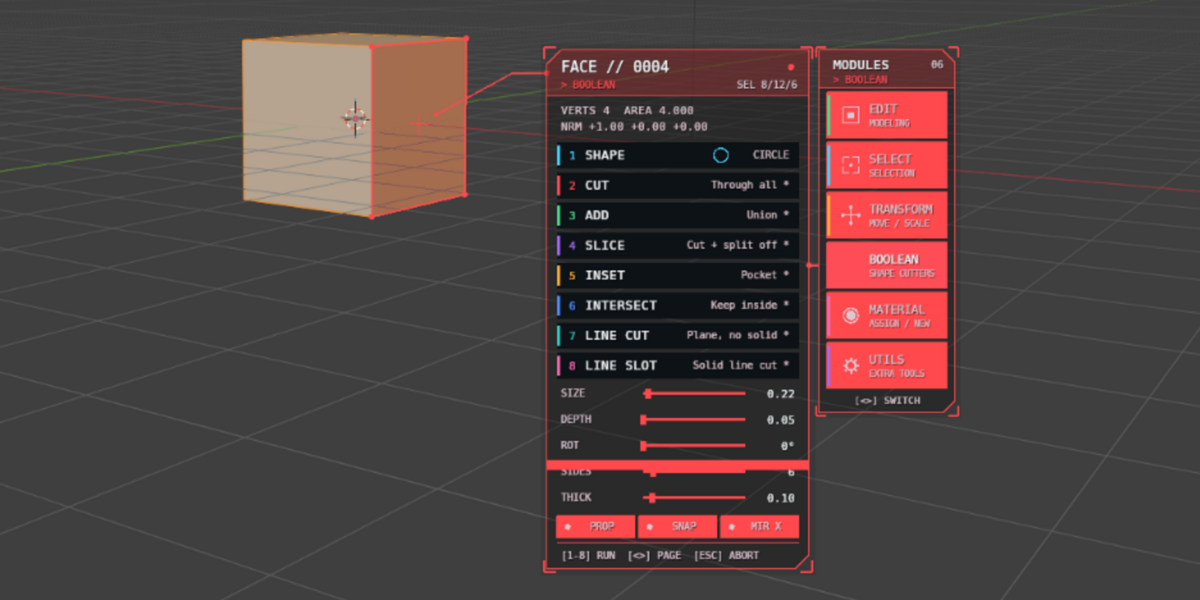
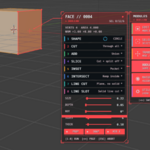
Boolean System
Hover HUD includes an integrated boolean workflow.
Available operations:
- Cut
- Union
- Slice
- Intersect
- Line Cut
- Slot Cut
Supported cutter shapes:
- Square
- Circle
- Triangle
- N-Gon
Shape previews are displayed directly in the viewport before execution.
Material Workflow
The Material Module allows:
- Assigning existing materials
- Creating new materials
- Browsing object material slots
- Managing material assignments directly from the HUD
No additional menus are required.
Follow-Up Panels
Many operations automatically open a follow-up workflow panel.
Examples:
- Extrude → Scale, Bevel, Inset
- Bevel → Subdivide, Smooth
- Boolean → Cleanup Operations
This allows rapid multi-step modeling without leaving the viewport.
Quick Toggles
Hover HUD includes quick-access controls for:
- Proportional Editing
- Snapping
- Mirror X
These settings can be toggled directly from the interface.
Preferences
Navigate to:
Edit > Preferences > Add-ons > Hover HUD
Available settings:
- Enable / Disable HUD
- Theme Selection
- Hover Delay
- Pick Radius
- HUD Scale
- Panel Opacity
- Text Scale
- Animation Effects
- Maximum Face Count
- Follow-Up Panels
Shortcut
Toggle Hover HUD:
Alt + \
Performance Notes
For optimal performance:
- Use the Max Faces setting for extremely large meshes.
- Disable animations if working on lower-end hardware.
- The addon automatically skips heavy hover detection when mesh complexity exceeds the configured limit.
Compatibility
- Blender 3.6+
- Windows
- Linux
- macOS
Support
If you encounter issues, please include:
- Blender version
- Operating system
- Steps required to reproduce the problem
This helps identify and resolve issues quickly.
Hover HUD was created by Nuh Ünver to provide a faster, cleaner, and more immersive modeling workflow directly inside Blender's viewport. 🚀
Have questions about this product?
Login to message
| Published | about 2 hours ago |
| Blender Version | 3.6 - 5.2 |
| Extension Type | N/A |
| Render Engine Used | Cycles, Eevee |
| License | GPL |
Discover more products like this
hard surface mesh boolean materials addon productivity edit mode modeling hud blender