 Quad Lab



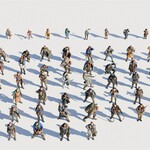
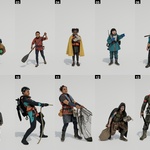
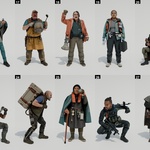
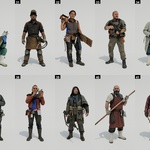
Asset Library Installation and Usage
Follow the instructions below to install and access the included assets in Blender.
Step 1
Create a new folder anywhere on your computer. This will be your Blender Asset Library folder.
Create a new folder anywhere on your computer. This will be your Blender Asset Library folder.
Step 2
Copy and paste the downloaded
Copy and paste the downloaded
.blend file into the new folder. Blender 5.2 and Later
Step 3
Open Blender and go to Edit > Preferences > Asset Libraries.
Open Blender and go to Edit > Preferences > Asset Libraries.
Step 4
Under Local Libraries, click the Plus (+) button and select the folder you created. You can also rename the library after adding it.
Under Local Libraries, click the Plus (+) button and select the folder you created. You can also rename the library after adding it.
Blender 5.1 and Earlier
Step 3
Open Blender and go to Edit > Preferences > File Paths.
Open Blender and go to Edit > Preferences > File Paths.
Step 4
Under Asset Libraries, click the Plus (+) button and select the folder you created. Double-click the library name to rename it. Click Save Preferences if automatic preference saving is disabled.
Under Asset Libraries, click the Plus (+) button and select the folder you created. Double-click the library name to rename it. Click Save Preferences if automatic preference saving is disabled.
Using the Asset Library
Step 5
Open the Asset Browser and select your newly added library from the library dropdown.
The included assets should now appear and can be dragged directly into your scene.
Open the Asset Browser and select your newly added library from the library dropdown.
The included assets should now appear and can be dragged directly into your scene.
-
$28.75
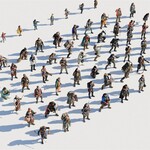
100% of the Asset library + Future Updates.
-
$15
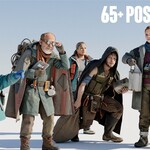
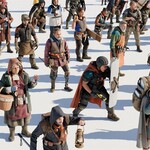
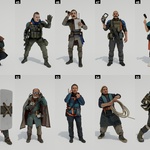
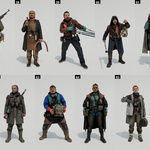
34 Posed Characters + 50% of Future Updates.
-
$4
11 Posed Characters.
 Included
Includes 12 months of
- Support from Quad Lab
- Product updates
Extend this product’s Support Period +12 months: 25% of product price
Have questions before purchasing?
Login to message
| Dev Fund Contributor | |
| Published | 2 months ago |
| Blender Version | 3.6 - 5.2 |
| Render Engine Used | Cycles, Eevee |
| Misc Data | Uvs-Unwrapped, Normal-Mapped, Textured |
| License | Royalty Free |
Discover more products like this
characters character people futuristic workers sci fi workers harbour workers crowd background characters 3d people Human population humans