 mashud008
Hybrid Render Queue
Blender: 4.0–5.3
GPL-3.0-or-later
What it does
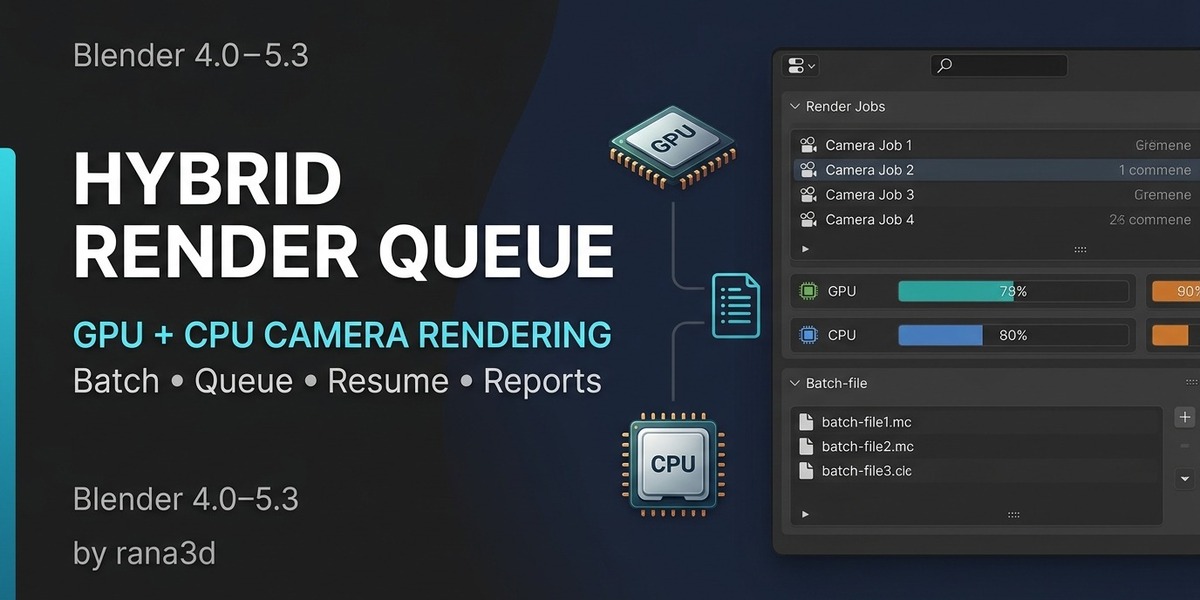
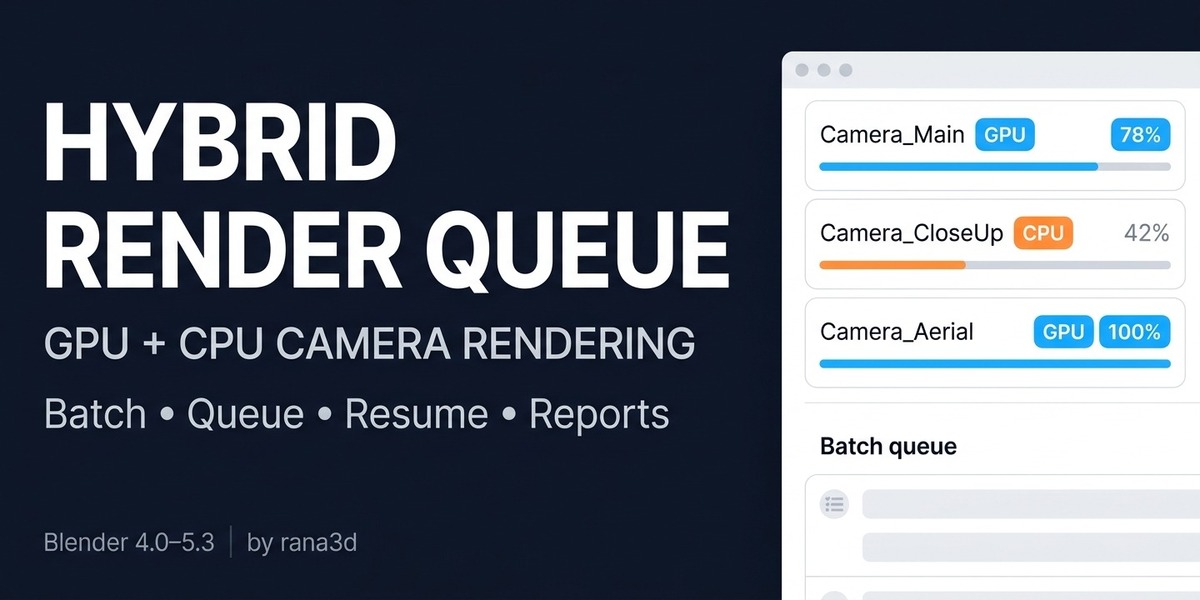
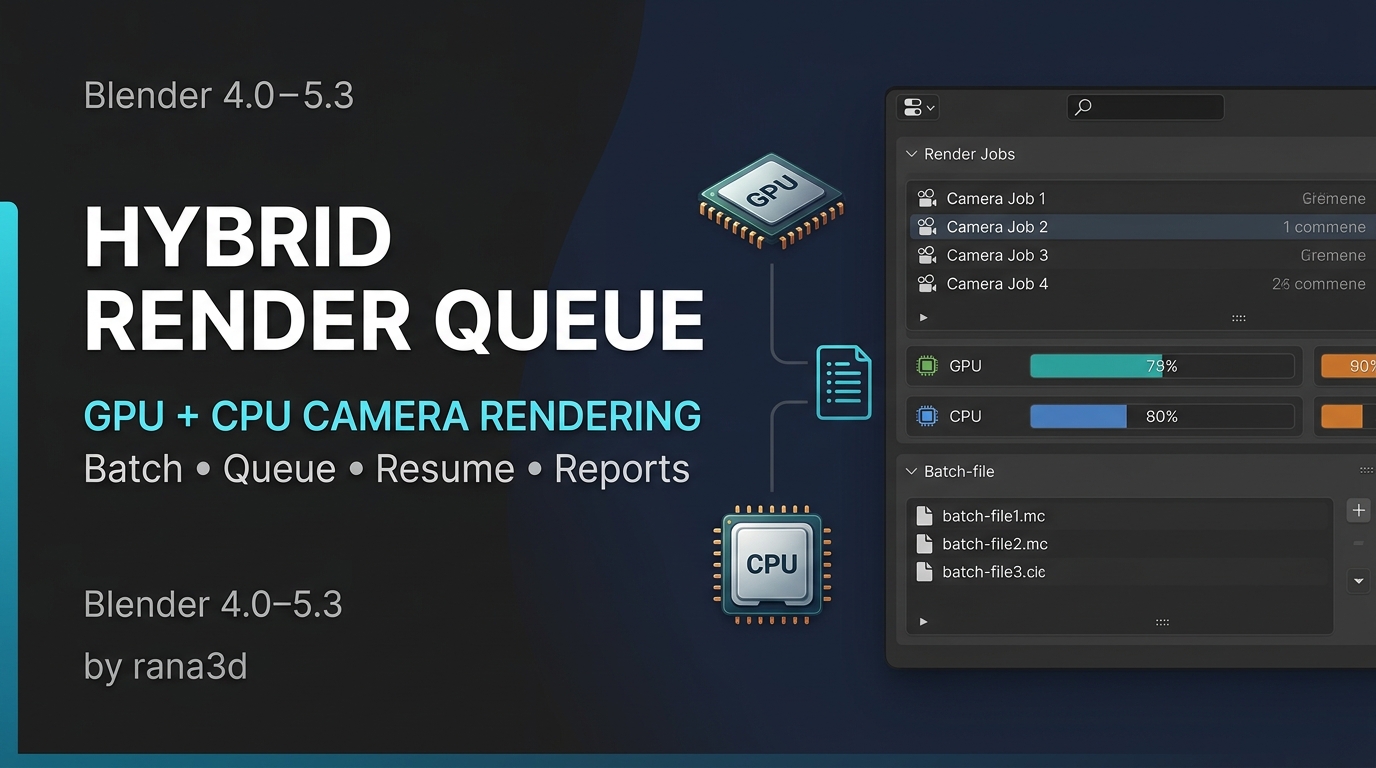
Hybrid Render Queue renders cameras from the current `.blend` file or from a batch of saved `.blend` files. For the current file, choose GPU, CPU, or CPU+GPU. It can also create CSV, HTML, and PDF reports with render results and timing information.
Installation
- **Blender 4.2–5.3:** In Blender Preferences → Get Extensions, open the dropdown and choose **Install from Disk**, then select the ZIP.
- **Blender 4.0/4.1:** In Preferences → Add-ons, choose **Install from Disk**, select the same ZIP, and enable the add-on.
- Do not extract the ZIP or install individual `.py` files.
Blender's extension manifest system starts with Blender 4.2. In Blender 4.0/4.1, the ZIP installs as a legacy add-on.
Where to find it
By default, the Hybrid Render Queue panel appears in **Properties Editor → Render Properties**. It is also available from the Render menu.
To show the panel in the 3D View N-panel:
1. Open Edit → Preferences → Add-ons → Hybrid Render Queue.
2. Enable **Show in 3D View N-panel**.
3. Move the pointer over the 3D View, press `N`, and open the **Render Queue** tab.
Turn the checkbox off to hide the N-panel entry. The Render Properties panel remains available.
Rendering the current file
1. Open a `.blend` file and find the Hybrid Render Queue panel in Render Properties.
2. Select **Current File**.
3. Choose All Cameras or Selected Only.
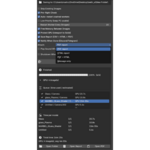
4. Choose GPU Only, CPU Only, or CPU + GPU. Hybrid CPU/GPU rendering works with Cycles.
5. Optionally set an Output Folder. If it is empty, the output path from Blender's Render Properties is used.
6. To make a quick test render, enable Test Render and choose the sample count and resolution percentage. Test files use the `_test` suffix.
7. Press **Render!**. Save the `.blend` file first when using CPU + GPU or Batch mode.
While rendering, **Cancel All Renders** stops the queue. Where queue controls are available, individual images can be held/resumed or skipped. Use Resume after a completed or failed run to continue remaining work.
Batch rendering
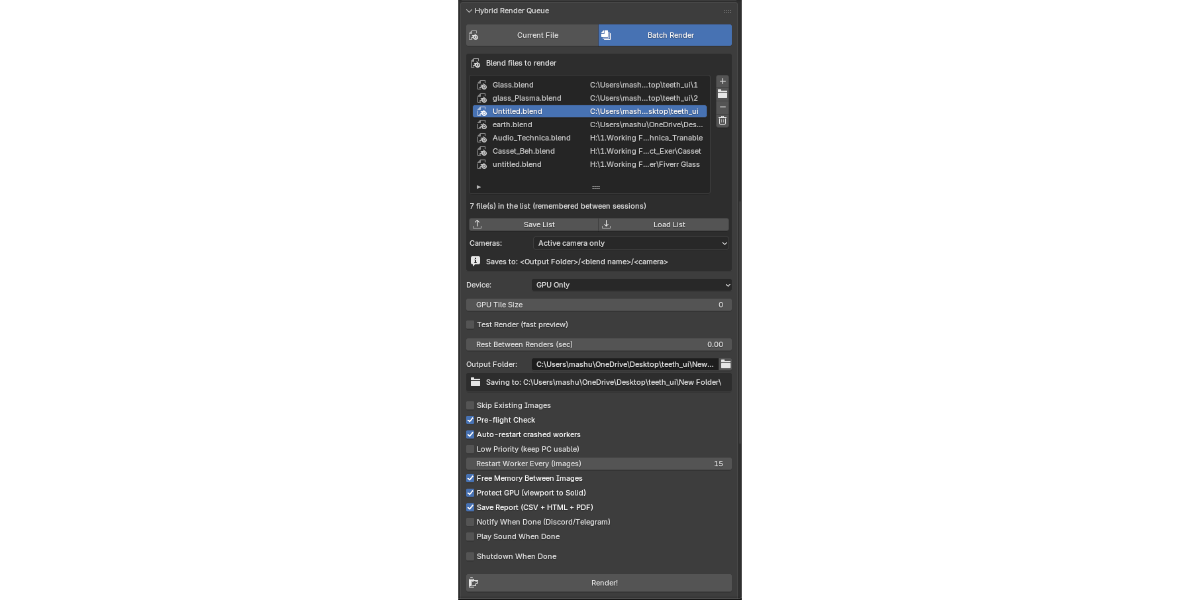
1. Select **Batch Render**.
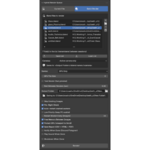
2. Add `.blend` files with Add Files or Add Folder. Use the adjacent ↑/↓ buttons to change their queue order.
3. Select a file and remove it if needed. Use Save List/Load List to save or reload the batch file list.
4. Choose All visible cameras or Active camera only.
5. Optionally set an Output Folder, then start rendering. Batch mode renders the last saved version of each file.
Saving and loading presets
- Press **Save Preset** and choose a JSON filename and location. A preset stores the device, output folder, several queue/test settings, and the current scene's resolution and Cycles sample count.
- Press **Load Preset** and select a JSON preset to apply its saved settings and scene values to the current file.
Preset JSON files can be reused with other scenes and Blender sessions.
Preflight checks, output, and reports
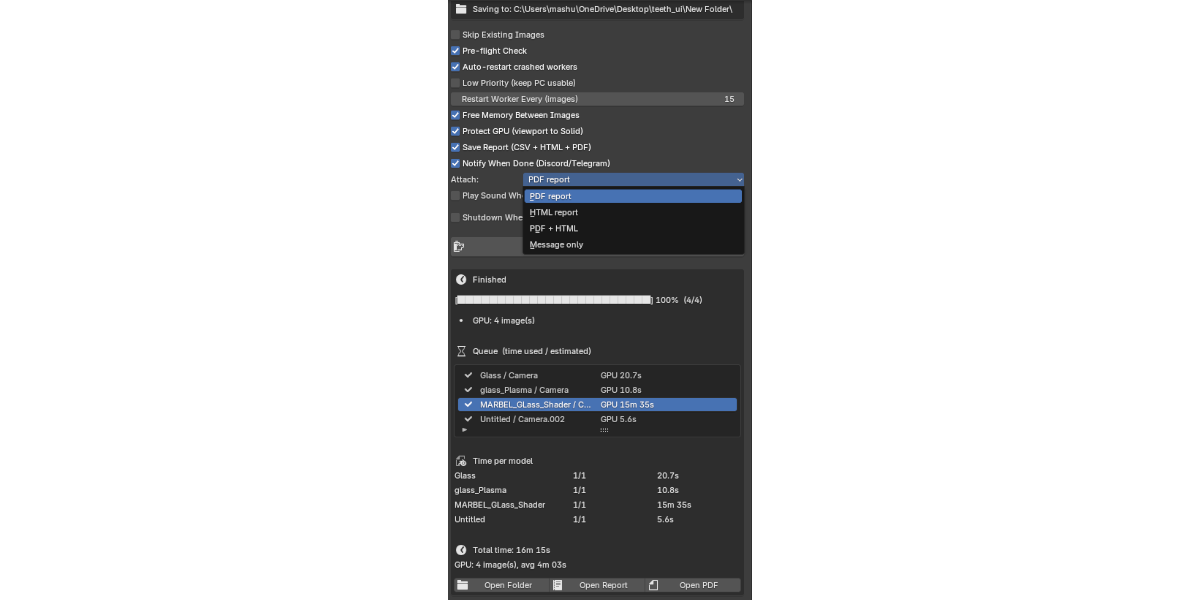
When Pre-flight is enabled, the add-on checks for issues such as missing textures or libraries, GPU availability, output-folder write access, and low disk space before rendering. Enable Skip Existing Images to skip cameras whose output files already exist.
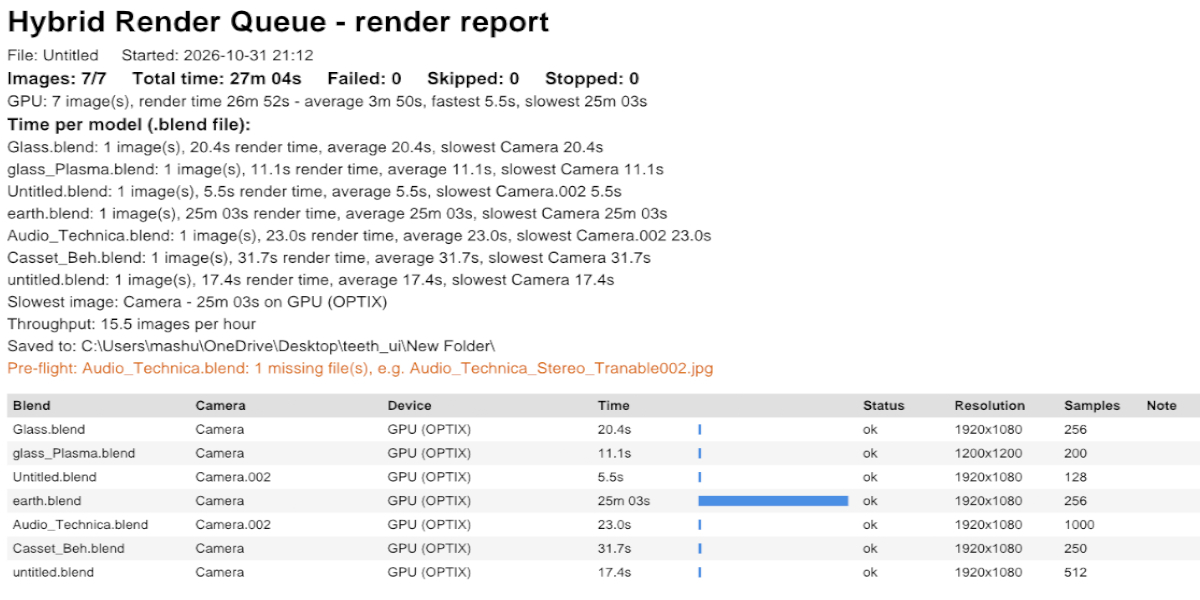
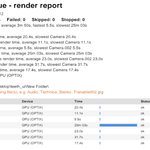
When Save Report is enabled, the queue creates CSV, HTML, and PDF reports. Reports include per-image status, device, render duration, and scene/render information. After rendering, use Open Folder, Open Report, or Open PDF in the panel. Discord and Telegram notifications are optional; configure webhook or bot credentials in Add-on Preferences.
Important notes
- Hybrid CPU+GPU rendering is for Cycles. Other engines render on a single device.
- Save scene changes before Batch/Hybrid rendering because background workers open the saved `.blend` file.
- Animation/video output formats are not supported; the queue renders still images.
- If Shutdown When Done is enabled, the computer may shut down after rendering finishes.
- Add-on settings and notification credentials are stored in Blender Preferences, not in the `.blend` file.
Have questions about this product?
Login to message
| Blender Extension Compatible | Yes |
| Published | about 5 hours ago |
| Blender Version | 4.0 - 5.2 |
| Extension Type | Add-on |
| Render Engine Used | Cycles, Eevee |
| License | GPL |
Discover more products like this
Export hybrid-render gpu accelerated Render discord notification Cycles batch blender-render-queue notification GPU BatchRender