Blender Live Sync for Cinema 4D -- Real-Time Scene Transfer
 blenderVfxMaster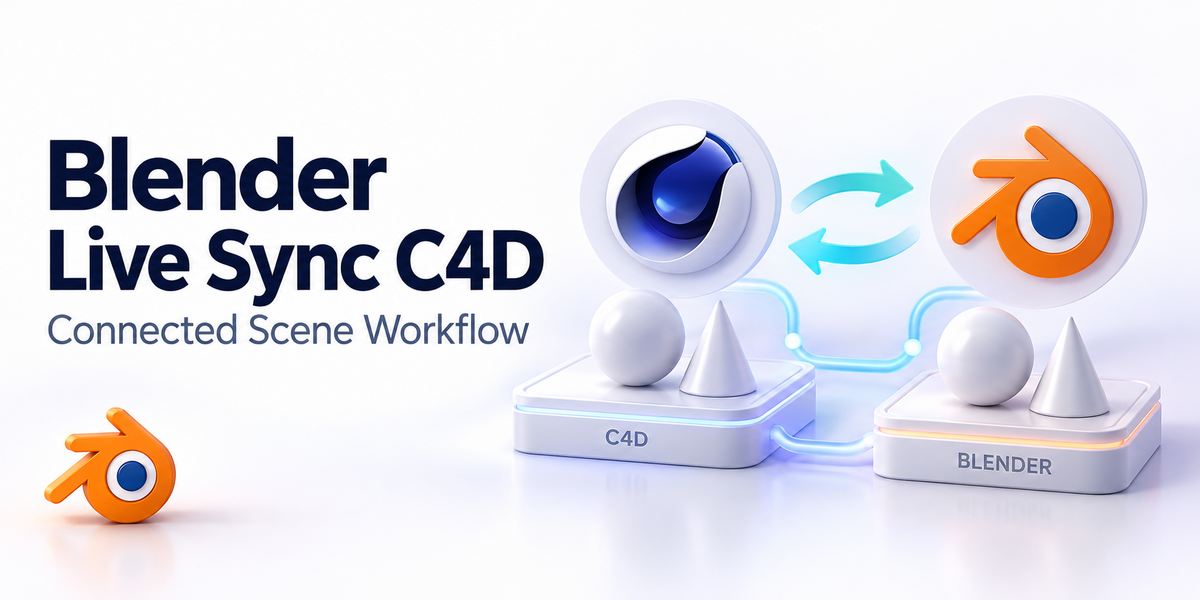
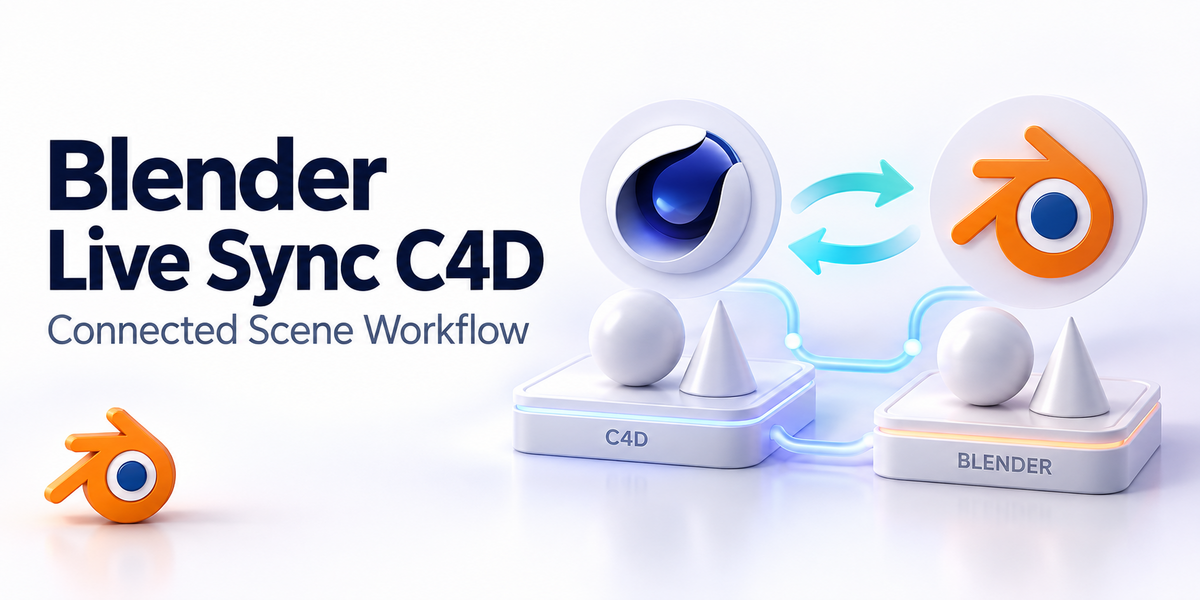


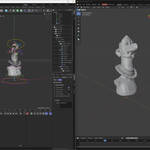
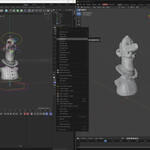
Blender Live Sync for Cinema 4D
Installation & Setup Guide
Blender Live Sync for Cinema 4D is a real-time synchronization plugin that connects Cinema 4D (C4D) and Blender, enabling near-zero-latency updates for meshes, deformers, generators, MoGraph objects, bones, sculpting changes, cameras, and timeline settings.
This document explains how to install the plugin on both sides and how to establish the first successful connection.
Table of Contents
System Requirements
Package Contents
Installing the Cinema 4D Plugin
Installing the Blender Add-on
First-Time Connection Setup
Verifying the Sync
Axis Mapping Setup
Troubleshooting
Support
1. System Requirements
Supported Software
Cinema 4D: R25 / 2023 / 2024 or newer (recommended)
Blender: 3.x / 4.x (recommended)
Operating Systems
Windows / macOS (depending on your plugin build)
Recommended Setup
For best performance and lowest latency, run Cinema 4D and Blender on the same computer.
(Some versions may support network syncing, depending on your release.)
2. Package Contents
Your download package typically contains:
-
Cinema 4D Plugin Folder
Example:
BlenderLiveSync_C4D/
-
Blender Add-on
Example:
BlenderLiveSync_Blender.ziporBlenderLiveSync.py
-
Optional documentation files:
README.txt,Manual.pdf, etc.
⚠️ Note: Folder names may differ depending on the plugin version.
3. Installing the Cinema 4D Plugin (C4D Side)
Option A (Recommended): Install into the C4D plugins Folder
Close Cinema 4D (if running).
Locate your Cinema 4D installation directory:
Windows (example):C:\Program Files\Maxon Cinema 4D 2024\plugins\
macOS (example):Applications/Maxon Cinema 4D 2024/plugins/
Copy the plugin folder into the
pluginsdirectory.
Example:BlenderLiveSync_C4D/ → .../Cinema 4D/plugins/
Launch Cinema 4D.
Verify the plugin appears in one of these locations:
Extensions menu
Plugins menu
A dedicated plugin panel / toolbar
Option B: Install into the User Plugins Folder (No Admin Permission Needed)
If you cannot access the system installation directory:
Open Cinema 4D
Go to: Edit → Preferences
Locate: Plugins
Find the User Plugins Path
Copy the plugin folder into that directory
Restart Cinema 4D
4. Installing the Blender Add-on (Blender Side)
Open Blender
Go to: Edit → Preferences → Add-ons
Click Install…
-
Select the add-on file:
If you received a
.zip, install the.zipdirectly (do not unzip)If you received a
.py, select the.pyfile
After installation, search for the add-on name:
Blender Live Sync for Cinema 4DEnable the add-on by checking the box
After enabling, the plugin UI usually appears in:
3D Viewport → Sidebar (press
N)or an add-on tab in the Blender interface (depending on version)
5. First-Time Connection Setup
Once both plugins are installed, follow these steps to connect.
Step 1: Start Sync in Cinema 4D
Open your C4D scene
Open the plugin panel from Extensions / Plugins
Click one of the following (name may vary):
Start
Connect
Enable Sync
Live Sync On
Confirm the plugin status shows something similar to:
Running
Waiting for Blender
Connected
Step 2: Start Sync in Blender
Open Blender
Open the plugin panel (usually in the N-panel)
Click:
Connect
Start Sync
Receive
If the plugin supports connection settings, confirm:
Connection mode = Shared Memory
Status = Connected
6. Verifying the Sync
After connecting, use the following tests to confirm everything works correctly.
6.1 Mesh Update Test
In Cinema 4D, create a cube (or any primitive)
Move, rotate, or scale it
The object should update in Blender immediately
6.2 Topology / UV / Normal Test
In C4D, convert a primitive to editable mesh
Modify points / edges / polygons
Confirm Blender updates the mesh shape correctly
6.3 Deformer Test
Add a deformer in C4D (Bend / Twist / etc.)
Adjust deformer strength and settings
Blender should update in real time
6.4 Generator & MoGraph Test
Create a generator or MoGraph object in C4D
Change its parameters (clone count, spacing, etc.)
Blender should update the generated geometry
6.5 Bone Deformation Test
Bind bones to a mesh in C4D
Move/rotate bones
Blender should update deformation instantly
6.6 Camera Sync Test
Select a camera in C4D
-
Adjust:
Position / rotation
Focal length
Blender camera should match the changes
6.7 Timeline Sync Test
In C4D, scrub the timeline or press play
-
Confirm Blender synchronizes:
Current frame
Start frame / end frame
Frame rate (FPS)
7. Axis Mapping Setup (Coordinate Conversion)
Cinema 4D and Blender use different coordinate systems.
If you notice incorrect orientation (flipped axes, wrong rotation, scale mismatch), configure the axis mapping:
Open plugin settings (C4D side or Blender side depending on version)
Find Axis Mapping / Coordinate Conversion
Adjust:
Axis conversion (X/Y/Z mapping)
Scale
Offset
Tip: If your model appears rotated 90° or mirrored, axis mapping is usually the cause.
8. Troubleshooting
Issue: Plugin does not appear in Cinema 4D
Solutions:
Confirm the plugin folder is placed in the correct
pluginsdirectoryMake sure the folder is not nested incorrectly
(Example: avoidplugins/BlenderLiveSync/BlenderLiveSync/)Restart Cinema 4D
Try installing via the User Plugins Path
Issue: Add-on does not appear in Blender
Solutions:
Make sure it is enabled in Preferences → Add-ons
Use the search bar and type Live Sync
Check the N-panel in the 3D Viewport
Issue: No connection / no updates
Solutions:
Ensure both plugins are running
Restart both Cinema 4D and Blender
Try re-clicking Connect / Start Sync
Confirm the plugin is using Shared Memory mode (if available)
Issue: Lag or slow performance
Solutions:
Reduce the number of synced objects
Avoid syncing extremely high-poly sculpt meshes during heavy edits
Use shared memory mode for best speed
Sync only changing data (recommended workflow)
Issue: Wrong scale or rotation in Blender
Solutions:
Configure Axis Mapping
Apply scale/offset settings
Verify both scenes use consistent units
9. Support
If you still have issues, please prepare the following information before contacting support:
Cinema 4D version
Blender version
Operating system
Plugin version
A short description of the issue
Screenshots of plugin status panels (C4D + Blender)
-
$14
1 seat. For individual creators or small commercial projects.
-
$33.60
Up to 3 seats / single studio team. Use across all internal projects within one company.
-
$168
15+ seats / company-wide / unlimited internal use across subsidiaries.
Have questions about this product?
Login to message
| Sales | 10+ |
| Rating | 3 ratings |
| Published | almost 2 years ago |
| Blender Version | 3.6 - 5.2 |
| Extension Type | N/A |
| License |