Infinite Kicks - Pitch Perfect Procedural Soccer Balls
 Trestle Trotter


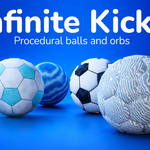
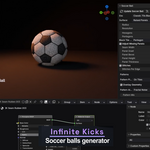
Infinite Kicks Documentation
Infinite Kicks is a Blender add-on for creating procedural soccer balls with editable panels, materials, patterns, and an optional squash, stretch, and rotation rig.
Requirements
- Blender 4.2 or newer.
- The Infinite Kicks add-on or extension ZIP file.
Installation
- Open Blender.
- Go to Edit > Preferences.
- Open the Add-ons or Extensions section, depending on your Blender setup.
- Install the Infinite Kicks ZIP file.
- Enable Infinite Kicks if it is not enabled automatically.
- Close Preferences and return to the 3D Viewport.
After installation, the add-on appears in the Add Mesh menu and adds an Infinite Kicks tab to the 3D Viewport sidebar when an Infinite Kicks ball is selected.
Quick Start
- In the 3D Viewport, choose Add > Mesh > Infinite Kicks > Procedural Soccer Ball.
- A new procedural soccer ball is created at the 3D cursor.
- Select the ball.
- Press N to open the 3D Viewport sidebar if it is hidden.
- Open the Infinite Kicks tab.
- Use the Soccer Ball panel to adjust the ball.
- Click Update Soccer Ball to rebuild the selected ball with the current settings.
The Soccer Ball Panel
The Infinite Kicks sidebar only appears when a generated Infinite Kicks soccer ball is selected. The panel contains two main action buttons at the top:
| Button | What it does |
|---|---|
| Update Soccer Ball | Rebuilds the selected ball using the current sidebar settings. |
| Rig | Creates a fitted rig for rotating, squashing, and stretching the selected ball. |
Main Ball Settings
Era
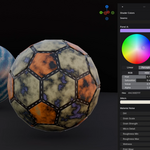
Era presets give the ball a starting look. They adjust the material colors, surface feel, pattern behavior, dirt, grain, and other shader details.
| Preset | Best for |
|---|---|
| 1930 Leather Lace | Old leather balls with a hand-stitched, worn look. |
| 1950 No-Lace Leather | Cleaner vintage leather balls without visible laces. |
| Classic 70s Black/White | The traditional black and white pentagon and hexagon design. |
| 2002 Synthetic Foam | Synthetic balls with printed abstract graphics. |
| Modern Thermo-Bonded | Clean modern balls with a fine synthetic surface. |
| Legacy Classic, Legacy Vintage, Legacy Modern | Compatibility presets for older Infinite Kicks looks. |
Surface
| Surface mode | What it creates |
|---|---|
| Raised Panels | A physical panelled ball with pentagon and hexagon pieces, seams, bevels, and optional stitches. |
| Plain Fabric | A continuous cloth or leather surface without separate panel pieces. |
| Patterns Only | A smooth ball focused on procedural graphic patterns instead of raised panels. |
Size and Resolution
- Radius controls the overall size of the ball.
- Resolution controls the smoothness of the generated sphere and seams. Higher values look smoother but create more geometry.
Panel Settings
Panel controls are shown when the surface is set to Raised Panels.
- Hexagons and Pentagons control how many raised panels are generated.
- Black Tile Shape chooses classic pentagon tiles or star-shaped black tiles.
- Star Depth appears when star tiles are selected and controls how deeply the star cuts into each tile edge.
- Adjust Missing Panels spreads and enlarges remaining panels when fewer than the full panel set is used.
- Seam Width controls the visible dark gap between panels.
- Panel Inset shrinks panel faces inward from their seam borders.
- Panel Bevel softens the edges of raised panels.
- Panel Height controls how far panels sit above the seam surface.
- Panel Thickness controls the depth of the dark side walls around raised panels.
- Stitches adds small stitch details along panel seams.
- Stitches Per Edge controls stitch density when stitches are enabled.
Pattern Settings
Patterns can be used as printed material detail, raised geometry, or both.
| Setting | How to use it |
|---|---|
| Patterns | Controls the number of broad curved pattern elements for modern and pattern-focused looks. |
| Pattern Placement | Choose whether patterns appear on the material, on panel tiles, as raised overlay geometry, or both. |
| Overlay Geometry | Shows or hides physical pattern geometry outside the ball surface. |
| Pattern Algorithm | Chooses the procedural pattern type: Fractal Noise, Voronoi Cells, Reaction-Diffusion Style, or Hybrid. |
| Pattern Mix | Controls how strongly the pattern blends into the material. |
| Pattern Scale | Changes the size of the procedural pattern details. |
| Pattern Detail | Adds or removes fine detail in the generated pattern. |
| Pattern Randomness | Makes the pattern more regular or more varied. |
| Pattern Shape | Changes the shape character of the pattern. |
| Pattern Definition | Controls how sharp or soft the pattern edges look. |
| Pattern Distortion | Warps the generated pattern for a more organic look. |
| Voronoi Scale and Voronoi Mix | Fine-tune cellular pattern detail when using Voronoi or Hybrid patterns. |
Pattern Layers
Pattern layers let you combine multiple procedural pattern effects on one ball.
- Select an Infinite Kicks soccer ball.
- Open the Infinite Kicks sidebar tab.
- Find the Patterns section.
- Use the plus button to add a pattern layer.
- Select a layer in the list to edit it.
- Use the minus button to remove the selected layer.
Each layer can be enabled or disabled, named, assigned to a placement mode, given an algorithm, and colored with Accent A, Accent B, Accent C, or a custom color.
When a layer is set to Raised Overlay or Both, extra overlay controls appear. These controls adjust the physical overlay shape, count, width, height, size, length, aspect, amplitude, offset, phase, rotation, and twist.
Shader Colors
Shader colors control the main color palette of the ball. Era presets set useful defaults, but you can customize them after the ball is created.
- Seams controls the dark material between panels.
- Panel A and Panel B control the main panel colors.
- Use Extra Colors enables extra panel colors for richer gradients.
- Panel Color Seed changes how panel colors are distributed.
- Accent A, Accent B, and Accent C color pattern details.
- Stitch controls the stitch color.
Material Noise
Material noise settings help the ball feel less flat and more tactile.
- Dirt adds surface grime and wear.
- Grain Scale changes the size of the material grain.
- Grain Strength controls how visible the grain is.
- Micro Detail adds fine pitting and fiber detail.
- Roughness Min and Roughness Max control how matte or shiny the material can be.
- Wetness adds a wetter, glossier feel.
- Print Wear fades printed graphics for a used look.
- Dirt Contrast makes dirt and recessed variation stronger or softer.
- Gradient Mix blends optional color gradients over solid tile colors.
Modifiers and Output
- Geometry Nodes adds editable Geometry Nodes controls to the generated ball.
- Weighted Normals adds a weighted normal modifier for cleaner panel shading.
Leave both options enabled for most models. Turn them off only when you need simpler output or want to manage modifiers yourself.
Rigging the Ball
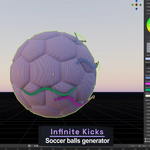
The Rig button creates a fitted rig for the selected Infinite Kicks ball. The rig is useful for animation because it gives you controls for rotation and squash/stretch.
- Select the Infinite Kicks soccer ball.
- Open the Infinite Kicks sidebar tab.
- Click Rig.
- Blender creates an armature and switches to Pose Mode with the rig selected.
- Use CTRL_rotate to rotate the ball.
- Use CTRL_squash to squash and stretch the ball.
Generating a new rig removes the previous Infinite Kicks rig for that ball and creates a fresh fitted one.
Practical Tips
- Start with an Era preset that is close to the look you want, then adjust colors and material noise.
- Use lower Resolution values while experimenting, then raise the value for final renders.
- For a classic soccer ball, use Raised Panels with Classic 70s Black/White.
- For a modern ball, try Modern Thermo-Bonded with Patterns Only or raised pattern overlays.
- If the ball feels too busy, reduce Pattern Mix, Pattern Detail, Pattern Distortion, or the number of pattern layers.
- If panel edges look too harsh, increase Panel Bevel or keep Weighted Normals enabled.
Troubleshooting
| Problem | What to try |
|---|---|
| The Infinite Kicks tab is not visible. | Select a generated Infinite Kicks soccer ball and press N in the 3D Viewport to open the sidebar. |
| The Update Soccer Ball button is not available. | Make sure the selected object is an Infinite Kicks soccer ball, not a converted mesh or another object. |
| The ball is slow to update. | Lower the Resolution, reduce pattern overlays, or disable extra details while experimenting. |
| Patterns are not visible. | Check Pattern Placement, Pattern Mix, layer enabled state, and the selected layer color. |
| Raised overlays are not visible. | Use Raised Overlay or Both placement, enable Overlay Geometry, and increase Overlay Pieces or Overlay Height. |
| The rig does not appear to affect the ball. | Regenerate the rig with the ball selected, then animate the rig controls in Pose Mode. |
Infinite Kicks 1.0.0. Procedural soccer ball and rig generator for Blender.
Have questions about this product?
Login to message
| Blender Extension Compatible | Yes |
| Published | 3 months ago |
| Blender Version | 4.2 - 5.1 |
| Extension Type | Add-on |
| Render Engine Used | Cycles, Eevee |
| License | GPL |

Discover more products like this
amazeballs ball-rig procedural texture procedural world-cup-2026 football-soccer Ball game ready procedural soccer advanced geometry nodes