Ivixel | Advanced Ivy Generator
 Vertixel Studio

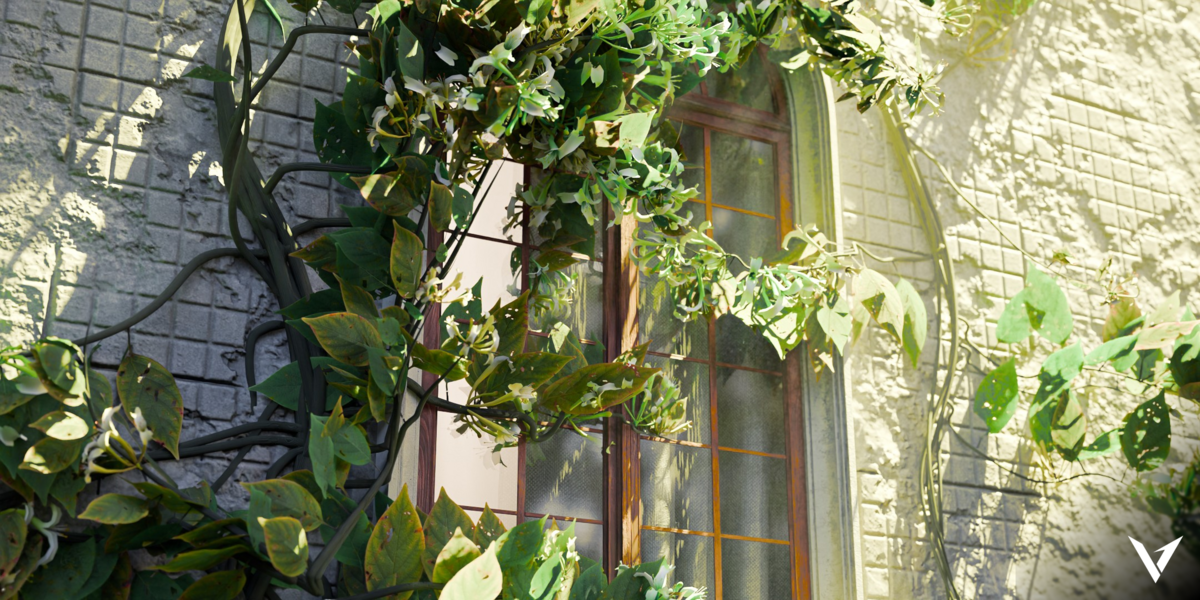


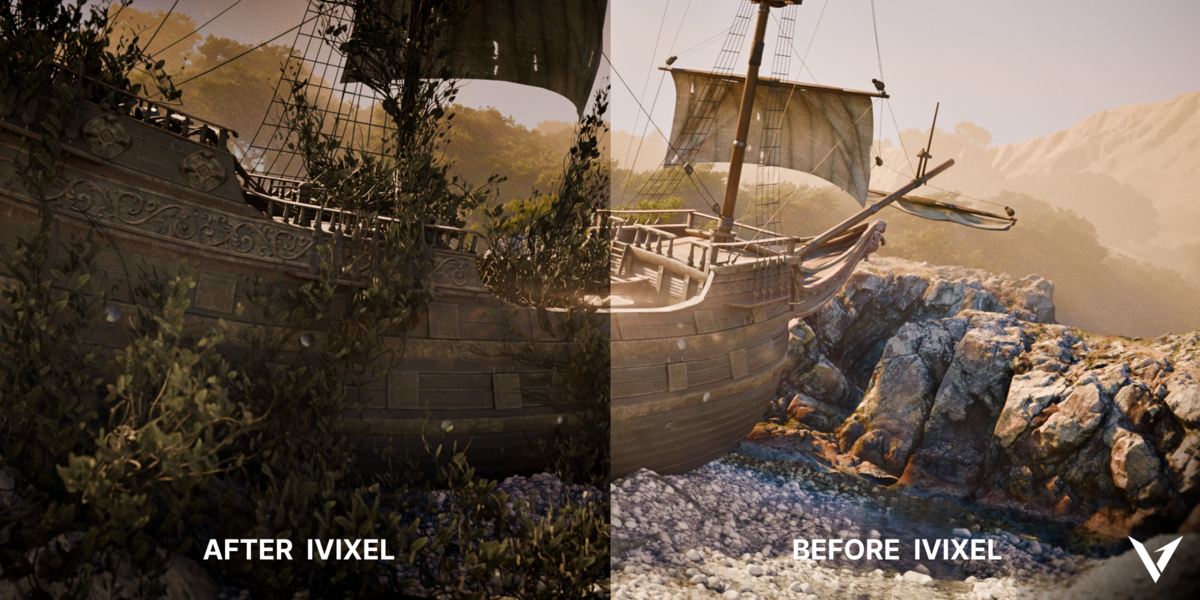
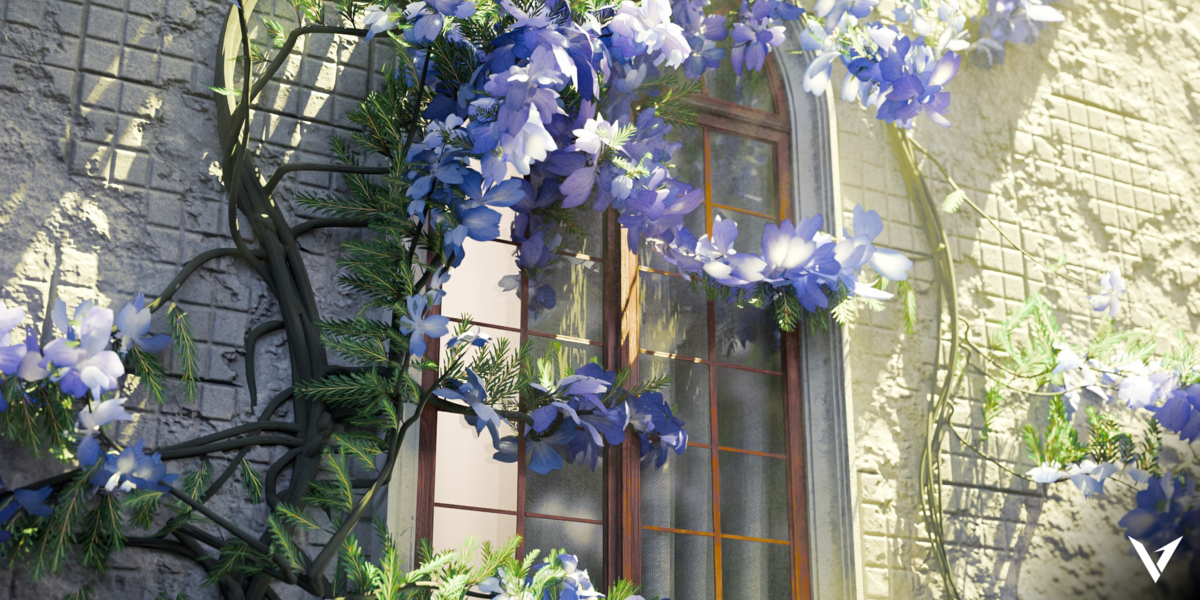
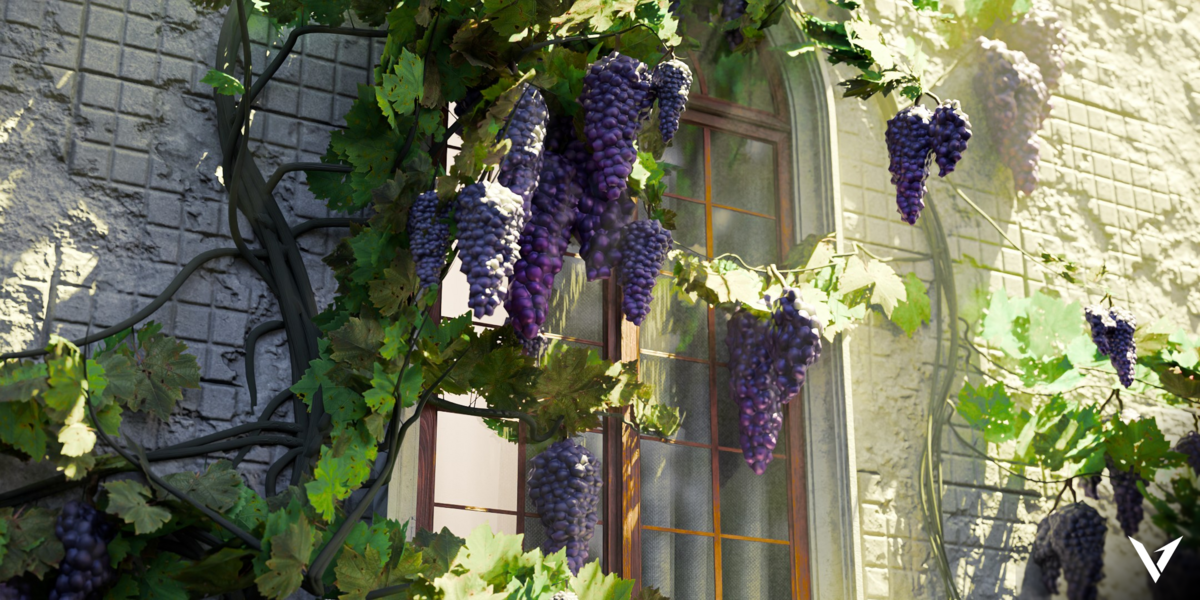


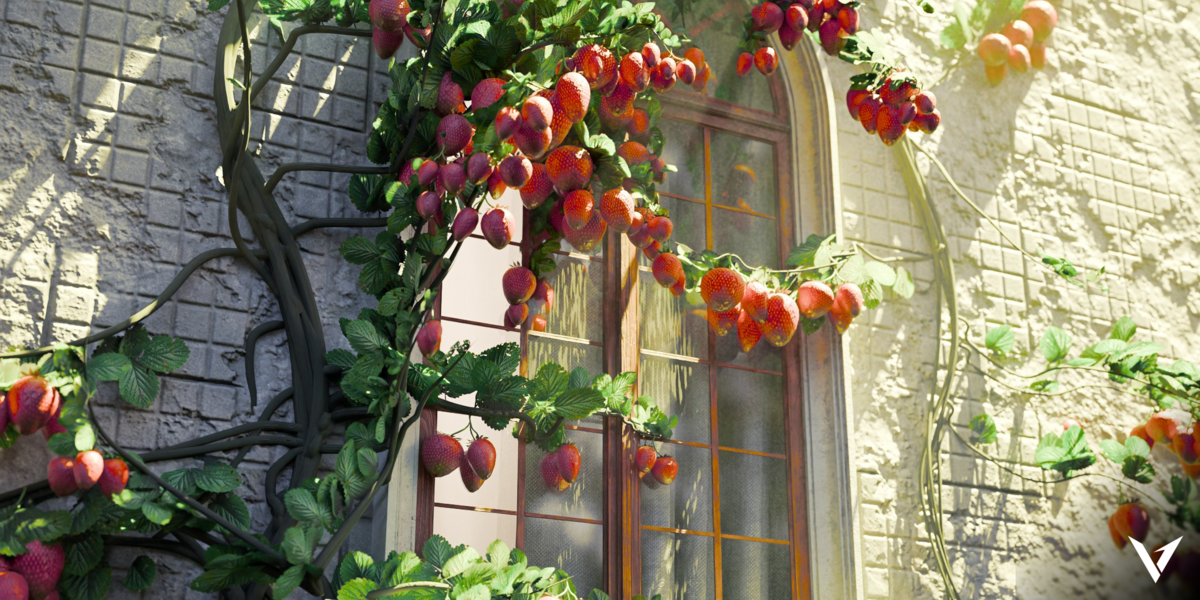
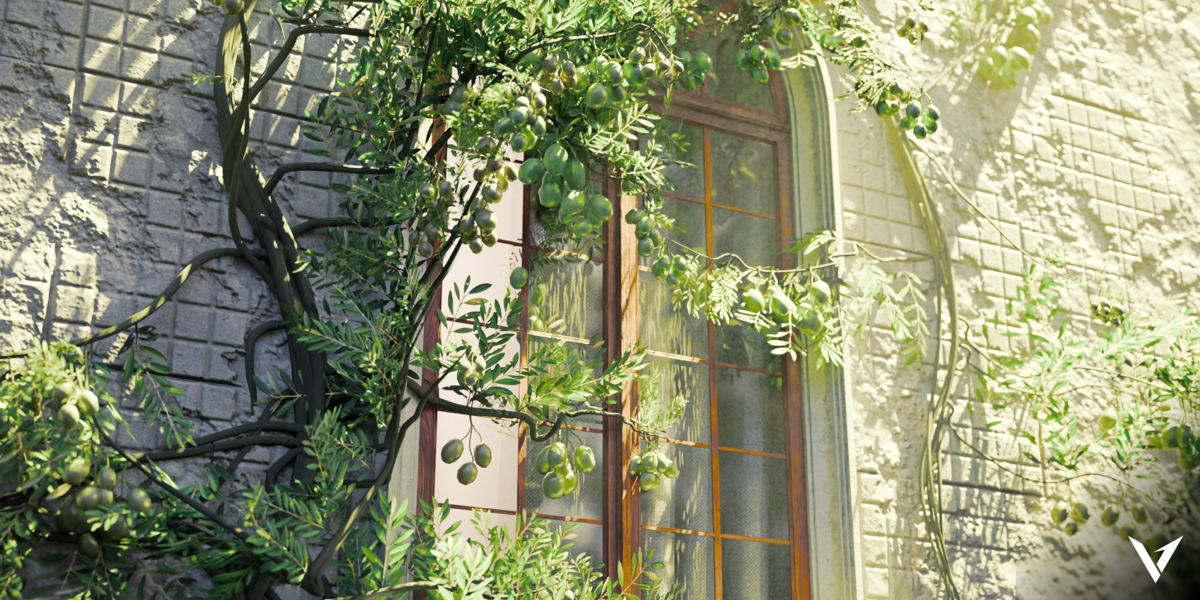
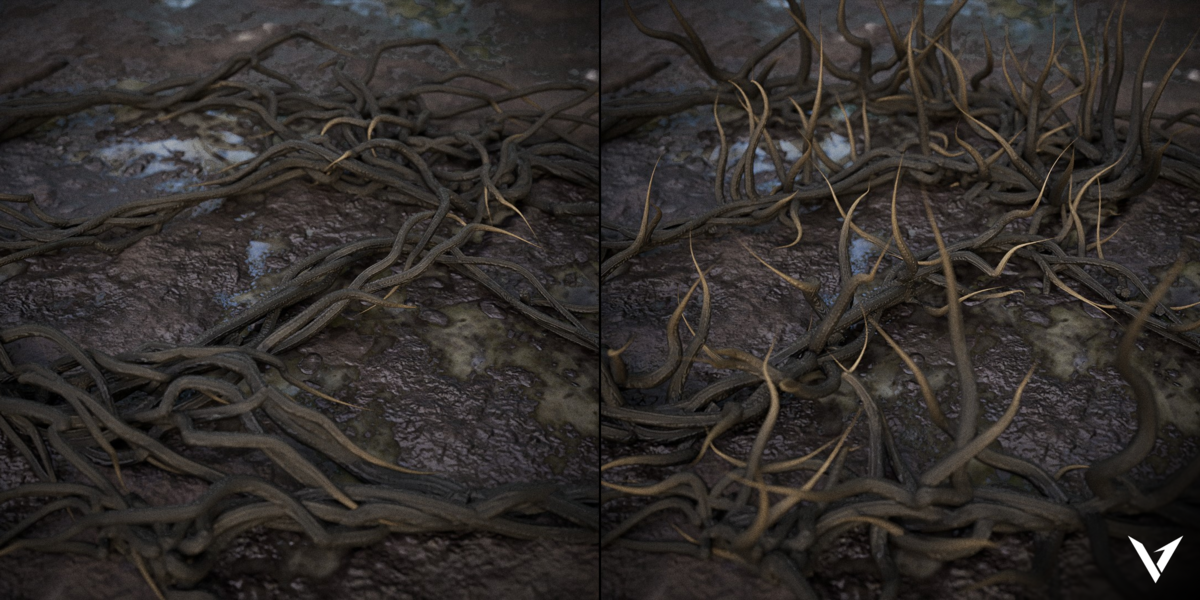
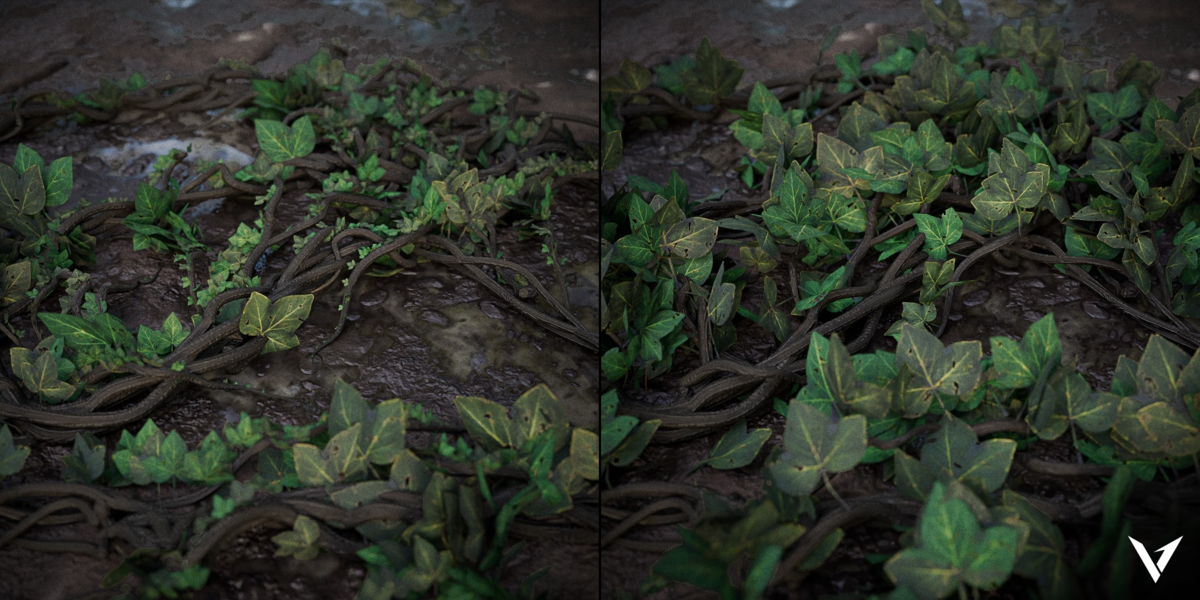
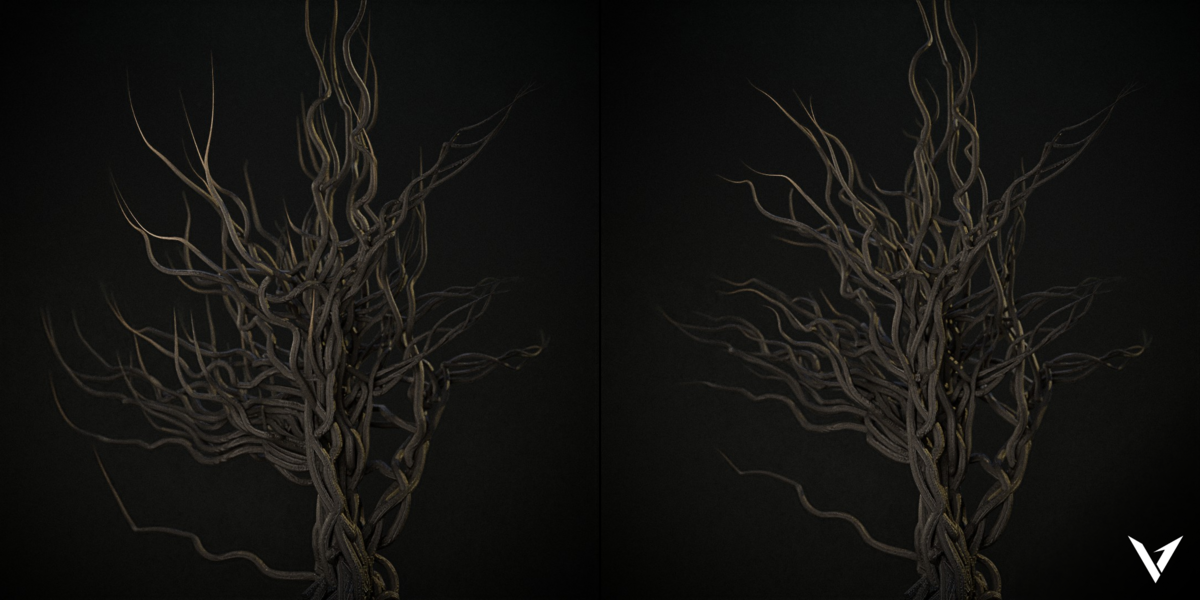
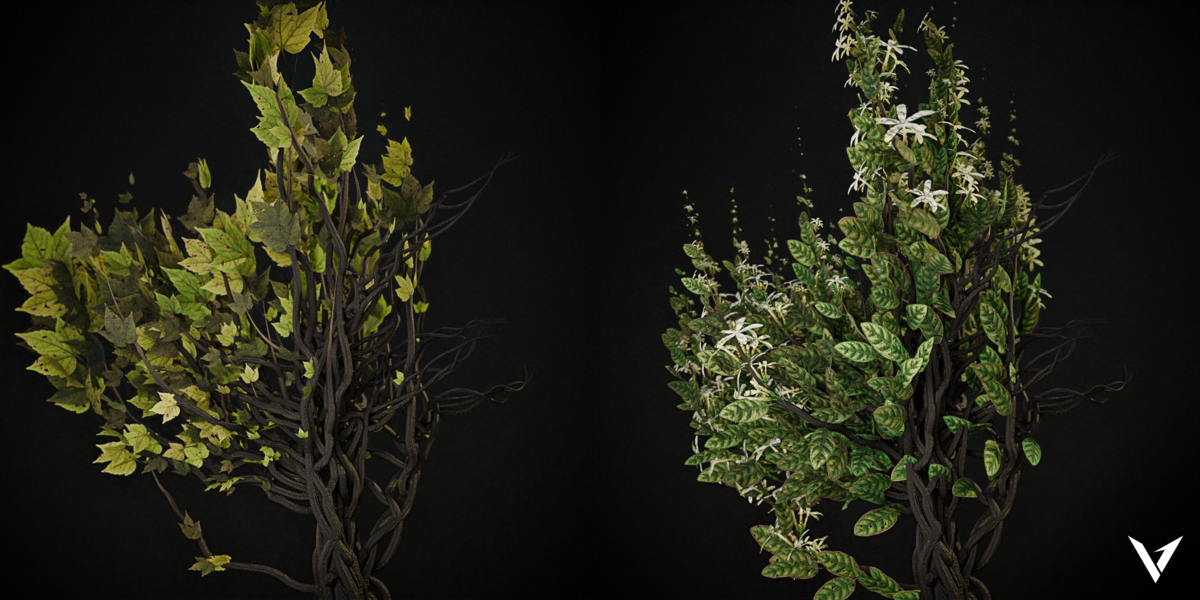
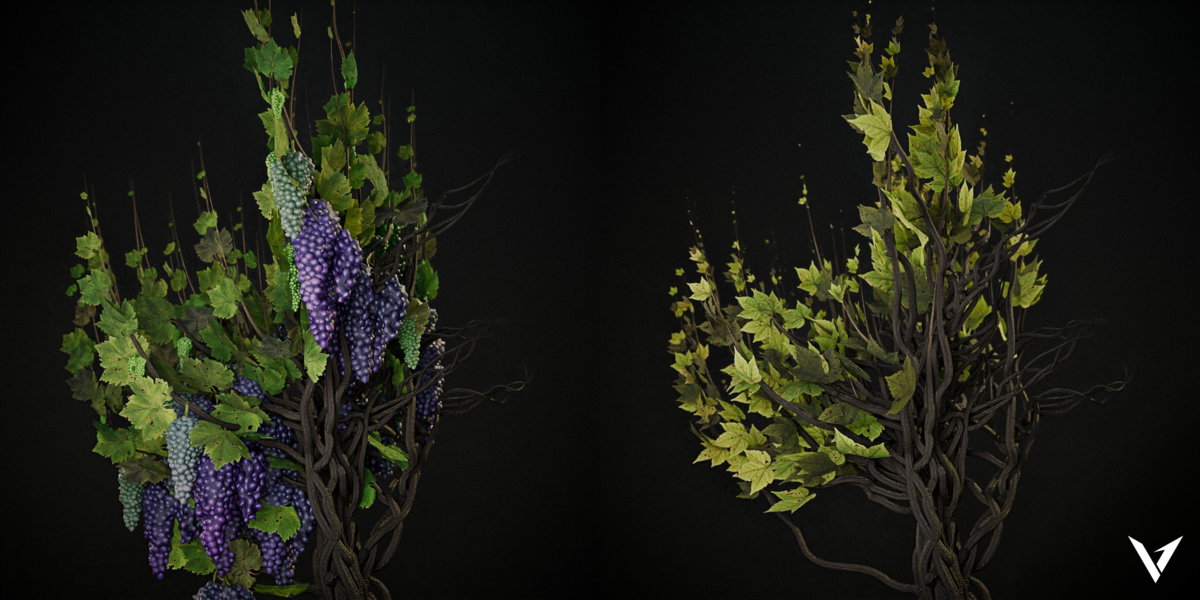











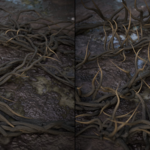
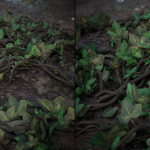
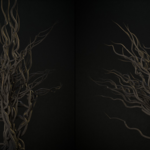
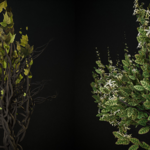
IVIXEL - ADVANCED IVY GENERATOR
User Documentation
Ivixel is a procedural ivy generation system for Blender powered by Geometry Nodes. It allows you to create, customize, animate, and control complete ivy structures directly from the Blender Modifier tab.
The workflow is simple: draw a curve → add the Ivixel modifier → generate ivy. All major parameters can be adjusted in real time without baking.
Ivixel provides independent controls for main roots, sub-roots, leaves, extra objects, interactions, growth behavior, animation, wind, and procedural cleanup.
1. GETTING STARTED
Creating Your First Ivy
Create or select a curve in Blender.
Enter Edit Mode.
Use Blender's Draw Tool to draw the desired ivy path.
Add the Ivixel Modifier to the curve.
Ivixel will immediately generate the procedural ivy.
All changes are displayed in the viewport in real time. No baking is required for the standard generation workflow.
2. PREVIEW
Animation
Toggle
Enables or disables Ivixel's procedural animation system.
When disabled, animation calculations are not applied to the generated ivy. Enable this option to access and use the available growth and wind animation controls.
3. MAIN ROOT
The Main Root controls the primary structure of the generated ivy. It forms the foundation from which sub-roots, leaves, and extra objects can be generated.
Toggle
Enables or disables the Main Root system.
Count
Controls the number of main roots generated from the source curve.
Resolution
Controls the number of segments used to build the main roots. Higher values produce smoother and more detailed root geometry.
Smoothness
Controls how smoothly the main root follows its generated curve.
Radius
Controls the thickness of the main root.
End Close
Controls how the root thickness is distributed along its length.
Two Way End — Keeps the root thickness more consistent between both ends.
One Way End — Creates a tapered root, with a thicker beginning and a narrower ending.
Grow Type
Selects the procedural growth style used to generate the main root. Different growth modes allow Ivixel to adapt to different visual styles and environments.
4. MAIN ROOT — DISPLACEMENT
The Displacement section controls how the main roots react to surfaces and procedural noise.
Enable Interaction
Toggle
Enables interaction between the main roots and a selected collection of objects.
When enabled, an Interaction Collection can be assigned, allowing the roots to grow across and interact with those objects.
Interaction Collection
Defines the collection of objects that the main roots can interact with.
Surface Offset
Controls the distance between the root and the surface of an interaction object. The root is offset along the surface normal.
Noise Factor
Controls the strength of procedural displacement applied to the main root.
Noise Frequency
Controls the frequency of the displacement variations along the root.
5. MAIN ROOT — ANIMATION
Available when the global Animation option is enabled.
Start Frame
Defines the frame at which main root growth begins.
Growth Duration
Controls how many frames the main root takes to complete its growth animation.
Growth Fade
Controls the blend range between the growing and fully grown sections of the root.
Expand While Growing
Adds a distance offset to the root while it is growing, creating additional spatial movement during the growth animation.
6. SUB-ROOTS
Sub-roots branch from the main roots and create the secondary structure of the ivy.
Toggle
Enables or disables the Sub-Root system.
Density
Controls how many sub-roots are generated along the main root.
Length
Defines the base length of each sub-root.
Random Length
Adds random variation to the length of individual sub-roots.
Main Root Coverage
Controls the portion of the main root available for sub-root generation by clipping the beginning and ending areas.
Resolution
Controls the number of segments used to build each sub-root.
Smoothness
Controls how smoothly the sub-root curves are generated.
Radius
Controls the thickness of the sub-roots.
Grow From Center of Main Root
Offsets the starting position of sub-roots from the main root path, allowing them to begin growing from a position around the root rather than directly from its centerline.
End Close
Controls the thickness distribution at the end of each sub-root.
Two Way End — Maintains thickness toward both ends.
One Way End — Creates a tapered sub-root with a thicker beginning and narrower ending.
Grow Type
Selects the procedural growth style used by the sub-roots.
7. SUB-ROOTS — DISPLACEMENT
Controls how sub-roots interact with surfaces, objects, noise, and gravity.
Enable Interaction
Toggle
Enables interaction between sub-roots and a selected collection.
Interaction Collection
Defines the collection of objects that the sub-roots can interact with.
Interaction Intensity
Controls how strongly sub-roots react to and make contact with the selected interaction objects.
Max Attraction Distance
Defines the maximum distance at which sub-roots can be attracted toward interaction objects.
Higher values allow roots to reach objects from farther away.
Surface Offset Bend
Controls how strongly sub-roots bend toward or away from an interaction surface.
Surface Bend Curve Exponential
Adds variation to the vertical bending behavior of sub-roots relative to the interaction surface.
Noise Factor
Controls the strength of procedural displacement noise applied to sub-roots.
Noise Frequency
Controls the frequency of noise variations along the sub-roots.
Gravity
Controls the amount of downward bending applied to the sub-roots.
Weight Support
Controls how strongly sub-roots resist gravity.
A value of 10 provides full support against gravity bending.
8. SUB-ROOTS — ROTATION
Controls the general directional behavior and rotation of generated sub-roots.
Grow Type
Defines how sub-roots orient themselves as they grow.
Available growth directions can include:
Forward — Grows primarily in the forward direction.
Outward — Grows away from the main root.
Random — Uses randomized growth directions.
Upward — Biases growth toward an upward direction.
Forward Grow
Controls the directional influence of the selected forward-growth behavior.
Random Range
Adds controlled randomness to sub-root rotation and orientation.
9. SUB-ROOTS — ANOMALY DELETE
The Anomaly Delete system removes sub-roots that are generated in abnormal or undesirable orientations.
Normalize Limit
Defines the normalization limit used to determine which sub-roots are considered outside the acceptable range.
Threshold
Controls the deletion threshold based on the Normalize Limit.
Higher sensitivity can remove more sub-roots that fall outside the desired growth behavior.
10. SUB-ROOTS — ANIMATION
Controls how sub-roots follow the growth animation of the main roots.
Start Frame Delay
Defines the frame offset before sub-root growth begins after the main root starts growing.
Growth Duration Delay
Adds an additional delay before sub-roots begin their growth relative to the main root.
Growth Fade
Controls the blend range between the growing and fully grown portions of each sub-root.
Noise While Growing Factor
Controls the strength of procedural noise applied to the sub-root during its growth animation.
Noise While Growing Frequency
Controls the frequency of the procedural noise variations during growth.
11. LEAVES
The Leaves system distributes foliage along the generated sub-roots.
Toggle
Enables or disables the Leaf system.
Density
Controls the number of leaves distributed along the sub-roots.
Leaf Spread
Controls how far leaves extend away from the main root structure.
Leaf Random Spread
Adds random variation to the spread and positioning of leaves.
Scale
Controls the overall scale of generated leaf instances.
Random Scale
Adds random scale variation between individual leaves.
Min Scale
Defines the minimum scale used when random scaling is enabled.
Grow Type
Controls the procedural growth behavior used for leaf placement.
Invert Growth
Toggle
Reverses the selected leaf growth direction.
12. LEAVES — OVERLAPPING DELETE
Automatically removes leaf instances that overlap too closely with other leaves.
Delete Closest
Toggle
Detects overlapping leaf instances and removes the closest instances to reduce unnatural intersections.
Min Distance Threshold
Defines the minimum distance used to detect overlapping leaf instances.
13. LEAVES — WIND
Toggle
Enables wind influence on the generated leaves.
Effect
Controls how strongly wind affects the leaves.
Time Multiplier
Multiplies the global wind animation speed for the leaves, allowing their movement to play faster or slower than the default wind speed.
14. LEAVES — ROTATION
Controls the directional orientation of generated leaves.
Grow Type
Defines how leaves are oriented as they grow from the sub-roots.
Forward Grow
Controls the strength of the selected forward-growth direction.
Random Range
Adds randomized variation to leaf rotation and orientation.
15. LEAF PARAMETERS
Ivixel provides three different methods for generating leaves.
Instancer Type
Choose between:
Preset Leaves
Procedural Leaves
Custom Collection
PRESET LEAVES
Uses the integrated Leaves Collection included with Ivixel.
Leaf Type
Selects one of the 72 unique leaf types included in the Leaves Collection.
Each leaf type contains two variations, providing 144 total leaf variations.
Distribute Probability
Controls the probability distribution between the two variations of the selected leaf type.
This allows you to control how frequently each variation appears.
PROCEDURAL LEAVES
Generates leaf geometry procedurally instead of using the included leaf assets.
Leaf Type
Selects the base procedural leaf shape.
Leaf Width
Controls the width of the generated leaf geometry.
Leaf Height
Controls the height of the generated leaf geometry.
Leaf Resolution
Controls the mesh subdivision level of the generated leaf geometry.
Higher values create more detailed leaf geometry.
CUSTOM COLLECTION
Allows you to use your own leaf assets.
Custom Collection
Selects the Blender collection containing the custom leaf objects you want Ivixel to use.
Use Entire Collection
Toggle
Uses the entire selected collection as a single instanced asset rather than treating its individual objects separately.
16. LEAVES — ANIMATION
Controls the animation behavior of individual leaves.
Start Frame Delay
Delays the beginning of leaf growth relative to the sub-root growth animation.
Growth Fade
Controls the transition between the growing and fully grown states of each leaf.
Random Position While Growing
Adds subtle randomized positional movement to leaves during their growth animation.
17. EXTRA ITEMS
Extra Items allow you to distribute additional objects such as fruits, flowers, or custom assets along the generated sub-roots.
Instancer Type
Choose between:
Preset Objects
Custom Collection
Both modes provide similar distribution and transformation controls. The Custom Collection mode allows you to use your own objects instead of the included assets.
18. PRESET OBJECTS
Uses the integrated fruit and flower assets included with Ivixel.
Preset
Selects from the available integrated fruit and flower assets.
Use Entire Collection
Toggle
Uses the entire selected collection as a single instanced asset.
Density
Controls the number of extra items distributed along the ivy structure.
Item Spread
Controls how far extra items extend outward from the main root structure.
Item Spread Randomness
Adds random variation to the item spread.
Scale
Controls the overall scale of the generated extra items.
Min Scale
Defines the minimum scale used when random scaling is enabled.
Random Scale
Adds random scale variation between individual instances.
Grow Type
Controls the procedural growth behavior used for extra item placement.
Invert Growth
Toggle
Reverses the selected growth direction.
19. EXTRA ITEMS — OVERLAPPING DELETE
Provides additional control over overlapping fruits, flowers, and custom objects.
Delete Closest
Toggle
Detects overlapping extra items and removes the closest instances.
Min Distance Threshold
Defines the minimum distance used to detect and remove overlapping items.
Delete Closest to Leaves
Toggle
Detects extra items that overlap with or are positioned too closely to leaves and removes the closest instances.
Min Distance to Leaves
Defines the minimum distance used when detecting nearby leaves.
20. EXTRA ITEMS — WIND
Toggle
Enables global wind influence on extra items.
Effect
Controls how strongly wind affects the extra items.
Time Multiplier
Controls the playback speed of the wind animation for extra items relative to the global wind speed.
21. EXTRA ITEMS — ROTATION
Controls the orientation of fruits, flowers, and custom objects placed along the ivy.
Grow Type
Defines the directional behavior of extra items as they are distributed along the roots.
Forward Grow
Controls the strength of the selected forward-growth direction.
Random Range
Adds randomized variation to extra item rotation.
22. EXTRA ITEMS — ANIMATION
Controls the growth animation of fruits, flowers, and custom objects.
Start Frame Delay
Delays the beginning of extra item growth relative to the root and leaf animation.
Growth Fade
Controls the transition between the growing and fully grown states.
Random Position While Growing
Adds subtle randomized positional movement during the growth animation.
23. GLOBAL WIND
The Global Wind system controls the overall wind behavior used by all wind-enabled Ivixel elements.
Toggle
Enables or disables the global wind simulation.
Wind Direction
Defines the global wind direction vector used by all wind-affected elements.
Time Scale
Controls the playback speed of the entire wind animation, affecting the timing of all wind oscillations.
Distortion
Adds global variation to the wind motion, making movement less uniform and more natural.
Detail Scale
Controls the scale of high-frequency wind details and smaller movement variations.
Detail Roughness
Controls the roughness of the detailed wind noise, allowing the movement to appear smoother or more chaotic.
24. ADVANCED SETTINGS
Super Resolution
Adds additional detail and resolution to generated geometry.
Use Super Resolution when additional geometric detail is required for higher-quality results.
25. TOOLTIP DOCUMENTATION
Ivixel includes built-in parameter descriptions directly inside the Blender interface.
Simply hover your mouse over any parameter to display its description.
This allows you to quickly understand what each control does without repeatedly returning to the documentation.
The documentation provides a complete reference, while the built-in tooltips provide quick, contextual explanations directly where you are working.
26. WORKFLOW SUMMARY
Ivixel is designed around a simple procedural workflow:
DRAW → GENERATE → CUSTOMIZE → ANIMATE
Draw your desired ivy path using Blender's Draw Tool.
Apply the Ivixel Modifier.
Adjust the Main Root and Sub-Root structure.
Choose your leaf generation method.
Add fruits, flowers, or custom objects.
Use Smart Interaction to grow ivy across selected objects.
Refine the result using Anomaly Delete and Overlapping Delete.
Enable animation and configure growth behavior.
Add wind for natural movement.
Adjust the final parameters in real time until the result matches your scene.
Because Ivixel is procedural and real-time, you can continue editing the source curve and parameters at any stage without rebuilding the ivy manually.
-
$10.39 $15.99
Get the complete Ivixel package with all included features, integrated leaf and fruit collections, customization options, smart mapping, and procedural animation. Use it freely in personal and commercial projects with no additional royalties.
Have questions about this product?
Login to message
| Published | about 2 months ago |
| Blender Version | 5.0 - 5.2 |
| Render Engine Used | Cycles, Eevee |
| License | Royalty Free |
Discover more products like this
geometry nodes 3D Vegetation Generator ivy procedural plants Vertixel plant generator procedural vegetation environment ivy generator architectural visualization