 Robert



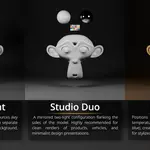
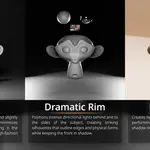
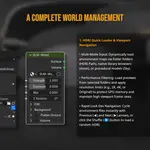
Scene Light Manager for Blender
Stop fighting Blender’s interface just to light your scene.
Scene Light Manager (SLM) is a professional, high-fidelity lighting workflow toolkit designed to keep you in the creative flow. Adjust intensity, change shapes, solo lights, control HDRI rotation, and manage light/shadow linking directly in the 3D Viewport without ever opening the properties sidebar.
🚀 Key Information
- Blender Compatibility: 5.1+
- License: GPL-3.0
- Documentation Site: https://r-kez.github.io/k_tools_slm_documentation/
🌟 Why Scene Light Manager?
In vanilla Blender, setting up cinematic lighting is a tedious loop: select a light, look at the properties panel, drag a slider, look back at the viewport, select another light, expand sub-panels, repeat.
SLM changes everything by bringing the controls directly to your cursor inside the 3D Viewport.
- ⚡ Zero Context Switching: Adjust power, size, beam angle, and color directly on the light object inside the 3D Viewport.
- 👁️ Instant Visual Feedback: High-fidelity GPU outlines highlight exactly which objects are affected by light or shadow linking in real time.
- 🌍 Intuitive Environment Controls: Rotate your HDRI or position the Nishita sun texture with simple viewport gestures.
- ⚙️ Pure Performance: Built from the ground up for heavy production scenes with zero overhead.
🛠️ Core Features
1. Viewport Gizmo Interface & Floating Overlay
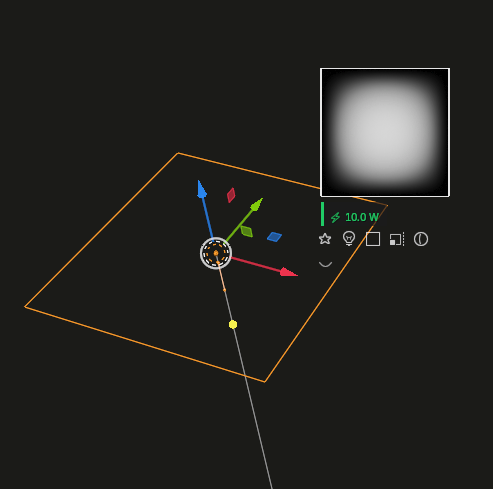
Gain instant, contextual access to light settings directly on the active light:
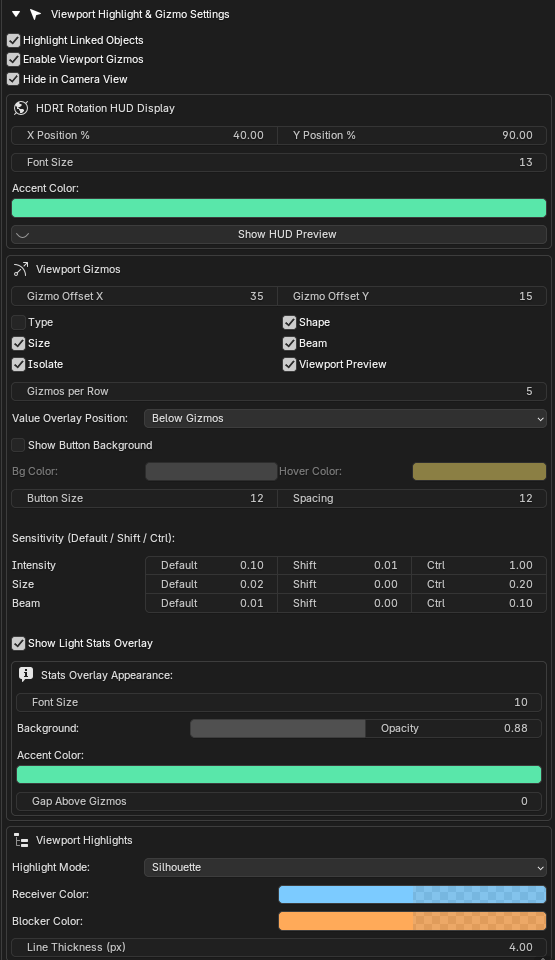
- Smart Buttons: Click interactive icons next to your selected light to cycle types, change area shapes, toggle solo mode, adjust spot beam spreads, or tweak sizes.
- Real-Time Value Overlay: Get beautiful HUD feedback showing your precise parameter values as you drag.
-
Alt-Modifier Batch Control: Hold
Altwhile adjusting a viewport gizmo to propagate the change to all selected lights instantly.
2. High-Fidelity GPU Linking Highlights
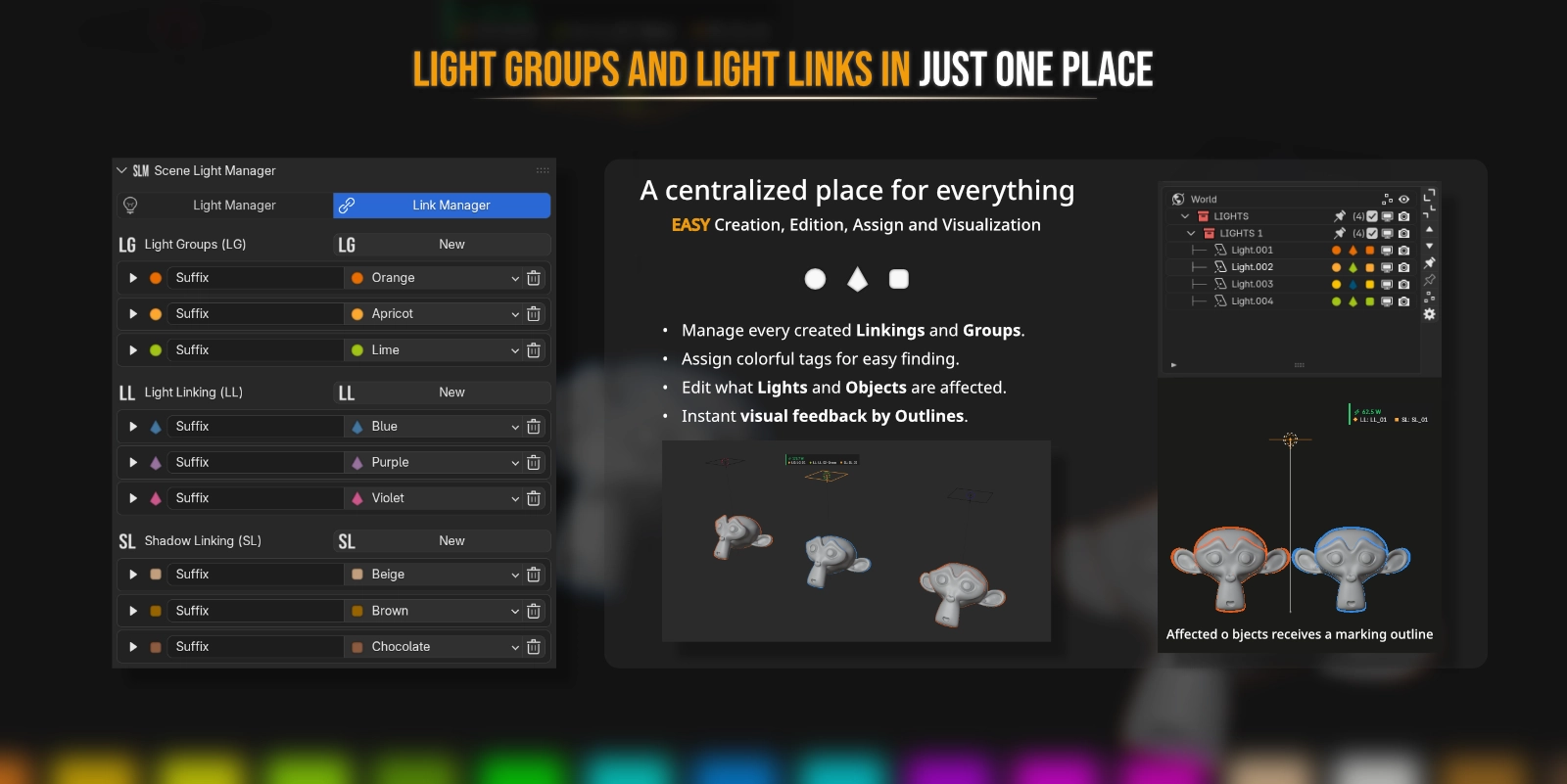
Configure Blender’s powerful Light and Shadow Linking systems visually:
- Visual Silhouette Outlines: Selecting any light instantly projects clean, anti-aliased wireframes and silhouette highlights over the linked receiver or blocker geometry.
- Dynamic Customization: Choose from three outline modes (Silhouette, Wireframe, or Both), and customize line thickness and colors to match your scene style.
3. Interactive HDRI & Sky Rotation
Ditch the shader editor mapping node. Rotate your environment from any camera angle:
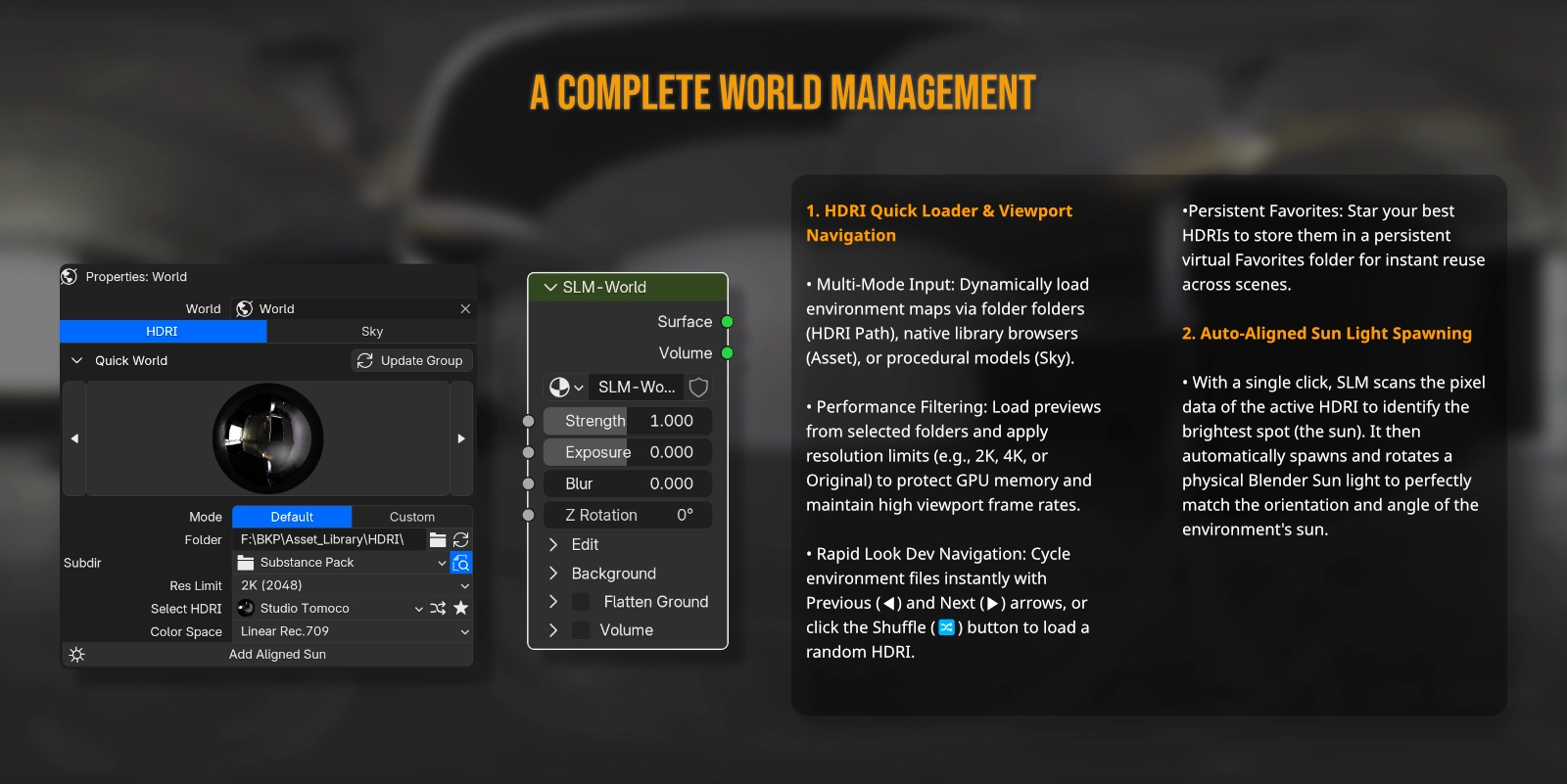
- Auto-Detection Engine: Automatically detects and rotates the active background environment—whether it is Nishita Sky, a World Mapping node (Z Rotation), or Blender's built-in Viewport HDRI.
-
Instant Drag Gesture: Hold
Ctrl + Alt + RMBand drag horizontally to spin the dome. Release to commit, or cancel with a right click. - HUD Angle Readout: A clean digital compass at the bottom of the viewport displays the exact rotation angle in real time.
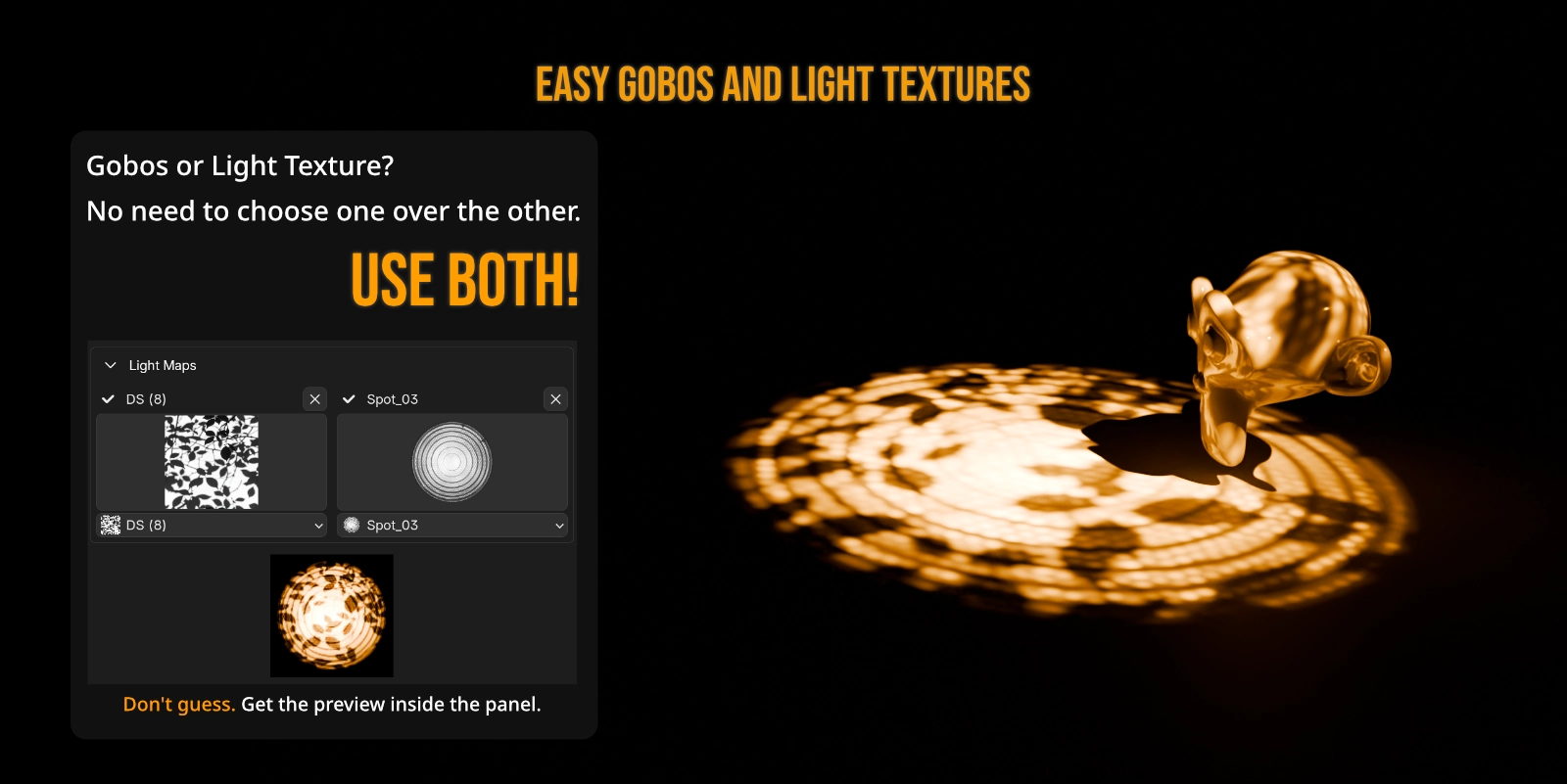
4. HDR Studio Light Textures & Gobos
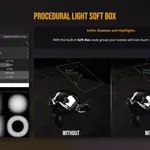
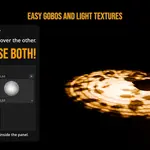
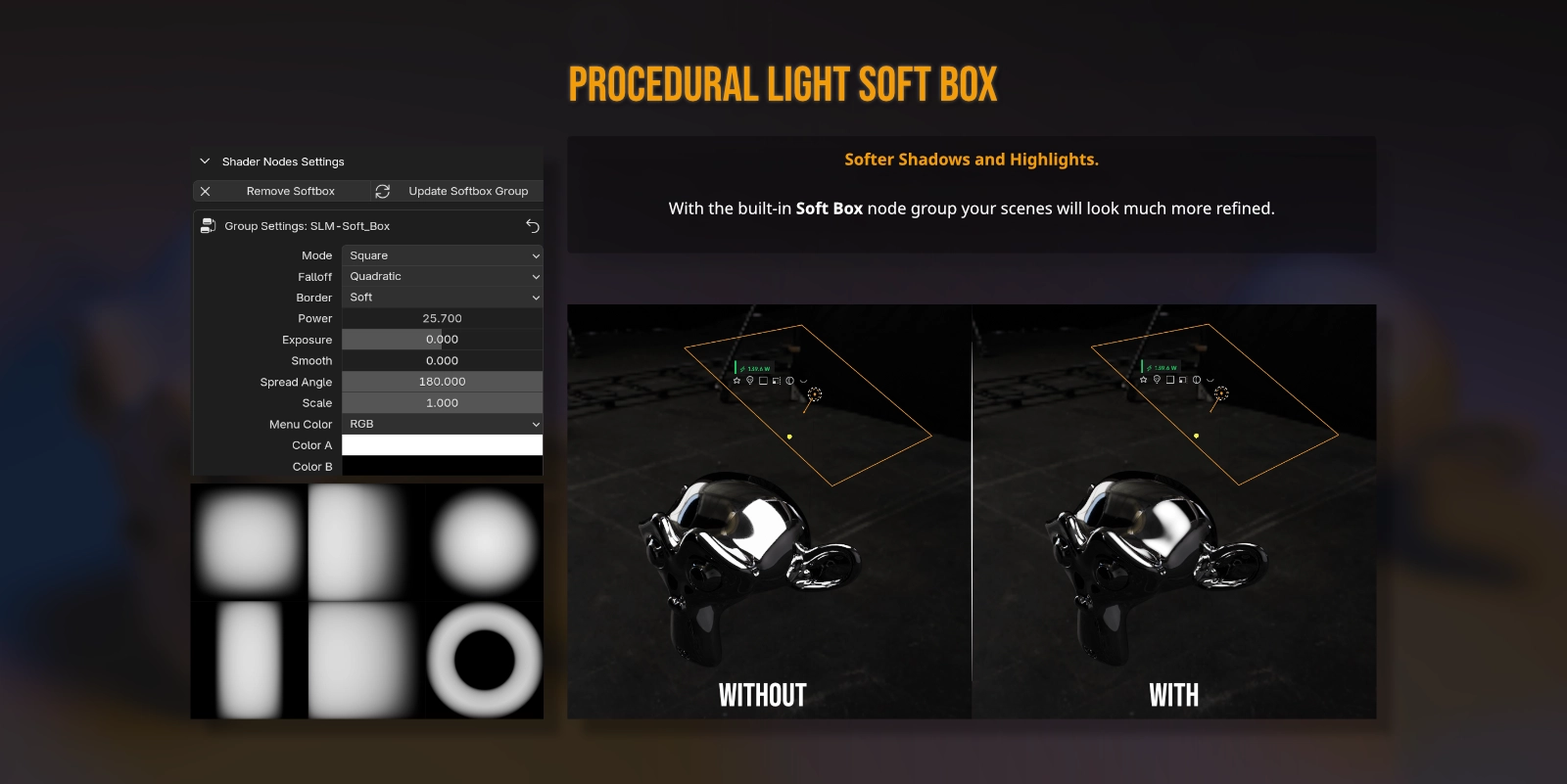
Project real-world high-dynamic-range softboxes and patterns directly from Blender Area Lights:
- Photographic Realism: Map photographic softbox reflection textures and studio Gobos with a single click.
- Integrated Node Automation: Behind the scenes, SLM handles shader setups, texture mapping coordinate projections, and strength balance.
- Interactive Tweaks: Adjust Gobo rotation, scale, and softness directly from viewport operators.
5. Cinematic Presets & Custom Lighting Rigs
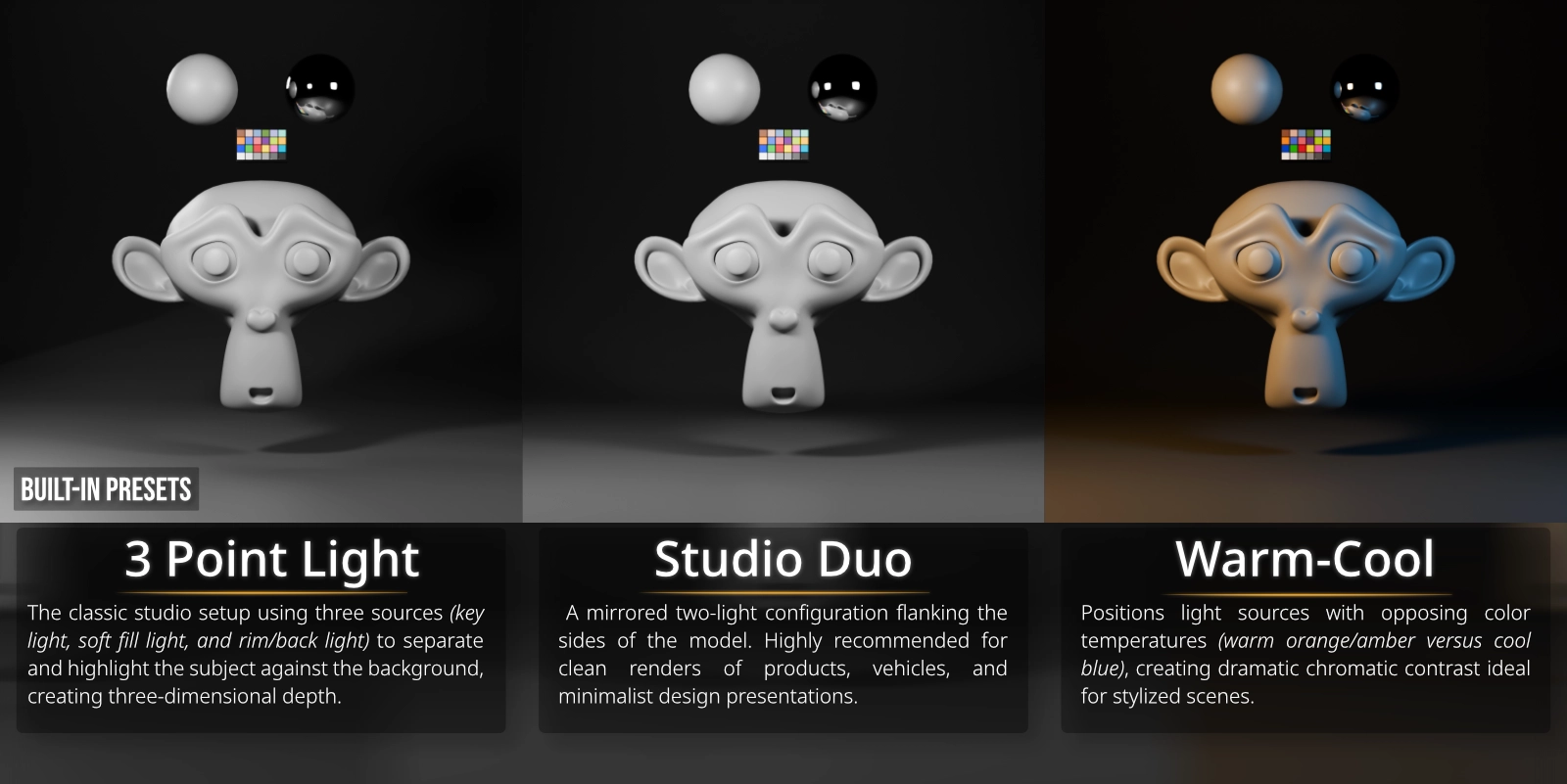
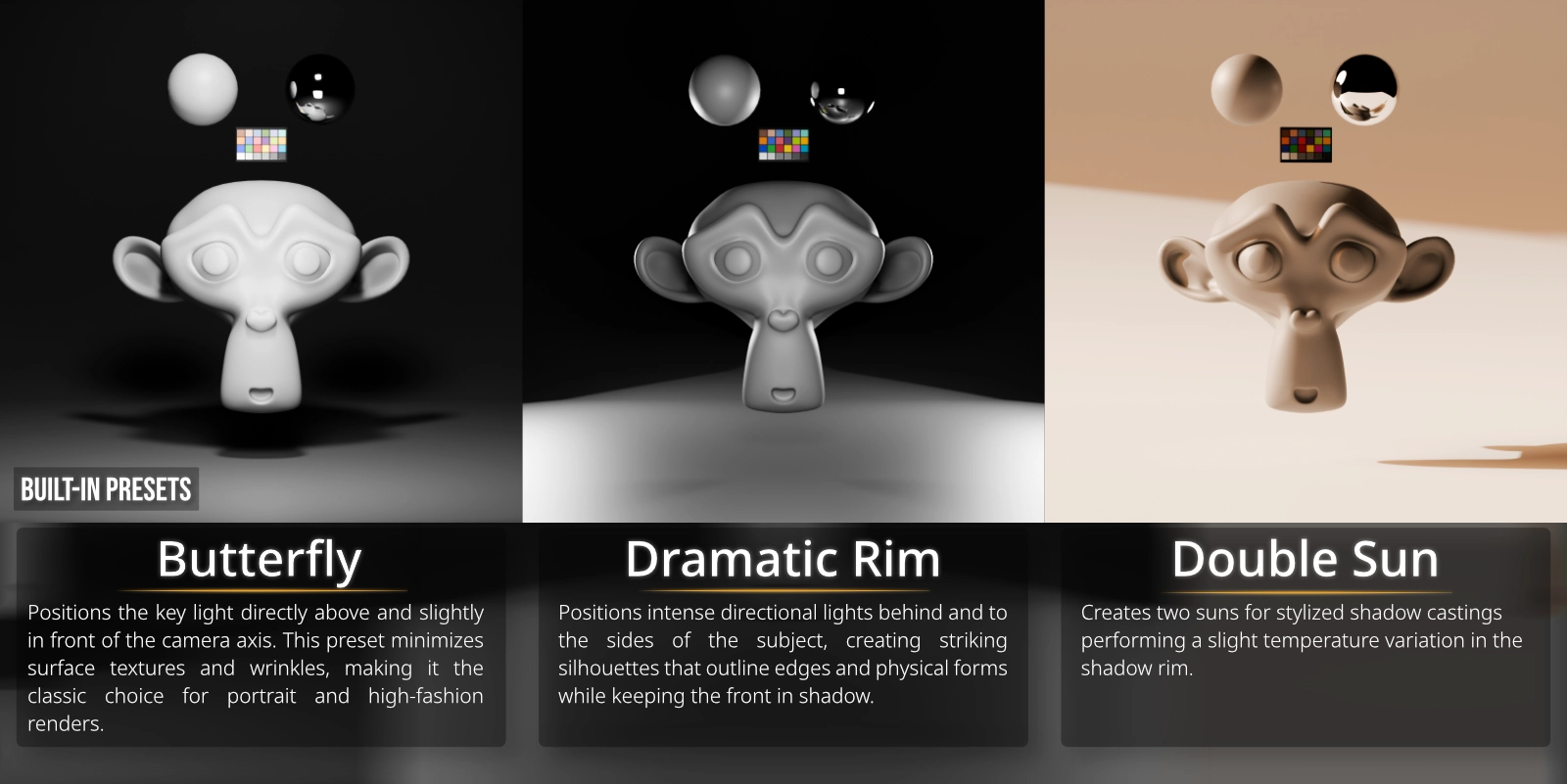
Build master lighting setups in seconds using built-in rigs and saving custom presets:
- Instant Rig Spawning: Spawn standard 3-point rigs, butterfly setups, or backlighting rings aligned to your active viewport camera.
- Preset Library Manager: Save complete scene lighting states to the global asset library and restore them instantly.
- Non-Destructive Mixing: Test different lighting directions, colors, and intensities by saving snapshots as presets.
6. Smart Light Isolation (Solo Mode)
Isolate a single light source to judge its contribution, shadows, and bounce:
- Synchronized Soloing: Solo any light via the viewport gizmo button or the sidebar list.
- Automatic Restores: Un-soloing returns your scene to the exact previous visibility layout.
- World Muting Option: Automatically disable the World background shader while soloing to isolate light color contributions in pure darkness.
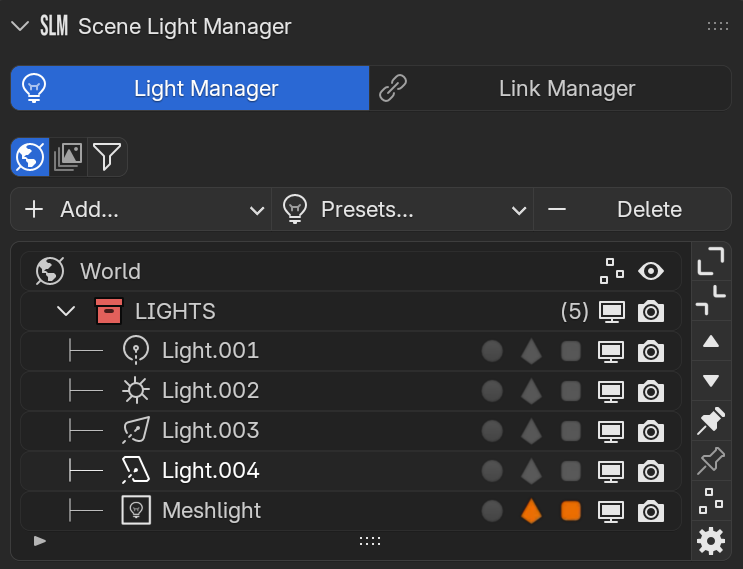
7. Unified Light Manager Sidebar
A clean, tabbed panel consolidating every light source, emissive mesh, and setting in your project:
- Properties Tab: Grouped list control over name, power, color, and visibility of all scene lights.
- Synchronization Tab: Seamlessly synchronize viewport selections, automatically activate collections, or sync visibility parameters.
- Mesh Emitters Detection: Automatically scan and list mesh objects acting as lights via emissive shaders (using configurable search terms like led, emit, glow).
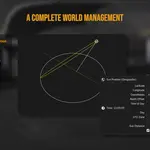
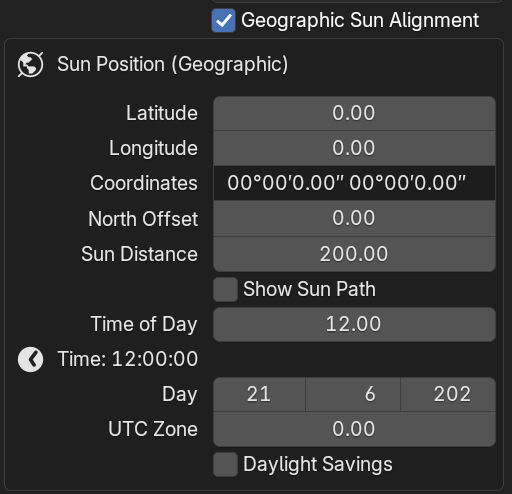
8. Geographic Sun & Sky Positioning
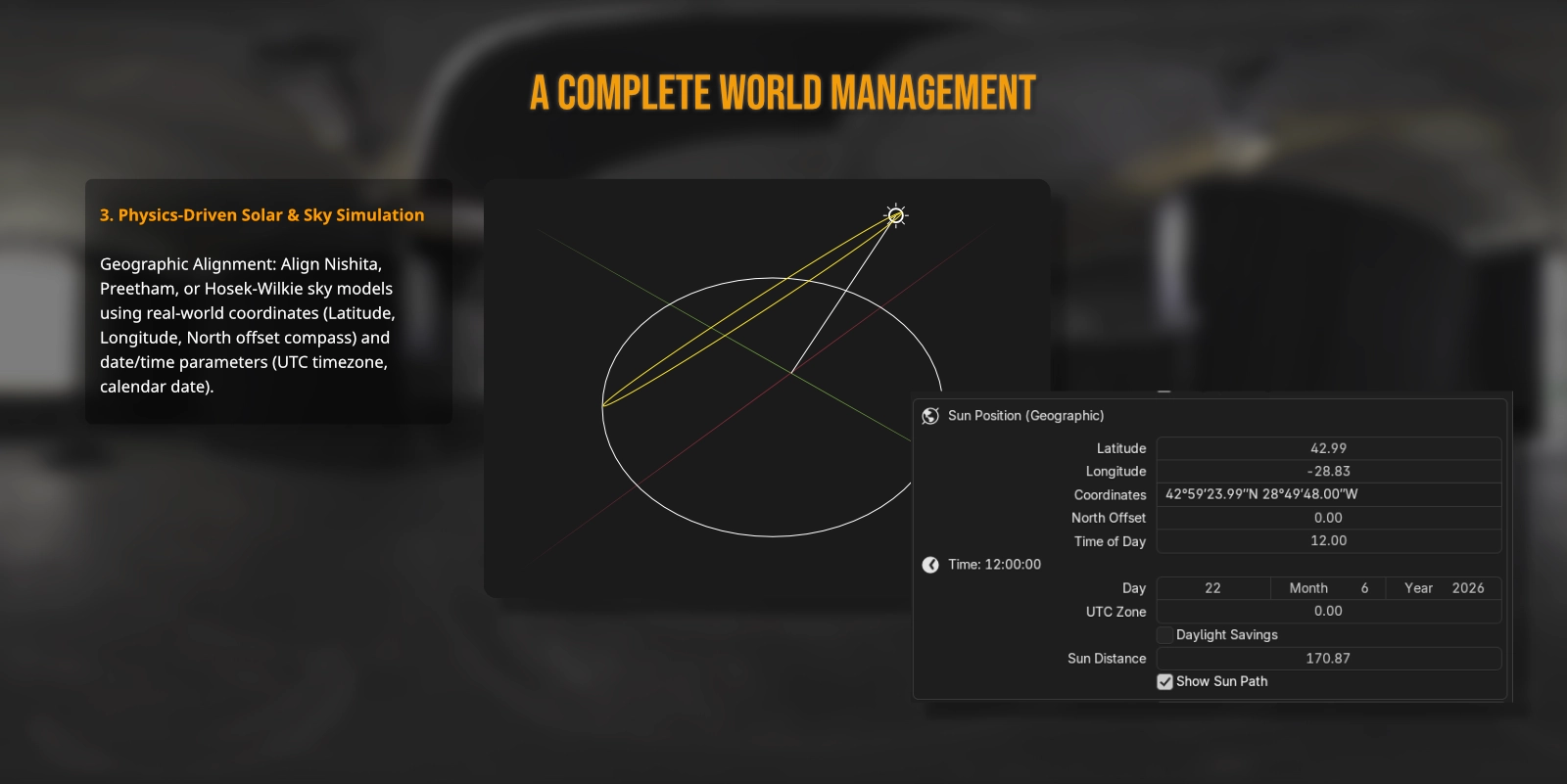
Align your Nishita sky or solar directional lights using real-world geographic coordinates:
- Latitude/Longitude Inputs: Enter standard coordinates in Decimal format or degrees/minutes/seconds.
- 3D Solar Path Overlay: Projects a daily solar path arc and cardinal direction compass inside the 3D viewport.
⌨️ Viewport Control & Shortcuts
Global Hotkeys
| Action | Shortcut | Description |
|---|---|---|
| Quick Popup | Y | Open the Scene Light Manager quick settings popup under the cursor. |
| Interactive HDRI Rotation | Ctrl + Alt + RMB | Hold and drag horizontally in the viewport to spin the background environment. |
Modal Adjustment Mode
| Key | Action Description |
|---|---|
| Hold Shift | Scales down mouse sensitivity for ultra-precise value tuning. |
| LMB / Enter | Confirms value changes and exits interactive adjustment mode. |
| RMB / Esc | Cancels active adjustments and reverts lights to their original values. |
⚙️ Modular Preferences
Tailor every detail of the interface to match your personal pipeline inside Edit > Preferences > Add-ons > K-tools: Scene Light Manager:
- Customize Gizmos: Choose which buttons (Type, Shape, Size, Beam, Isolate) are visible in the viewport clusters.
- Clean Tabs Grid: Choose between a grid or column layout for the preference panels.
- Custom Emissive Keywords: Add your own terms to scan materials and automatically detect custom Mesh Lights.
Developed by Robert Kezives. For full documentation and support details, visit the official repository page.
