Gargantua - Procedural Black Hole - Katagawa
 KATAGAWA
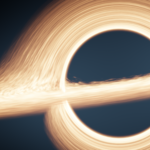
Procedural Black Hole
1. Open the file and find the controls
Open Black_Hole.blend.
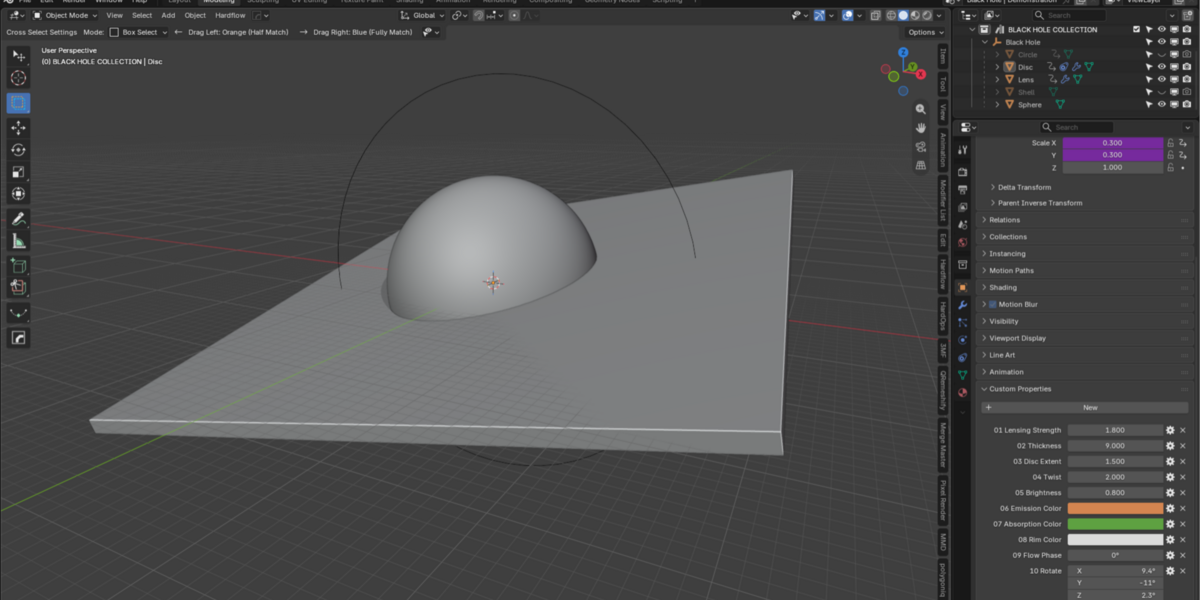
Select Disc in the Outliner.
Click Object Properties (the orange square icon in the Properties editor).
Scroll down and expand Custom Properties.
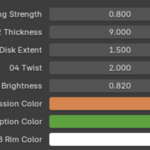
Click a number to type a value. Click a color swatch to choose a color.
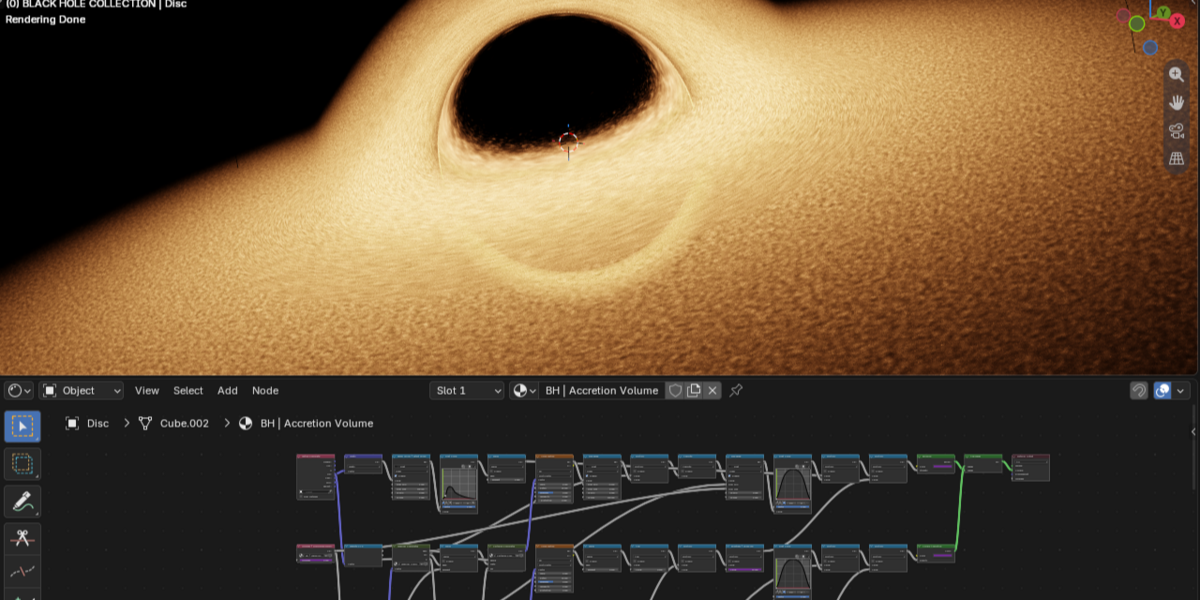
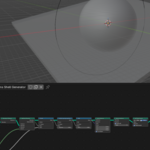
To see the result, switch the viewport to Rendered shading with Cycles
2. Control
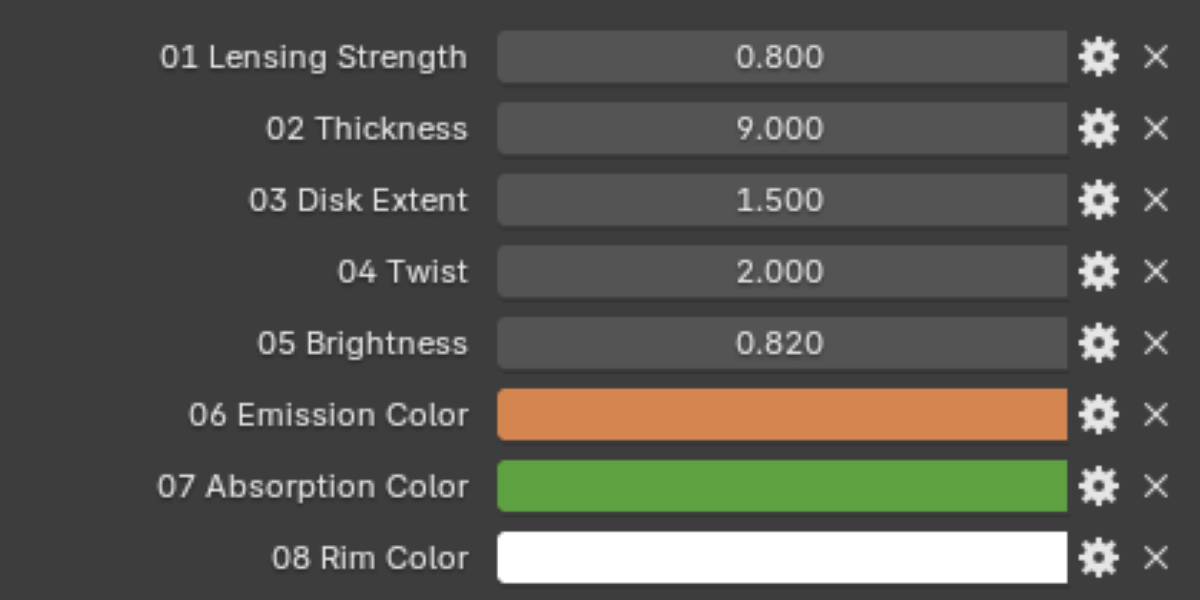
01 Lensing Strength: Adjusts refraction strength and Lens size together
02 Thickness: Makes the luminous disc thinner or thicker
03 Disc Extent: Scales Disc along local X and Y; Z scale stays unchanged
04 Twist: Changes the disc's twisted noise pattern
05 Brightness: Changes how strongly the disc emits light
06 Emission Color: Changes the color of the emitted light
07 Absorption Color: Changes color filtering inside the volume
08 Rim Color: Tints the bright inner refractive rim
09 Flow Phase: Moves the procedural pattern around
10 Rotate: Rotates the disc through Circle using X, Y and Z angles
Have questions about this product?
Login to message
| Published | about 1 hour ago |
| Blender Version | 4.5 - 5.2 |
| Render Engine Used | Cycles |
| License | Royalty Free |
Discover more products like this
geometry node gargantua black hole blackhole gravitational lensing sci fi interstellar space black-hole procedural circle shader-node