 MeiU
MeiU
Lazy Animation — Make Blender Animation Faster and More Intuitive
One-click keyframe creation, custom curve movement, multi-object sync and reverse modes. From beginners to professional designers, create smoother animations with fewer steps.
Video Demo: Lazy Animation Overview
Why Do You Need Lazy Animation?
Animation production often gets stuck in tedious keyframe setup, path binding, and multi-object coordination. Too many steps, prone to errors, and scattered workflows drain your creativity. Lazy Animation is designed specifically for Blender users, achieving more effects with fewer operations, leaving you time for creativity and quality.
- Save 50%+ animation creation time
- Intuitive operation, no additional technical background required
- Stable workflow, supports multiple creative scenarios (frame-by-frame / sync / reverse)
One-Click KeyframesAutomatically generate movement keyframes for objects, eliminating tedious steps and easily creating smooth animations. |
Custom Curve PathsMove along custom curves to quickly complete camera movements, path animations, and object sequences. |
Multi-Object SyncDrive multiple objects simultaneously, easily creating sequence and group effects. |
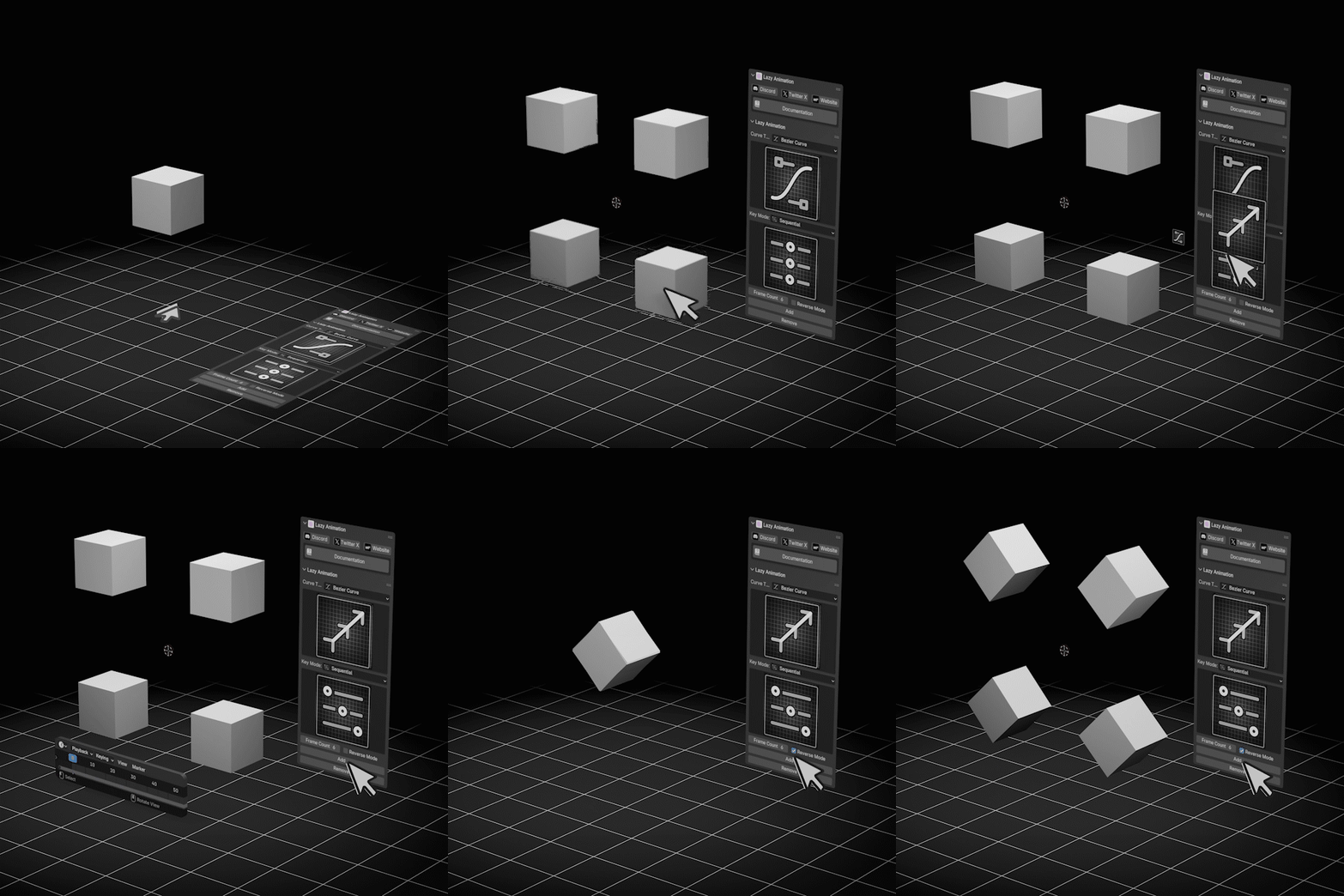
Practical Application
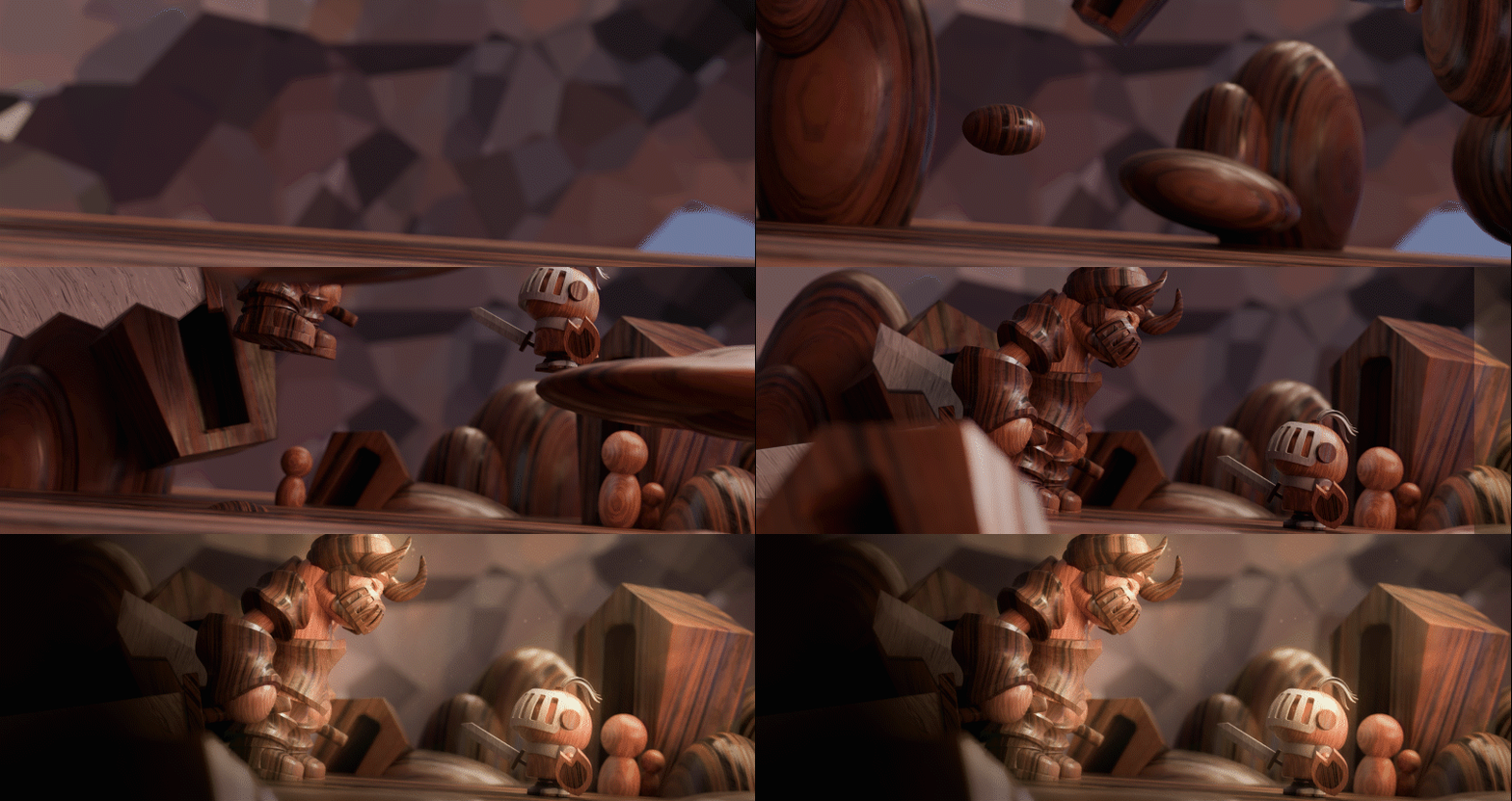
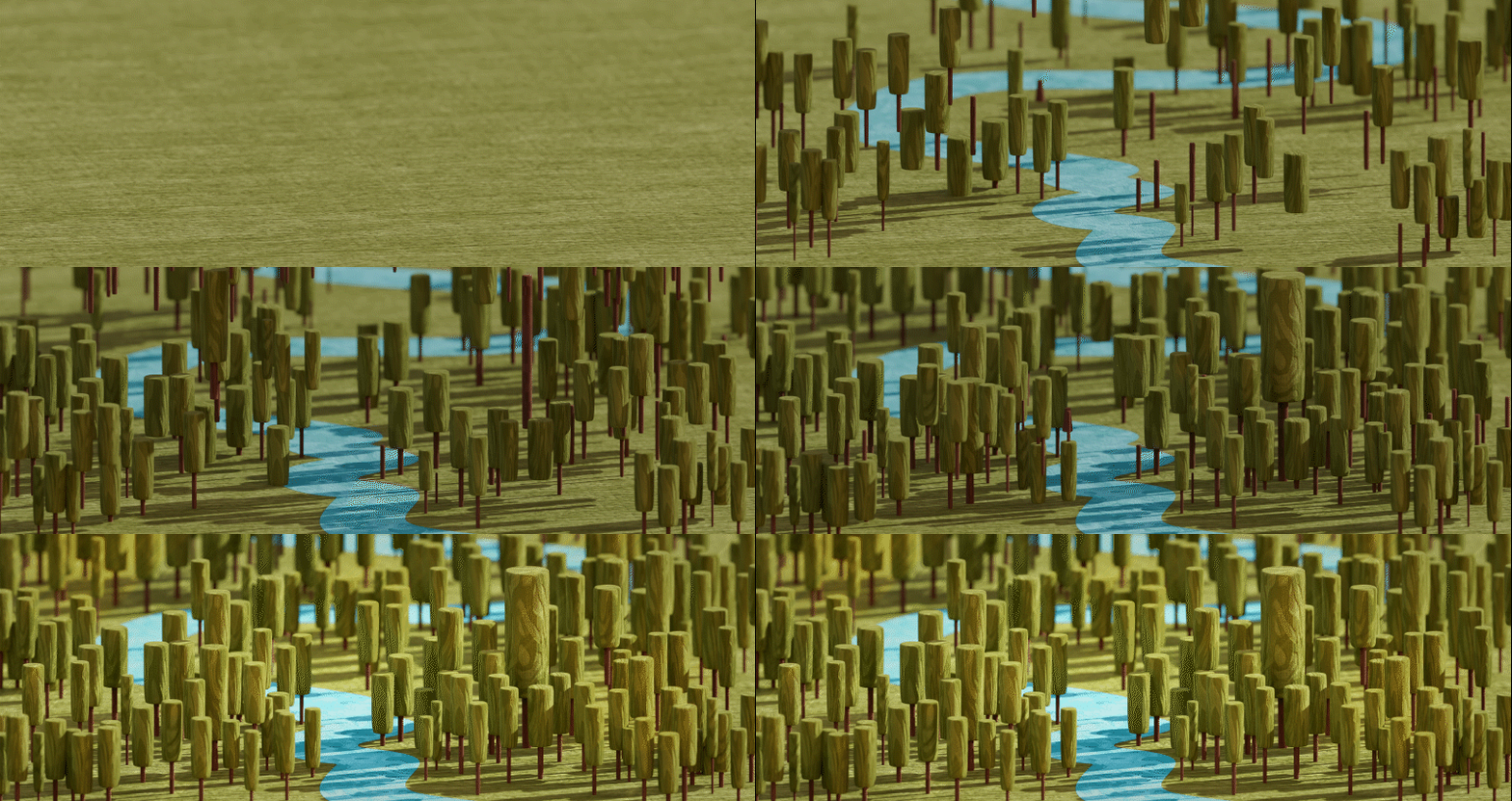
Core Features
Quick Keyframe Setup
With just one click, generate movement keyframes for selected objects, saving tedious setup time and avoiding common errors.
Custom Curve Path
Objects can move along custom curve paths, suitable for camera movements, product positioning, sequence animations, and more.
Synchronized Multi-Object Animation
Control multiple objects simultaneously, quickly creating group actions and rhythm changes in complex scenes.
Reverse Mode
One-click reverse animation direction, quickly creating back-and-forth or rewind effects, increasing creative flexibility.
Two Modes: Frame-by-Frame / Sync
Switch between frame-by-frame and sync modes as needed: frame-by-frame for precision, sync for efficiency, meeting different production workflows.
3 Steps to Start Your Animation
| Step 1 | Select Objects
Select the object(s) you want to animate in Blender.
|
Step 2 | Choose Mode and Path
Switch between frame-by-frame or sync mode, and specify a custom curve as path when needed.
|
Step 3 | One-Click Generate and Fine-tune
Press the generate button to instantly get keyframes; you can also use reverse mode for variations.
|

Frequently Asked Questions FAQ
Join Discord Server! 
My other products