 Bookyakuno
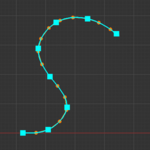
Smooths edge loops using curves
The edge shape is corrected to follow the curve.
You can adjust the shape by manipulating the curve's control points during execution.
Since the curve is created virtually, it does not pollute the data.
It works with mesh edge, geometry, pose bone, and armature editing.
Geometry Mode
In mesh editing mode, if the selection mode is set to [Face], it automatically switches to a mode that targets the entire selected geometry.
A curve is placed at the core of the shape (the center point when the geometry is sliced).
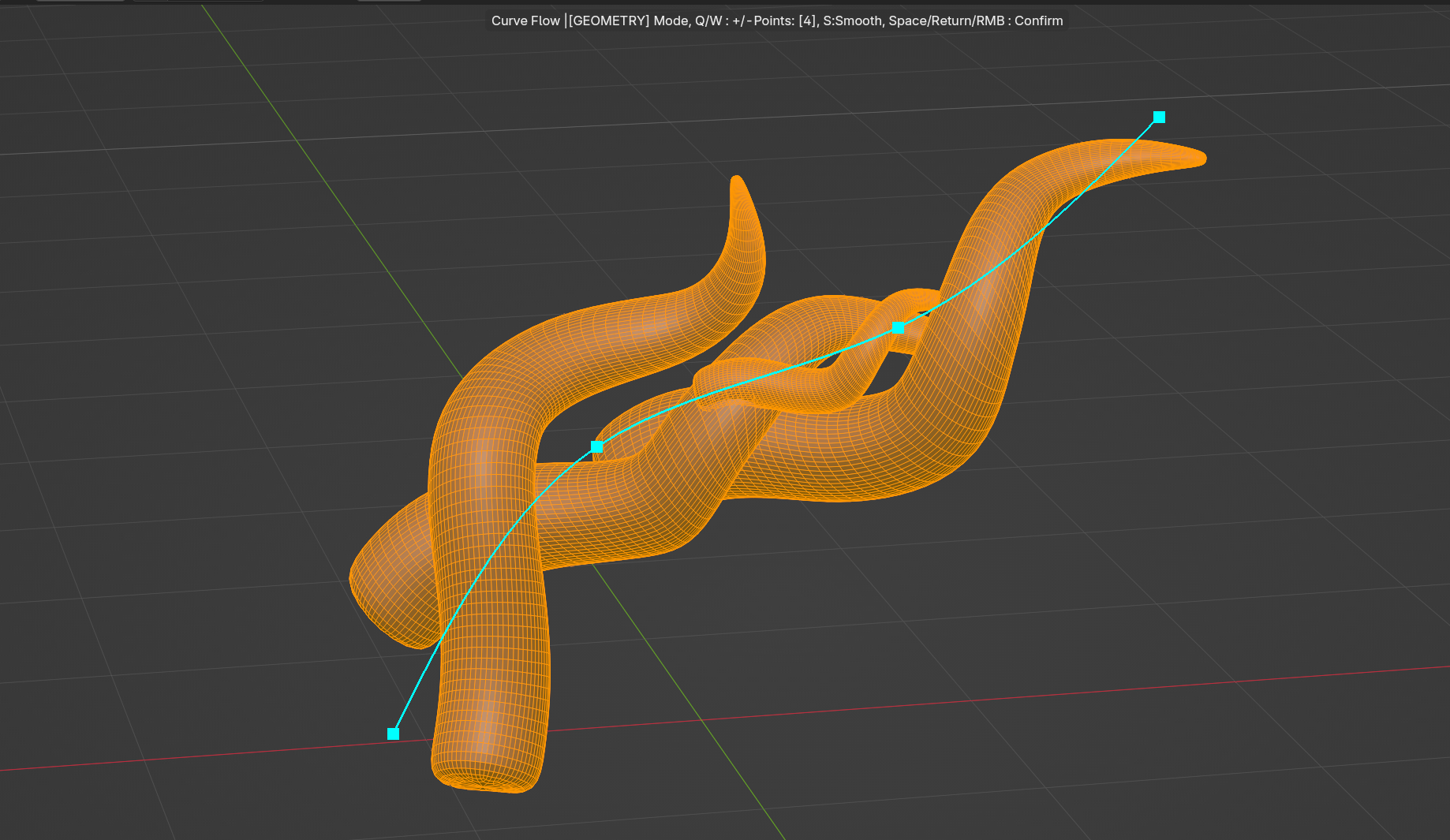
If the selected mesh consists of multiple parts, the entire mesh will be edited.
A smaller number of control points makes it easier to edit the entire mesh smoothly.
Options
-
Control point (Q/W)
-
The number of control points on the curve.
Even if you make changes while the program is running, the curve will be increased or decreased while maintaining the shape of the curve being edited.
-
-
Averaging (A)
This equalizes the spacing between vertices.
-
Smooth (S)
Each time you press the S key, the curve becomes smoother and flatter.
Change the appearance
You can change the appearance in the add-on settings.
-
Curve point size
The size of the points on the curve UI.
-
Curve line width
The width of the curved line in the UI.
Keymap
Alt + Shift + C