 ZEG



Installation
In Blender open Edit, Preferences, Get Extensions, then use Install from Disk and pick the library_generator zip.
Usage
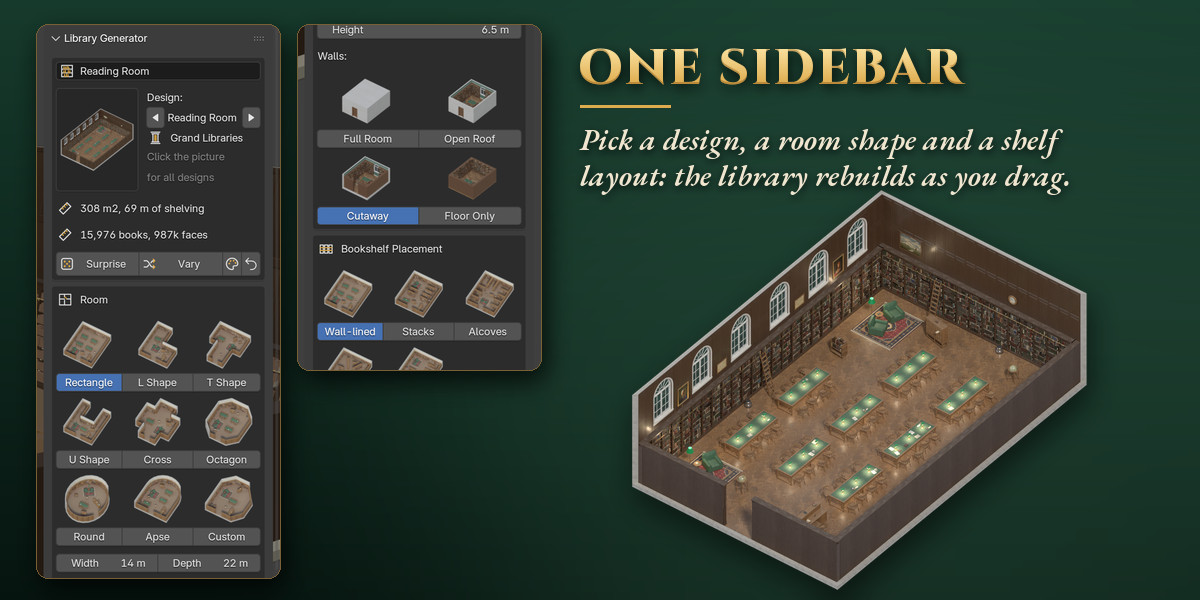
- Open the Library tab in the 3D viewport sidebar (N). With nothing selected, click the picture to choose one of the 24 designs and press Add to Scene, or press Surprise. You can also use Shift+A, Mesh, Library.
- With the library selected, the card at the top shows its floor area, metres of shelving, book count and face count. Surprise makes a new random library in place, Vary changes size and details, the palette button picks a random finish and the arrow resets the design.
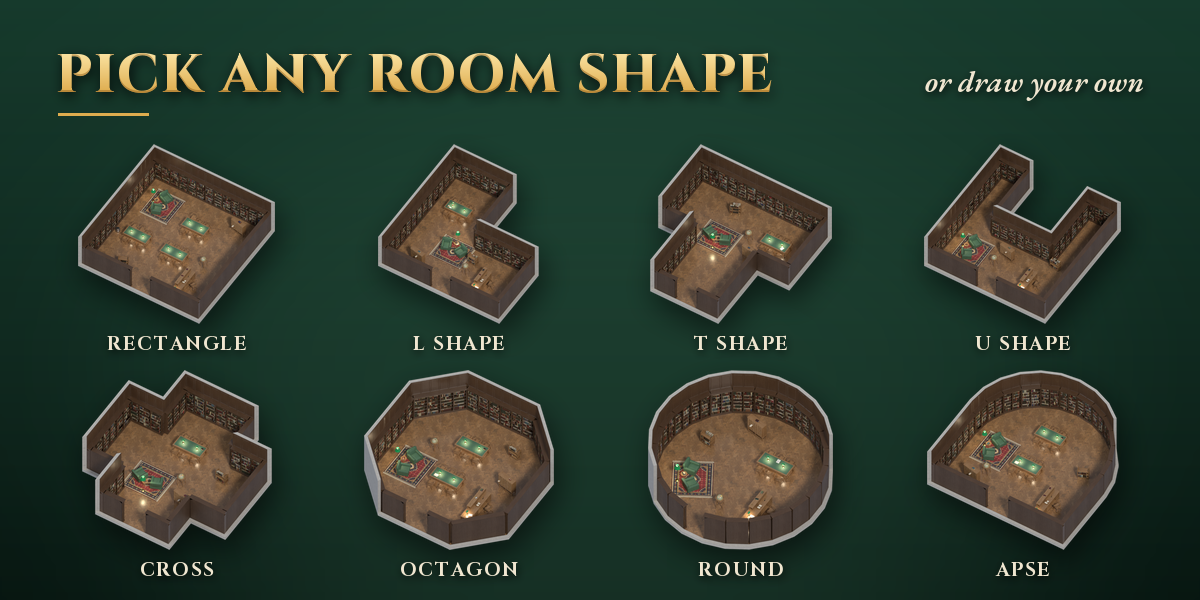
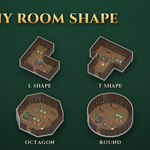
- Room: click a picture to pick the shape, then set width, depth and height. Walls switches between Full Room, Open Roof, Cutaway and Floor Only.
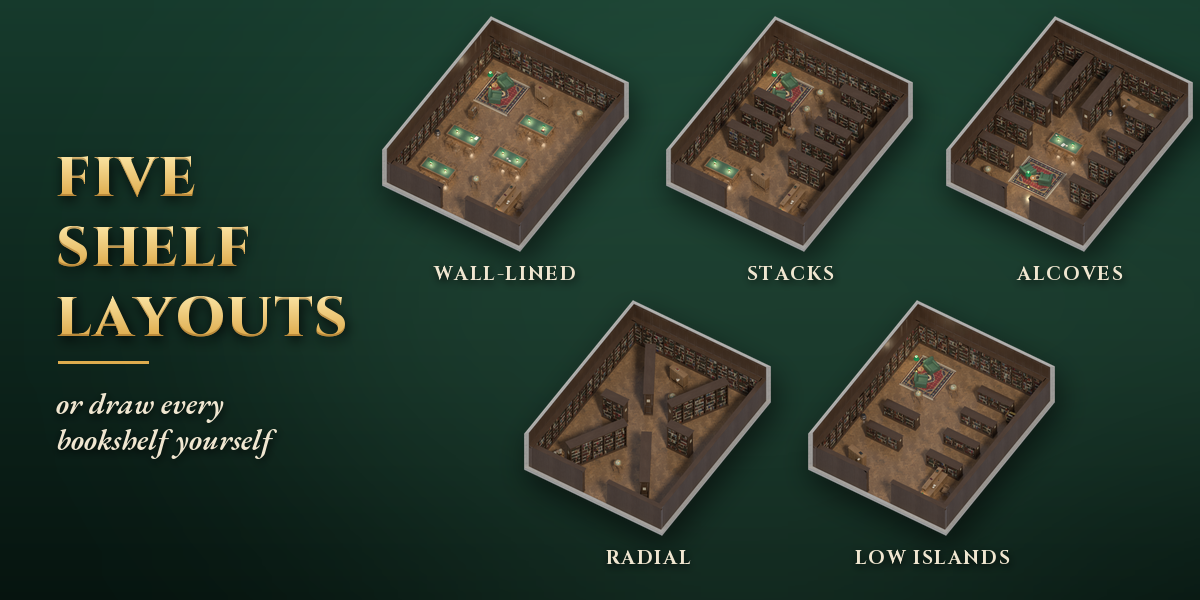
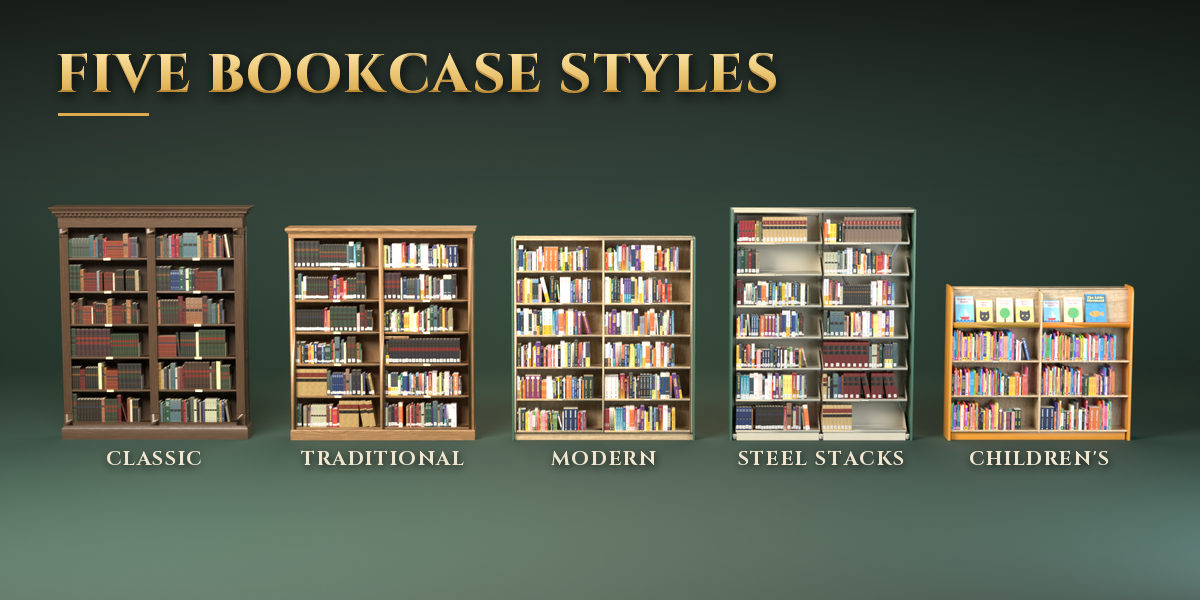
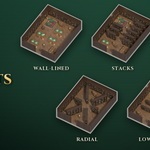
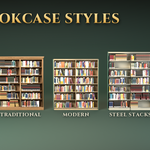
- Bookshelf Placement: pick Wall-lined, Stacks, Alcoves, Radial or Low Islands, and a bookcase style.
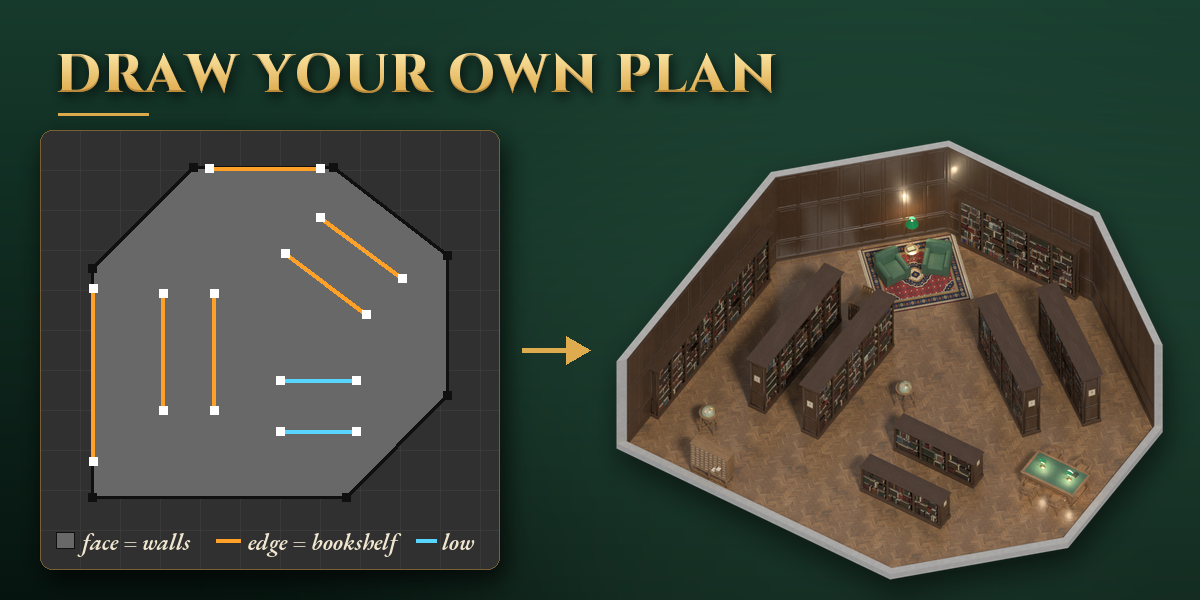
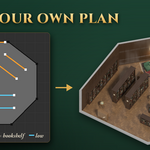
- Edit Floor Plan opens a flat plan in Edit Mode. The face is the room: move its corners, or add more with Ctrl+R. Loose edges are bookshelves: move them, press E to draw more, X to delete. An edge along a wall is a wall bookcase, an edge on the floor a double-faced range, and Edge, Mark Sharp makes a low shelf. Press Apply Plan (or leave Edit Mode with Live Update on). Back to Automatic drops the drawn plan.
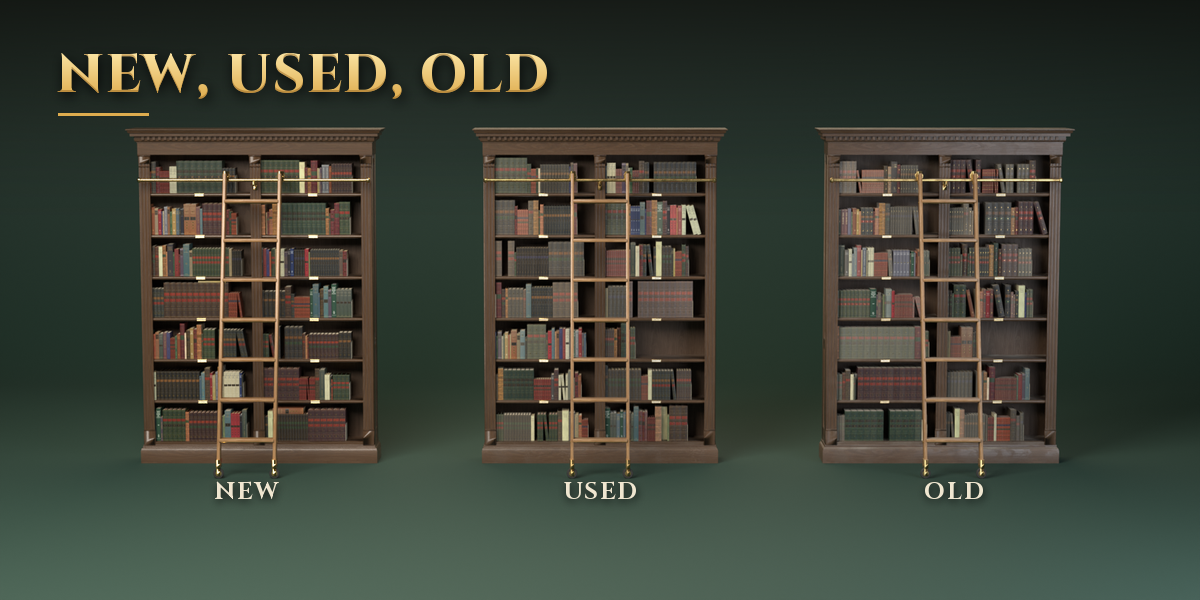
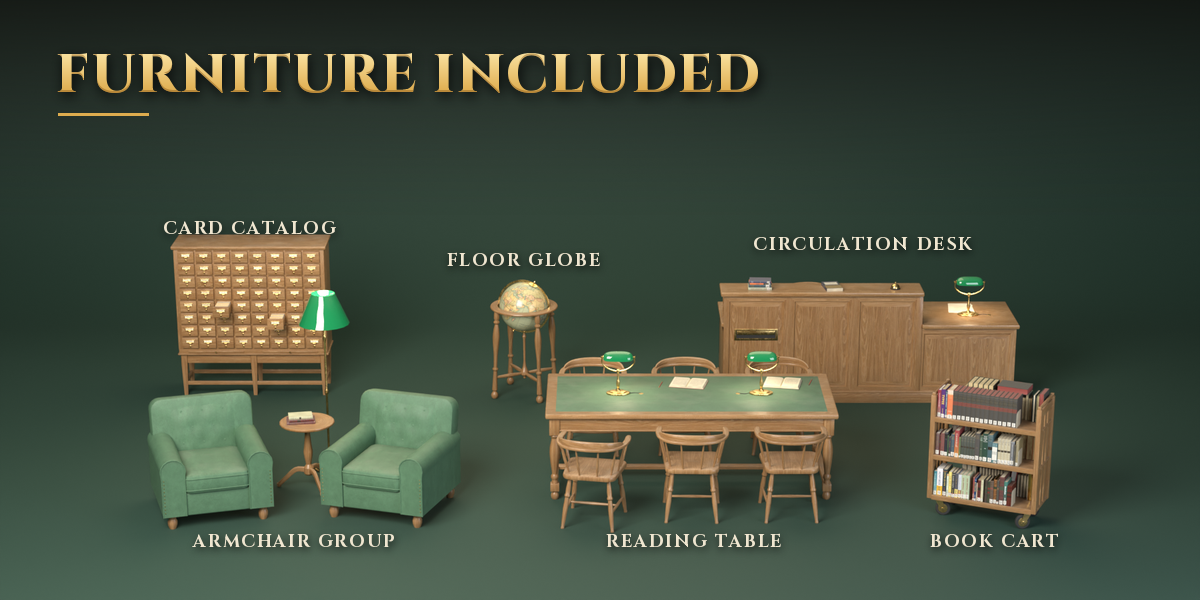
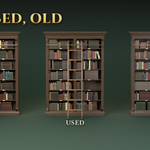
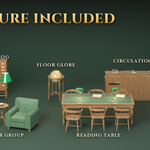
- The panels below hold the room details (doors, windows, ceiling, columns, gallery), shelving sizes, books, furniture, and Materials & Lighting with the New, Used and Old condition, wear, dust, lights and daylight.
- Detail & Output sets the detail level and seed; Convert to Mesh turns the library into a plain mesh for editing or export.
Tip: a large library holds tens of thousands of books. Lower Detail or the book Fill while you lay out the room, then raise them for the final render.
Have questions about this product?
Login to message
| Blender Extension Compatible | Yes |
| Published | about 21 hours ago |
| Blender Version | 4.2 - 5.2 |
| Extension Type | Add-on |
| Render Engine Used | Cycles, Eevee |
| License | GPL |

Discover more products like this
procedural room ArchViz Game asset bookshelf architecture books Interior bookcase furniture Generator Library