 ZEG
Install and add a switch
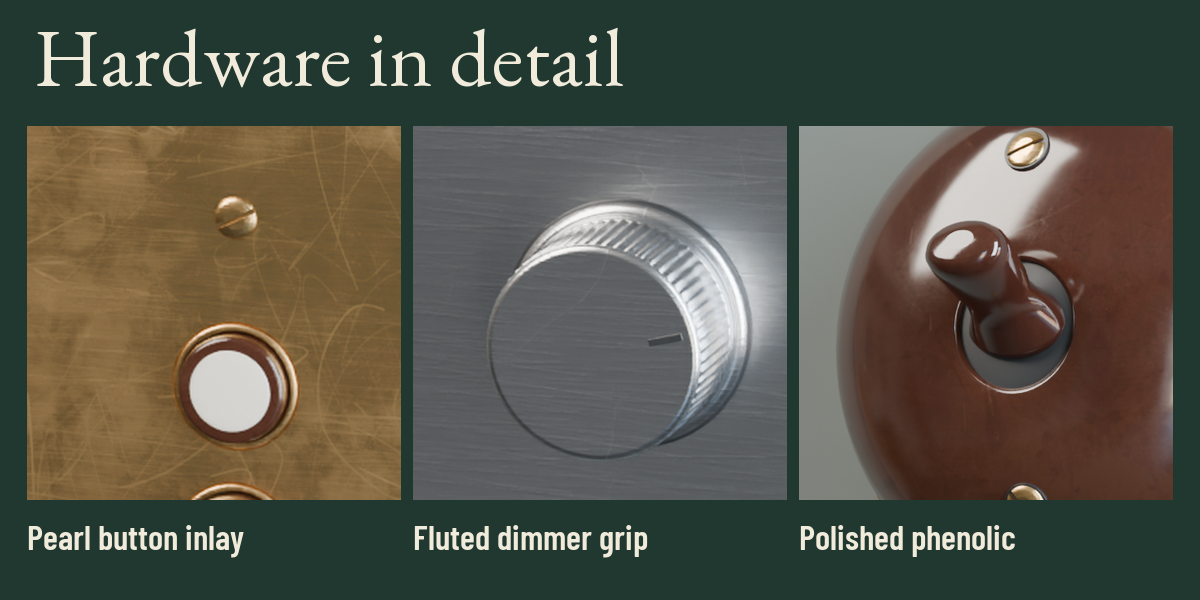
In Blender Preferences choose Install from Disk, select the extension ZIP and enable Light Switch Generator. Open the 3D Viewport sidebar with N and select the Switches tab.
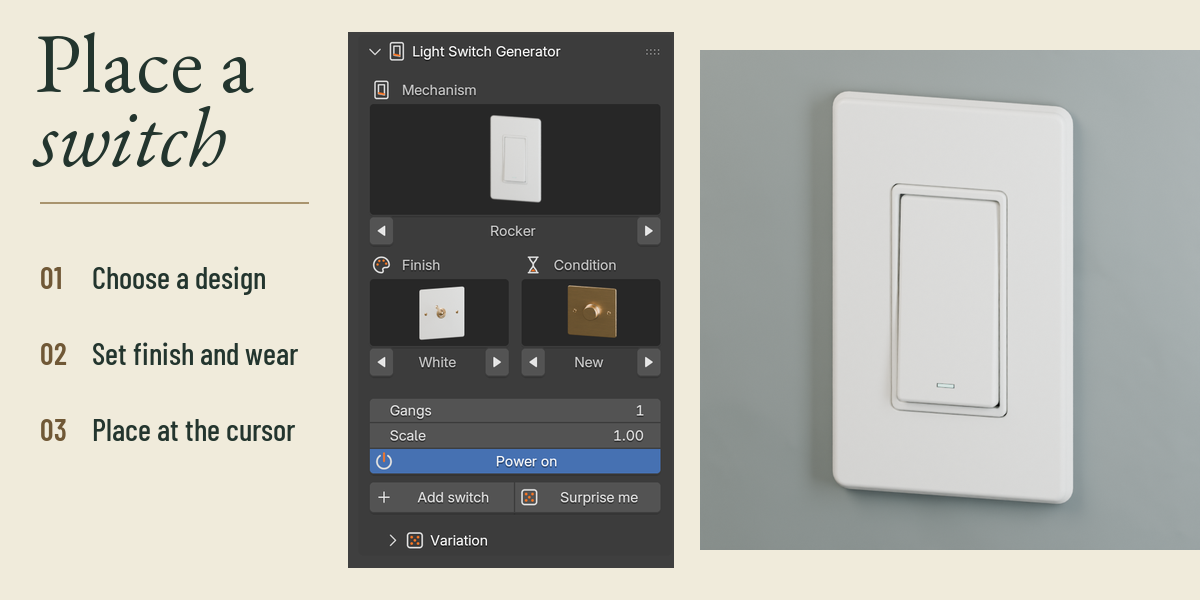
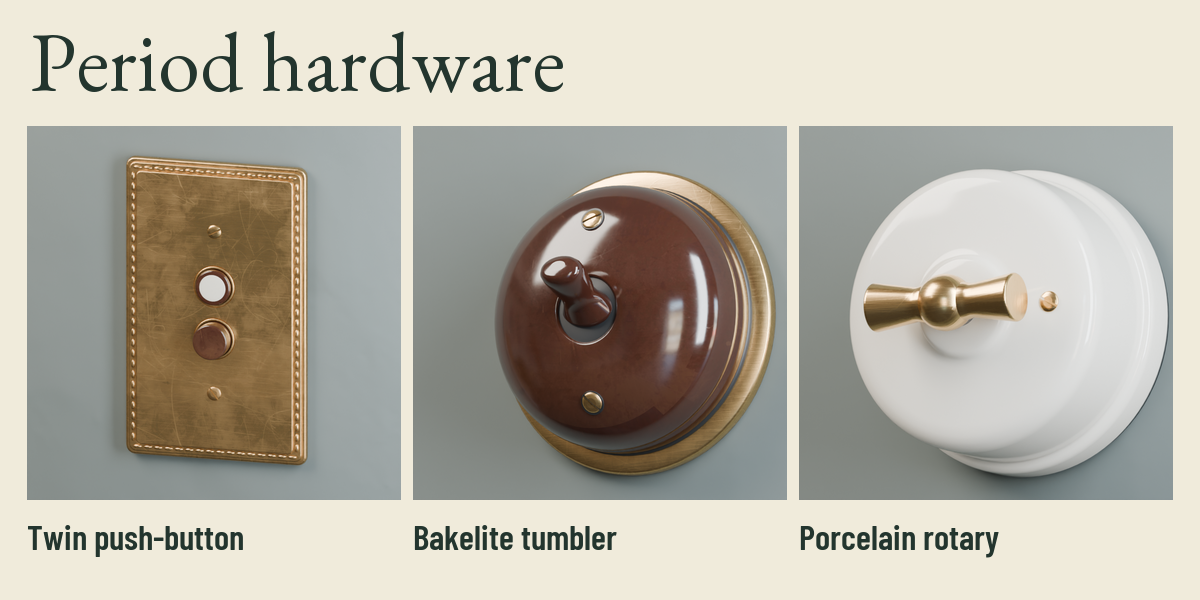
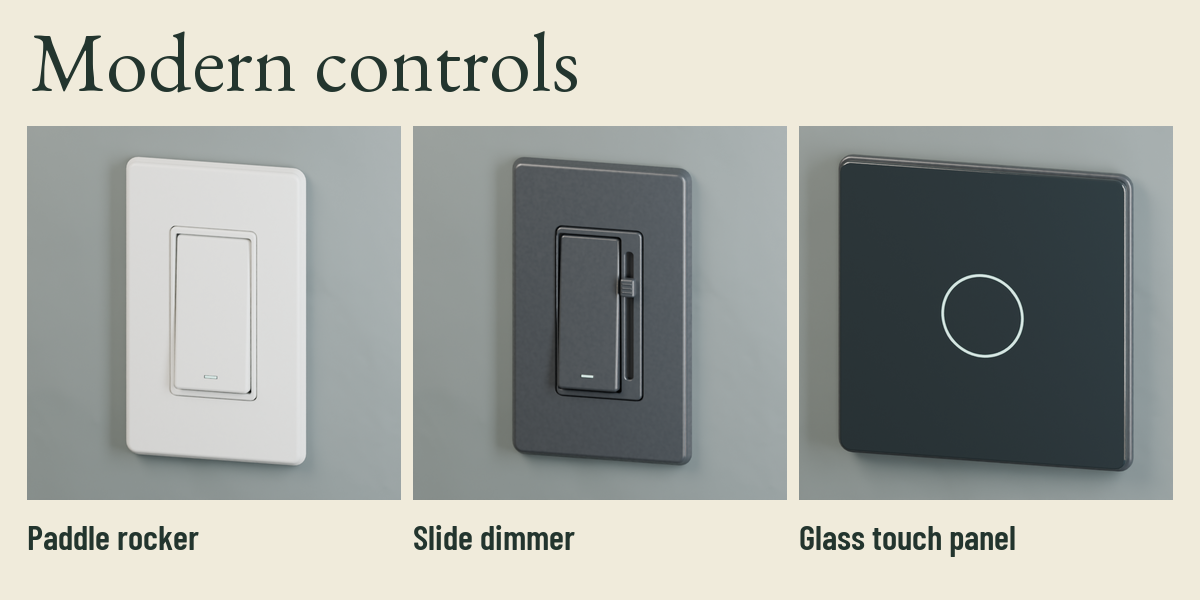
- Place the 3D cursor at the mounting point. With no switch selected, click the mechanism picture to open the gallery and choose a design.
- Choose Finish and Condition, set the number of gangs and scale, then click Add switch. You can also add a switch from Add > Mesh > Light Switch.
- The switch backs onto local Y = 0 and faces local negative Y. Rotate the object to align it with your wall.
- Select the switch to adjust its settings. Power changes a switch position. Dimmer level changes the dial or slider. Surprise me changes the selected switch in place, or adds one at the cursor when no switch is selected.
Have questions about this product?
Login to message
| Blender Extension Compatible | Yes |
| Published | 2 days ago |
| Blender Version | 4.2 - 5.2 |
| Extension Type | Add-on |
| Render Engine Used | Cycles, Eevee |
| License | GPL |

Discover more products like this
light switch wall-switch Interior procedural ArchViz architecture dimmer porcelain bakelite hardware Generator brass