Light Linking Pro
 Roei Koren


Light Linking Pro (LLP)
(by Roei Koren)
Overview – What Does Light Linking Pro Do?
Light Linking Pro (LLP) is a Blender add-on that makes light linking easy.
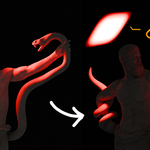
Light linking allows you to control which lights affect which objects in your scene. By default, Blender’s workflow for achieving this (especially in complex scenes) can be tedious. LLP solves this by letting you link multiple lights to multiple objects with a single click. This gives you creative control over your lighting setup in a fraction of the time, without manual workarounds.
Key Features:
One-Click Light Linking:
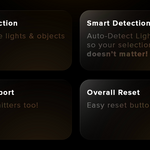
Select any number of lights and objects, then instantly link them so those lights illuminate only the chosen objects. No more fiddling with multiple view layers or light groups manually.
Easy Unlinking:
Quickly remove or adjust links if you change your mind, restoring lights to affect all objects normally.
Improved Workflow:
Simplifies the process, making advanced lighting setups fast and intuitive. Great for artists who want precise lighting effects (such as lighting a character without affecting the background, or vice versa).
Emitter Support:
You can also link emissive objects (objects with emission materials) to specific targets, giving you even more flexibility—great for stylized scenes, product shots, and advanced effects.
Whether you’re lighting an indoor scene with many objects or doing product renders that require isolated lighting, Light Linking Pro helps you get the job done efficiently and accurately.
Installation
Installing LLP is straightforward, just like any other Blender add-on:
-
Download the Add-on:
If you obtained Light Linking Pro from Blender Market, you will have a file (likely a ZIP archive) containing the add-on. There is no need to unzip it. -
Install via Blender Preferences:
-
Open Blender and go to Edit > Preferences > Add-ons.
-
Click the Install... button at the top.
-
In the file browser, locate the
LLP-LightLinkingPro.zipfile you downloaded, and select it. Click Install Add-on.
-
-
Enable the Add-on:
After installation, find “LLP – Light Linking Pro” in the add-ons list (you can use the search bar). Enable it by checking the box next to its name. If needed, press the Save Preferences button so it remains enabled next time you start Blender. -
Ready to Go:
Once enabled, the Light Linking Pro tools will be available in Blender. You should now see the add-on’s panel or be able to access its operators (see How to Use below).
No extra dependencies or installations are required.
How to Use Light Linking Pro
Using LLP is designed to be simple. There are two primary functions: linking lights to objects, and (if needed) unlinking them. Here’s how to use them:
Linking Lights to Objects:
-
Select Lights and Objects:
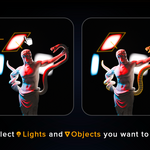
In your 3D scene, select the light(s) you want to link, and the object(s) you want those lights to affect. You can Shift-select multiple items or box-select. The add-on will automatically detect which of the selected items are lights and which are regular objects. ( ~ like magic ~ ) -
Execute Light Linking Pro:
Trigger the linking operation. You can do this in one of two ways:-
Via the 3D View Sidebar:
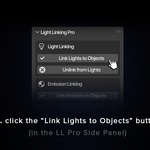
PressNto open the sidebar. Look for a panel called “LL PRO”. In that panel, click the “Link Lights to Objects” button (or similarly named button provided by the add-on’s UI). -
Via Search (F3) or Menu:
Alternatively, pressF3and type “Link Lights to Objects”. Select the operator from the search results to run it.
-
-
Result:
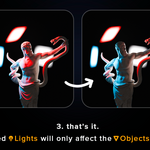
LLP will create light links behind the scenes. The selected lights will now only illuminate the selected objects, and no others.
Unlinking Lights (Removing Links):
If you want to revert a link or adjust your setup:
-
Select the relevant lights and/or objects that were previously linked, then use the “Unlink from Lights” button to remove the link (or a separate operator accessible via F3 search: Unlink from Lights). Running the unlink operation will restore the selected lights (and their group selection) to their default behavior (so they will again affect all objects in the scene, unless other links still restrict them).
-
If you have multiple links and only want to remove specific ones, ensure you select the particular lights/objects involved in those links before running Unlink. The add-on will then remove only those relationships.
General Usage Tips
-
You can link multiple lights to multiple objects in one go.
For example, you could select three lights and two objects and click Link – all three lights will be set to illuminate only those two objects.
This batch operation saves a lot of time in complex scenes. -
Similarly, linking one light to many objects or many lights to one object works in the same single operation. There’s no need to repeat the process for each light-object pair individually.
-
The add-on’s linking is non-destructive. It doesn’t delete or duplicate objects; it just changes which objects a light affects. You can always unlink to go back to the normal state.
-
LLP works well with both Cycles and EEVEE render engines (the linking logic is compatible with both). Keep in mind that in Blender’s current versions, light linking is officially supported in Cycles and (as of Blender 4.x) in EEVEE. LLP takes advantage of these engine features to achieve the linking effect seamlessly.
-
For scenes with many lights, consider naming or organizing your lights so it’s easier to select the ones you want. LLP will link exactly the lights you have selected (and only those), so good selection sets are key to using it efficiently.
Compatibility
-
Blender Versions: LLP is developed for Blender 4.x and above. It has been tested with Blender 4.0 up to the latest Blender 4.0 series. It should work fine on any recent Blender release.
-
Operating Systems: The add-on is platform-independent. It works on Windows, macOS, and Linux – basically anywhere you can run Blender, you can use LLP.
-
Render Engines: LLP’s features are compatible with both Cycles and EEVEE.
-
No External Dependencies: The add-on uses only Blender’s Python API and does not require any third-party libraries or scripts. Just install it into Blender and it works.
-
If Blender introduces changes to the light linking API in the future, LLP will be updated accordingly. Always check for the latest version of the add-on for best compatibility.
Version History
Version 1 – First public release of Light Linking Pro.
-
Introduces one-click linking of multiple lights (and emitters) to multiple objects.
-
Includes UI panel and operators for linking and unlinking lights and emitters easily.
-
Tested with Blender 4.3 (Cycles & EEVEE Light Linking).
-
Focused on streamlining the lighting workflow for Blender artists.
(Future updates will be listed here, with new version numbers and change details.)
Have questions about this product?
Login to message
| Sales | 10+ |
| Published | over 1 year ago |
| Blender Version | 4.2 - 4.4 |
| Extension Type | N/A |
| Render Engine Used | Cycles, Eevee |
| License | GPL |
Discover more products like this
PRO light light-linking light linking pro proffesional Light Linking panel 3d artistic rendering