 Skava
Skava
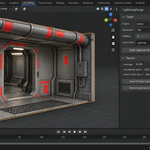
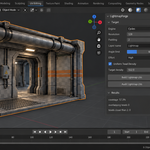
LightmapForge — Documentation (v1.0.0)
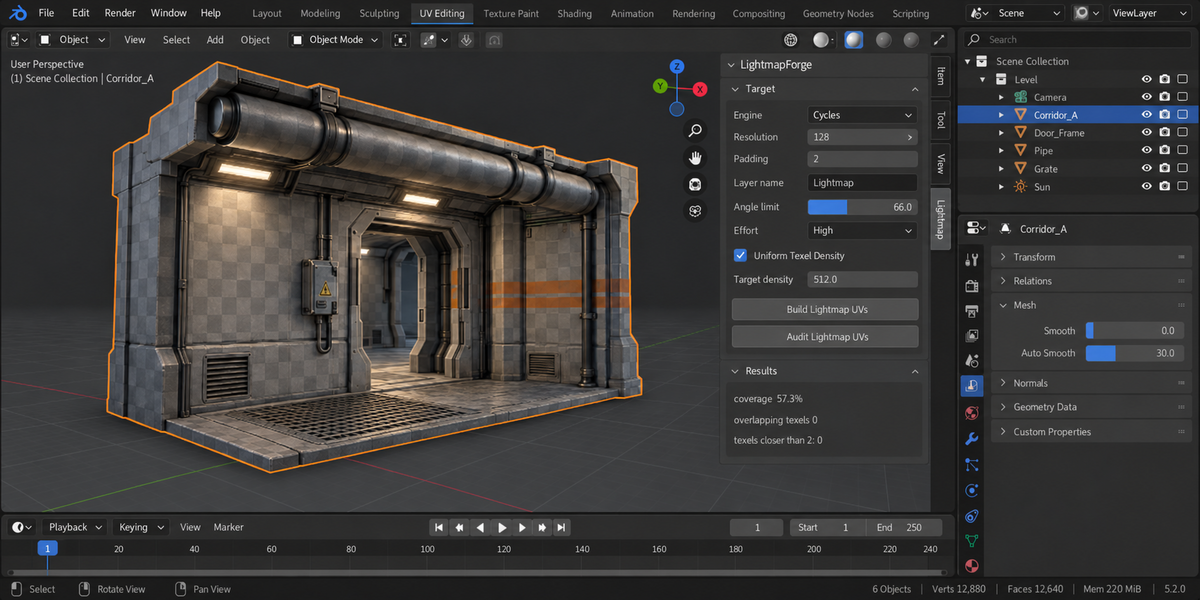
A lightmap UV builder for Blender that states its result in the units the engine works in: texels. Every number in the panel is measured on a grid the size of the lightmap, not estimated.
1. Install
Download the zip and leave it zipped. In Blender open Edit, then Preferences, then Add-ons. Use the arrow button in the top right corner of that window and choose Install from Disk, then pick the zip. Tick the checkbox next to the add-on name. Press N in the 3D Viewport and the Lightmap tab appears in the sidebar.
Updating from an earlier version: remove the old one in Preferences first, then install the new zip and restart Blender.
2. What a lightmap UV channel has to be
An engine that bakes light needs a second set of UVs where nothing overlaps and every island keeps a gap from its neighbours. The gap is what stops light from one surface bleeding onto another when the lightmap is filtered and mipped. Engines count that gap in texels of the lightmap; Blender's unwrap operators take a margin as a fraction of UV space. Two texels on a 128 pixel map and two texels on a 512 pixel map are different fractions, and getting it wrong is invisible until the bake.
3. Quick start
- Select the meshes. They should already have their own UV map — the lightmap goes in the channel after it.
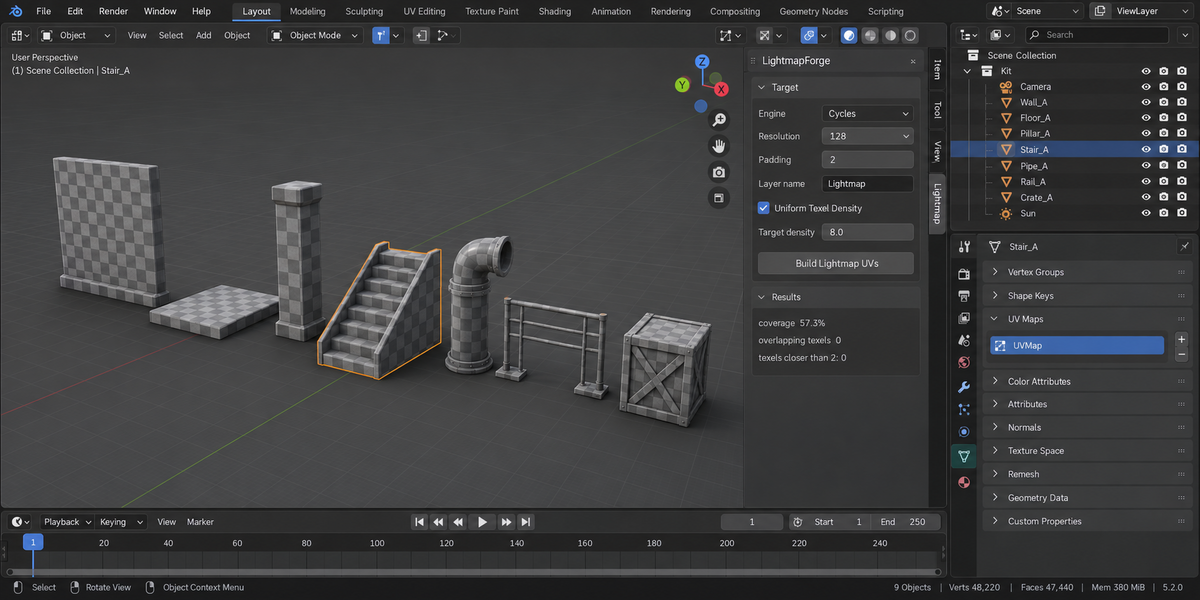
- In the Lightmap tab pick the engine preset, the lightmap size and the padding in texels.
- Press Build Lightmap UVs.
- Read the Results panel.
4. Target settings
- Engine. Unity, Unreal and Godot presets set the padding and a typical size. The UV layer name is not part of a preset: engines read UV channels by order, not by name.
- Lightmap Size. The size of the map this object will occupy. Every measurement is taken on a grid of exactly this size.
- Padding. The gap the layout must hold, in texels. Two texels stop bleeding under bilinear filtering; four survive one mip level.
- UV Layer. The name of the layer the result is written to. Layers with any other name are never touched.
- Angle Limit. Where the projection breaks into a new island. Lower values give more, flatter islands.
- Effort. How many layouts to measure. Blender's unwrap returns a slightly different layout every time it runs, so extra tries cost seconds and sometimes win several points of coverage. Balanced is the default; Fast is for large scenes.
5. What Build actually does
For each selected mesh it prepares several candidate layouts — smart projection at your angle, at 89 degrees and at 45 degrees, the built-in Lightmap Pack, a repack of your existing UVs, and, on a second run, the layout already sitting in the layer. Each candidate is packed with the margin that corresponds to your padding, then drawn into the texel grid and counted. If the measurement shows islands closer than the padding, the margin is raised and the candidate is packed again, up to three times.
The candidate with the best measured result wins. Islands overlapping each other and a gap that fell short both disqualify a candidate against one that has neither; among the rest the score is coverage, discounted by ten times the share of texels where a projection folds onto itself.
Because the layout already in the layer is one of the candidates, a second Build cannot make things worse. It either keeps what is there or replaces it with something that measured better.
6. Reading the report
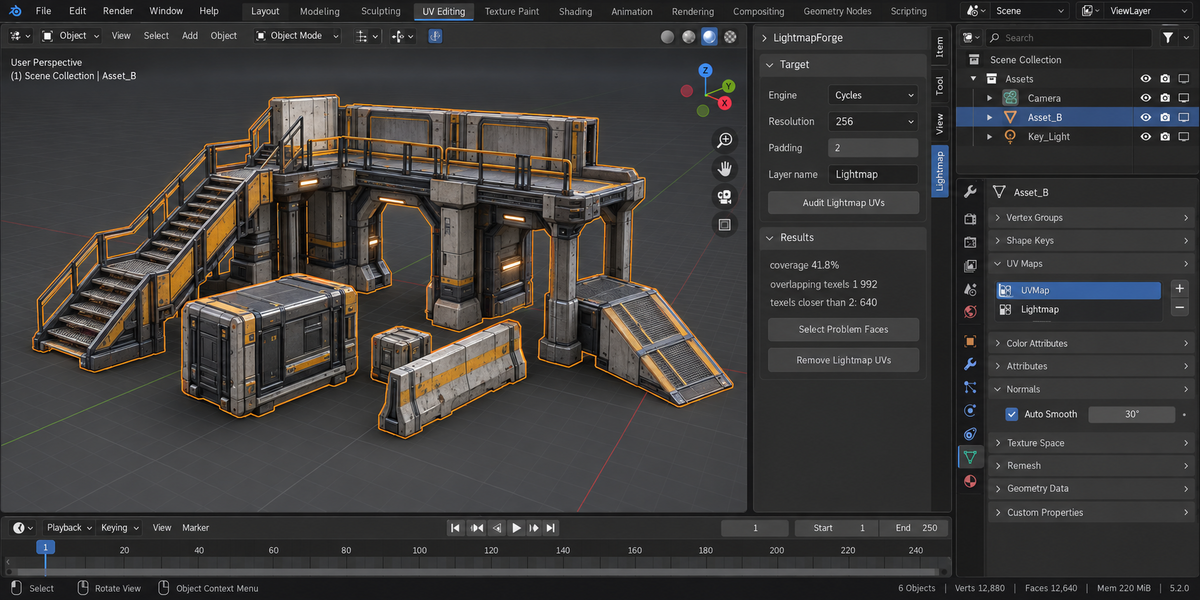
- Coverage. The share of the map the layout uses. Higher means more lightmap resolution spent on the surface instead of on empty space.
- Islands overlapping. Texels claimed by two different islands. Must be zero: this is light from one surface baking onto another.
- Folded onto itself. Texels where one island covers the same spot twice — the projection folded. Packing cannot fix it; a seam through the fold can. Problem Faces shows exactly where.
- Padding. Held, or the number of texels that ended up closer than required.
- Texels per meter. The lightmap resolution of that object in world units, which is what decides how crisp its baked shadows are.
- Method. Which candidate won, and how many layouts were measured.
- UV channel. Shown when the lightmap did not land in channel two, because engines read it from there.
7. Uniform texel density
With this on, every object gets its own lightmap size so that one texel covers the same amount of surface everywhere. Leave Texels per Meter at zero and the target is taken from the scene: the largest selected object keeps the size you chose and the rest are scaled to match it.
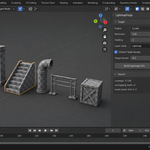
The first size is a prediction, so it is checked. After building, the density that was actually achieved is compared with the target, and objects that missed are rebuilt at a corrected size — up to three steps, keeping whichever attempt measured closest. On a set of four props of different sizes this took the spread from 8.4 times down to 1.31.
Two limits are reported rather than hidden. An object whose surface is small enough that the padding would eat the whole map is grown until the layout is usable again, and the report says by how much that pushes it off the target density. An object already at the smallest or largest size says so as well.
The size chosen for each object is written onto the object as a custom property and shown in the panel. No exporter carries it into an engine by itself: in Unity that number becomes Scale In Lightmap on the renderer, in Unreal it is the static mesh Light Map Resolution, and in Godot it maps to the lightmap texel size.
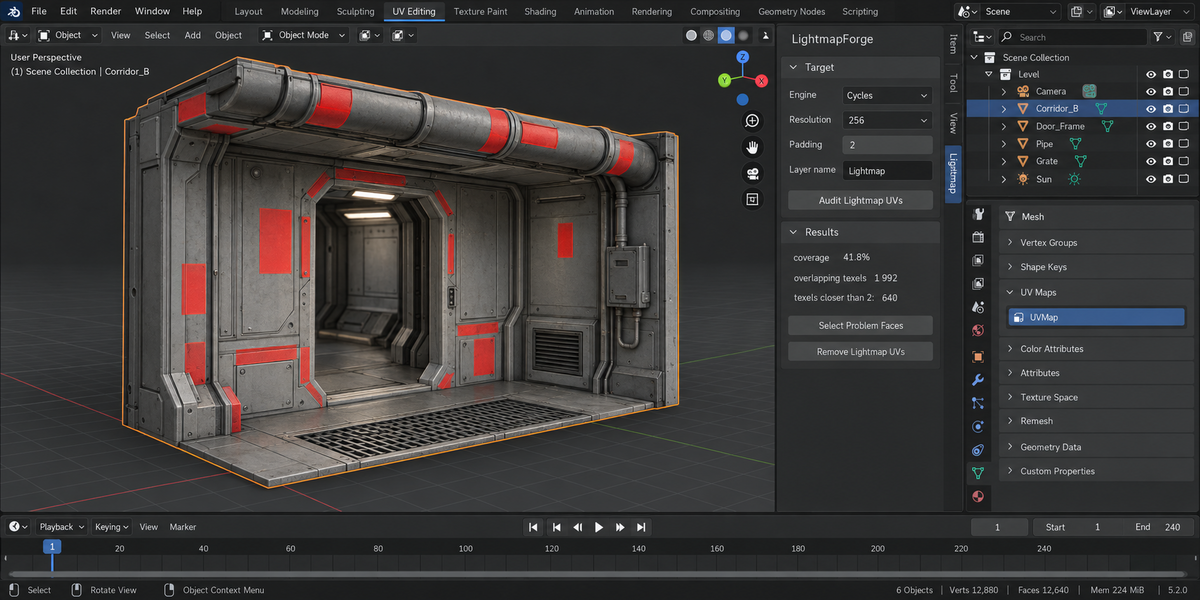
8. Audit
Audit measures the lightmap layer that is already there — made by this add-on, by another tool or by hand — and changes nothing. It is the fastest way to find out whether a scene you inherited is safe to bake. Thirty objects take under a second.
9. Problem Faces
Switches the active object into edit mode and selects the faces whose texels overlap another island or sit closer than the padding. Nothing to fix means nothing is selected and the mode is left alone.
10. Remove
Deletes the layer named in the panel from the selected meshes, and the stored size along with it. No other UV layer is affected.
11. Troubleshooting
The report says the lightmap landed in UV channel one. The mesh had no UV map of its own. Unwrap the base UVs first, then build again, and the lightmap will sit in channel two where the engine expects it.
An object came out with a tiny map and almost no coverage. Padding on a small map is expensive: two texels on a 16 pixel map is a quarter of it. The add-on grows the map until the layout is usable and says so; lowering the padding or accepting a larger size are the other two ways out.
Coverage differs slightly between two runs on the same mesh. Blender's own unwrap is not deterministic — measured on one mesh it returned 36 percent one time and 47 the next. That is why the existing layout is a candidate: build again and the better of the two is kept.
The report says texels are shared after the modifier stack. A Mirror or an Array modifier copies the geometry and gives every copy the same UVs, so the mesh you exported has two surfaces sitting on the same lightmap texels even though the mesh in Blender is clean. Measured on a bevelled crate with a Mirror modifier: nothing overlapping on the mesh itself, 11269 texels shared after the modifier. Apply the modifier before building the lightmap, or leave it out of the export. The add-on measures both the mesh and what the modifier stack turns it into, and reports the second number whenever it is worse.
The mesh already has eight UV layers. That is Blender's limit and no ninth can be added; the report says which object. Delete a layer you do not need.
Nothing happens when I press Build. The button needs object mode and at least one selected mesh with faces.
12. Limitations
- It builds and measures UVs. It does not bake light, make materials or export anything.
- The measurement samples texel centres, which is how a lightmap is rasterised. A sliver of geometry thinner than a texel can therefore hold no texels at all — it shows up as coverage that is lower than the geometry suggests.
- The built-in Lightmap Pack is skipped as a candidate above twenty thousand faces, where it turns every face into its own island; the report says when that happened.
- Modifiers that duplicate geometry are reported, not repaired: the add-on cannot decide for you whether to apply a Mirror or to drop it from the export.
- Islands are packed into the unit square per object. Packing several objects into one shared lightmap atlas is a different job and is not done here.
13. Changelog
v1.0.0 — first release.
14. Support and license
GPL-3.0. Questions and bug reports through the product page on Superhive; a mesh that reproduces the problem gets it fixed fastest.
Have questions about this product?
Login to message
| Published | 1 day ago |
| Blender Version | 4.2 - 5.2 |
| Extension Type | N/A |
| Render Engine Used | Cycles, Eevee |
| License | GPL |
Discover more products like this
pipeline unity baking optimization unreal Level Design unwrap environment Game uv godot lightmap