 ZEG
Installation
In Blender open Edit, Preferences, Get Extensions, then use Install from Disk and pick the lightning_generator zip.
Usage
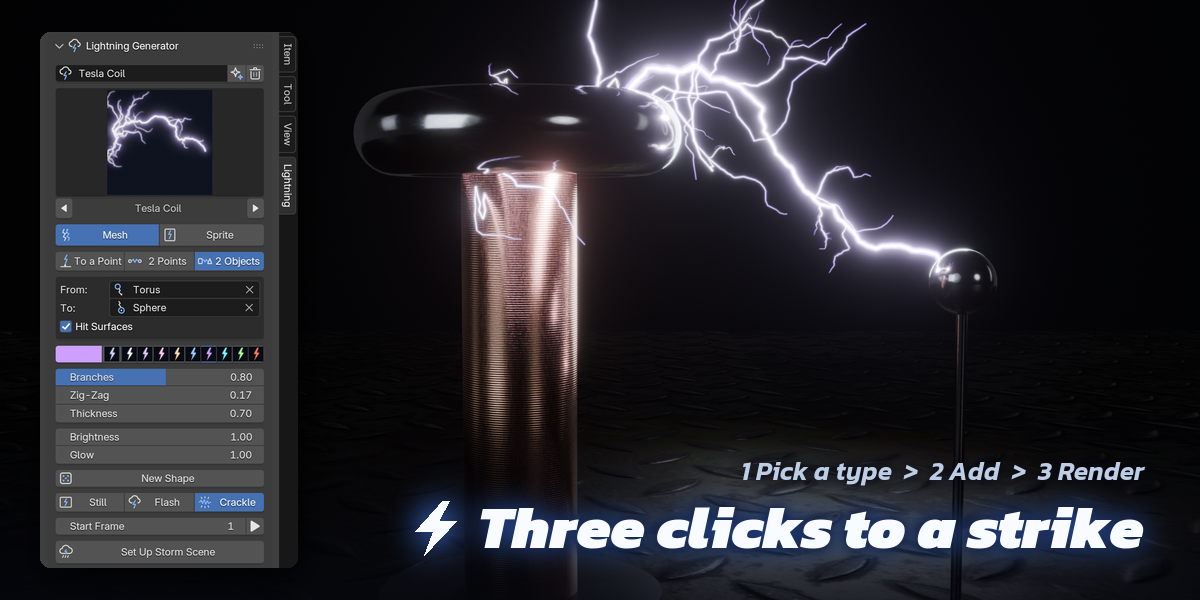
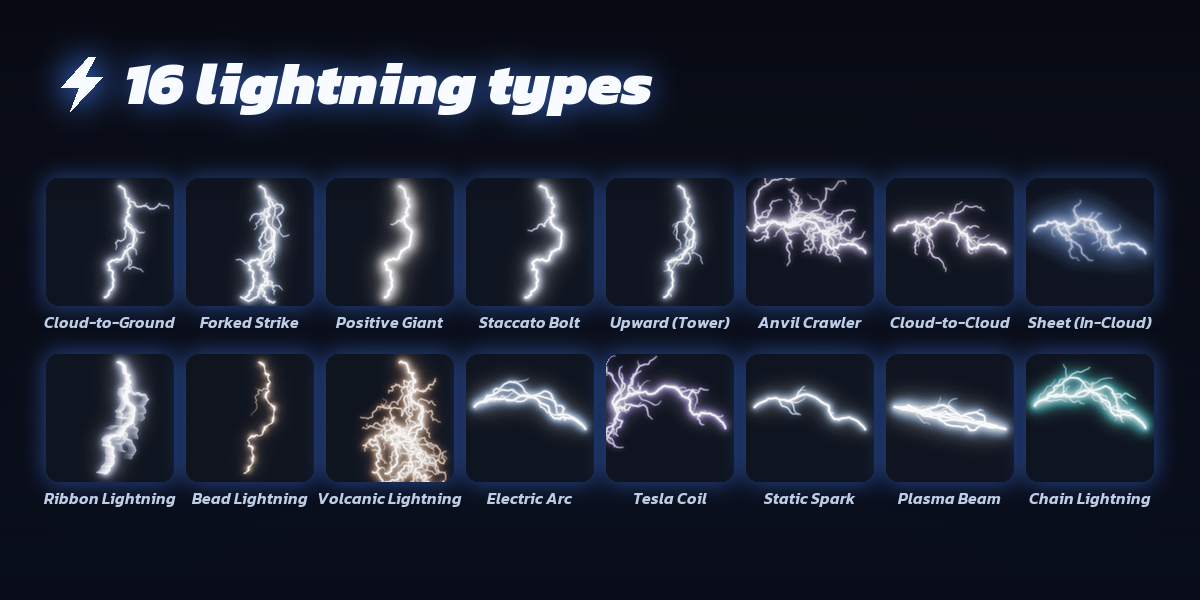
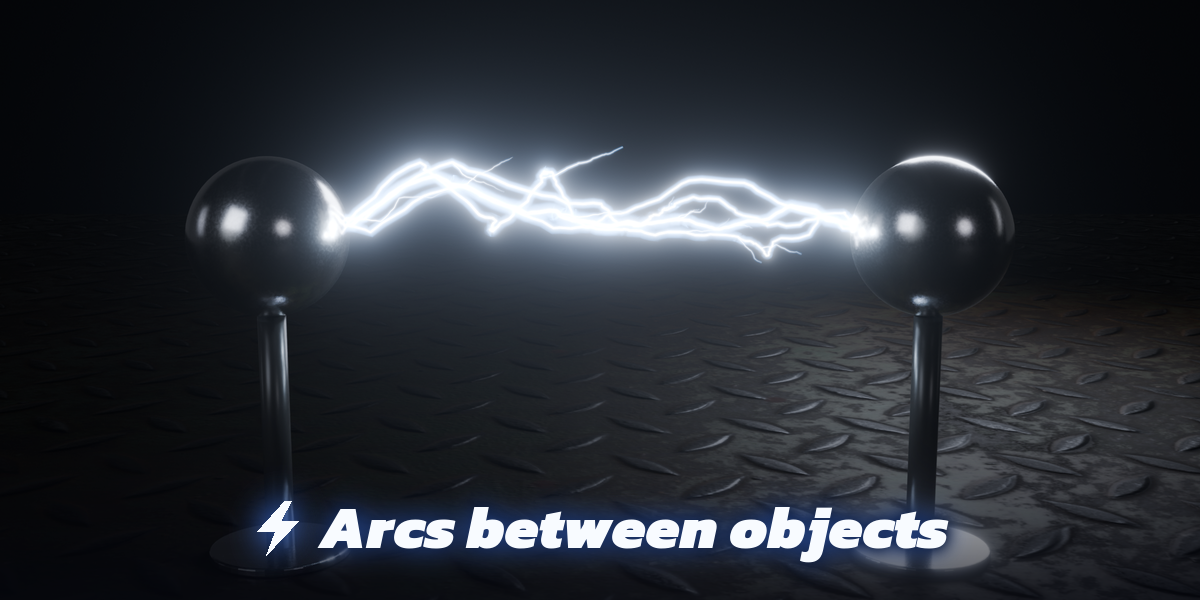
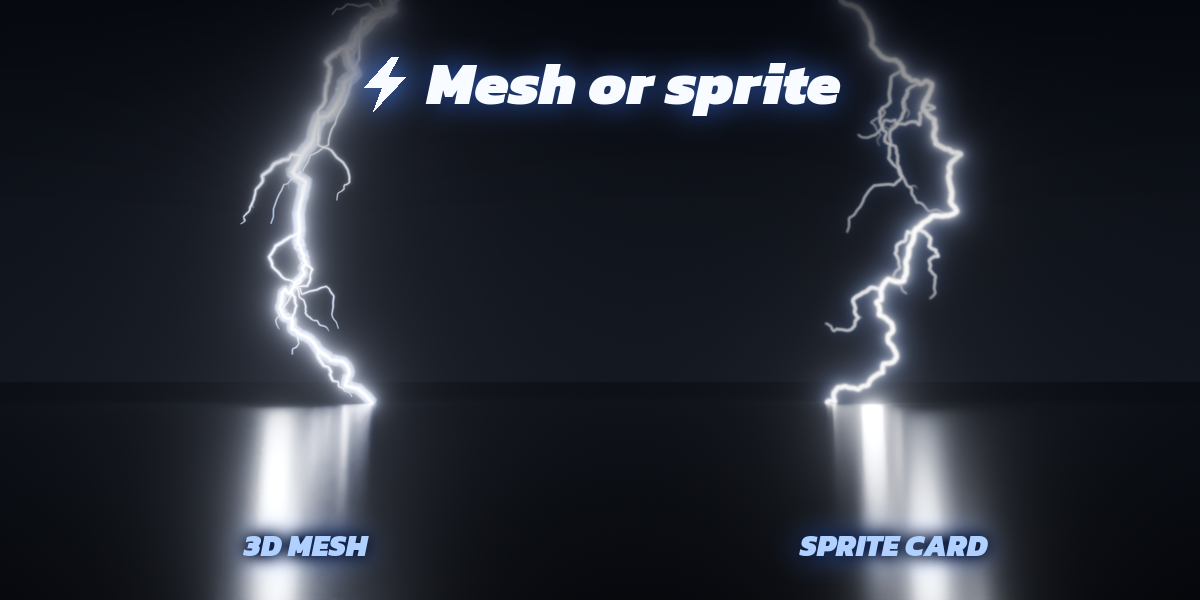
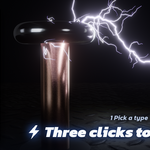
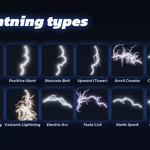
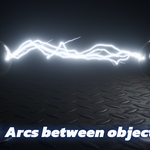
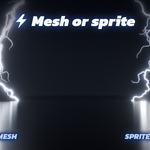
- Open the Lightning tab in the 3D viewport sidebar (N). Click the picture to choose one of the 16 lightning types, pick Mesh or Sprite, and choose how it connects: To a Point (a strike from the sky onto the 3D cursor), 2 Points (move the Source and Target handles) or 2 Objects (select two objects first; the active one is the target). Press Add Lightning. You can also use Shift+A, Lightning.
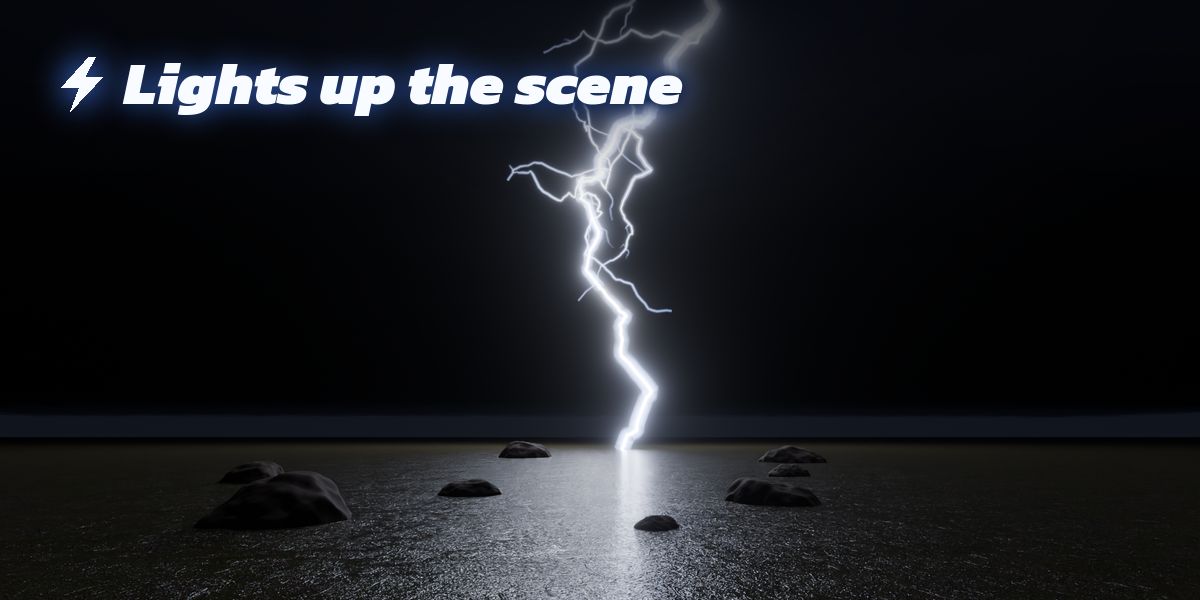
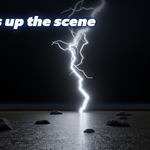
- Press Set Up Storm Scene once: it adds a dark storm sky, the lens glow in the compositor and AgX color, and makes the timeline long enough.
- Press play. Strike Flash grows the leader, flickers and fades; Crackle changes the shape every few frames; Still shows one moment. The play button next to Start Frame jumps to the brightest frame.
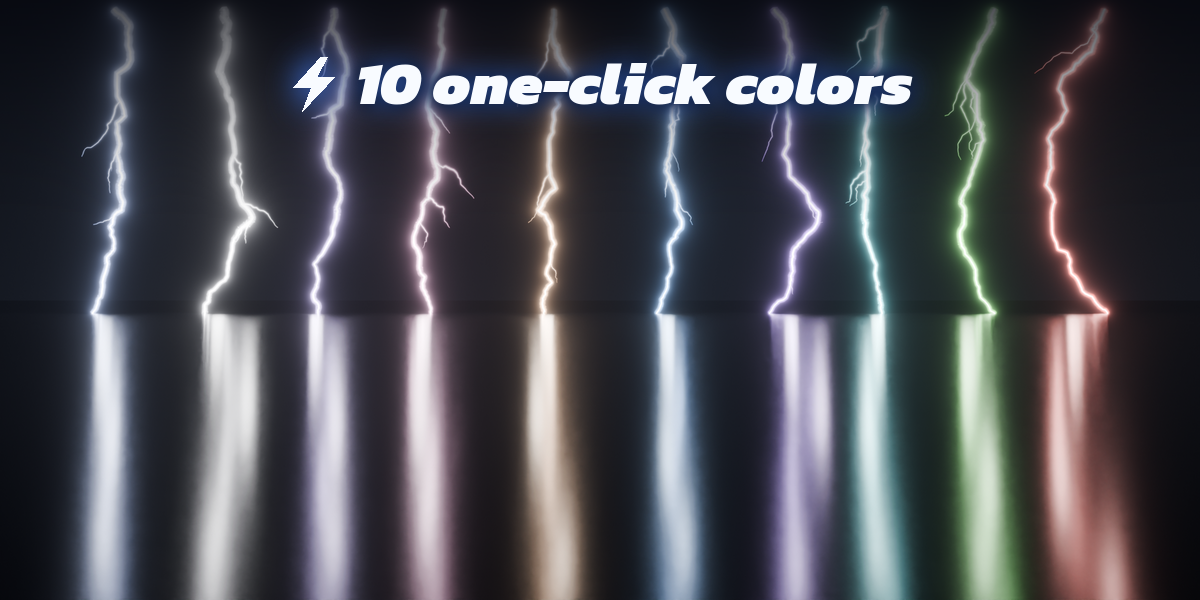
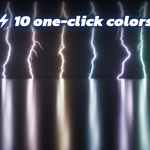
- With a bolt selected, change its color with the color chips, and Branches, Zig-Zag, Thickness, Brightness and Glow right below. New Shape gives a new variation, the sparkle button turns it into a random type. Channel Shape, Branches & Extras, Glow & Look, Animation Timing, Scene Light and Texture Export hold every other setting.
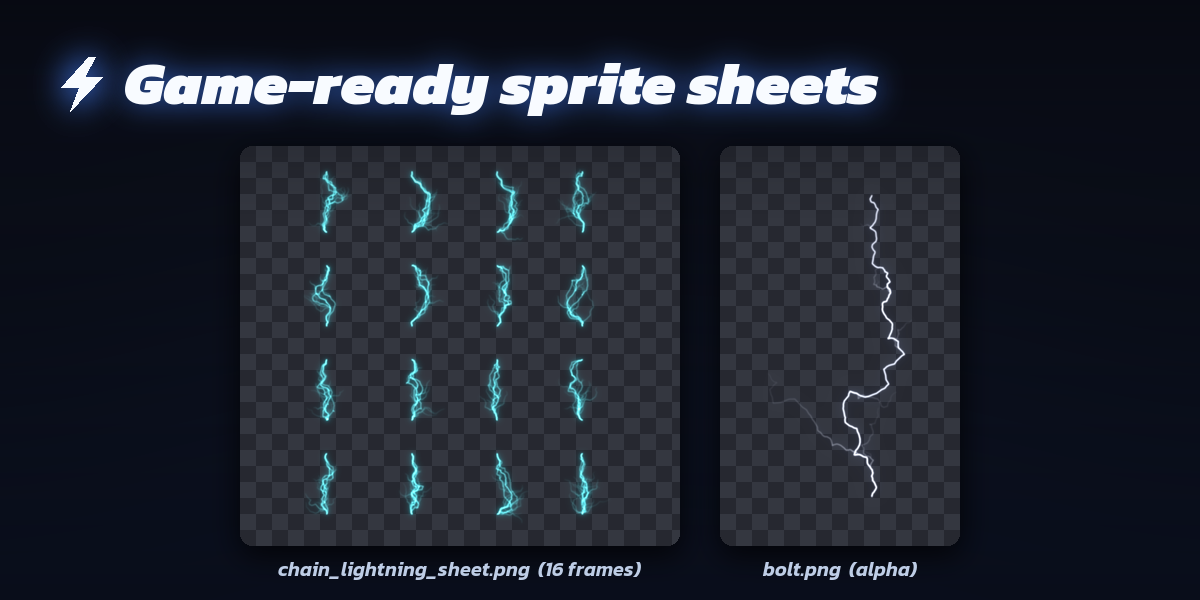
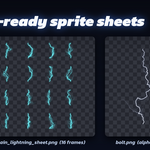
- For game engines, open Texture Export and save the bolt as a transparent PNG, or set Sprite Sheet Frames to save a flipbook sheet of variations.
Bolts follow their handles and objects live, so you can animate the objects. Keep the addon enabled when rendering: Crackle and repeated strikes change shape per frame.
Have questions about this product?
Login to message
| Blender Extension Compatible | Yes |
| Published | 1 day ago |
| Blender Version | 4.2 - 5.2 |
| Extension Type | Add-on |
| Render Engine Used | Cycles, Eevee |
| License | GPL |

Discover more products like this
thunder Game asset Generator tesla-coil storm electric-arc VFX Lightning electricity Sprite animation procedural