 Mossbyte
Installation
- Download mossbyte_nature_generator-1.0.0.zip. Do not unzip it.
- In Blender 4.2 or newer, open Edit > Preferences > Get Extensions, click the small arrow in the top right corner and choose Install from Disk…, then select the zip. You can also drag the zip into the Blender window.
- The add-on is enabled straight away. You will find it in Add > Mesh > Low-Poly Nature and in the 3D Viewport sidebar (N) on the Mossbyte tab.
Adding a single model
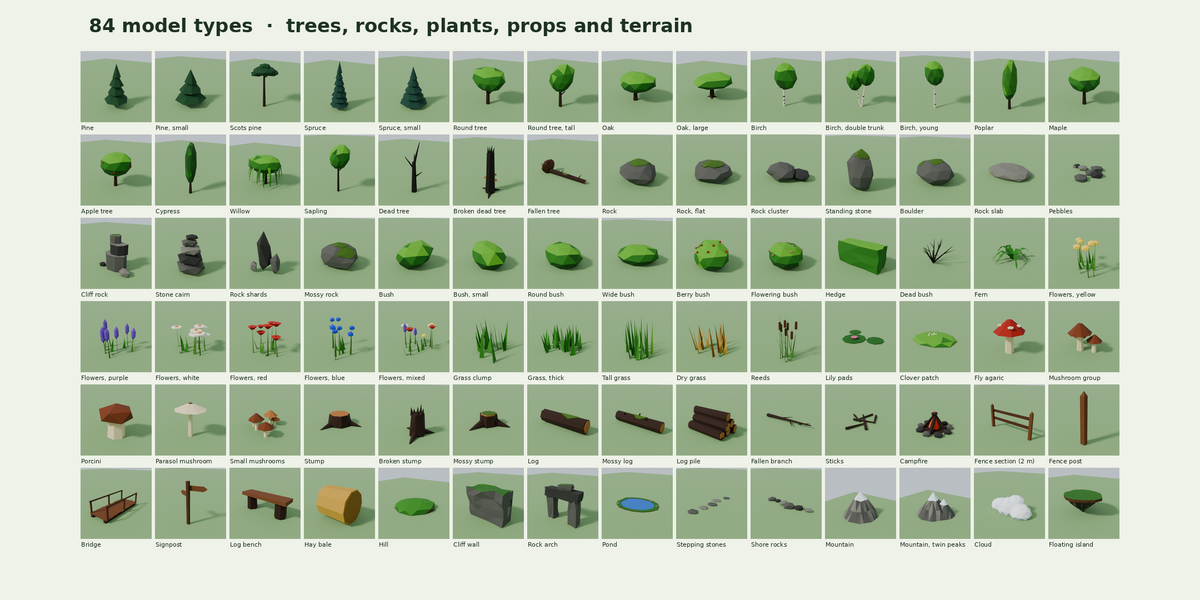
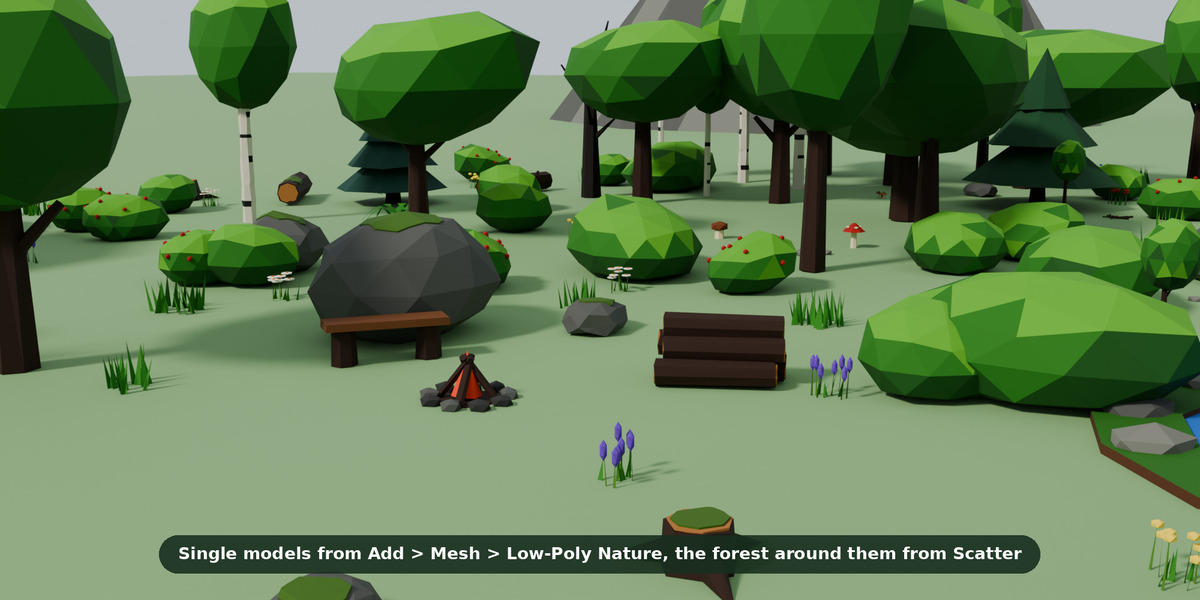
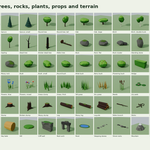
From the Add menu: in the 3D Viewport press Shift+A > Mesh > Low-Poly Nature, pick a group (Trees, Rocks, Plants, Props or Terrain) and a model. It is placed at the 3D cursor. Open the Adjust Last Operation panel in the bottom left corner to change its Seed, Scale and Random rotation.
From the sidebar: on the Mossbyte tab, choose a group and a model, set the Seed (the arrow button next to it picks a random one) and the Scale, then click Add Model.
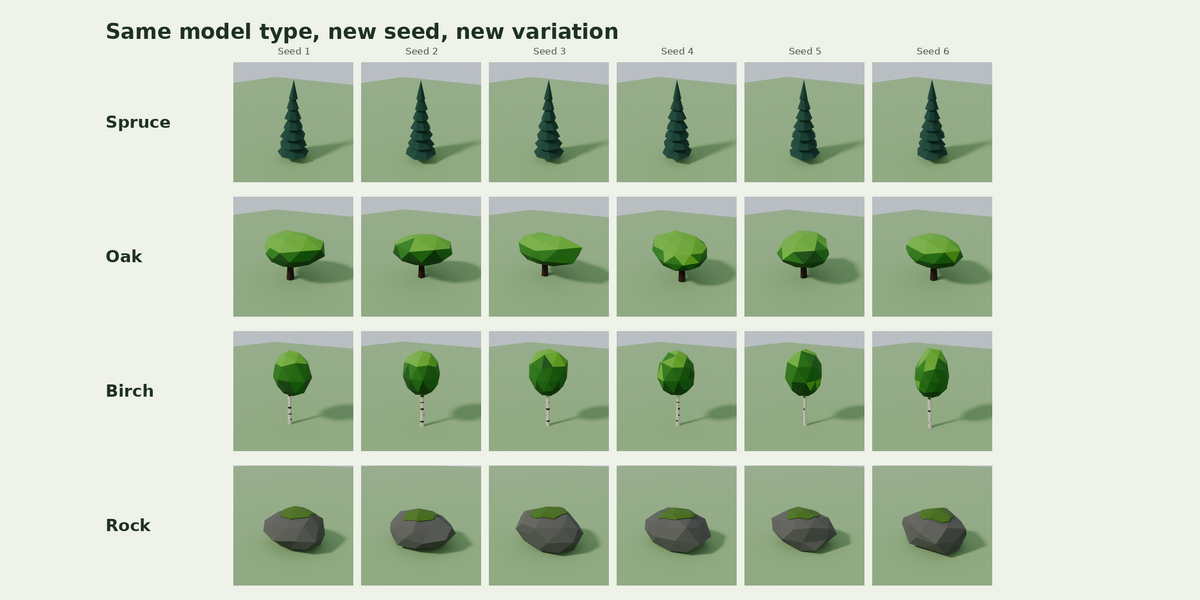
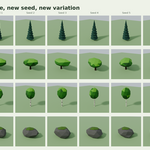
The same model type with the same seed always gives the same model; a new seed gives a new variation. Scale 1.0 is real-world size in metres.
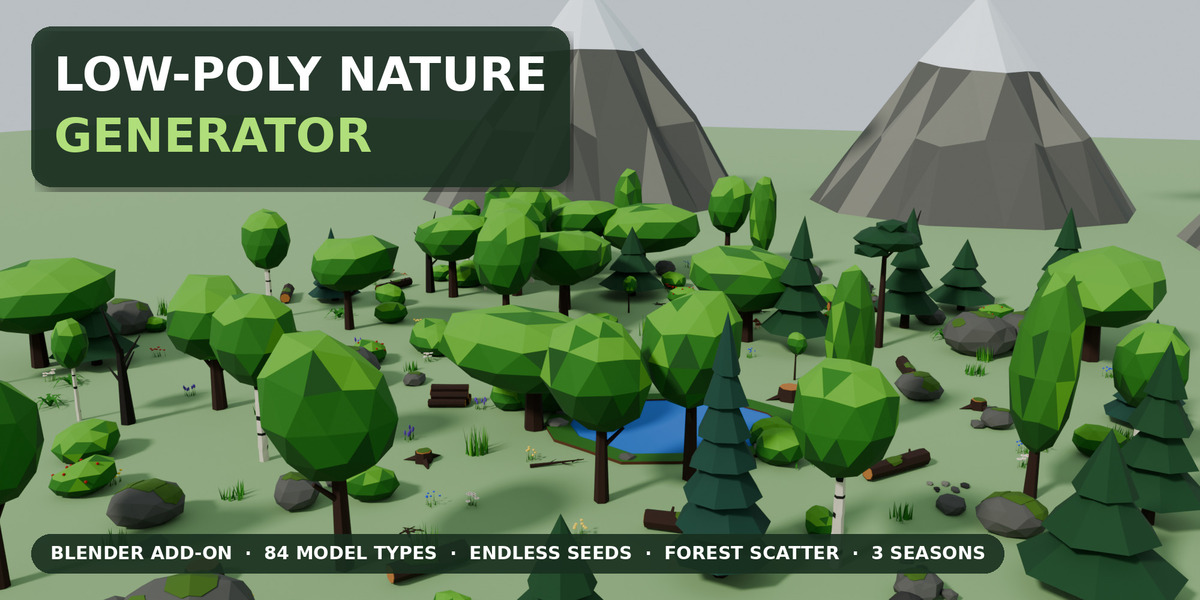
Scattering a forest
- Place the 3D cursor where the middle of the forest should be.
- Open Mossbyte > Low-Poly Nature > Scatter in the sidebar.
- Choose which groups to use (Trees, Rocks, Plants, Props) and set:
- Count – how many models to place.
- Radius – size of the area around the 3D cursor.
- Min. spacing – the smallest gap between models (trees automatically keep more room than plants).
- Variants – how many different seeds are used per model type.
- Size variation – random size difference between copies.
- Seed – a different seed gives a different layout.
- To drop the models onto a terrain, select your terrain mesh so it is the active object and enable On active object. Otherwise the models are placed at the height of the 3D cursor.
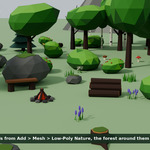
- Click Scatter Nature. The models go into a new Mossbyte Scatter collection, so one Ctrl+Z or deleting that collection removes them again.
Scattered copies are linked duplicates: copies of the same variant share one mesh, which keeps big forests light. If you want to edit one copy on its own, use Object > Relations > Make Single User on it first. Terrain pieces (mountains, hills, ponds, cliffs and so on) are not scattered; add them from the Add menu.
Seasons
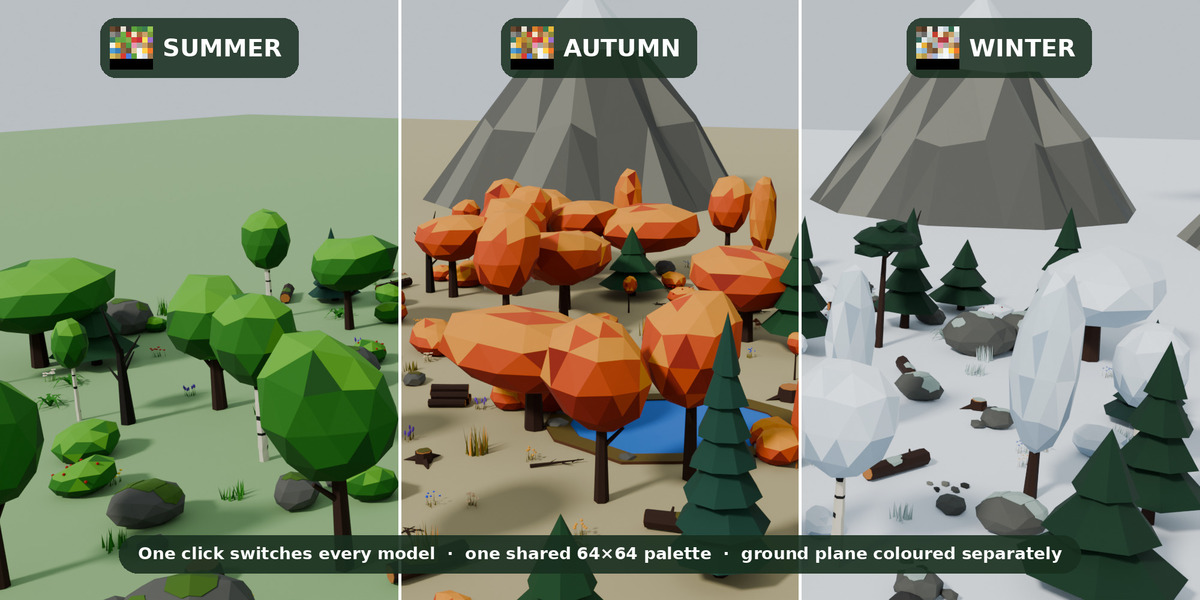
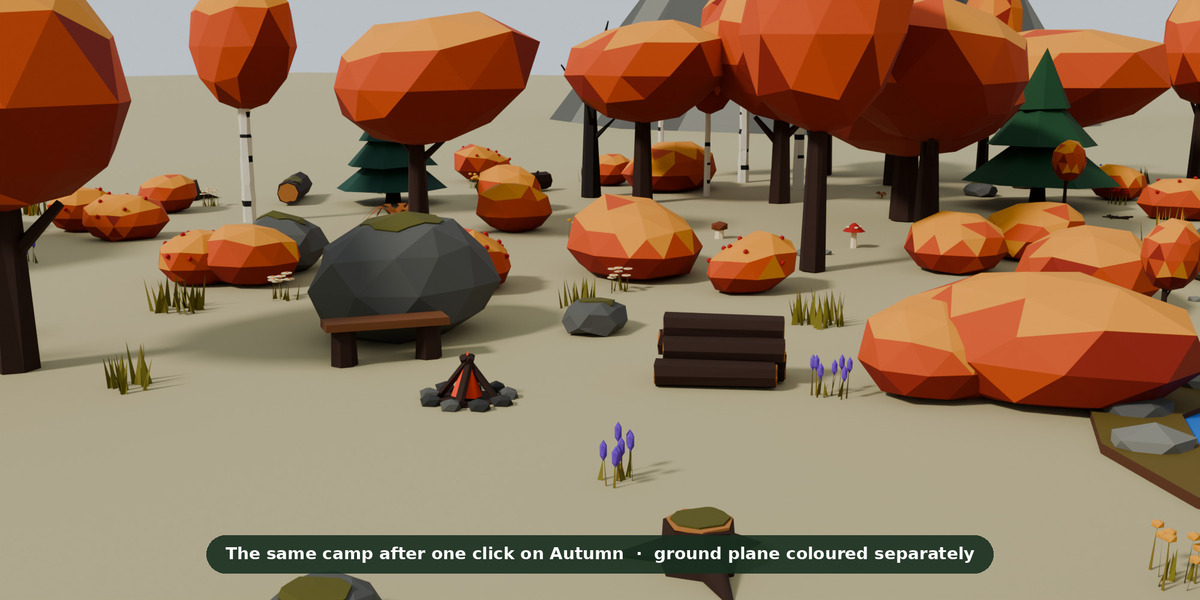
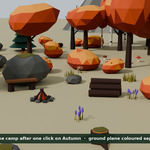
In the sidebar, under Season (all models), click Summer, Autumn or Winter. Every Mossbyte model in the scene switches at once, because they all share one material (Mossbyte Palette) and only its 64×64 palette image is swapped. Your own objects, such as a ground plane or a terrain with its own material, are not changed.
Using the models in a game engine
- All models use one material and one 64×64 palette texture, so a whole scene can be drawn with very few draw calls.
- Export with Blender's built-in exporters: File > Export > glTF 2.0 (recommended for Godot, Unity and most engines) or FBX. The palette image is packed into the .blend file; the .glb format embeds it automatically. For FBX set Path Mode to Copy and enable Embed Textures.
- Choose the season before exporting: the exported texture is the palette that is active at that moment.
Requirements
Blender 4.2 or newer (tested up to 5.3). The models render in Cycles and EEVEE.
Have questions about this product?
Login to message
| Blender Extension Compatible | Yes |
| Published | 44 minutes ago |
| Blender Version | 4.2 - 5.3 |
| Extension Type | Add-on |
| Render Engine Used | Cycles, Eevee |
| Misc Data | Uvs-Unwrapped, Textured |
| License | GPL |
Discover more products like this
game assets stylized Generator #nature environment procedural seasons vegetation low poly Trees scatter forest