Male Base Body | Modular Low-Poly Male Base Mesh for Blender & Fab & Unity
 UNIGAME STUDIO
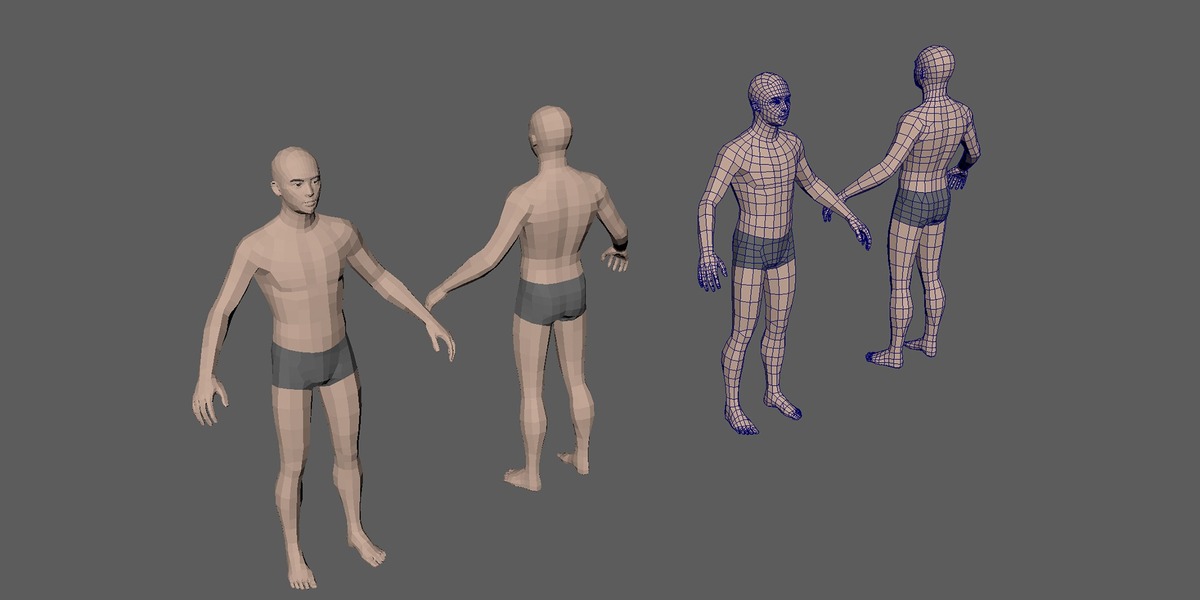
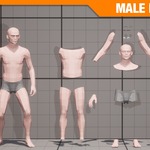
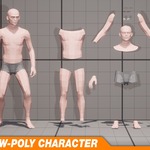
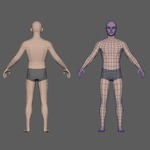

Getting Started in Blender 4.2 LTS
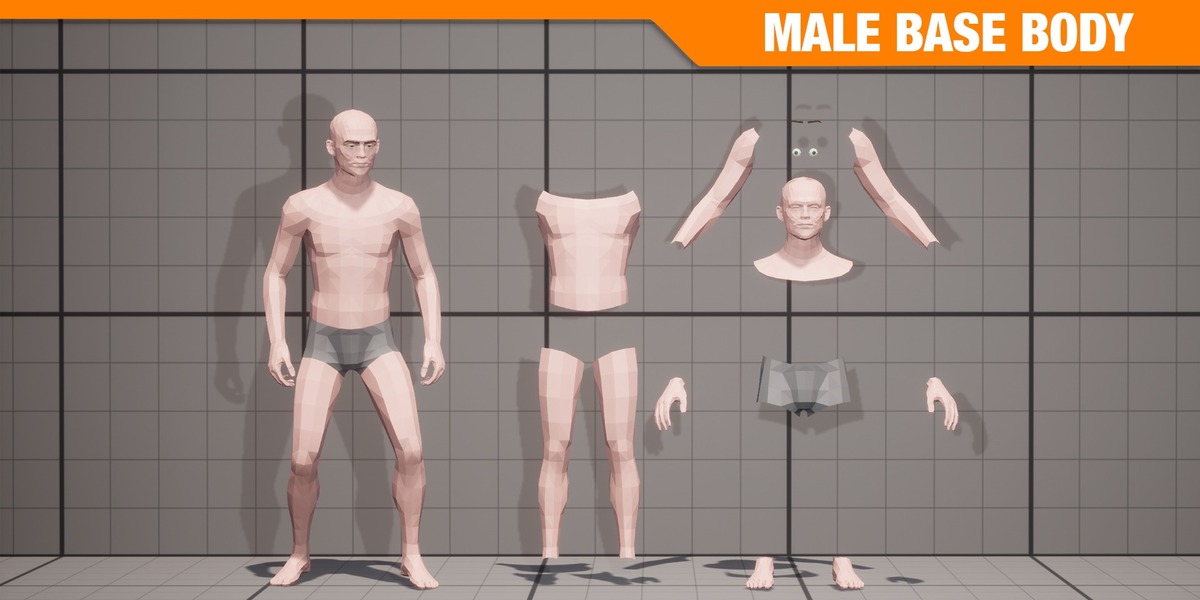
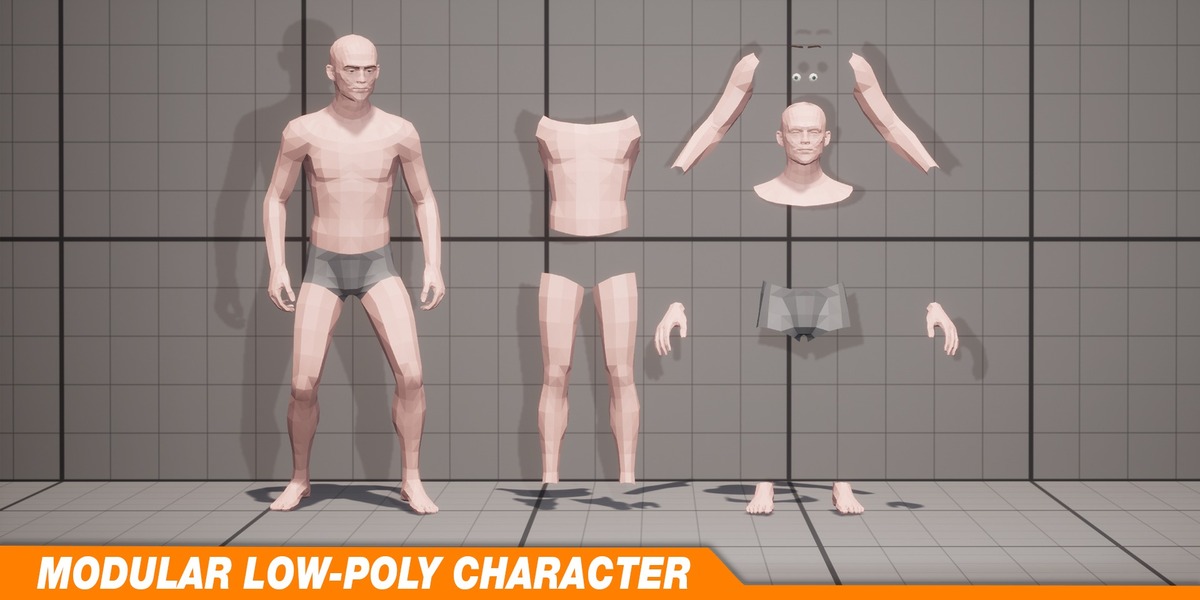
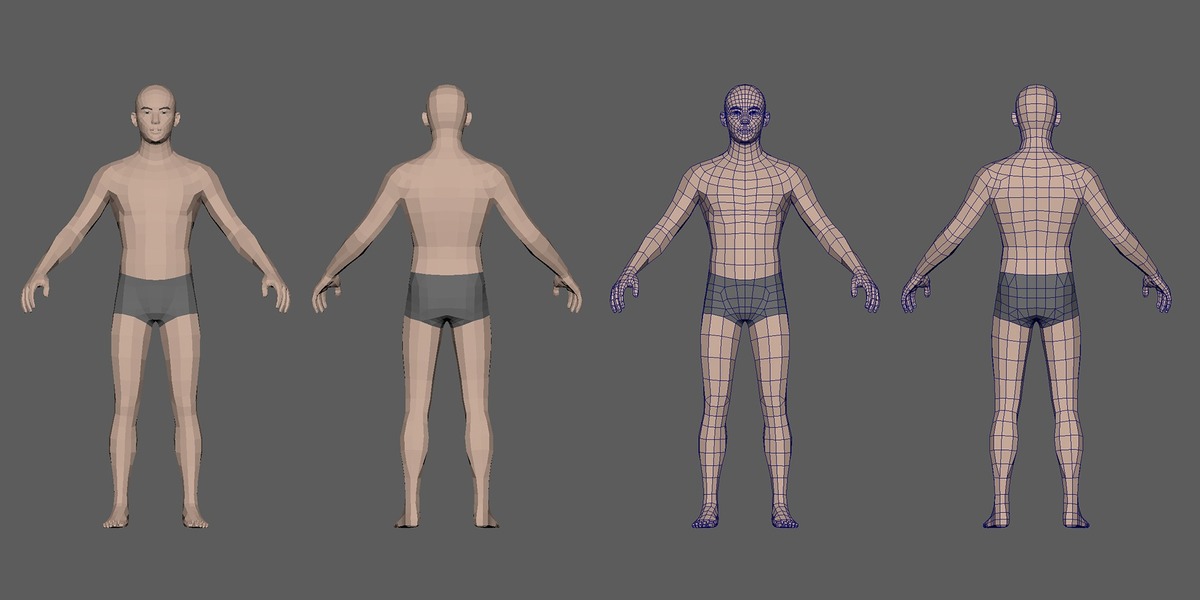
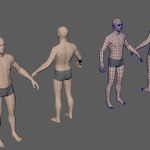
The modular base mesh, armature, and materials are organized into clean Collections with standardized naming and real-world scale so you can drop them straight into your Blender 4.2 LTS production pipeline.
Importing into Your Scene
Using the Asset Browser: Add the provided blend file directory to your Blender Asset Library paths. Open the Asset Browser in Blender 4.2 LTS, locate the Male Base Body collection or individual modular body sections, and drag and drop them directly into your viewport.
Using File > Append: Navigate to File > Append, open the character blend file, enter the Collection folder, and append the main Male Base Body collection to import the rig and all modular mesh parts together.
Customizing Parts, Materials, and Exporting
Modular Part Swapping: Expand the character hierarchy in the Outliner and use the viewport (eye icon) and render (camera icon) visibility toggles to show or hide individual modular body parts when fitting custom clothing, gear, or armor.
Materials and UV Texturing: All surfaces are configured with native Principled BSDF nodes for accurate shading in both EEVEE and Cycles, backed by a clean non-overlapping UV layout ready for PBR texture painting or baking.
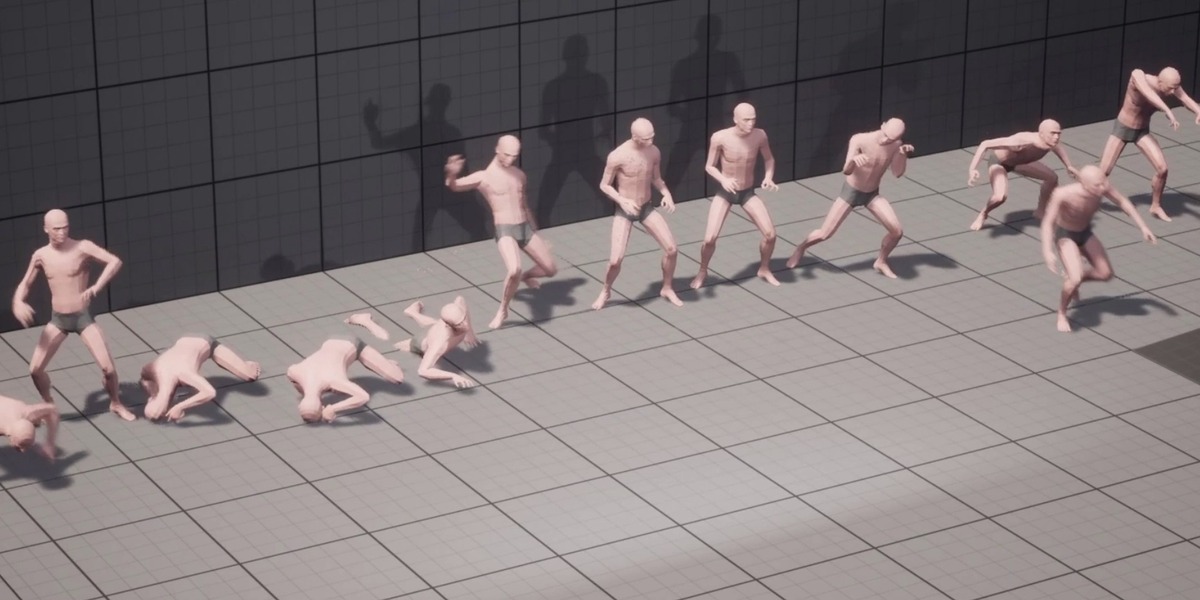
Posing and Game Engine Export: Select the armature and switch to Pose Mode to test deformations and create custom poses. Use the included
FBXfiles—or export directly via File > Export > FBX—for seamless import into Unity Mecanim and Fab-ready pipelines.
Have questions about this product?
Login to message
| Published | about 1 hour ago |
| Blender Version | 4.2 - 5.3 |
| Render Engine Used | Cycles, Eevee |
| Misc Data | Uvs-Unwrapped, Rigged |
| License | Royalty Free |