 blenderVfxMaster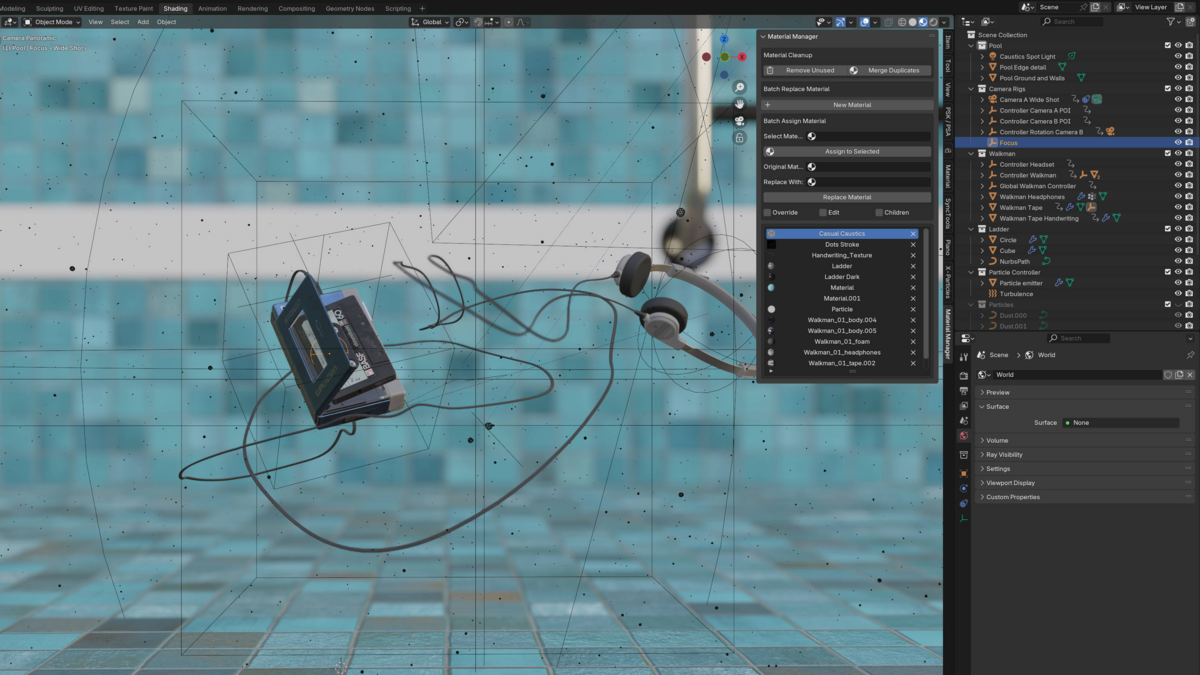


Material Manager
Need to swap a material across a bunch of objects? Pick the old material, choose the new one, and apply the replacement to the objects you want. Material Manager also handles batch assignment, duplicate materials and unused-material cleanup from one panel.
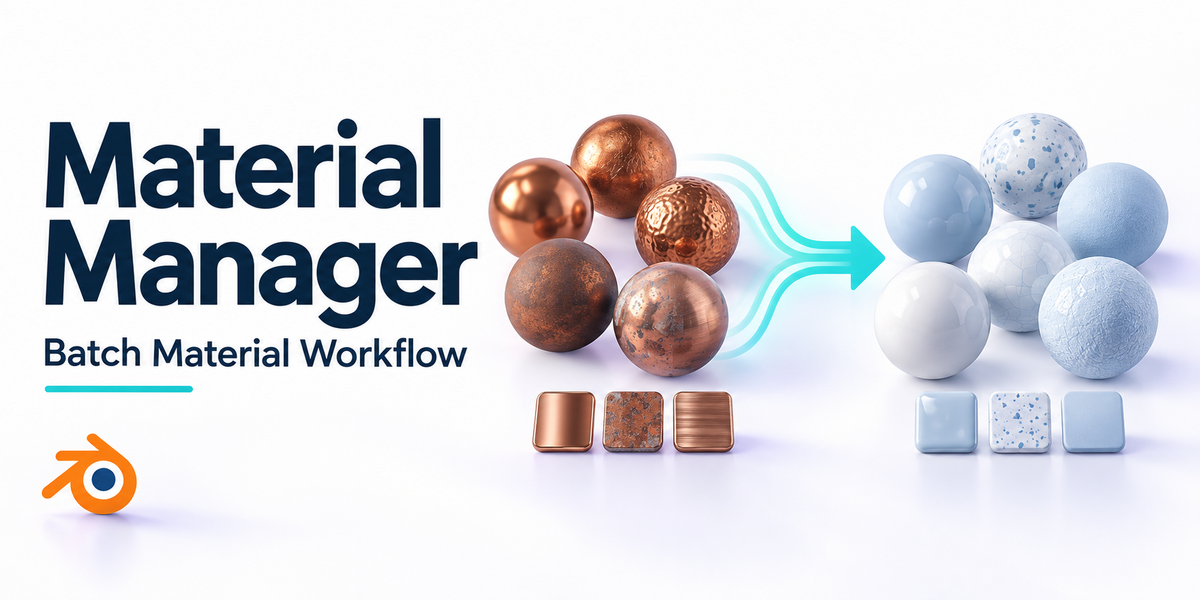
Cover illustration. The screenshots and previews below are labelled separately.
One material change, fifteen objects
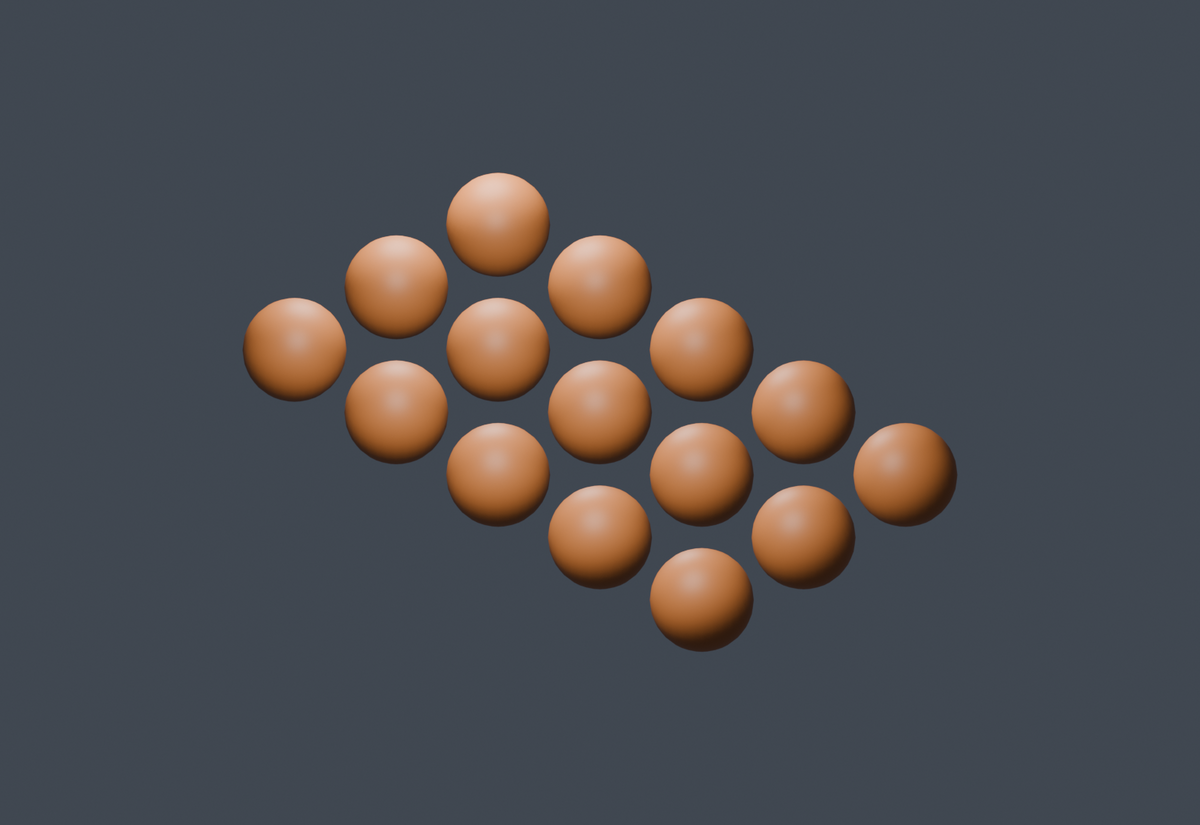
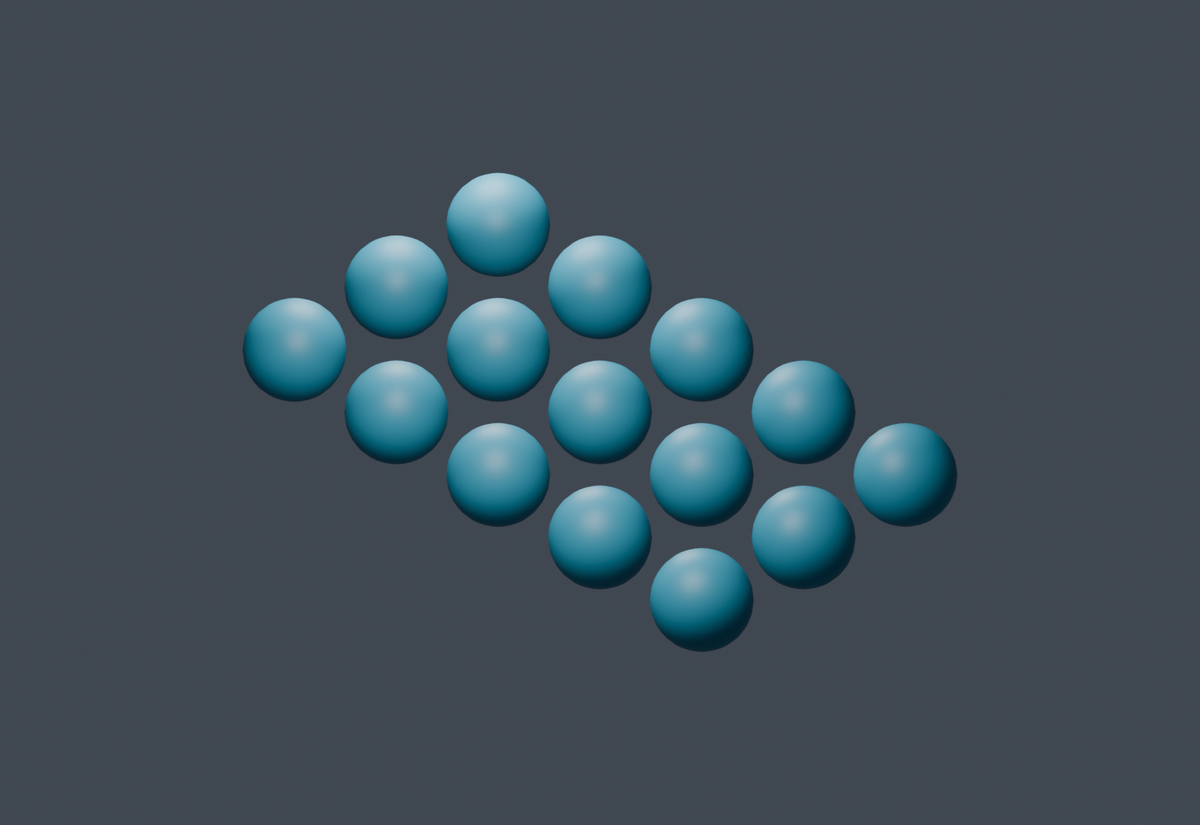
The same fifteen objects, before and after a material replacement.
RESULT · View full size ↗
Before: Warm Copper
These fifteen objects all start with the same Warm Copper material.
RESULT · View full size ↗
After: Ocean Ceramic
All fifteen now use Ocean Ceramic. The geometry, camera and lighting stayed the same, so you can see the material change directly.
The material tools
Here’s what you can do with it.
Replace a material across objects
Choose the material you want to replace and the one that should take its place. In the example below, the same fifteen objects go from Warm Copper to Ocean Ceramic without changing the camera or lighting.
Assign one material to a selection
Select the objects and apply a chosen material to them together. It’s useful when you want several parts of an asset to share the same material.
Merge duplicate materials
Consolidate numbered copies such as Material.001 and Material.002 into the material you want to keep. Check first whether those copies really are duplicates or have settings you meant to preserve.
Remove materials you no longer use
Clean up unused material data when the scene is ready. This is separate from replacing materials, so you can leave cleanup until you’ve checked the visible result.
Work with parent and child objects
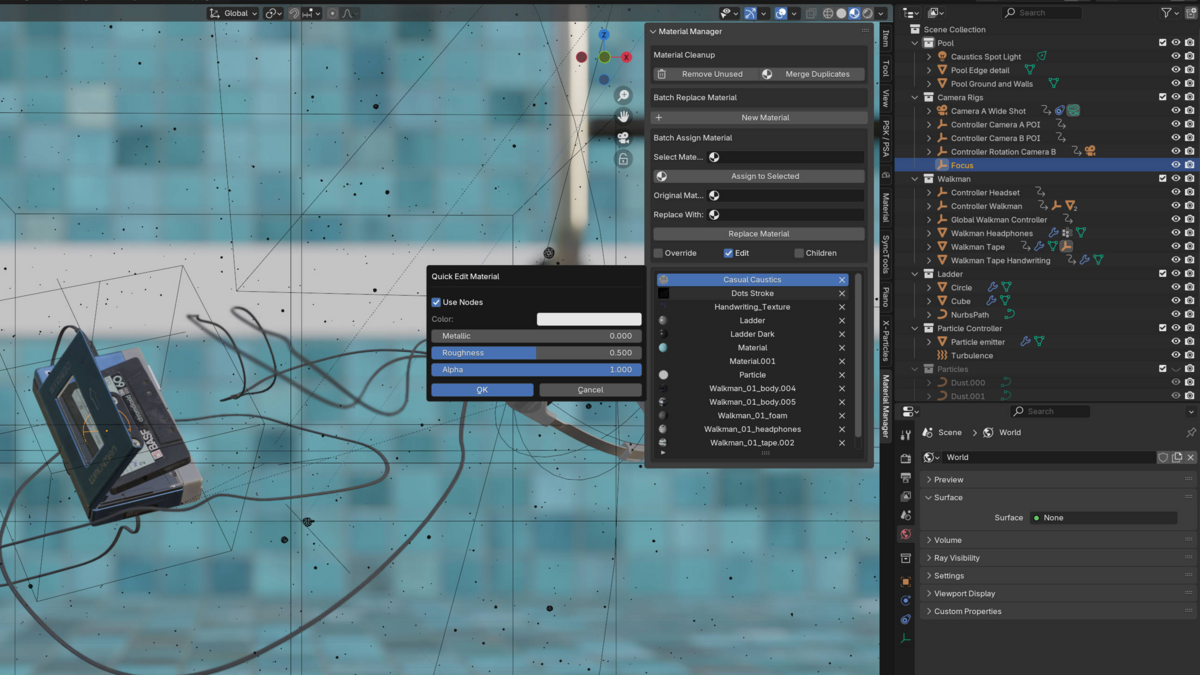
Use the hierarchy options to include the parts of a grouped asset that you want to change. Check both the selection and the parent/child structure before applying a batch operation.
Keep common settings close by
The panel also gives you access to common material properties and editing choices. You don’t have to keep jumping between individual material slots for every small change.
The panel in Blender
CONTROLS · View full size ↗
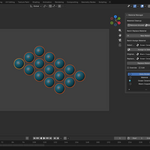
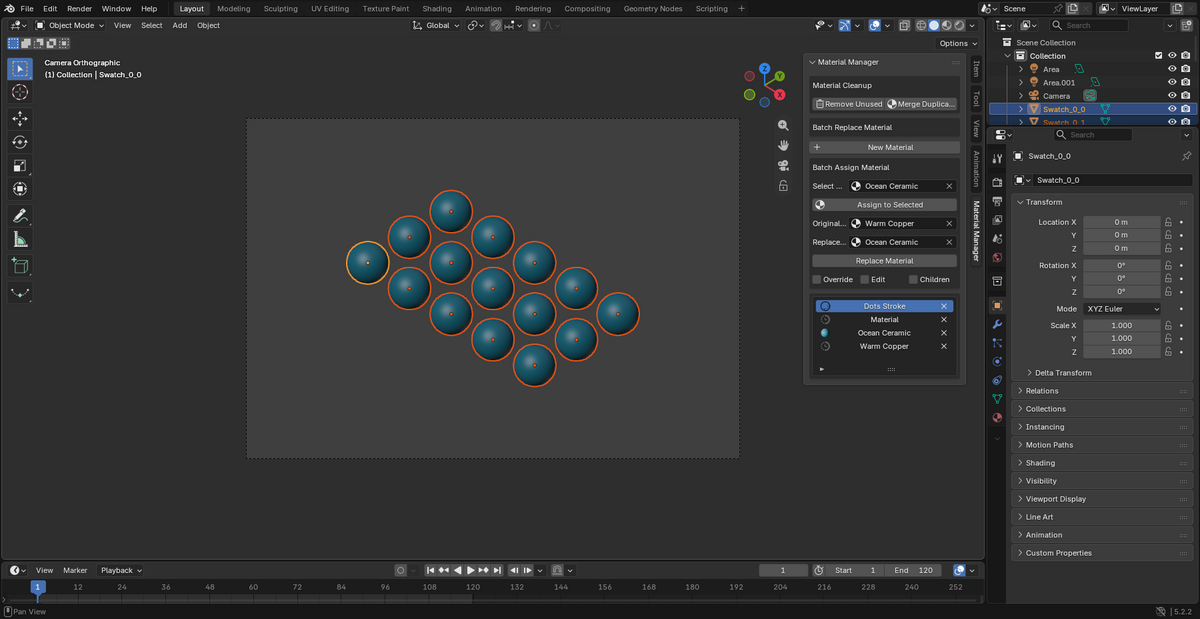
The replacement controls
The panel shows the original material, replacement material and batch operation next to the scene. This example changed fifteen material assignments.
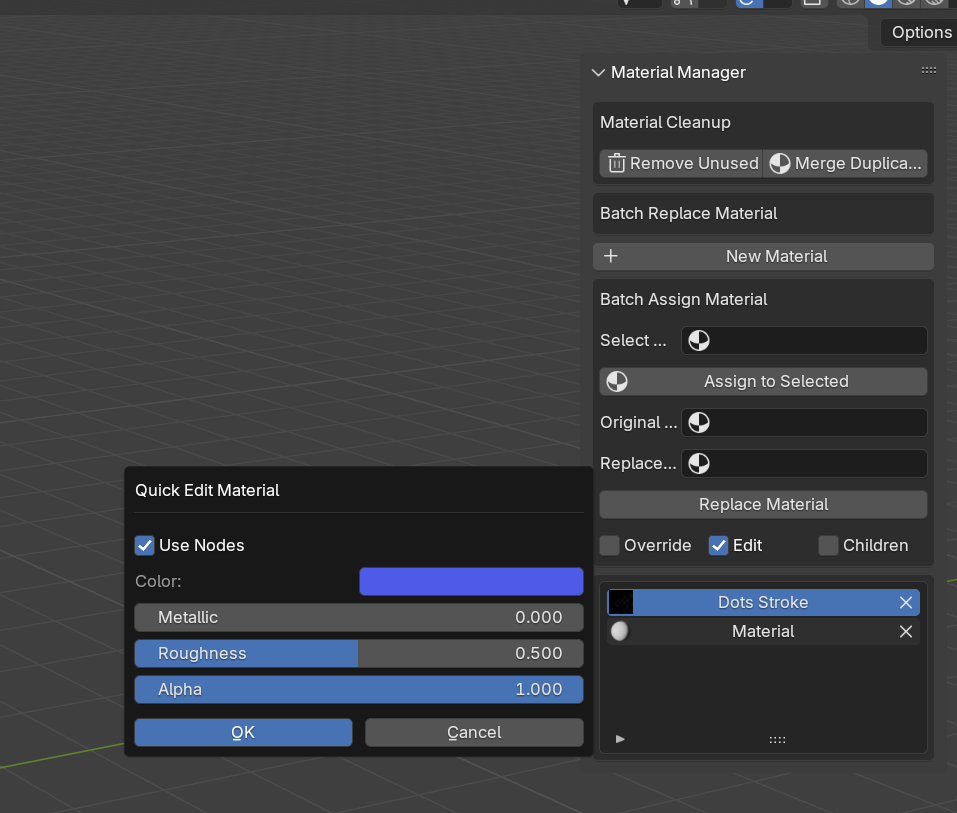
CONTROLS · View full size ↗
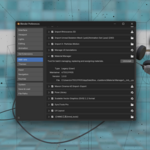
A closer look at the panel
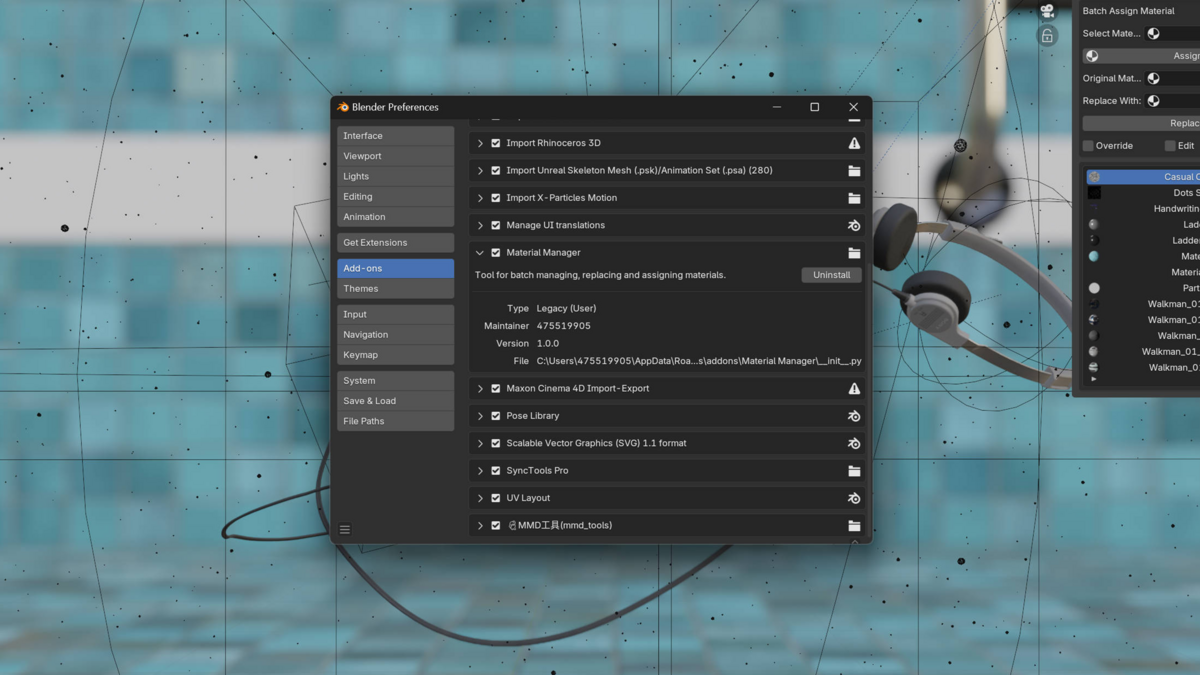
Here are the material choices and batch controls without the rest of the scene taking up the frame.
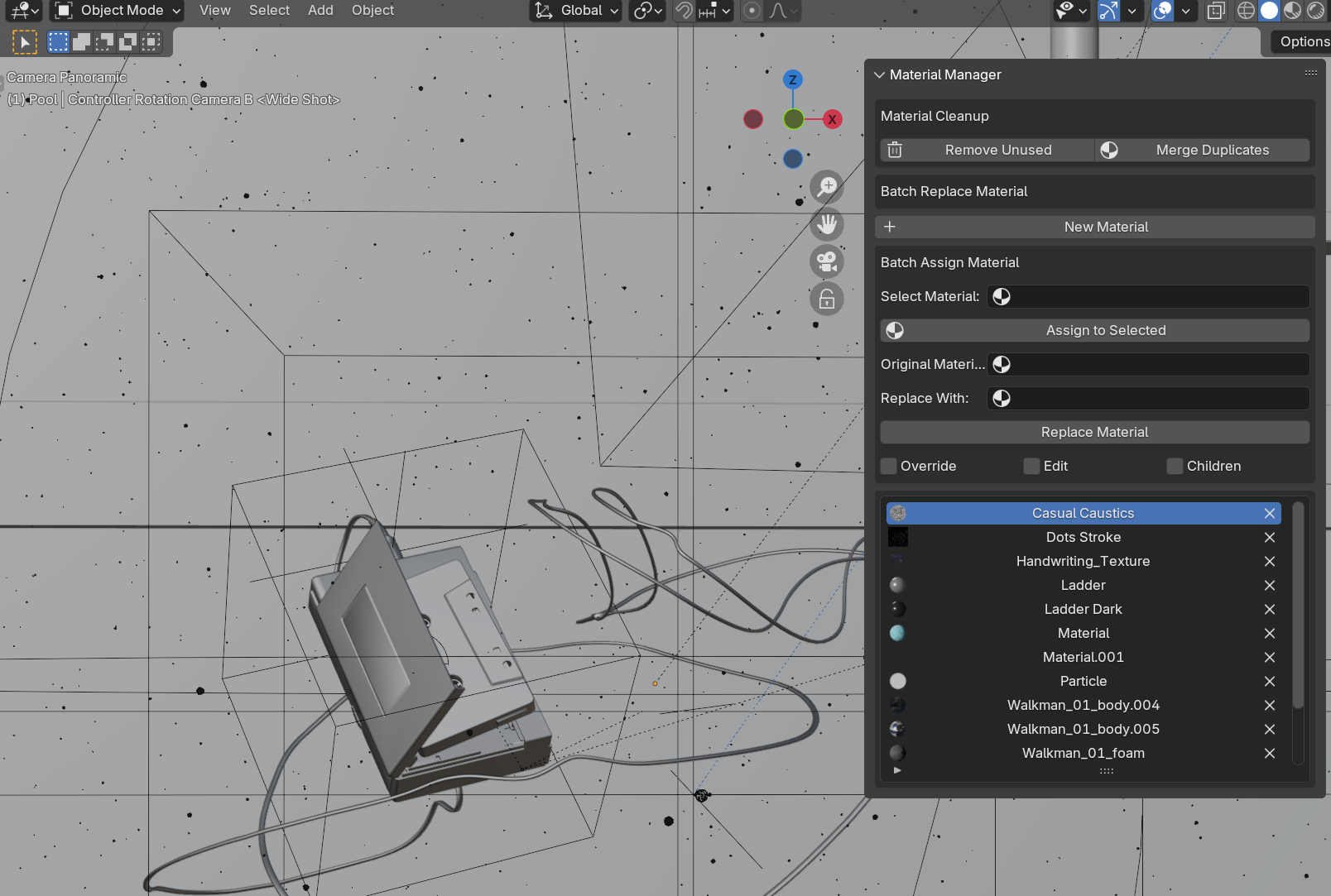
IN BLENDER · View full size ↗
Using it in a larger scene
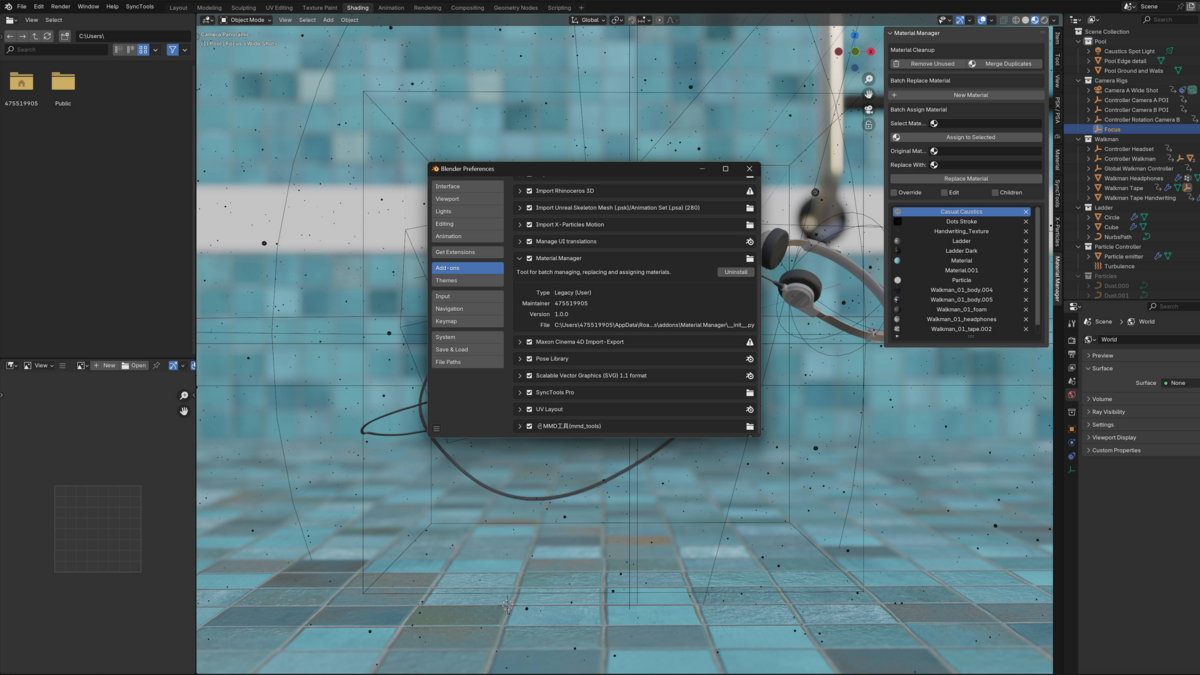
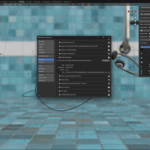
The room scene shows the tool in a busier project. Set the selection and hierarchy scope before changing several objects at once.
A typical material swap
-
01
Select the objects or hierarchy you want to change.
-
02
Choose the material to assign, or the old and new materials for a replacement.
-
03
Run that operation.
-
04
Check the appearance and material slots.
-
05
Merge duplicates or remove unused materials if the scene still needs cleanup.
Before you change the scene
- Blender 4.2 or newer.
- Windows, macOS and Linux.
- Save a copy before batch replacement, duplicate merging or cleanup.
- The fifteen-object example shows a material change, not a speed test.
Can I replace a material on several objects at once?
Yes. Choose the old and new materials, set the object scope, and run the replacement.
Should I run cleanup at the same time?
You don’t have to. Check the replacement first, then decide whether to merge duplicates or remove unused data. Keep a saved copy.