Materials Library +80 Materials
 arsha 3D plant designer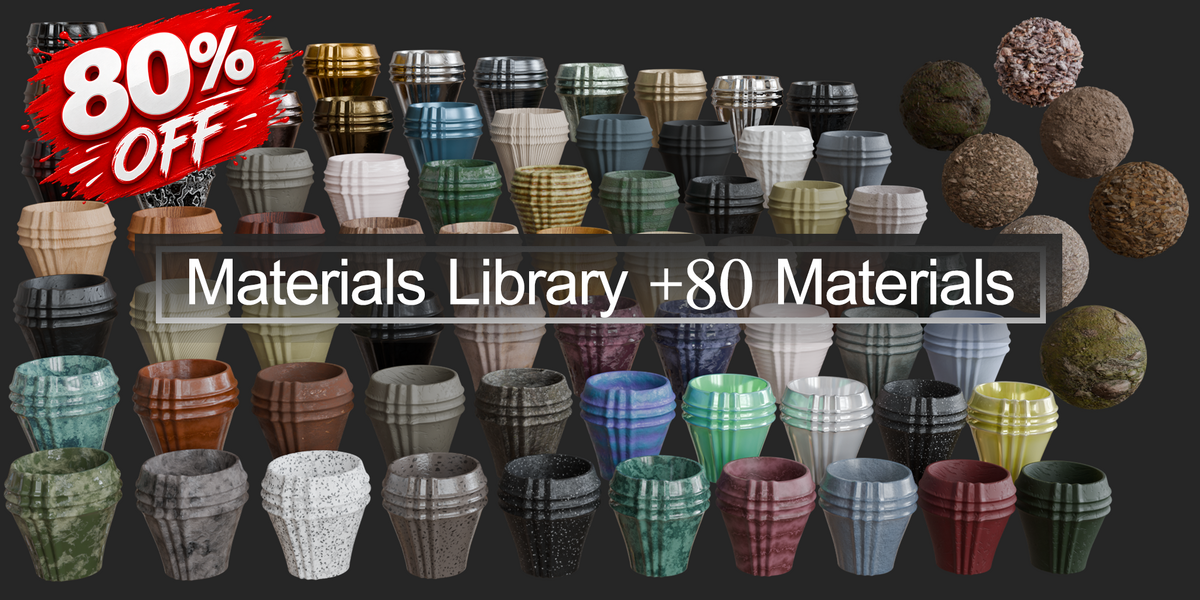

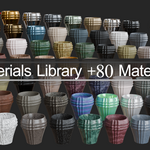
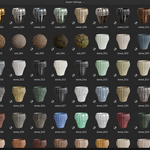

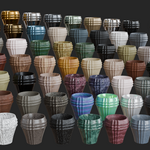

Planter Materials Library
Thank you for purchasing the Planter Materials Library.This documentation explains how to install, access, organize, and use the included 81 materials in Blender.
01 — Package Contents
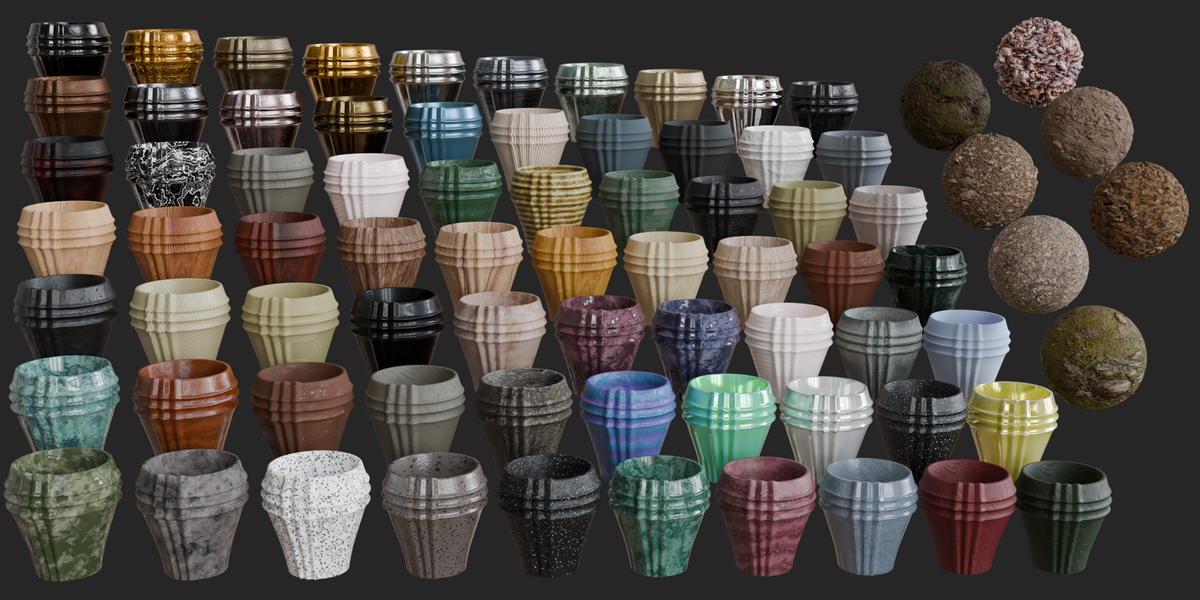
The library contains 81 ready-to-use materials, organized into four categories.
Wood — 8 Materials
Soil — 7 Materials
Metal — 15 Materials
Stone — 51 Materials
02 — Requirements
Blender 4.2 or newer
The materials are provided as Blender Assets and are designed to be accessed through Blender's Asset Browser.
03 — Installation
After downloading the product, extract the provided files to a permanent location on your computer.
Open Blender and navigate to:
Click the + button and select the folder containing the material library.
04 — Accessing the Library
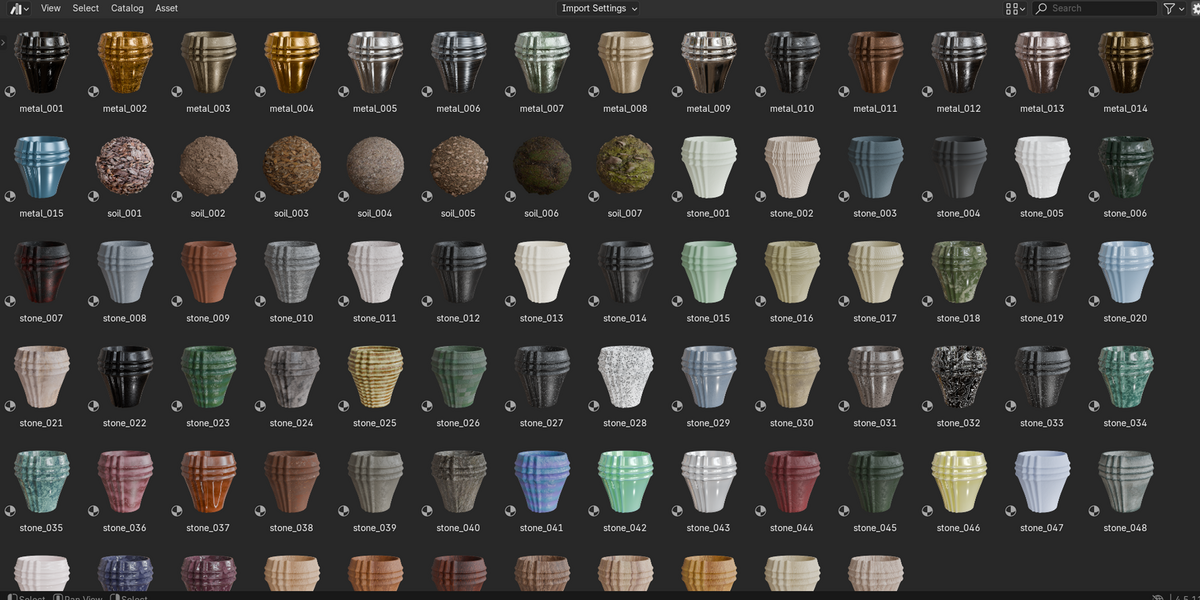

Open an Asset Browser in your Blender workspace and select the library from the Asset Library dropdown.
Set the Asset Browser asset type to Materials to display the included collection.
05 — Applying Materials
To apply a material, drag it from the Asset Browser onto an object in the 3D Viewport.
You can also select an object and assign the material through Blender's Material Properties.
Quick Workflow
Open Asset Browser → Select a material → Drag & Drop onto your object.
06 — Material Categories
Wood — 8 Materials
A collection of wooden surfaces with different patterns, tones, and natural variations.
Soil — 7 Materials
A selection of soil surfaces with different colors, textures, and appearances.
Metal — 15 Materials
A variety of metal surfaces and finishes for different visual styles.
Stone — 51 Materials
The largest category in the library, featuring a broad selection of natural stone surfaces and patterns.
07 — Customizing Materials
All materials can be further customized using Blender's Shader Editor.
Depending on the material, you can adjust properties such as color, roughness, texture scale, and shader parameters.
08 — Using Materials Across Projects
Once the library has been added to Blender, the materials can be reused across different projects through the Asset Browser.
This allows you to maintain a consistent material collection without manually recreating or importing materials for every project.
Browse → Select → Apply → Customize
A simple workflow for quickly adding surface variation to your scenes and models.
09 — Keeping the Library Organized
Keep the library folder in a permanent location on your computer.
If the folder is moved or renamed, Blender may no longer be able to locate the Asset Library.
If this happens, simply update the Asset Library path in Blender's File Paths settings.
10 — Troubleshooting
The library does not appear
Go to Edit → Preferences → File Paths → Asset Libraries and verify that the correct folder has been added.
Materials are not visible
Make sure the Asset Browser is set to the correct Asset Library and that the asset type is set to Materials.
The library stopped appearing after moving the files
Update the Asset Library path and point Blender to the library's new location.
11 — Compatibility
Blender 4.2+
The library uses Blender's Asset Browser workflow and is intended for Blender 4.2 and newer versions.
12 — Support
If you experience an issue with the library, please contact us through the product page.
When reporting an issue, please include your Blender version and a description of the problem.
81 Materials · Wood · Soil · Metal · Stone
A practical material collection for Blender.
Have questions about this product?
Login to message
| Published | 8 days ago |
| Blender Version | 4.5 - 5.2 |
| Render Engine Used | Blender-Internal, Cycles, Eevee |
| License | GPL |
Discover more products like this
metal materials blender materials pbr-materials planter materials soil materials material library plant pot architectural materials wood materials pot materials planter stone-materials