 Valentin
The Display Layers Addon bring the intuitive organization power of Autodesk Maya's Display Layers to Blender! This addon introduces a flexible and efficient "Display Layer" system, allowing you to group objects in your scene and easily manage their visibility, renderability, and selectability.
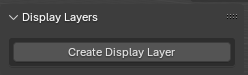
Create a Display Layer
- Press the "Create Dispaly Layer" button.
Rename a Display Layer
- Click on the name of the Display Layer, give it a new name and press Enter.

Edit the content a Display Layer
- Select the Objects you want to add/remove.
- Click on the "Edit Display Layer" button.
- Press on the "Add/Remove Objects" button.
Delete a Display Layer
- Click on the "Delete Display Layer" button.
Toggle the Viewport visibility of a Display Layer
- Click on the "Toggle Visibility" button.
If the "Toggle Visibility" button displays a "V," the objects in the display layer are visible; if it is empty, the objects in the display layer are hidden.
Toggle the Render visibility of a Display Layer
- Click on the "Toggle Render Visibility" button.
If the "Toggle Render Visibility" button displays a "R," the objects in the display layer are visible in the render; if it is empty, the objects in the display layer are hidden in the render.
Toggle the Selectability of a Display Layer
- Click on the "Toggle Selectability" button.
If the "Toggle Selectability" button is empty, the objects in the display layer are selectable; if the button shows "T," the objects are not selectable and are displayed in "Wireframe" mode; if the button shows "R," the objects are not selectable and are displayed in "Solid" mode.
