Maya Light Editor
 Mergim Sahiti
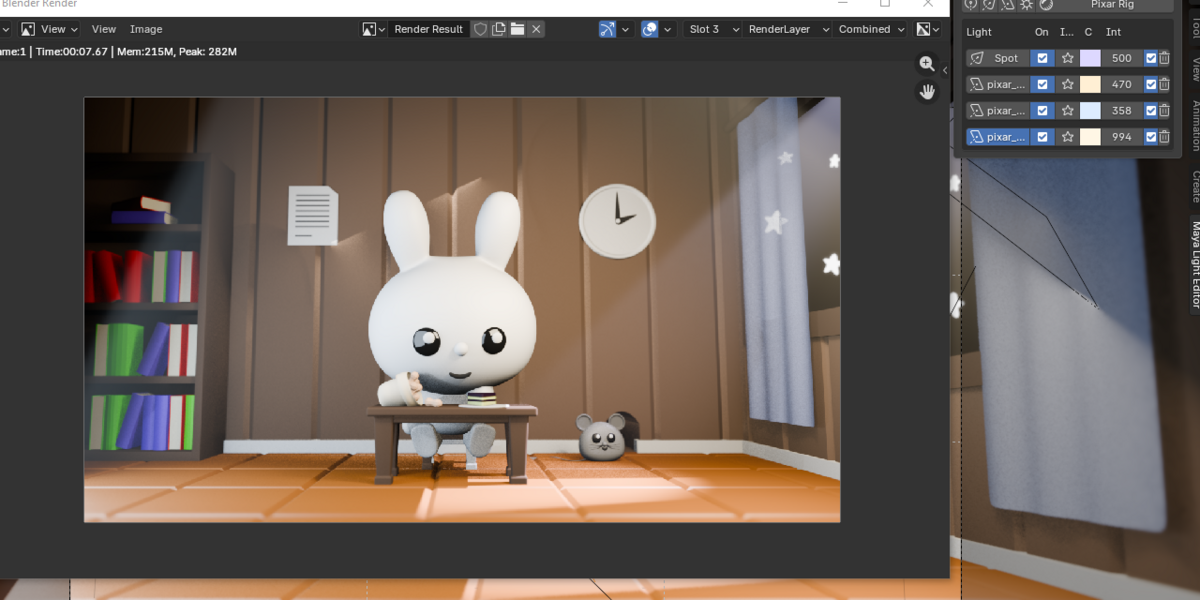
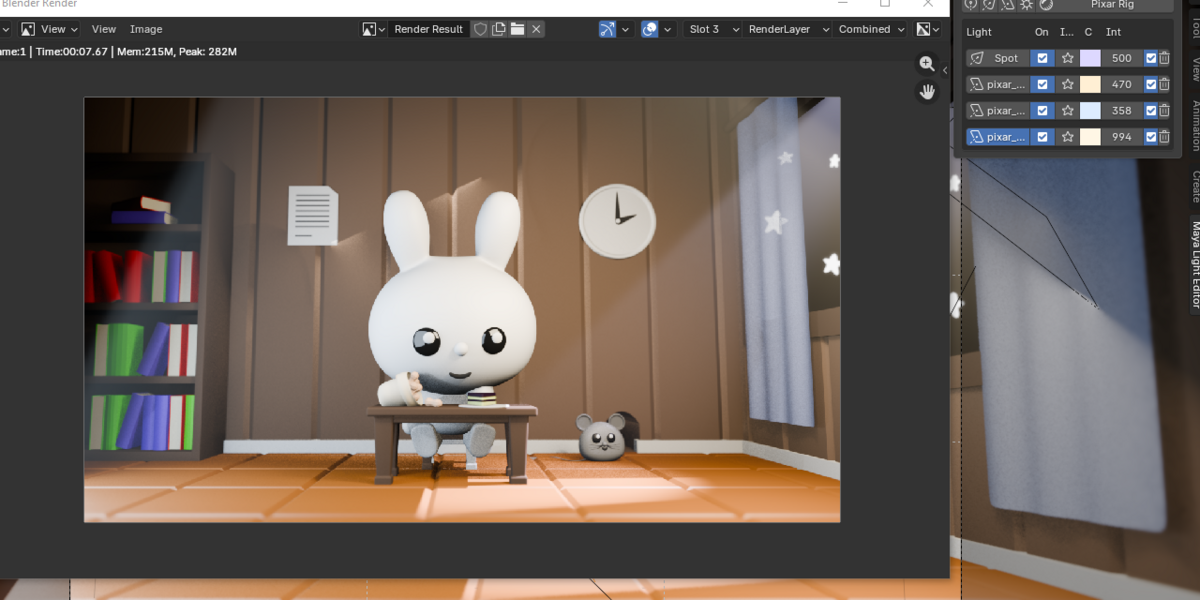
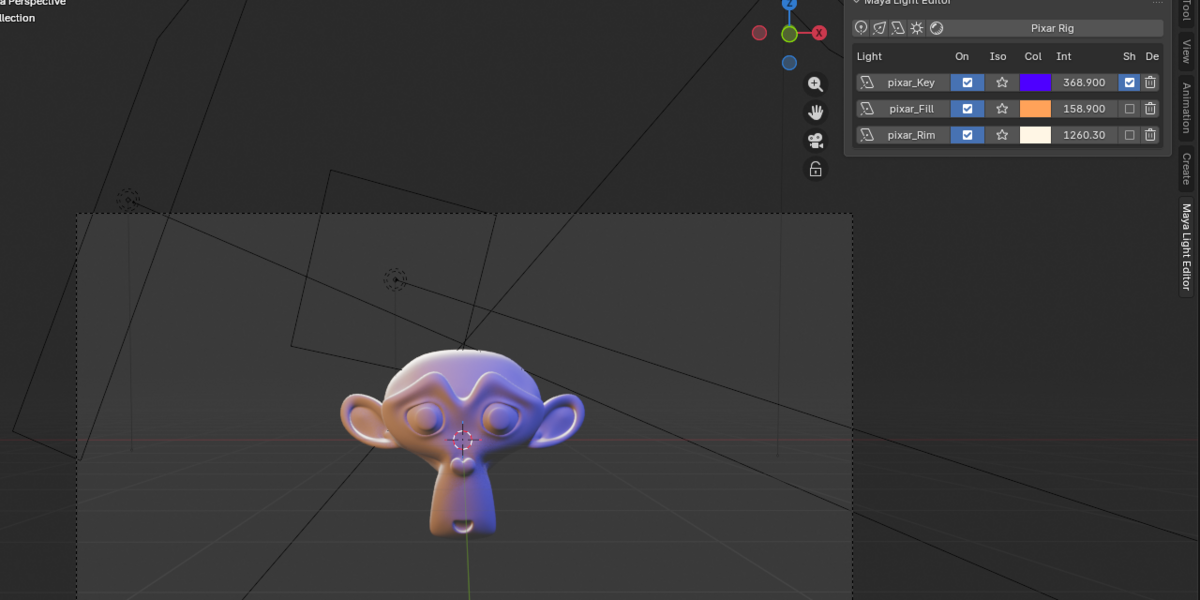
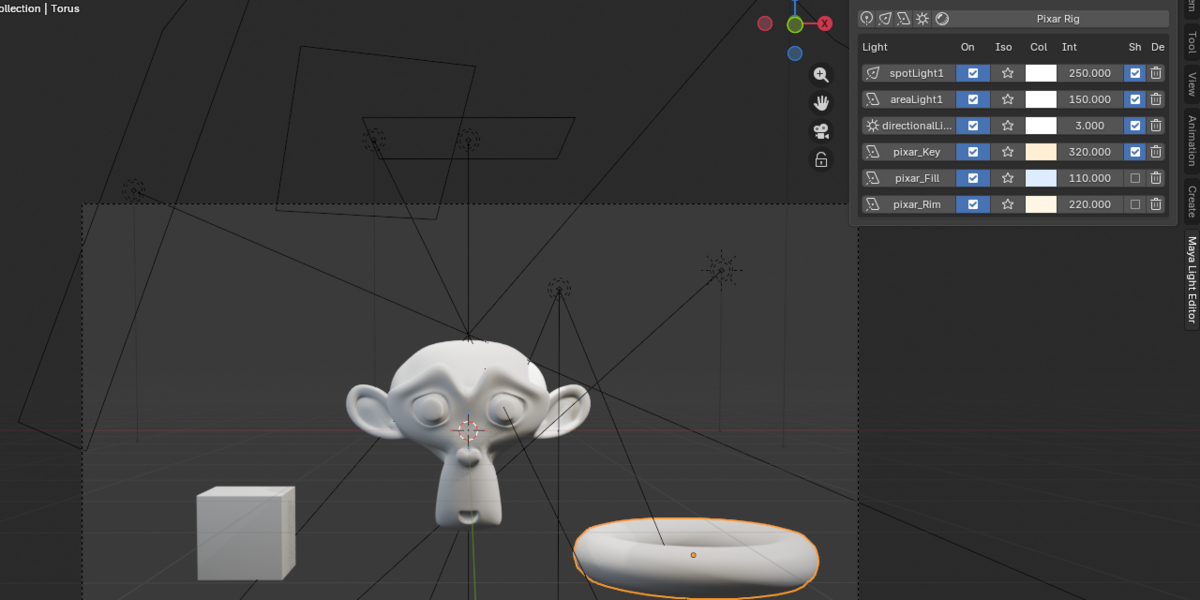
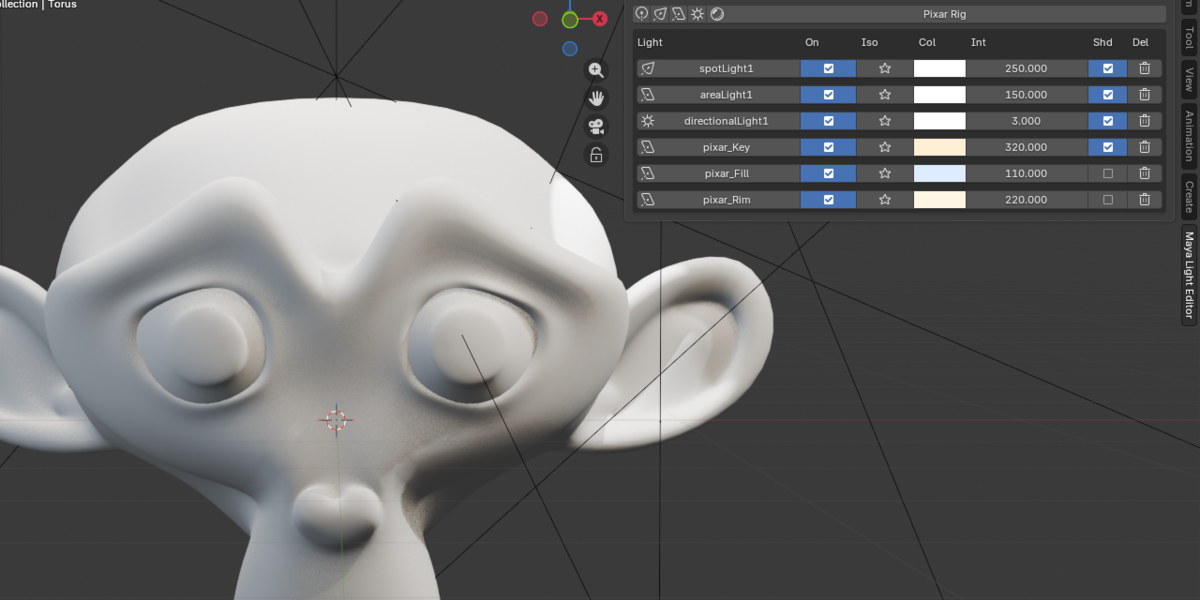


Maya Light Editor for Blender
User Documentation
1. Introduction
Maya Light Editor is a lighting management addon for Blender designed to simplify and improve the lighting workflow.
It provides a centralized interface for creating, managing, editing, and controlling scene lights without constantly navigating through Blender's menus and properties panels.
Whether you are creating simple scene lighting, product renders, architectural visualizations, or cinematic environments, Maya Light Editor helps make lighting faster, more organized, and more enjoyable.
2. Creating Lights
Maya Light Editor allows you to create different types of lights directly from its interface.
Supported light types:
Point Light – Emits light in all directions from a single point.
Area Light – Creates soft lighting with adjustable size and shape.
Sun Light – Provides directional lighting similar to sunlight.
Spot Light – Creates a focused beam of light with adjustable angle and falloff.
Newly created lights are automatically added to the Light Manager.
3. Light Manager
The Light Manager provides a centralized list of all lights in your scene.
From this list, you can:
Select individual lights.
Enable or disable lights.
Isolate individual lights.
Rename lights.
Delete lights.
This makes it easy to organize and control complex lighting setups without searching through the Outliner.
4. Light Properties
Select any light from the Light Manager to access its available properties.
Depending on the light type, you can adjust:
Color – Change the light color.
Intensity – Control the light's power.
Shadows – Enable or disable shadow casting.
Size – Adjust the size of supported lights.
Spot Angle – Control the beam angle of Spot Lights.
Other Properties – Access additional settings depending on the selected light type.
5. Isolate Mode
Isolate Mode allows you to preview an individual light without interference from other lights in the scene.
When Isolate is enabled:
The selected light remains active.
Other lights are temporarily disabled.
You can evaluate the selected light's contribution.
Disabling Isolate restores the previous lighting states.
Isolate Mode is particularly useful when building complex lighting setups and adjusting individual lights.
6. Viewport and Render
Maya Light Editor is designed to keep lighting controls consistent between the viewport and final rendering.
Light visibility and isolation controls are intended to affect both viewport previews and rendered output.
This allows you to evaluate lighting changes directly in the viewport before producing the final render.
7. Workflow
A typical lighting workflow:
Open Maya Light Editor.
Add the desired light types.
Select a light from the Light Manager.
Adjust its color and intensity.
Enable or disable shadows as needed.
Use Isolate Mode to evaluate individual lights.
Repeat the process until you achieve the desired lighting setup.
Render your scene.
8. Compatibility
Software: Blender
Addon: Maya Light Editor
For the best experience, use a Blender version supported by your installed addon release.
Maya Light Editor – Make Lighting Simple.
Have questions about this product?
Login to message
| Published | 1 day ago |
| Blender Version | 4.0 - 5.3 |
| Extension Type | N/A |
| Render Engine Used | Cycles, Eevee |
| License | GPL |

Discover more products like this
arealight blender spotlight directionallight Lighting 3pointlighting 3DPointLighting worldlight