Mme Multi-Material Editor
 Richard Throgmorton


Blender Multi-Materials Editor
Quick Reference Guide
Version
0.9.0 | Author: Richard Throgmorton
If you need assistance I can be reached at [email protected]
Overview
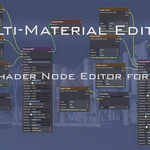
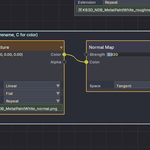
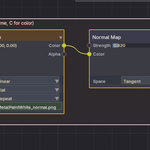
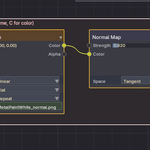
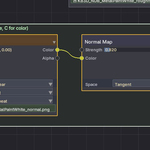
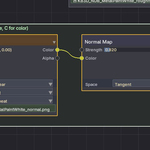
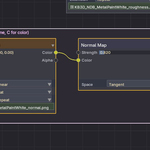
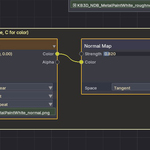
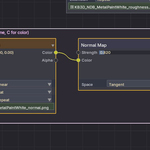
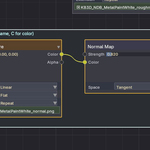
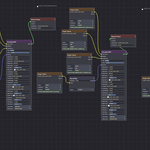
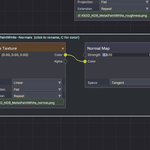
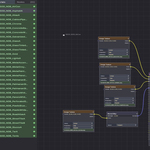
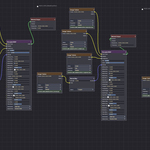
The Multi-Materials Editor (MME) is a visual shader node editor for Blender, inspired by 3D Studio Max’s Slate Material Editor. It allows you to view and edit multiple materials simultaneously on a single canvas, or in separate tabbed canvases, with an intuitive node-and-wire interface.
Getting Started
Select one or more mesh objects that have materials assigned.
Open the 3D Viewport sidebar (press N).
Go to the “Multi-Mat” tab.
Click “Open Multi-Mat Editor”.
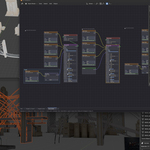
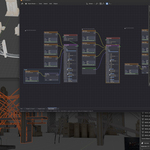
The editor opens as an overlay on the 3D viewport. For best results, split your viewport and run the editor in one pane.
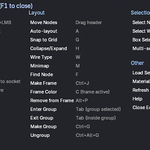
Keyboard Shortcuts
|
Navigation |
|
|
Pan canvas |
Middle Mouse Button / Shift + Left Click drag |
|
Zoom |
Scroll Wheel |
|
Frame all nodes |
Home |
|
Selection |
|
|
Select node |
Left Click on header |
|
Select wire |
Left Click on wire |
|
Multi-select |
Ctrl + Left Click |
|
Box select |
Drag on empty canvas area |
|
Editing |
|
|
Add node (popup menu) |
Shift + A |
|
Delete node/wire |
X or Delete |
|
Connect sockets |
Drag from output socket to input socket |
|
Disconnect wire |
Alt + Left Click on wire |
|
Copy selected nodes |
Ctrl + C |
|
Paste nodes |
Ctrl + V |
|
Undo |
Ctrl + Z |
|
Redo |
Ctrl + Shift + Z |
|
Layout & Display |
|
|
Move nodes |
Drag node header |
|
Auto-layout |
A |
|
Snap to grid |
G |
|
Collapse / Expand node |
H |
|
Cycle wire type |
W (Bezier / Straight / Step / Curvy) |
|
Toggle minimap |
M |
|
Find node |
F |
|
Node Groups |
|
|
Create group from selection |
Ctrl + G |
|
Ungroup |
Ctrl + Alt + G |
|
Enter group |
Tab (with group node selected) |
|
Exit group |
Tab (while inside a group) |
|
Frames |
|
|
Create frame around selection |
Ctrl + J |
|
Cycle frame color |
C (with frame active) |
|
Remove nodes from frame |
Alt + P |
|
Rename frame |
Click label once to activate, click again to rename |
|
Other |
|
|
Toggle sidebar (Materials/Nodes) |
Tab |
|
Load selected objects’ materials |
S |
|
Refresh from Blender data |
R |
|
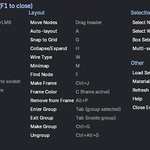
Show help overlay |
F1 |
|
Close editor |
ESC |
Features
Multi-Material Canvas
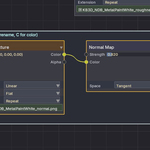
View and edit multiple materials on a single canvas. Each material’s node tree is displayed as a group of cards with colored wires connecting sockets. Materials are automatically spaced to avoid overlap.
Sidebar Browser
Press Tab to open the sidebar on the left. It has two modes:
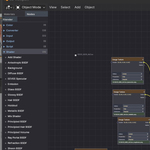
Materials — Lists all scene materials. Click to add to the canvas. Materials already on canvas are marked with a green dot.
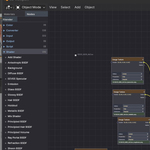
Nodes — Browse all available shader nodes by category. Supports third-party renderers (V-Ray, Corona, Octane, etc.) which appear as separate tabs when installed. Click a node to add it to the canvas.
Wire Types
Press W to cycle through four wire styles: Bezier (smooth curves), Straight (direct lines), Step (right-angle routes), and Curvy (pronounced bezier). Wires are colored to match their socket type: yellow for Color, grey for Value, blue for Vector, green for Shader.
Node Groups
Select nodes and press Ctrl+G to create a group. The selected nodes are replaced by a single group node. Tab into the group to see and edit its internal nodes. Tab out to return to the parent level. A breadcrumb bar shows your current depth. Ctrl+Alt+G ungroups a selected group node.
Node Frames
Select nodes and press Ctrl+J to create a visual frame around them. Frames help organize your canvas without creating Blender node groups. Click the frame label to select all nodes inside it and drag them together. Press C to cycle through six color presets. Click the label twice to rename it. Alt+P removes selected nodes from their frame.
Copy & Paste
Ctrl+C copies selected nodes with all their properties, input values, enum settings, image references, and interconnecting wires. Ctrl+V pastes them into the target material (the selected card’s material or the first material on canvas). Works across materials and tabs.
Minimap
Press M to toggle the minimap in the bottom-right corner. It shows an overview of all cards and wires with a viewport indicator. Click the minimap to jump to that position on the canvas.
Search
Press F to open the search bar. Type to find nodes by name, type, or material. All matches are highlighted and the canvas jumps to the first match. Press Tab to cycle through matches. Enter confirms, ESC cancels.
Canvas Tabs
The tab bar at the bottom lets you create multiple independent canvases. Each tab has its own set of materials, cards, wires, and frames. Click + to add a tab, click the active tab’s name to rename it.
Layout Persistence
Your canvas layout (card positions, collapsed state, frames, tabs) is automatically saved when you close the editor and restored when you reopen it. Layouts are stored per blend file using a scene property. Use the Save and Clear buttons in the N-panel for manual control.
Tips
Split your viewport and dedicate one pane to the MME for the best workflow.
Press Home to frame all nodes if you lose track of your canvas.
Use A to auto-layout materials with clean spacing after adding many at once.
All changes made in the MME (adding nodes, connecting wires, editing values) are reflected in Blender’s shader node tree in real-time.
Press R to refresh the canvas if external changes are made in Blender’s Shader Editor.
The editor detects scene switches and closes automatically. Reopen it in the new scene from the N-panel.
Support
For questions, feedback, or bug reports, please visit the product page on the marketplace where you purchased the add-on or contact me via [email protected].
© Richard Throgmorton. All rights reserved.
Have questions about this product?
Login to message
| Blender Extension Compatible | Yes |
| Dev Fund Contributor | |
| Published | 4 months ago |
| Blender Version | 5.0 - 5.2 |
| Extension Type | Add-on |
| Render Engine Used | Arnold, Blender-Internal, Blender-Game-Engine, Cycles, Eevee, Freestyle, Luxrender, Mental-Ray, Octane, Vray, Yafaray |
| License | GPL |