What’s the Difference Between Vulkan and DirectX Textures?
The only difference is that the green channel of the normal maps is inverted. This is for compatibility between different software, although most software supports flipping the green channel anyway.
Vulkan uses (Y+), which is the same as OpenGL, while DirectX uses (Y−). Literally, the only difference is the inverted green channel on the normal maps.
How to Use in Substance
The Substance .sbsar archive can be loaded into any application that supports the Substance Engine.
For Substance Painter and Substance Designer, simply drag and drop the .sbsar file into your graph or viewport.
For integrations such as Blender, Unreal Engine, or Unity, simply specify the path to the .sbsar file, and everything will be configured automatically.
How to Use in Unity
Simply download the Unity package and use the built-in Package Manager to import the materials and preconfigured shaders into your project.
How to Use in Unreal Editor for Fortnite
Simply download the UEFN package, unzip it, and move the contents of the ZIP file into the root of your UEFN project.
Be sure to extract the files directly into the root of your UEFN project so that all file paths load correctly. If you want to move the assets afterward, do so using the Unreal Content Browser.
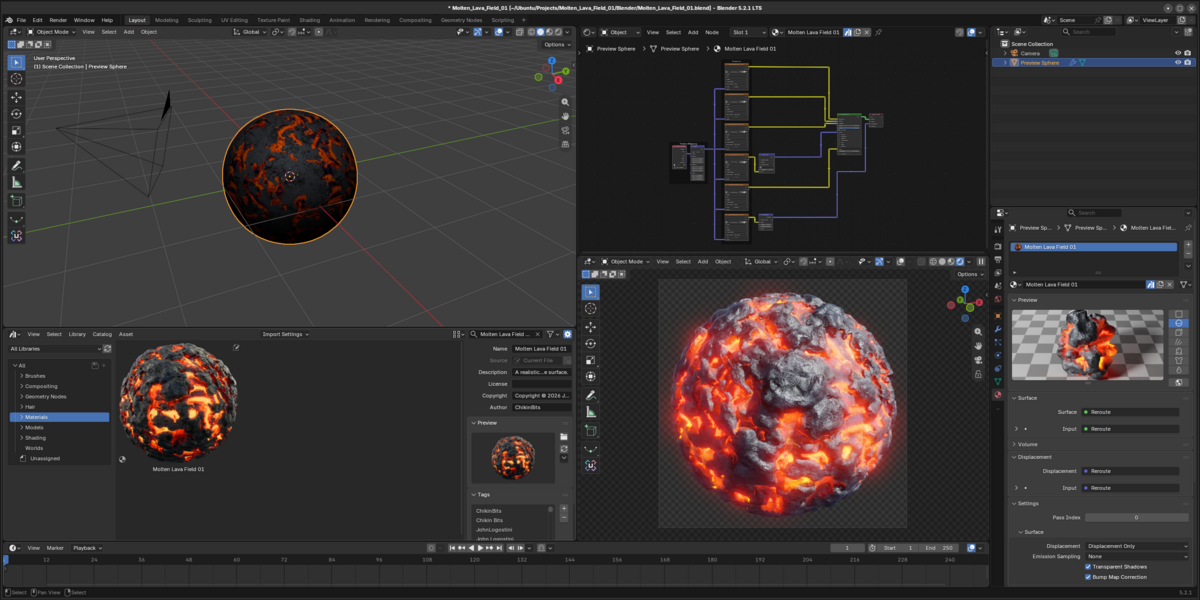
How to Use in Blender
There are multiple ways to use the material directly in Blender.
You can either set up your Superhive Online Asset Library in Blender to automatically gain access to the material directly within Blender, or simply download the included .blend file.
From there, you can either append the material from the downloaded .blend file into your own project, or move the downloaded .blend file into an Asset Library folder to make the material automatically accessible through Blender’s Asset Browser.
How to Use in Unreal Engine
Simply download the Unreal package, unzip it, and move the contents of the ZIP file into the root of your Unreal Engine project.
Be sure to extract the files directly into the root of your Unreal Engine project so that all file paths load correctly. If you want to move the assets afterward, do so using the Unreal Engine Content Browser.
How to Use in Godot
Simply download the Godot package, unzip it, and move the contents of the ZIP file into the root of your Godot project.
Be sure to extract the files directly into the root of your Godot project so that all file paths load correctly. If you want to move the assets afterward, do so using the Godot editor’s FileSystem dock.
 JohnLogostini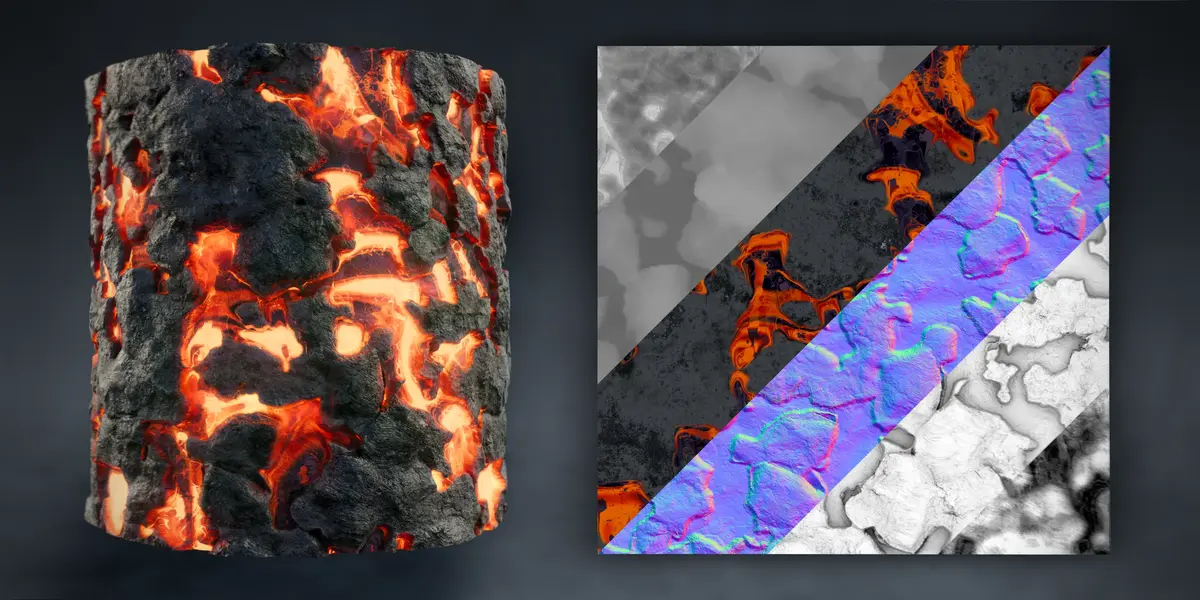
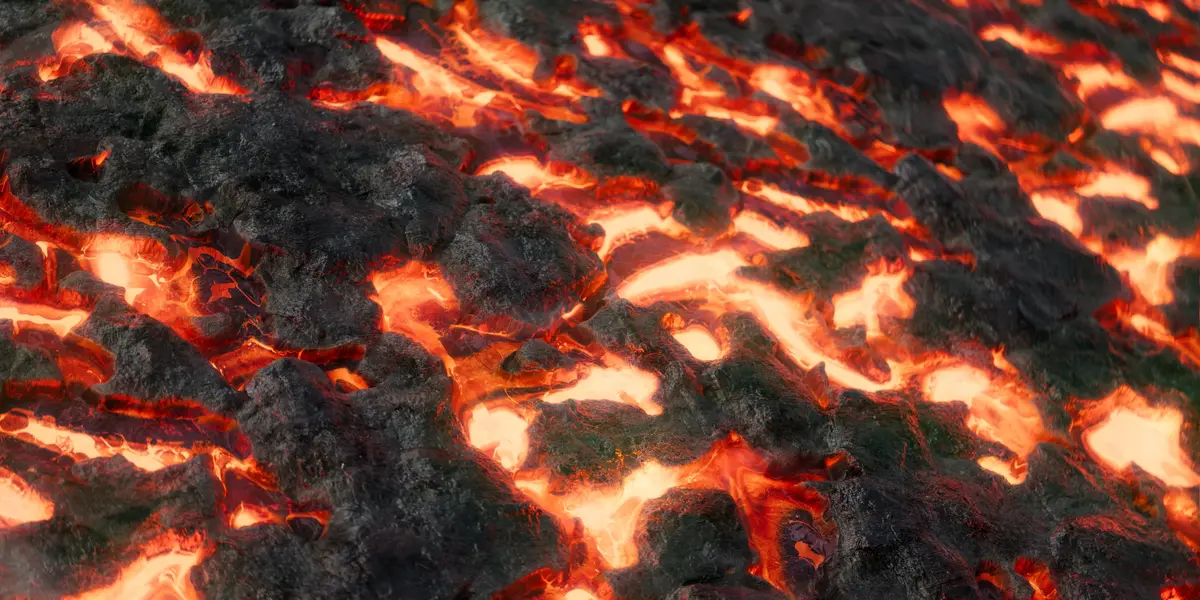
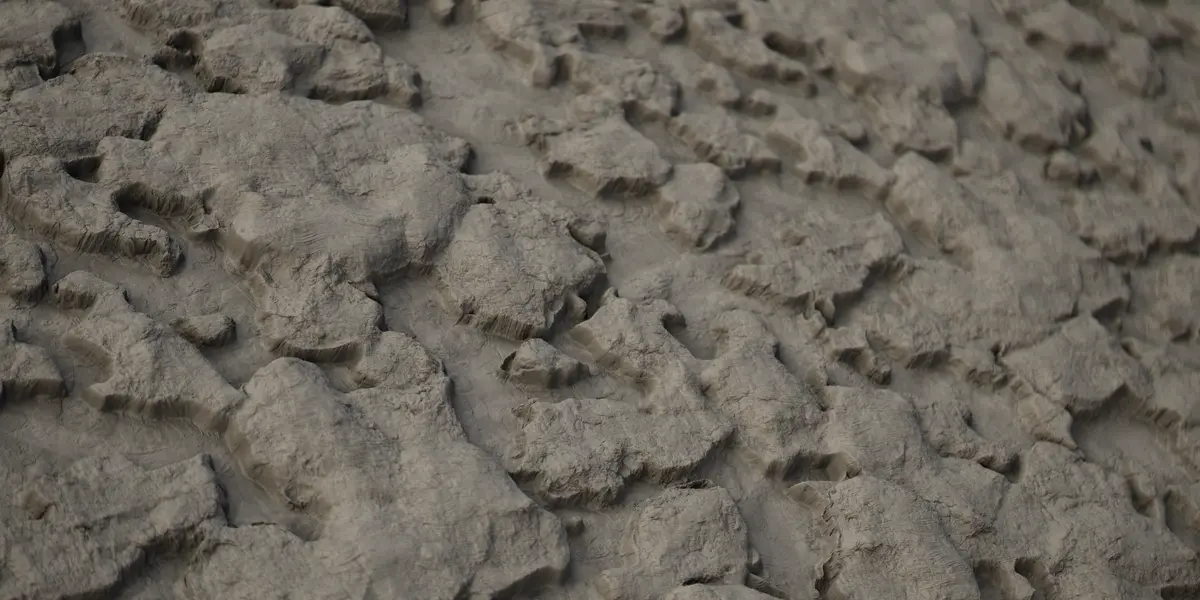
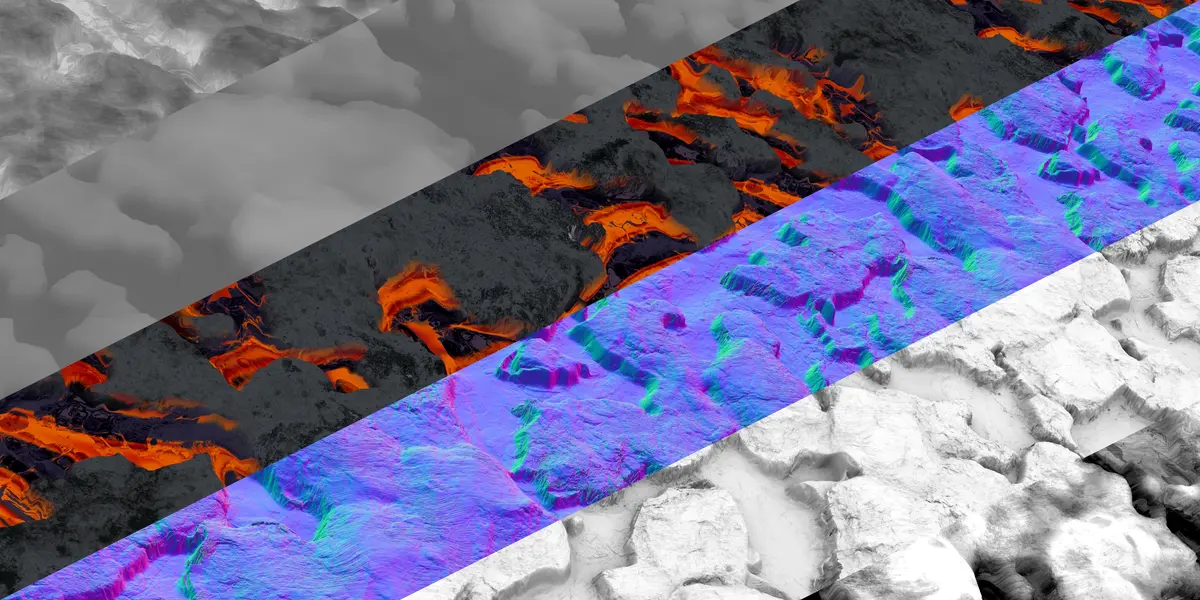
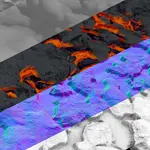
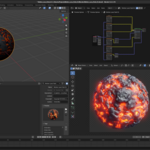
 Included