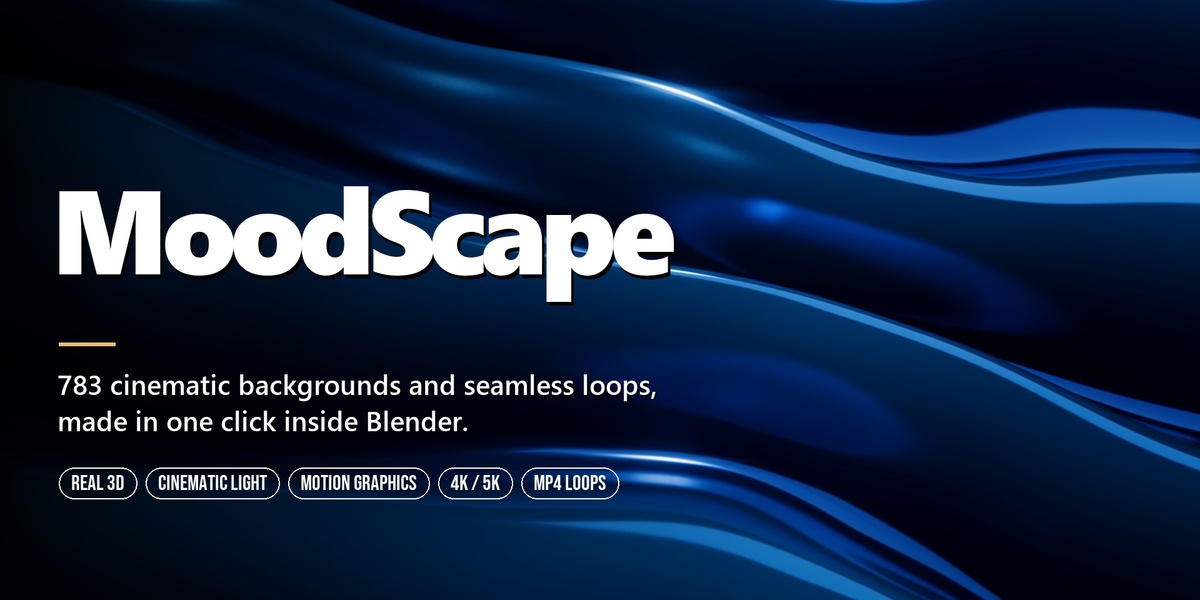
MoodScape
 GPolygon Design
Install
- In Blender 4.2 or newer: Edit > Preferences > Get Extensions, open the arrow menu at the top right and choose Install from Disk...
- Pick moodscape-1.0.0.zip.
- In the 3D View, press N and open the MoodScape tab.
Quick start
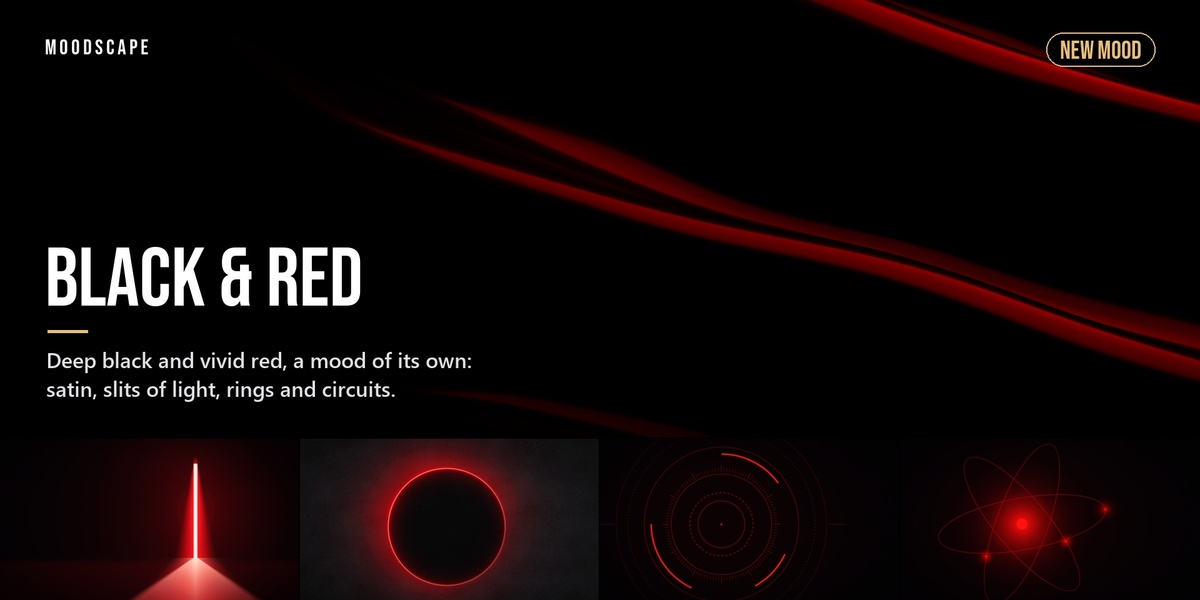
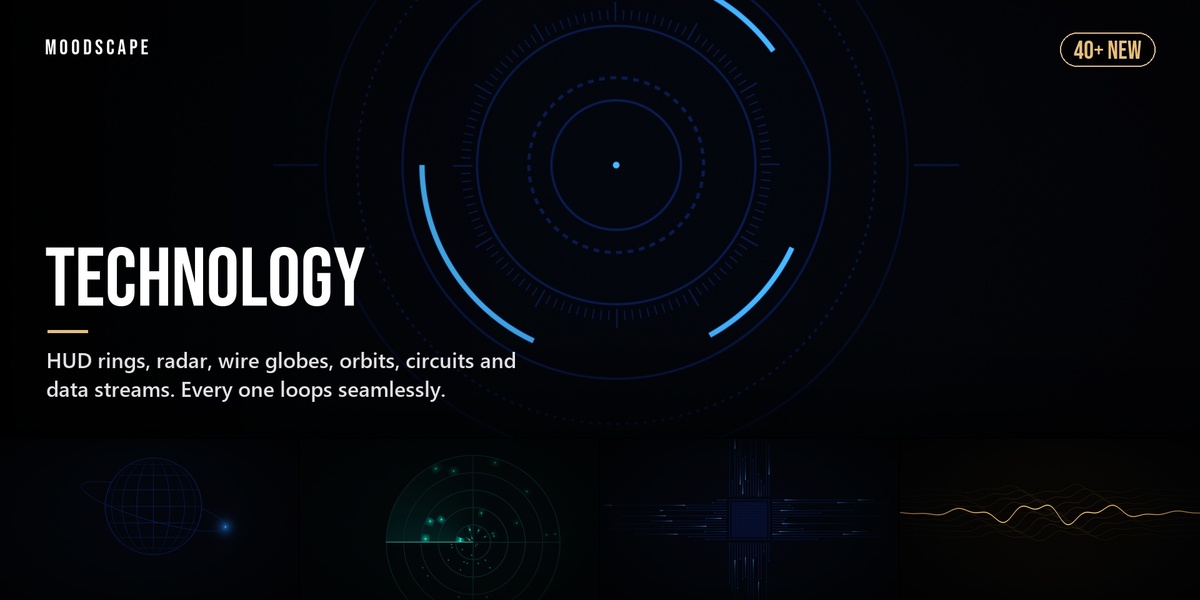
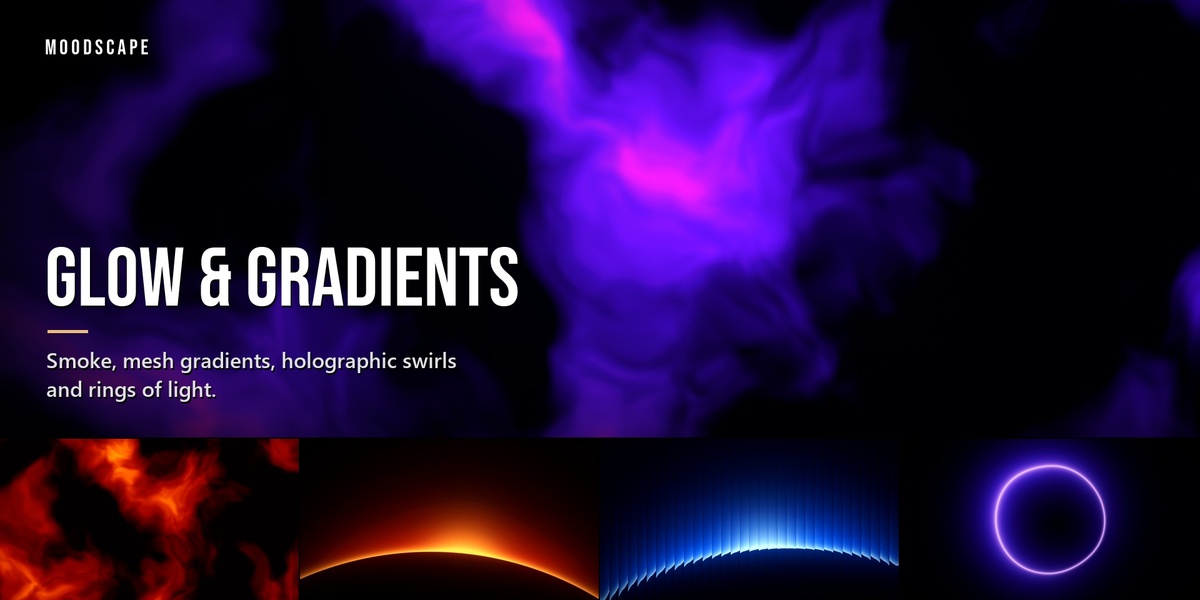
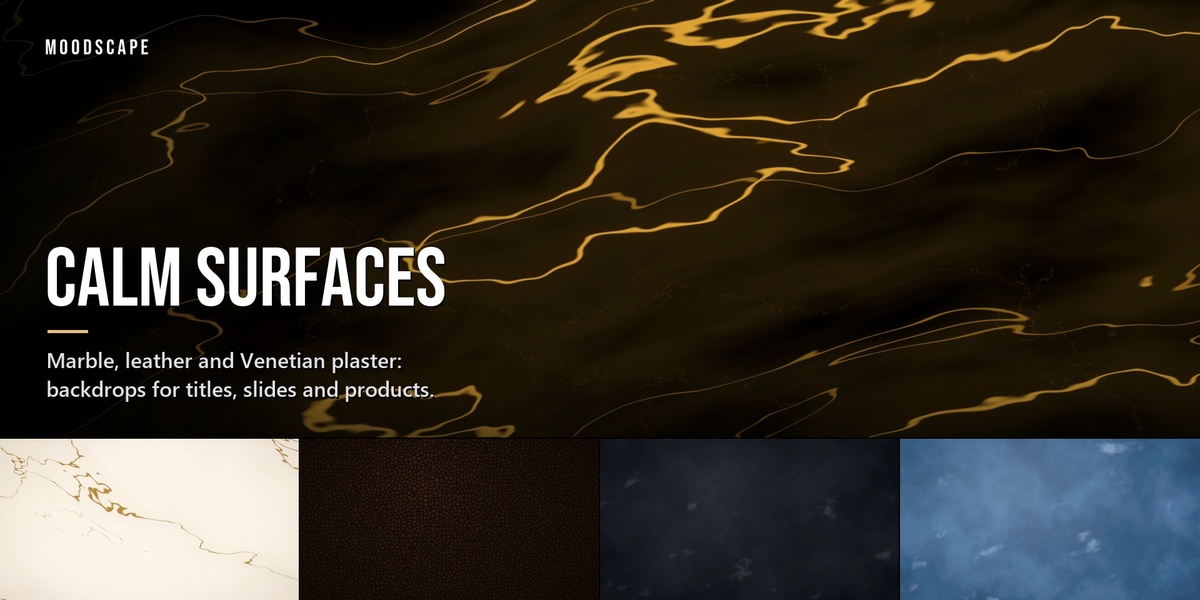
- Choose a Mood, or leave it on All Styles.
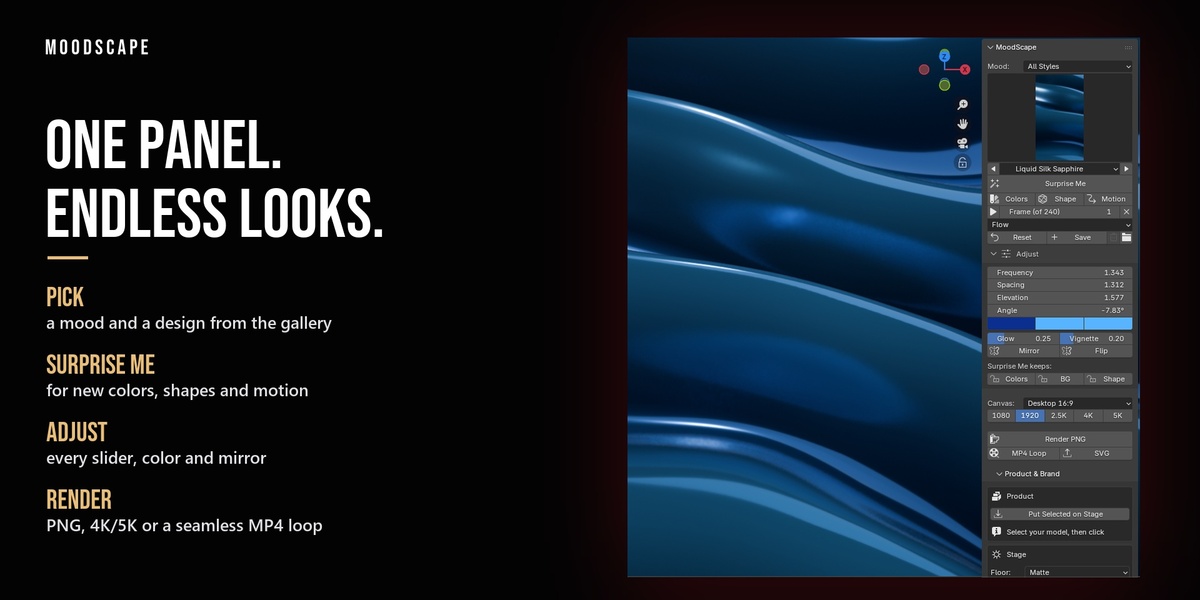
- Click the gallery and pick a design: it is applied at once. The arrows step through the list. Surprise Me makes a brand-new design in the chosen mood. Other objects in the scene are hidden from render; Alt+H shows them again.
- Colors tries another palette, Shape another shape, Motion makes the design move.
- Fine-tune it in Adjust, right under the gallery: the sliders that shape the current design, its colors, Glow and Vignette, and Mirror / Flip for the whole picture.
- Choose the Canvas and a size (1080 to 5K), then Render PNG or MP4 Loop.
Surprise Me and your own presets
- Surprise Me keeps Colors / BG / Shape: lock what you like and Surprise Me changes only the rest.
- Save stores the current design as your own preset with a thumbnail. The trash button deletes it; the folder button loads a design file (.json).
- Reset puts the current preset back as it was.
Moving designs
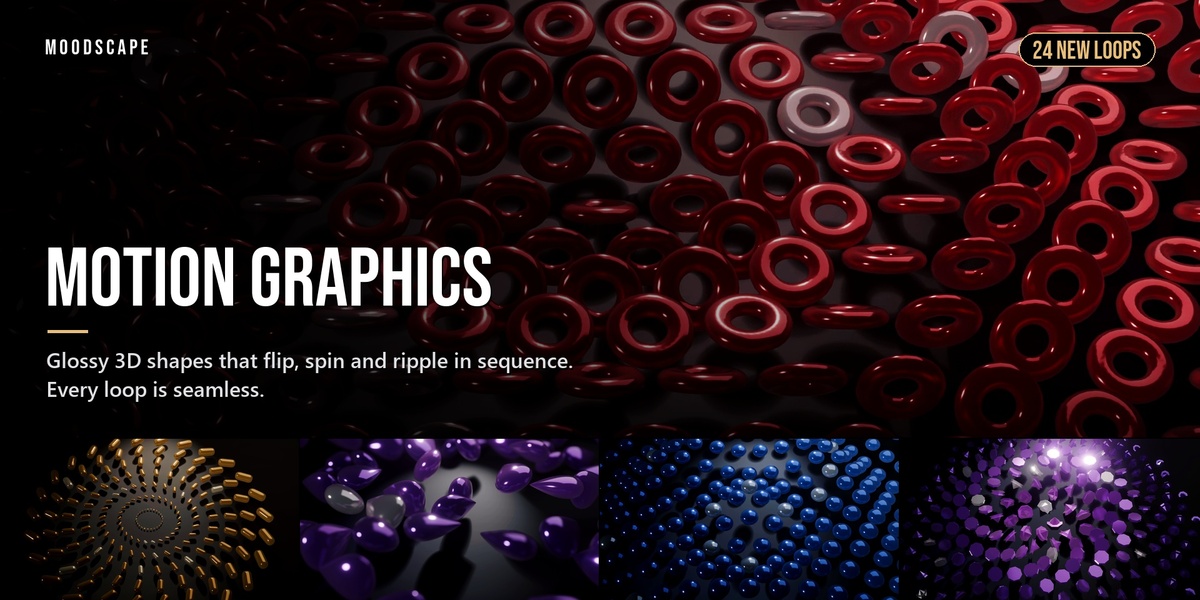
Motion gives the design a seamless loop and plays it. Press it again for another kind of motion. The motion list below it picks Flow, Camera Drift, Slow Push, Gentle Sway, Light Pulse or Color Cycle. While a design moves, the Frame box picks the frame for Render PNG and X removes the motion. Loop (s) and FPS are in Photo / Loop / Batch.
More control
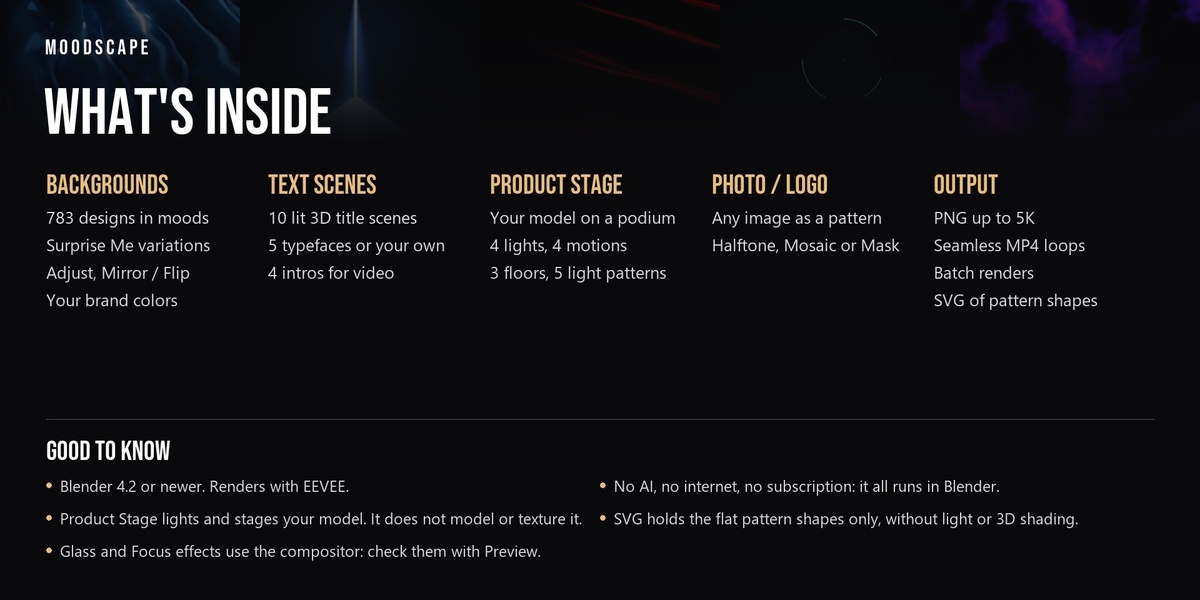
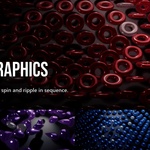
- Pattern & 3D Shapes: layout, shape, spacing, size, height, tilt and colors of the 3D designs.
- Background: the background type, its three colors and all of its sliders.
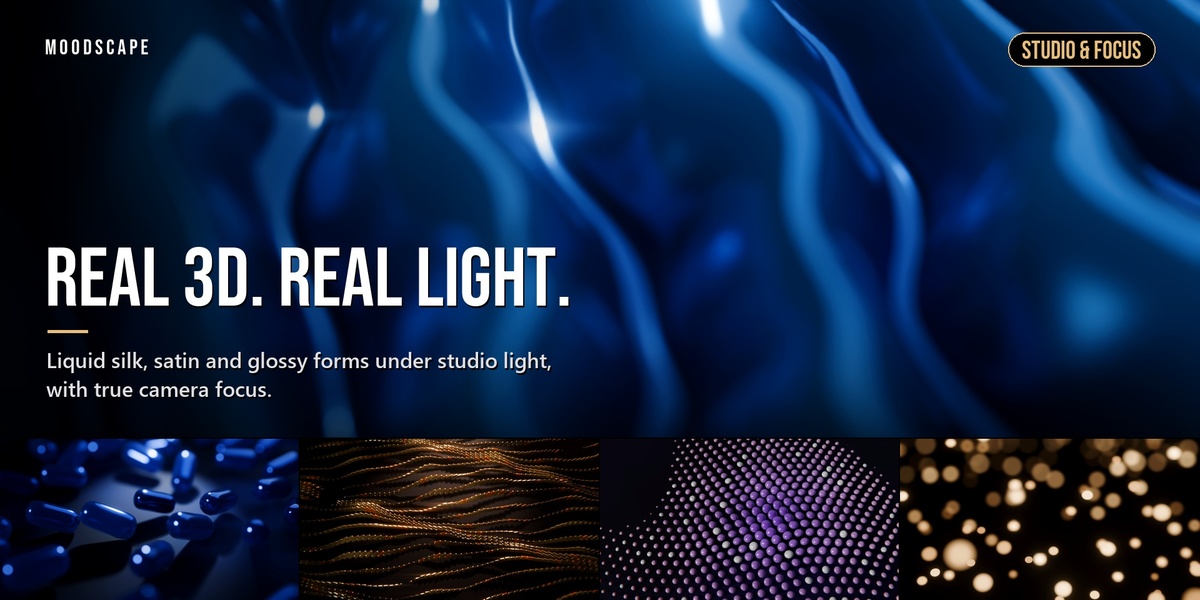
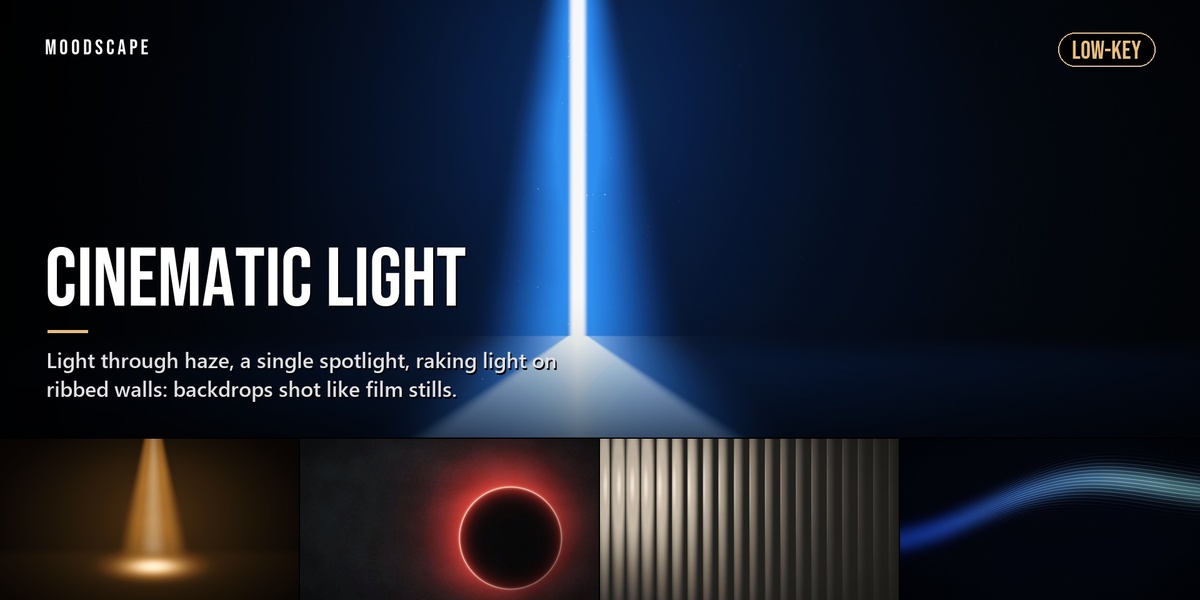
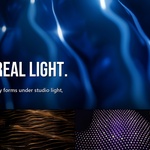
- Effects: particles (dust, bokeh, snow, rain, sparks, stars), tilt-shift and focus blur, fluted and frosted glass, film grain, vignette, glow, lens effects, haze and paper.
- My Colors: two brand colors that every design follows, including Surprise Me and Batch.
- Fine Tuning: style (Flat, Relief, Organic, Cinema), camera tilt and depth of field, palette and seed.
Hover over any setting for a short explanation.
Text Scenes
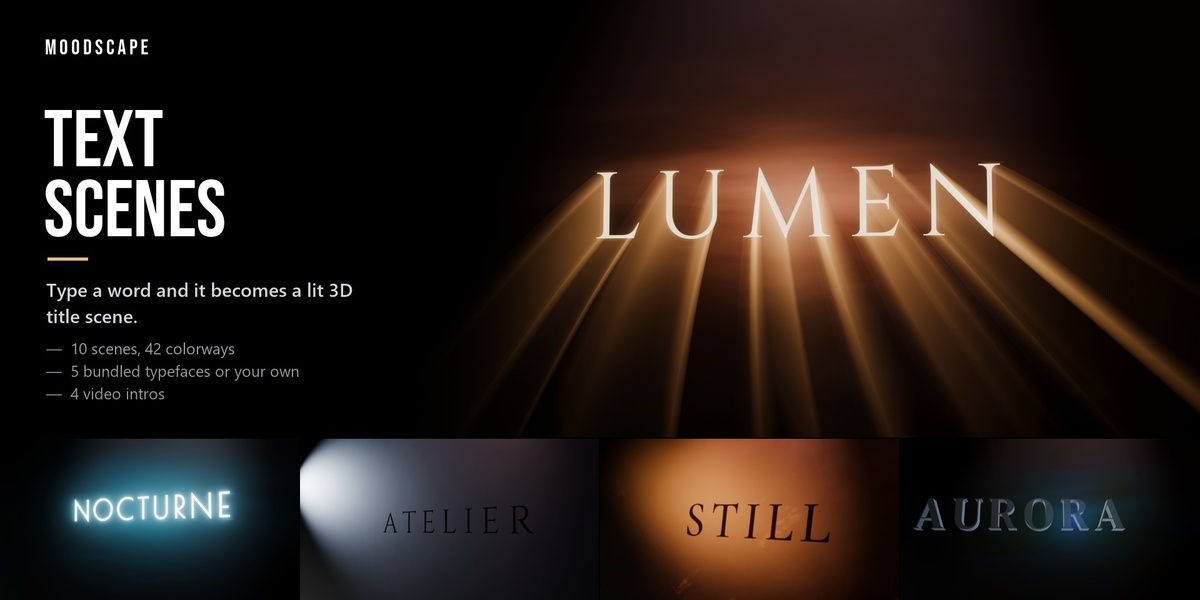
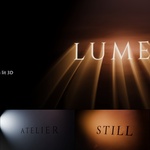
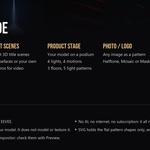
In Product & Brand > Text Scene, pick a scene and type your word, with an optional second line. Typeface picks one of five bundled title faces, or Own Font takes any .ttf / .otf file. Intro chooses how a video opens: Title Reveal, From Darkness, Push In or Focus Pull.
Product Stage
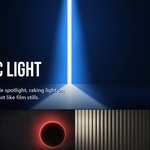
Select your model and click Put Selected on Stage. It is placed, lit and kept in focus; the model itself is not changed and the X button takes it off again. Choose the light (Soft Studio, Edge, Top Spot, Side), the motion (Still, Turntable, Sway, Float), the floor (Matte, Mirror, Water) and a light pattern (blinds, palm, water light, window, olive branch).
Photo / Logo
Load Image... turns any picture into a pattern: Halftone, Mosaic or Mask (keeps the pattern only inside the picture's shape; PNG logos use their transparency).
Batch
Renders many images into a new batch folder, with a contact sheet and a reloadable .json design file next to each image: New Designs, New Seeds, New Palettes or All Sizes.
Output
- Render PNG: a still at the chosen size.
- MP4 Loop: an H.264 video whose last frame meets the first.
- SVG: a flat vector of the pattern on a solid background.
Files go next to the .blend file, or to Pictures/MoodScape when the file is not saved.
Have questions about this product?
Login to message
| Blender Extension Compatible | Yes |
| Dev Fund Contributor | |
| Published | about 6 hours ago |
| Blender Version | 4.2 - 5.2 |
| Extension Type | Add-on |
| Render Engine Used | Eevee |
| License | GPL |
Discover more products like this
Generator background backgrounds motion graphics 3D background cinematic abstract wallpaper technology gradient procedural loop